# ApparelMagic: Setting up the integration
##### To connect Simple RFID to ApparelMagic, you'll need your account ID and an API Key from ApparelMagic.
#### 1. Determine your Account ID
When logged into ApparelMagic, your Account ID makes up the first part of the URL as shown here:
#### 2. Generate an API Key
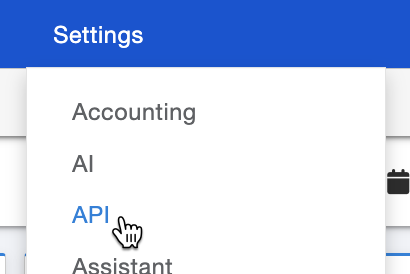
In ApparelMagic, navigate to Settings > API.
[](https://kb.simplerfid.com/uploads/images/gallery/2026-02/D9ximage.png)
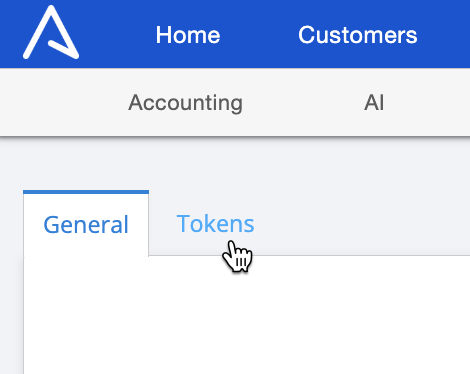
In the top-left of the page, open the ****Tokens**** tab, then press ****+ New**** at the bottom-left:
[](https://kb.simplerfid.com/uploads/images/gallery/2026-02/hvtimage.png)[](https://kb.simplerfid.com/uploads/images/gallery/2026-02/TX7image.png)
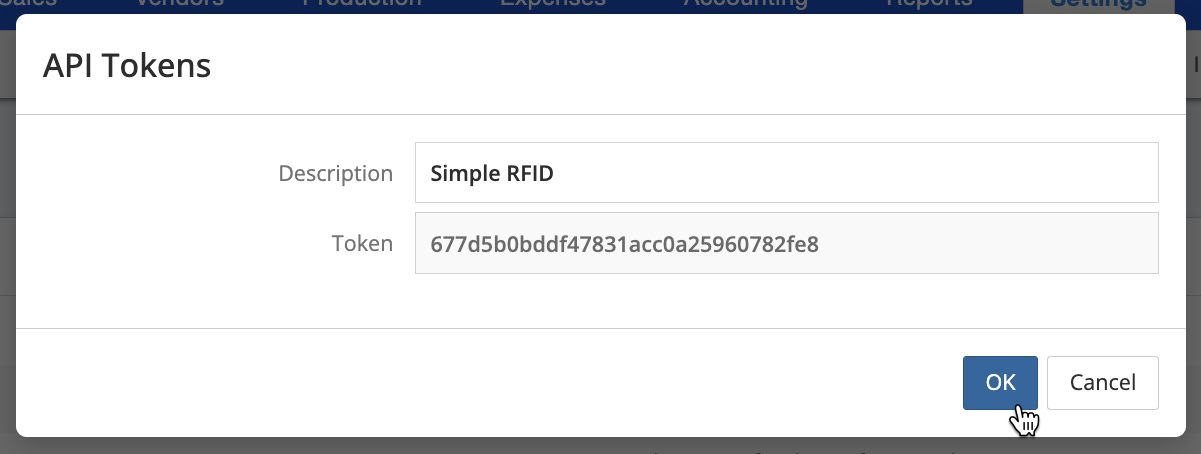
Give the token a description, like "Simple RFID". Make a note of the Token (you'll enter this in Simple RFID) then press ****OK.****
[](https://kb.simplerfid.com/uploads/images/gallery/2026-02/FSiimage.png)
Last, make sure to press ****Save**** at the bottom-right of the page.
[](https://kb.simplerfid.com/uploads/images/gallery/2026-02/ULkimage.png)
#### 3. Enter your Account ID and API Key
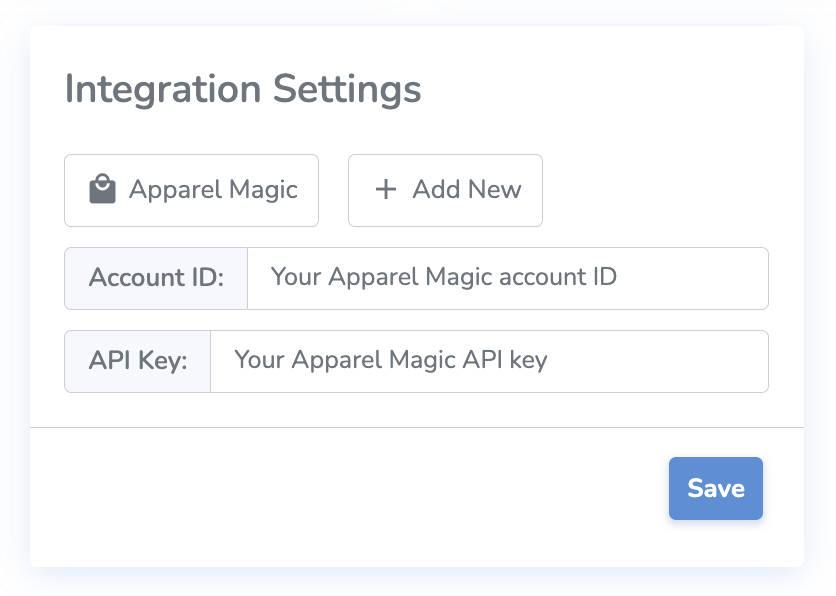
With this information collected, enter your ApparelMagic Account ID and API key in the Customer Profile page in Simple RFID, then press ****Save****:
[](https://kb.simplerfid.com/uploads/images/gallery/2026-02/screenshot-2026-02-16-at-8-40-36-am.png)
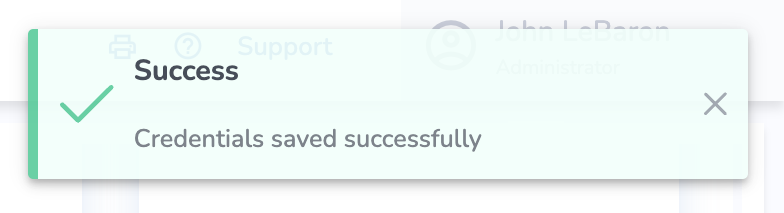
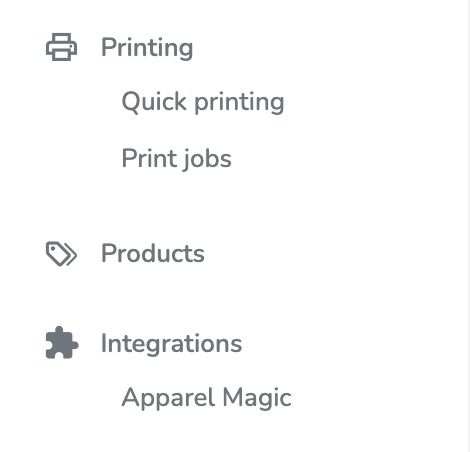
You should see a message that the credentials saved successfully, then you will see the ApparelMagic page appear under ****Integrations**** in the side navigation.
[](https://kb.simplerfid.com/uploads/images/gallery/2026-02/lf8image.png)
[](https://kb.simplerfid.com/uploads/images/gallery/2026-02/screenshot-2026-02-16-at-9-23-42-am.png)