# Reimport Products

##### If your Shopify products fail to appear in your Simple RFID Products tab, you may need to reimport them manually. Here's how:

<span style="white-space: pre-wrap;">Go to the </span>****Products**** <span style="white-space: pre-wrap;">page in the </span>[<span style="white-space: pre-wrap;">SimpleRFID </span>](https://portal.simplerfid.com/)web portal and verify if the item can be found by its name or SKU.

[![image.png](https://kb.simplerfid.com/uploads/images/gallery/2026-05/scaled-1680-/hSXimage.png)](https://kb.simplerfid.com/uploads/images/gallery/2026-05/hSXimage.png)

<span style="white-space: pre-wrap;">If a product wasn't found, go to the </span>****Products**** <span style="white-space: pre-wrap;">page under the SimpleRFID app in Shopify. </span>

[![image.png](https://kb.simplerfid.com/uploads/images/gallery/2026-05/scaled-1680-/sruimage.png)](https://kb.simplerfid.com/uploads/images/gallery/2026-05/sruimage.png)

<p class="callout warning">A product won't be imported, either manually or automatically, if a SKU is missing!</p>

<span style="white-space: pre-wrap;">Click the </span>****Add Sku**** button. It will open the product properties.

[![image.png](https://kb.simplerfid.com/uploads/images/gallery/2026-05/scaled-1680-/3qJimage.png)](https://kb.simplerfid.com/uploads/images/gallery/2026-05/3qJimage.png)

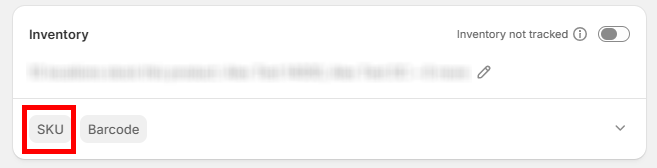
Scroll down to the ****Inventory****<span style="white-space: pre-wrap;"> tile</span> <span style="white-space: pre-wrap;">and click </span>****SKU****.

[![image.png](https://kb.simplerfid.com/uploads/images/gallery/2026-05/scaled-1680-/55Limage.png)](https://kb.simplerfid.com/uploads/images/gallery/2026-05/55Limage.png)

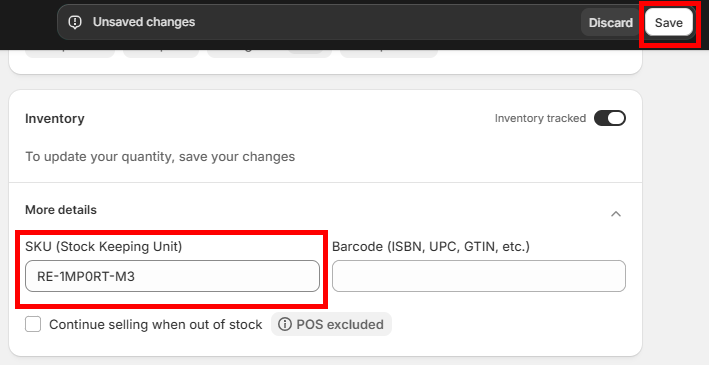
<span style="white-space: pre-wrap;">Type in the </span>****SKU****<span style="white-space: pre-wrap;"> and click </span>****Save****.

[![image.png](https://kb.simplerfid.com/uploads/images/gallery/2026-05/scaled-1680-/e8limage.png)](https://kb.simplerfid.com/uploads/images/gallery/2026-05/e8limage.png)

<span style="white-space: pre-wrap;">Go back to the </span>****Products**** page under the SimpleRFID app in Shopify.

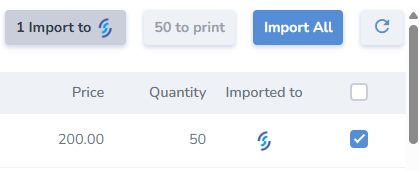
[![image.png](https://kb.simplerfid.com/uploads/images/gallery/2026-05/scaled-1680-/M6uimage.png)](https://kb.simplerfid.com/uploads/images/gallery/2026-05/M6uimage.png)
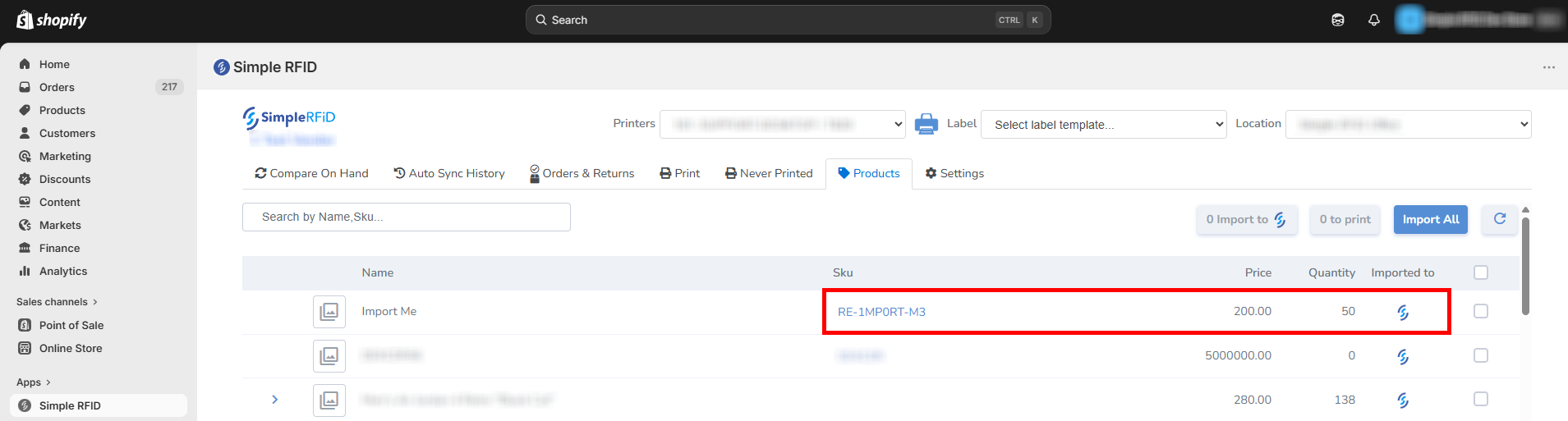
<p class="callout success"><span style="white-space: pre-wrap;">If a product has </span>[![image.png](https://kb.simplerfid.com/uploads/images/gallery/2026-05/scaled-1680-/O09image.png)](https://kb.simplerfid.com/uploads/images/gallery/2026-05/O09image.png)<span style="white-space: pre-wrap;"> icon in the </span>****Imported to****<span style="white-space: pre-wrap;"> column,</span> it's now auto-imported</p>

Products can still be imported manually. Select a product -&gt; ****Import to SimpleRFID****.

[![image.png](https://kb.simplerfid.com/uploads/images/gallery/2026-05/scaled-1680-/06rimage.png)](https://kb.simplerfid.com/uploads/images/gallery/2026-05/06rimage.png)

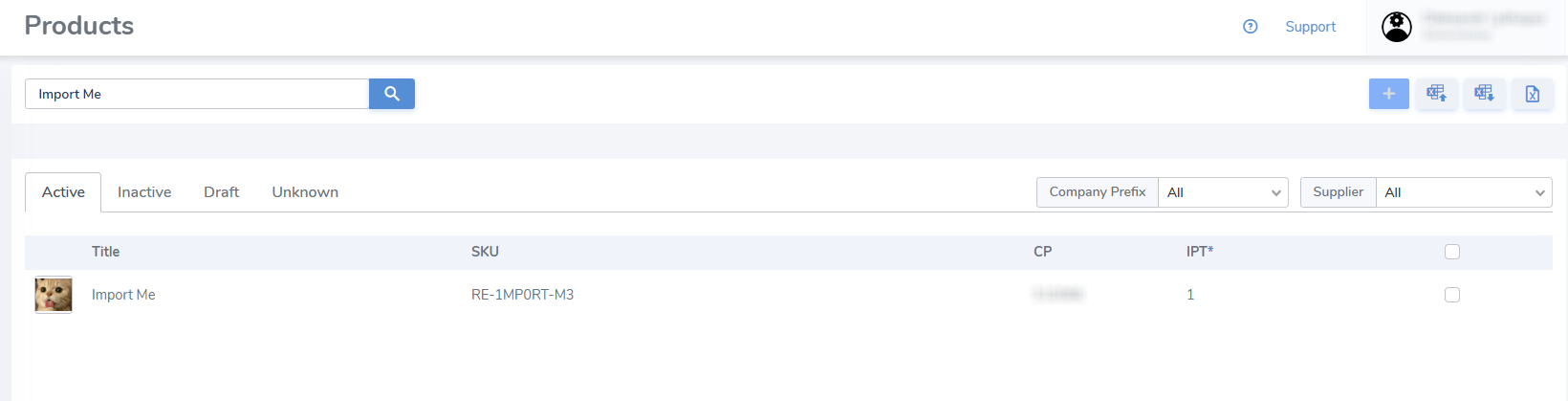
<p class="callout success">The product has been imported successfully!</p>

[![image.png](https://kb.simplerfid.com/uploads/images/gallery/2026-05/scaled-1680-/M3wimage.png)](https://kb.simplerfid.com/uploads/images/gallery/2026-05/M3wimage.png)