Remember, [Archived items can be restored](https://kb.simplerfid.com/books/mobile-app/page/scan-summary-statuses) when scanning but will not be added back into inventory by default.
****1. Compare Inventory -**** Identify mismatched items via the Compare Tool. ****2. Start**** [****Audit****](https://kb.simplerfid.com/books/auditing/page/audit-shopify)****.**** from the [mobile app](https://kb.simplerfid.com/books/auditing/page/audit-shopify), or from the [web portal](https://kb.simplerfid.com/books/web-portal/page/reset-inventory-from-web-portal). ****3.**** [****Scan****](https://kb.simplerfid.com/books/mobile-app/page/scan) ****inventory**** - Use Speed to capture most items quickly. Density scan option to identify if tags have been missed. ****4. Compare Inventory**** - Load the compare tool again to confirm mismatched items. ****5. Resolve**** - If mismatches still exist, - Manually check: - Does the quantity match the partner On Hand? - Are items missing tags? - Are items packed too densely? - Are there missing items? - Are there items blocking the signal? - Do you need to be closer to capture the tags? - Try different tags if overall readability is poor - Print Tags - for missing items - [Scan](https://kb.simplerfid.com/books/mobile-app/page/scan) inventory to capture missing tags - [Scan](https://kb.simplerfid.com/books/mobile-app/page/scan) new items - Adjust inventory for missing items can mark them as shrinkage 6\. Repeat Steps 4 & 5 until no Mismatches appear Following these steps will promote confidence in the technology and ensure that your inventory is always accurate. ##### ****Removing Inventory (Archiving)**** Archive Scan Sales Order Verification scan Shipping Transfers # Resolve & Sync This article describes the process of resolving inventory count discrepancies and syncing to Shopify after you [perform](https://kb.simplerfid.com/books/auditing/page/audit-shopify)[ an Audit](https://kb.simplerfid.com/books/auditing/page/audit-shopify).This feature is currently only available for customers using our Shopify integration. For all other customers, refer to the [Audit & Compare article](https://kb.simplerfid.com/books/scanning-auditing/page/audit-compare)
### ****What is a Resolution?**** In Simple RFID, a ****Resolution**** is how we update Shopify's inventory counts to match our scanned counts. Each product that is ****Mismatched**** needs a ****Reason**** for that mismatch. A ****Reason**** could be missing tags, more products than Shopify expected, etc. Each reason has an ****Action**** attached to it. An ****Action**** could be printing tags, scanning tags, or updating Shopify's inventory count. The ****Resolution Center**** allows you to give ****Reasons**** and perform ****Actions**** for products that are ****Mismatched****. ### ****Access the Resolution Center**** From an ****Audit****, you can go to the ****Resolution Center****. This is where you can give reasons for specific items being over expected or under expected. [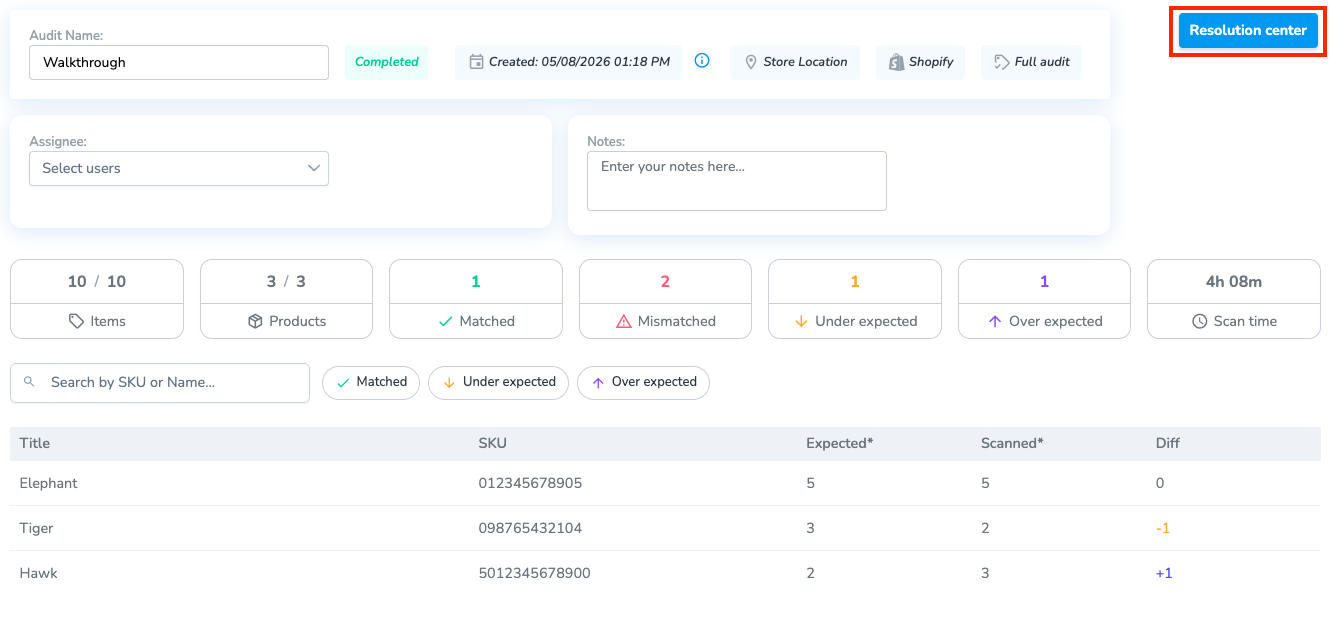](https://kb.simplerfid.com/uploads/images/gallery/2026-05/Z9Tbrave-screenshot-portal-simplerfid-com.png) You can also access this page from the ****Resolve & Sync**** tab in the navigation menu. ### ****Resolve Mismatched Products**** [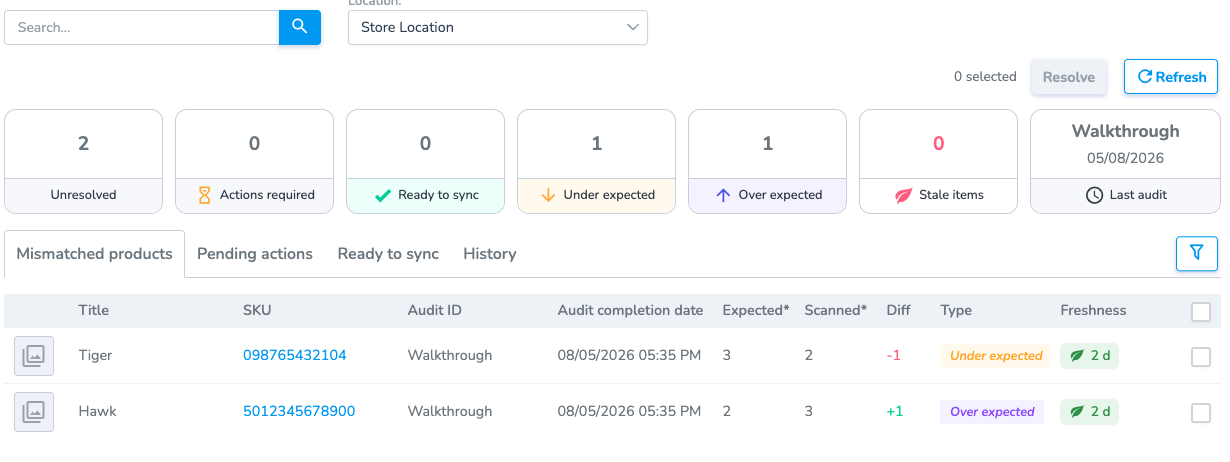](https://kb.simplerfid.com/uploads/images/gallery/2026-05/Hptimage.png) Each product can be in one of three categories: - ****Mismatched Products:**** The products is either ****Under Expected**** or ****Over Expected**** without a ****Resolution**** - ****Pending Actions:**** The products are waiting for a specific ****Action**** to be taken (printing, scanning, etc.) - ****Ready to Sync:**** The products are waiting to be synced with Shopify You can select one or multiple products, and click ****Resolve**** to bring you to the resolution step. There are two groups on this page, ****Under Expected****, and ****Over Expected.**** [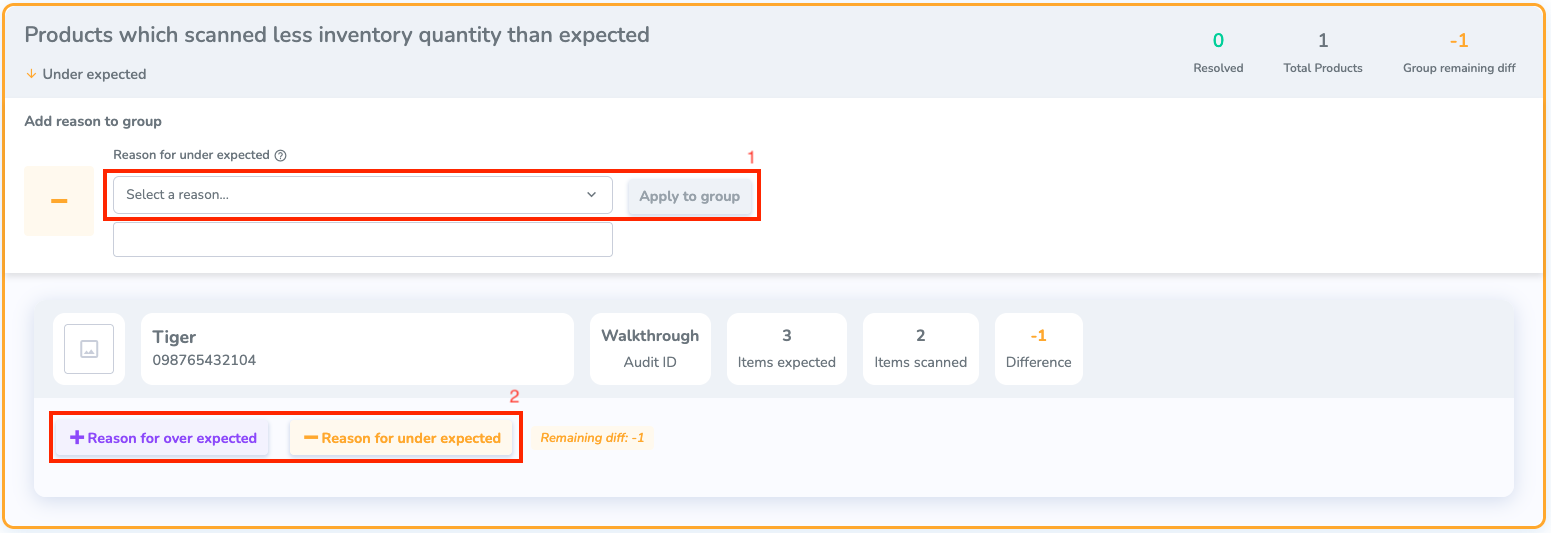](https://kb.simplerfid.com/uploads/images/gallery/2026-05/brave-screenshot-portal-simplerfid-com-1.png) To ****Resolve**** a mismatch, you need to give it a ****Reason****. Depending on the reason you give it, it will require a specific ****Action.**** There are two different ways you can add a ****Reason****: 1. ****Group Reason****: Give the same reason for every product selected 2. ****Single Reason****: Give a reason for a specific product Once you have selected a ****Reason**** for all of the products, any that require an ****Action**** will be put in the ****Pending Actions**** section in the ****Resolve & Sync**** tab. [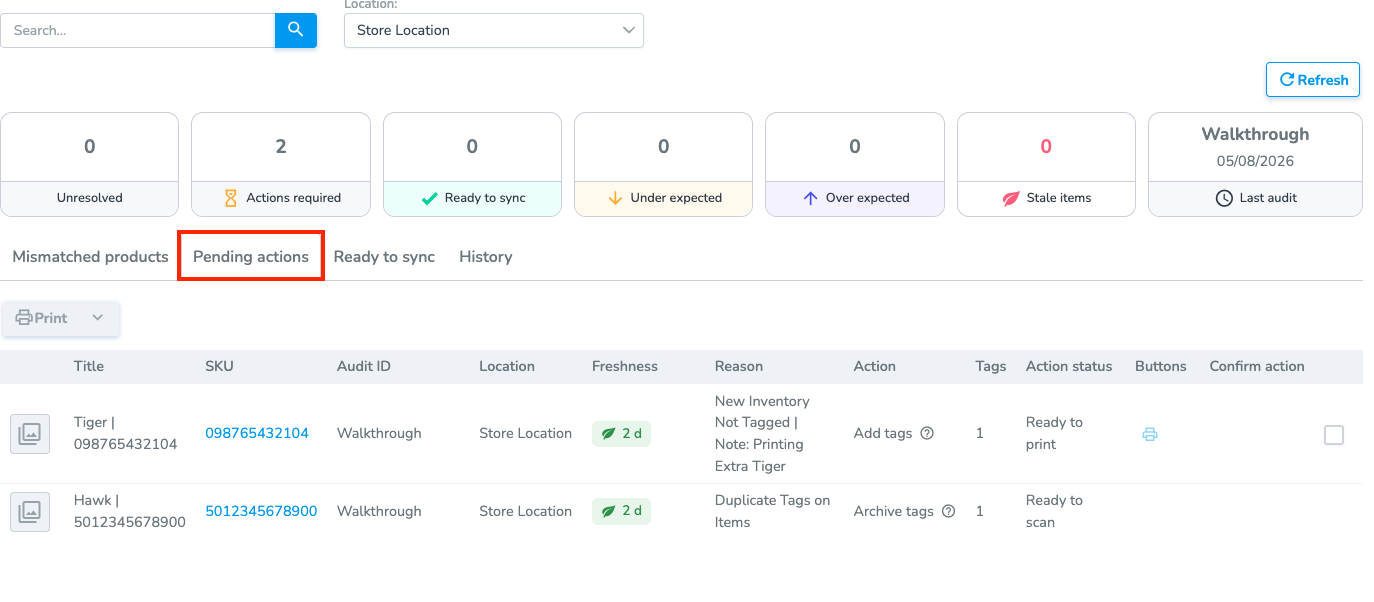](https://kb.simplerfid.com/uploads/images/gallery/2026-05/brave-screenshot-portal-simplerfid-com-2.png)Some Actions can only be resolved on the Simple RFID mobile app. For example, archiving an extra tag.
From here, you can see the ****Action**** that needs to be taken. You can hover over the ****Action**** column to see what needs to be done. Any products that need to be synced will be in the ****Ready to Sync**** tab. [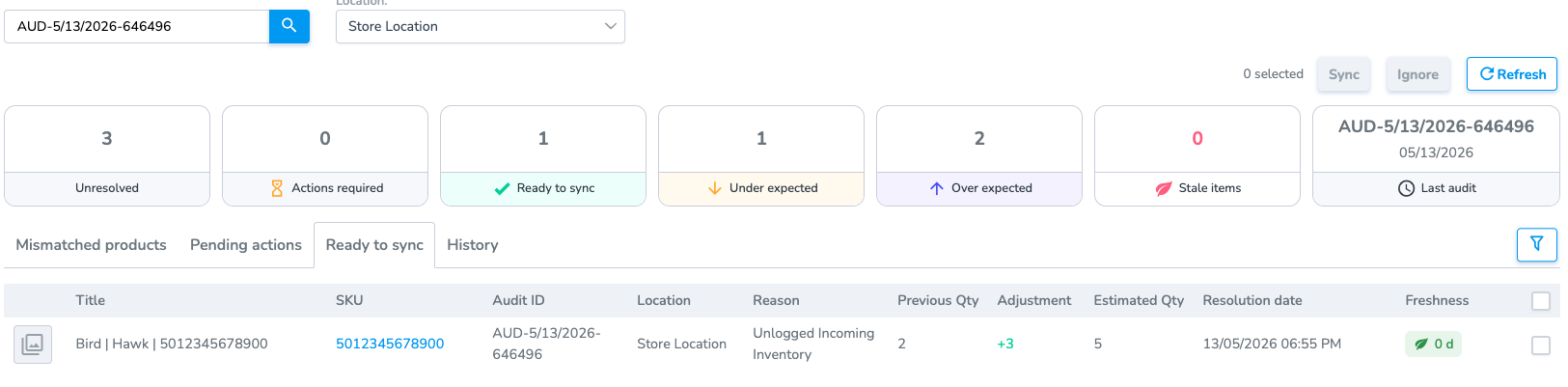](https://kb.simplerfid.com/uploads/images/gallery/2026-05/th6image.png) You can ****Ignore**** products, this will remove them from the Resolve page without updating Shopify # Compare Scan This article describes the process of scanning inventory with a live comparison of your current inventoryFor information on the different settings on the scan page, [please read here](https://kb.simplerfid.com/books/mobile-app/page/scan-settings)
### ****Starting a Compare Scan**** There are multiple places where you can perform a Compare Scan. These include: - [Audit with Shopify](https://kb.simplerfid.com/books/auditing/page/audit-shopify) - [Audit & Compare](https://kb.simplerfid.com/books/scanning-auditing/page/audit-compare) It's important to note that the Compare Scan has the same function in both places you perform it: You want to compare an inventory is matched with your current physical inventory in real time. On the Scan page, there are two values for each product that you will want to keep track of - ****Scanned:**** The number of tags that have been scanned this session - ****Expected:**** The inventory count currently in the inventory [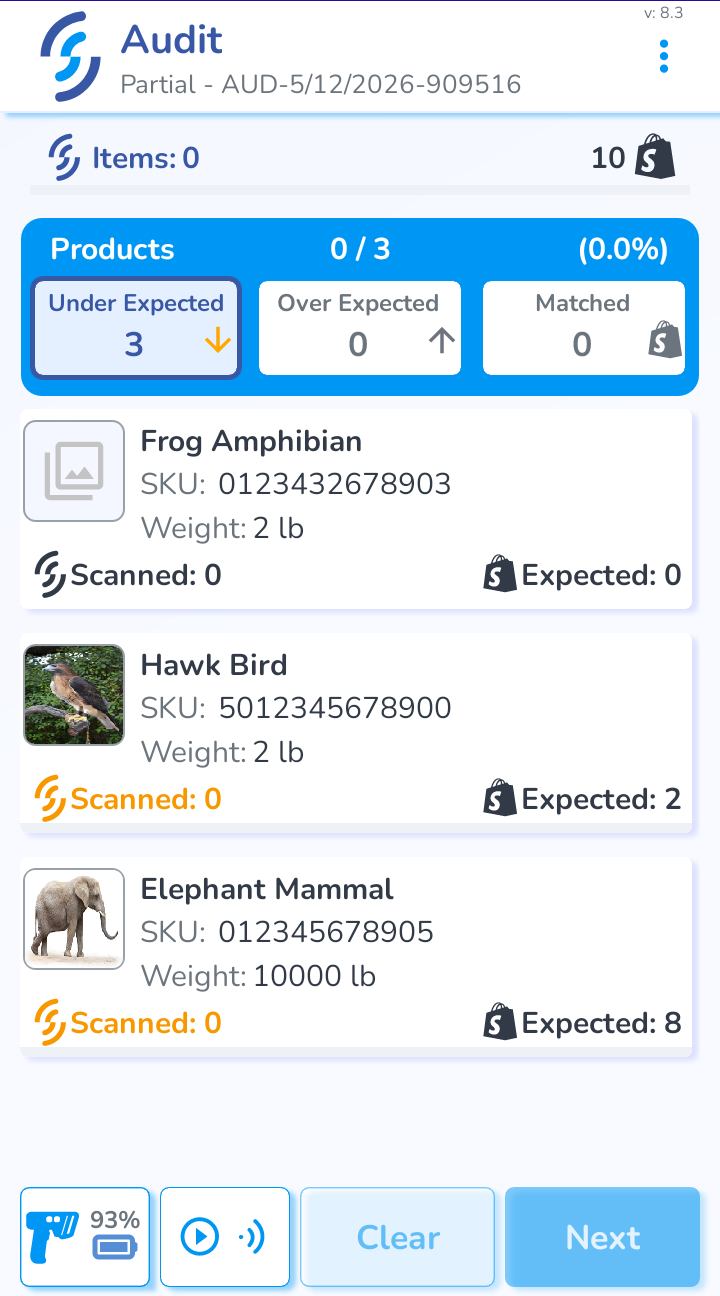](https://kb.simplerfid.com/uploads/images/gallery/2026-05/screenshot-20260512-1749412.png) There are three possible states that a product can have: - ****Under Expected:**** The ****Scanned**** amount is less than the ****Expected**** amount - ****Over Expected:**** The ****Scanned**** about is more than the ****Expected**** amount - ****Matched:**** The ****Scanned**** amount is equal to the ****Expected**** amountEvery product will be in the ****Under Expected**** section, because the ****Scanned**** amount starts at 0
### ****Scanning Process**** As you scan products, they will be put into the three sections explained previously. You can click on a section to view all of the products in that section.While the scanner is active, there will be a loading screen in the product area. To view the counts for your products, stop scanning.
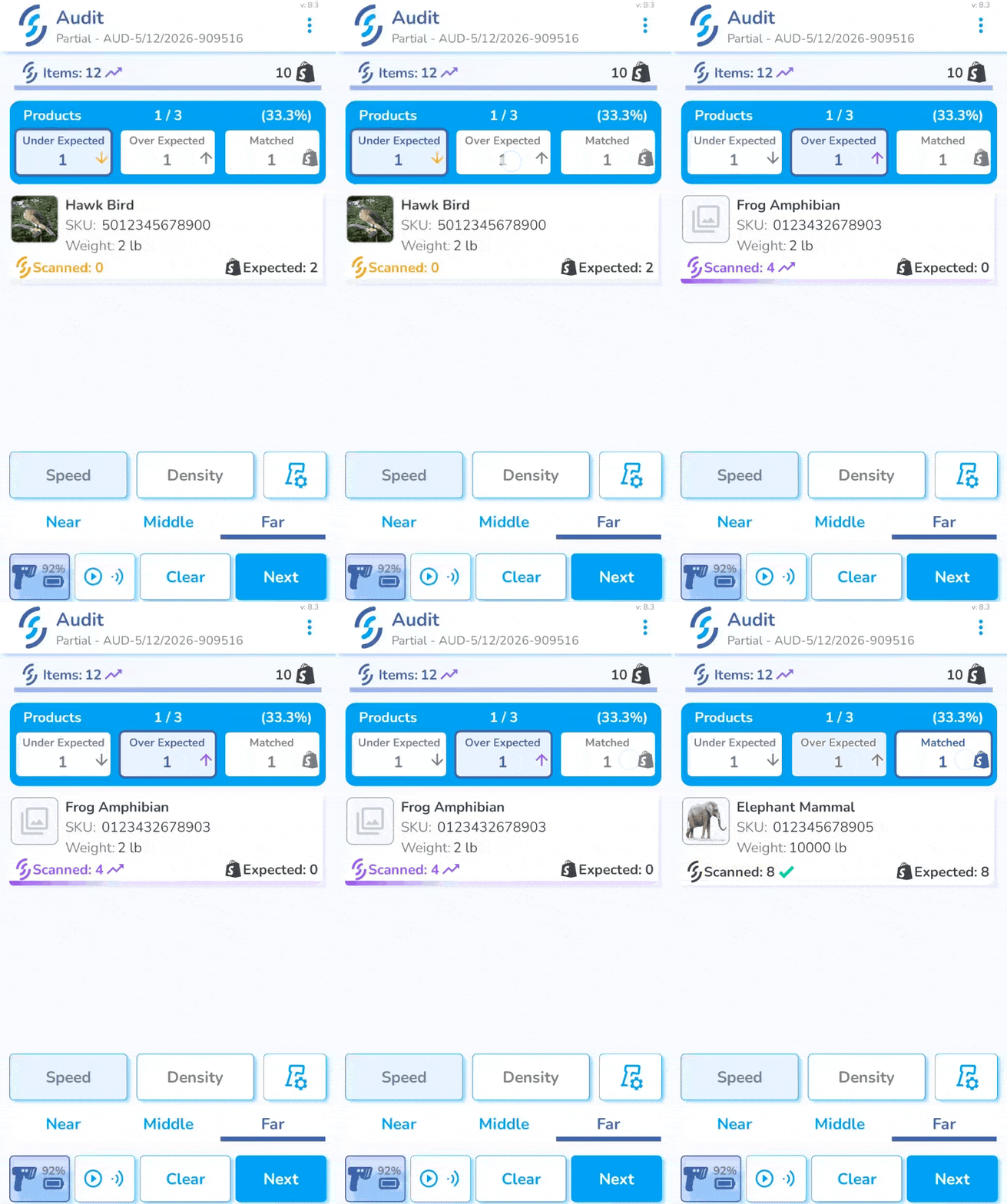Once you feel confident that you have picked up everything, press ****Next****. This will take you to the ****Summary Page.**** [](https://kb.simplerfid.com/uploads/images/gallery/2026-05/img-5229.jpg) From here, you can see how many products are in each section, and how many items you picked up. There are two options on this page: 1. ****Control Scan:**** Perform another scan on ****Density**** mode to pick up any tags you may have missed 2. ****Upload:**** Upload the scan to an Audit, or inventory A ****Control Scan**** is recommended for greater accuracy, but you can click the checkbox below to go straight to an ****Upload****