Before following these troubleshooting steps, make sure you have the latest version of the app installed; search the App Store or Play Store for an update. Additionally, if using a TSL reader, please follow [****these troubleshooting steps****](https://kb.simplerfid.com/books/scan-issues/page/tsl-readers-troubleshoot-common-issues) (including updating the firmware) to eliminate potential hardware issues.
If your RFID tags are scanning as unknown items, not scanning at all, or scanning inconsistently with reduced read range, follow the troubleshooting steps below to identify and resolve the issue. When troubleshooting RFID performance, it’s important to isolate and test one variable at a time. This helps identify the root cause quickly and avoids masking the actual issue. --- #### ****Issue: Tag is scanning as "Unknown"****This issue relates to scans displaying an SGTIN string (for example: sgtin-96:511099.0001804.1) instead of product names
##### ****Possible Causes:**** - Product does not exist in Simple RFID - Mobile app product database is out of date ##### ****Troubleshooting Steps:**** 1. Confirm that the product appears in the ****Products**** page of the web portal. 2. If the product doesn't appear, try reimporting from the partner system. 3. If using Shopify: - [Reimport products from Shopify](https://kb.simplerfid.com/books/shopify-issues-6NJ/page/reimport-products) 4. From the mobile app: [Force Reload Products](https://kb.simplerfid.com/books/mobile-app/page/application-settings) --- #### ****Issue: Tags Are Not Scanning at All****This issue occurs when tags do not appear in scan results.
##### ****Possible Causes:**** - [Tag persistence](https://kb.simplerfid.com/books/scan-issues/page/tag-persistence-and-scan-modes) is in effect - The tag is damaged - The tag was not encoded properly - The tag is applied to or placed on signal-disruptive materials - Tags are tightly packed or touching one another - Duplicate serial numbers exist ##### ****Troubleshooting Steps:**** ****1. Test for Tag Persistence**** - Wait approximately 1 minute and attempt to scan the tag again. - If the tag scans successfully after waiting, the issue is likely related to tag persistence. ****2. Test on a Neutral Surface**** - Move the tag to a neutral surface and attempt another scan. - If the tag scans successfully, the original surface or environment is likely causing interference.A neutral surface is any surface confirmed not to interfere with RFID signals. To verify a neutral surface, test it using a known working RFID tag first.
****3. Use the EPC Read Feature**** - Use the ****EPC Read**** feature in the mobile app to directly read the tag’s EPC value. - If an EPC value appears: - Check if the tag is encoded. If it begins with "E2" then it has not been encoded as a product. - If no EPC value appears: - The tag may be damaged. ****4. Check for Dense Tag Environments**** - If tags fail to scan when packed closely together: - Enable ****Density**** scan mode in the mobile app. - Separate tags so they are no longer touching or stacked tightly together. - Retry scanning after separating the tags. --- #### ****Issue: Tag Performance Is Reduced or Inconsistent**** This issue includes: - Reduced read distance - Inconsistent scans - Tags only scanning from certain angles - Tags requiring close-range scans when they normally scan from farther away. - For example, tags that normally scan from 10 feet away may only scan from less than 1 foot away. ##### ****Possible Causes:**** - Tags are placed in poor locations on the product (such as the bottom) - Tags are shielded by metal or reflective materials - RFID tags are stacked on top of one another, causing interference - Product packaging or materials are disrupting the RFID signal ##### ****Troubleshooting Steps:**** ****1. Identify Environmental Interference**** - Determine whether performance issues occur only with specific products or materials. - Questions to consider: - Do tags scan properly on some items but not others? - Does read range decrease on certain materials? - Are scans inconsistent only in specific environments? ****2. Test on a Neutral Surface**** - Move the tag to a neutral surface and scan again. - If performance improves, environmental interference is likely the cause.A neutral surface is any surface confirmed not to interfere with RFID signals. Verify the surface using a known working RFID tag before testing.
****3. Inspect Tag Placement**** - Check the physical placement of the RFID tag. - Avoid: - Mounting tags directly on metal surfaces - Placing tags underneath products - Stacking RFID tags on top of each other - Applying tags behind reflective packaging materials - Reposition the tag and retest scan performance. --- #### ****Additional Best Practices**** - Test one tag at a time whenever possible. - Compare against a known working tag to isolate environmental issues. - Avoid folding, creasing, or damaging RFID tags during application. - Keep tags separated when testing read performance. - Use the same scanner and scan settings during troubleshooting for consistent results. ##### # What is the ISN and what is the benefit of printing it on my tags? ##### The ISN is a valuable piece of data that can be printed on your labels. This article explains the advantages of printing it. What is the ISN? The ISN is an acronym for Internal Serial Number and is the serial number programmed into the tag. ****Benefits of ISN when Printing**** Printing the ISN provides visual identification of the tag's programmed serial number, and can help to verify the exact tag's data when printing and scanning. 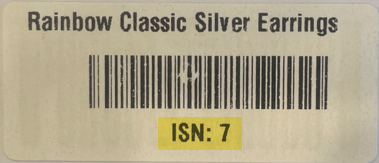 ****Where to View the ISN from The Web Portal**** ### ****Printing Page**** ****Printing**** From the Printing page click the Print Job. This will open the Product & Tags view pop-out of the side menu. The Product view appears on top and displays the range of serial numbers, the Tags view appears on the bottom and displays the ISN per tag. 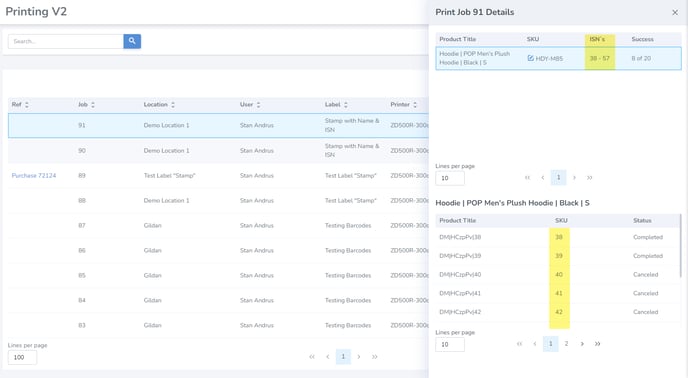 The ISN allows you to quickly identify which labels are faulty so that they can be discarded and new labels printed. ### ****Inventory Page & Downloads**** ****Inventory > Products View**** Once the labels have been scanned and uploaded, users can view the ISNs via the Inventory tab. The Inventory displays all scanned items since the most recent audit, thus providing a merged view of several scans. The default Inventory view is by Products. To view the ISN for a Product click on the desired product to view the Tags. This opens a pop-up window displaying the Tags and the related ISNs. 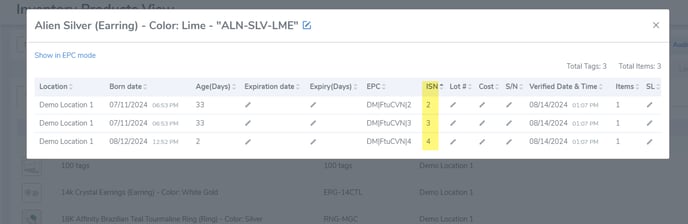 ****Inventory > Tags View**** By sliding the view selector from Products to Tags a user can view the inventory page by Tags. The displays one tag per row. 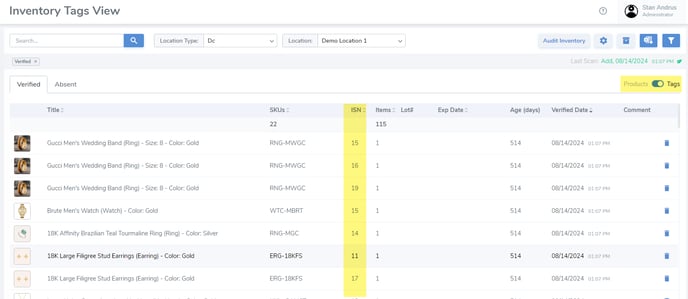 ****Inventory Downloads****  From the inventory page a user can download the related spreadsheets. The ISN is available from the SKU + EPC & EPC downloads: 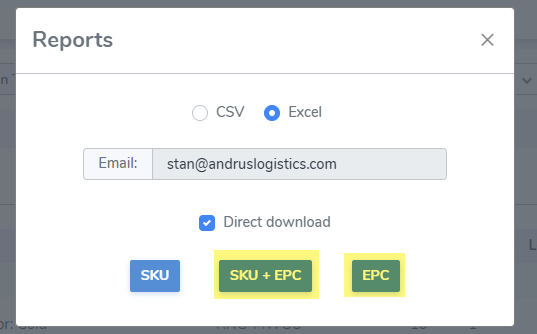 ****SKU + EPC Download**** This report collapses the Tag level data inside the Product. To view the ISNs from this report click on the Inventory tab, then click on the "+" button of the Product you wish to view Tags for to view the ISN column. 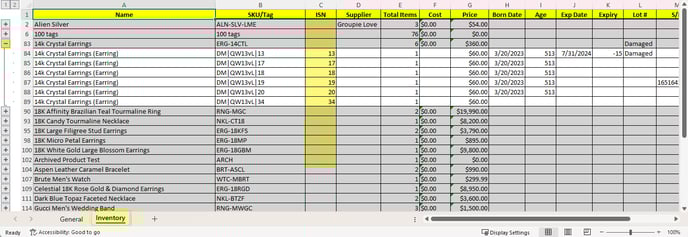 ****EPC Download**** The EPC download provides a Tags level view and includes the ISN. 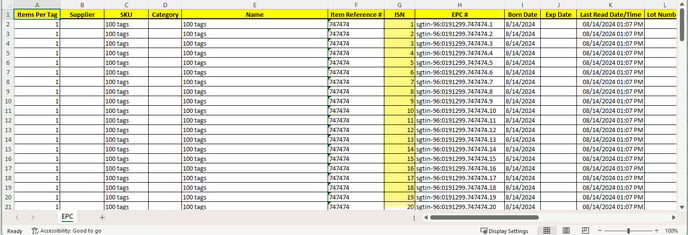 ### ****Scan Sessions Downloads**** The Scan Sessions tab provides a record of every scan performed. From the same spreadsheets SKU + EPC and EPC you can view the ISNs for uploaded items. 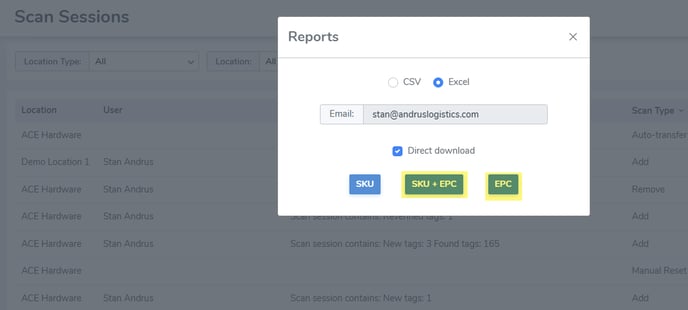 If you have any questions regarding the ISN please reach out to us. # TSL Readers - Troubleshoot common issues #### ****Issue: The reader will not turn on.**** - ****Charge the reader****. If the reader will not turn on, it's usually because the battery has no charge. Use the included USB cable or docking cradle to charge the reader. - ****Make sure the battery is inserted.**** The readers do not ship with a battery installed; this must be done manually. Remove the handle by lifting the yellow latch on the back of the reader, and pulling the handle backwards. This will expose the battery cover, which can be lifted to access the battery. --- #### ****Issue: The reader will not pair with a device.**** If you're unable to pair your reader with a mobile device via Bluetooth, take the following troubleshooting steps: - ****Make sure the reader is in pairing mode.**** In pairing mode, the blue light on the left side of the reader will be flashing. - If the blue light is off, press the trigger on the reader to wake it up. - If the blue light is solid, the reader is already connected to a host. Make sure the reader is not paired with another device nearby, or plugged into a computer with a USB cable. If the reader is in pairing mode, but not showing up in your device's Bluetooth menu, try [updating the reader's firmware](https://kb.simplerfid.com/books/handheld-readers/page/tsl-readers-update-firmware), which will also perform a Bluetooth reset. --- #### ****Issue: The reader will not charge.**** When the reader is charging, the orange light on the side will flash (once, twice, or three times depending on the current charge). When the reader is fully charged, the orange light will remain solid. If the orange light is flashing rapidly, or not on at all, there is an issue with charging: follow the steps below. - ****Try a different charging source.**** Some power sources don't provide enough energy to charge the reader's battery effectively. Try plugging the reader directly into a wall outlet using the provided adapter. - ****Try a different USB cable.**** If you're not using the original cable included with the device, the cable may not be suitable for charging. If possible, use the original cable; otherwise, ensure you choose a cable that can deliver a charge. - ****Check the battery.**** If the battery isn't inserted correctly, the device will not charge. - TSL 1128: Make sure the 4 contacts on the battery align with the pins on the reader. Additionally, make sure the battery cover is in place securely. --- #### ****Issue: The reader does not read any tags.**** When the reader scans a tag, it will beep and vibrate (unless you have the Buzzer or Vibrate setting disabled in the Reader Settings). If the reader is not providing this feedback, check to make sure that the - ****Restart the Simple RFID mobile app.**** Occasionally, failed reader commands can cause the application to lose its connection to the reader; even if it still displays the reader as connected. Fully close the Simple RFID app, then re-open it and try again. - ****Android:**** - 1. Open the ****Recent Apps**** screen (usually by swiping up from the bottom and holding, or tapping the square/recent button). 2. Swipe the app ****left or right**** (or up, depending on the device) to close it. - ****iOS:**** 1. Swipe ****up from the bottom**** and pause in the middle of the screen (or double-press the Home button on older models). 2. Swipe the app ****up**** off the screen to close it. - ****Check the reader's battery level.**** If the reader's battery is too low, it won't be able to scan any tags, even if it's still powered on. Charge the device until the battery level reaches at least ****25%****, then try scanning again. --- #### ****Issue: The reader is "stuck" on the blue light**** If the reader stays turned on with the constant blue light while application is closed, please follow these steps - ****Disconnect from iOS devices when not used.**** Please also make sure that surrounding iOS devices have Bluetooth disabled or are not paired with this reader. This is a known behavior when iOS devices tend to connect to the readers in the background thus "intercepting" the connection - ****Reset the reader by reinstalling the battery.**** Remove the handle by lifting the yellow latch on the back of the reader, and pulling the handle backwards. This will expose the battery cover, which can be lifted to access the battery. --- ##### ****If you continue to have issues with your scanner, please**** [****contact support****](https://kb.simplerfid.com/books/support/page/contact-support) ****for further assistance.**** # Tag Persistence and Scan Modes #### Tag States A and B During a scan, RFID tags transition between two primary states: ****State A (Not Charged):**** The tag is at rest and ready to be read. ****State B (Charged):**** The tag has been energized and read by the scanner. Once a tag is scanned and enters ****State B****, it must fully discharge and return to ****State A**** before it can be accurately registered in a new, distinct scanning session. The time required for this transition is known as the persistence or "cooldown" period. #### Selecting the Appropriate Scan Mode To manage this charging cycle effectively, your system provides two scanning modes: ****Speed**** and ****Density****. ##### ****Speed**** Mode The mode is designed for rapid, continuous scanning operations. ****Functionality:**** The scanner charges tags for a minimal, unnoticeable duration. ****Benefit:**** Because the charge is brief, tags discharge almost instantly, eliminating the cooldown period. This allows you to conduct back-to-back scan sessions without delay. ****Recommended Use:**** Ideal for standard daily operations where wait times are undesirable, such as quick spot-checks or rapid order processing. ##### ****Density**** Mode The mode is designed for thoroughness and high-volume scanning in crowded environments. ****Functionality:**** The scanner applies a longer charge to the tags to capture a higher volume of data within a single session. ****Benefit:**** Maximizes the number of tags read, ensuring comprehensive capture even in dense or tightly packed areas. ****Requirement:**** Because the tags receive a longer charge, they require approximately 5 minutes to discharge and return to State A. Initiating a new scan before this cooldown completes may result in unread tags. ****Recommended Use:**** Best suited for comprehensive audits, cycle counts, or scanning densely packed pallets. It can also be used effectively as a control scan when performing an [Audit](https://kb.simplerfid.com/books/auditing). You must plan for the 5-minute wait time between scans in the same area. #### Configuring Scan Settings You can toggle between [Speed and Density](https://kb.simplerfid.com/books/mobile-app/page/scan-settings) modes directly within the application interface: [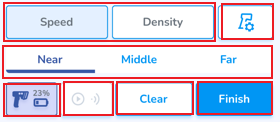](https://kb.simplerfid.com/uploads/images/gallery/2026-05/CPUimage.png)