This article provides instruction for users who do not have an external inventory source to compare their RFID scans against. It assists a user to identify what items are in inventory, and what items are no longer present.
If you wish to compare scans against custom source, such as a spreadsheet, use this article: [Custom Source Audits](https://kb.simplerfid.com/books/software-web-portal/page/audit-custom-source-this-page-may-be-deprecated). If you are comparing data from an integration (Shopify, Apparel Magic), please use this article: [Audit against Integration](https://kb.simplerfid.com/books/processes-audit-your-inventory/page/audit-using-an-integrated-data-source-shopify-apparel-magic-etc)
#### ****Navigate to Menu**** ****If you are using Simple RFID as a stand-alone application and you wish to identify what items are in inventory, and what items that were in inventory but are no longer present, follow these steps.**** ##### Open the ****Simple RFID**** app on your scanner or phone that is paired with a scanner. [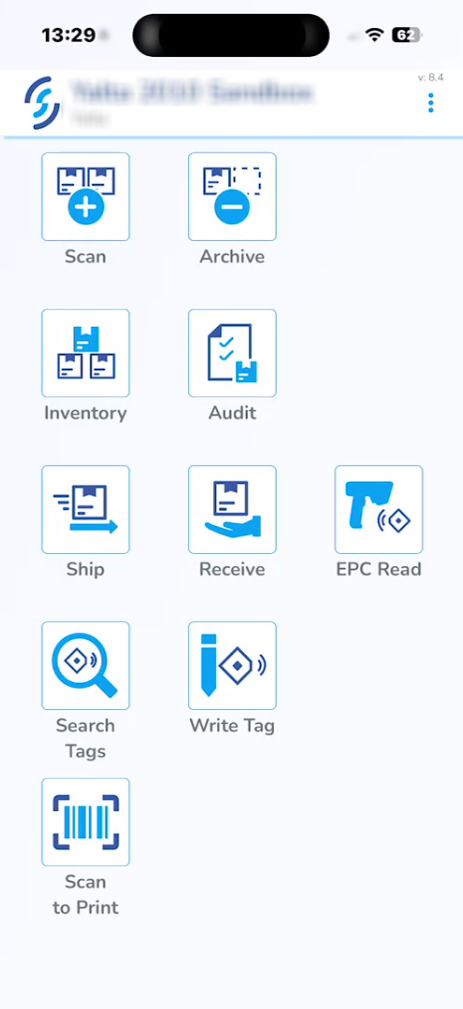](https://kb.simplerfid.com/uploads/images/gallery/2026-06/fPEimage.png) ##### On the homepage, click *****Scan*****. [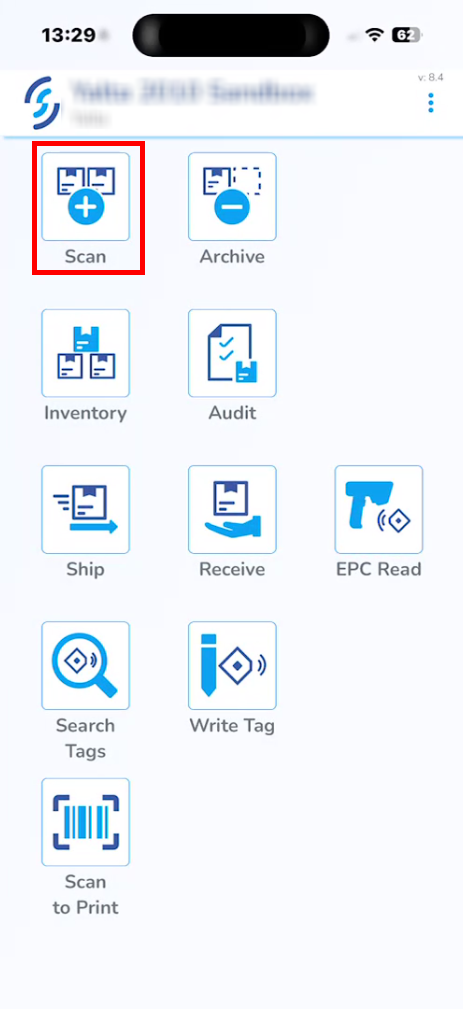](https://kb.simplerfid.com/uploads/images/gallery/2026-06/LaZimage.png) --- #### ****Reset Inventory**** ##### Select *****Audit*****. (in this case Audit refers to "Resetting" the inventory [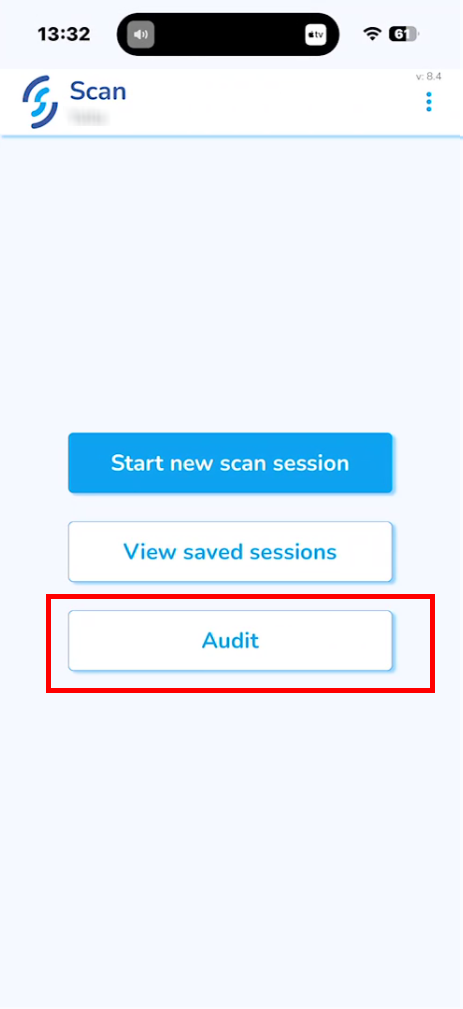](https://kb.simplerfid.com/uploads/images/gallery/2026-06/mXcimage.png) ##### Click *****Yes***** when prompted: "**Your Inventory will be cleared!**" [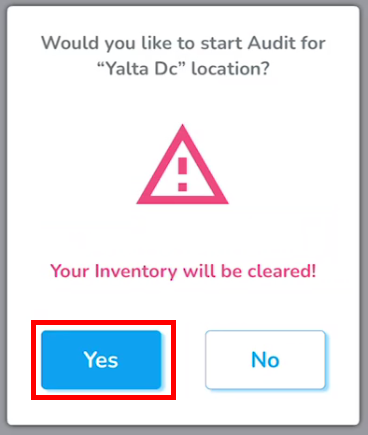](https://kb.simplerfid.com/uploads/images/gallery/2026-06/5e2image.png) --- #### ****Scanning Inventory**** ##### After accepting the prompt, you will be returned back to the ****Scan**** menu. ##### Select *****Start new scan session*****. [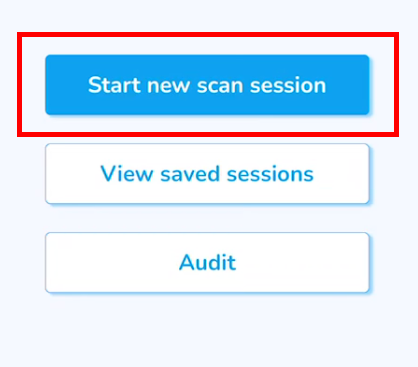](https://kb.simplerfid.com/uploads/images/gallery/2026-06/m6Yimage.png) ##### This step is similar to the regular [scan](https://kb.simplerfid.com/books/software-mobile-app/page/mobile-app-scan). ##### Items that existed in the inventory before it was cleared will be marked as ****Found****.Items that are already in the active inventory and are scanned during this session will be marked as ****Reverified. Verified/Reverified items are**** not added to your inventory quantity since the serial numbers already exist in the inventory.
[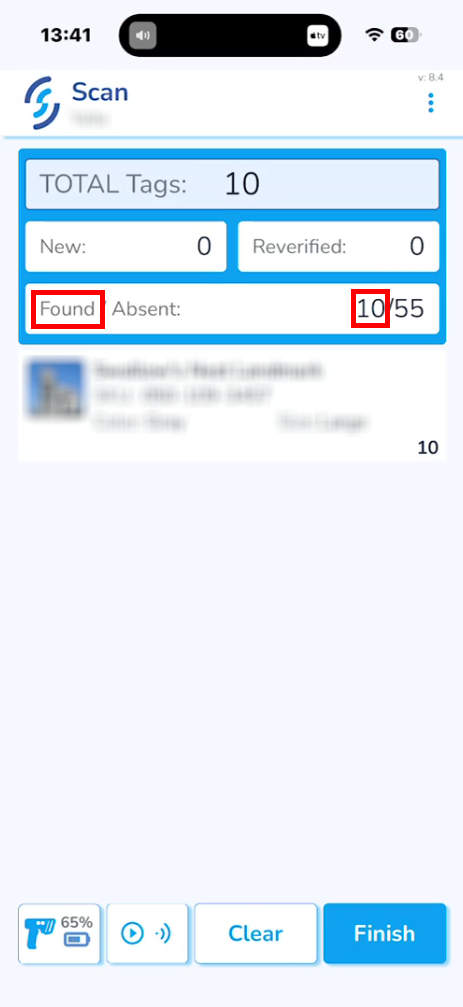](https://kb.simplerfid.com/uploads/images/gallery/2026-06/WG6image.png) ##### Click *****Upload to inventory***** [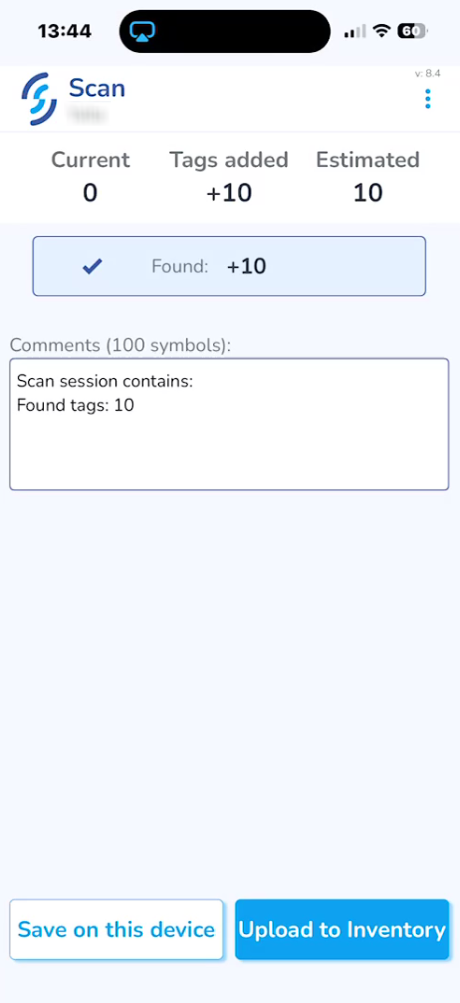](https://kb.simplerfid.com/uploads/images/gallery/2026-06/Lrrimage.png) ****Then click "OK" on the pop-up to confirm the action.**** ##### After the scan session is uploaded, go to the [SimpleRFID](https://portal.simplerfid.com/) web portal and click *****Inventory*****. ##### All ****scanned**** items will be under the ****Verified**** tab. [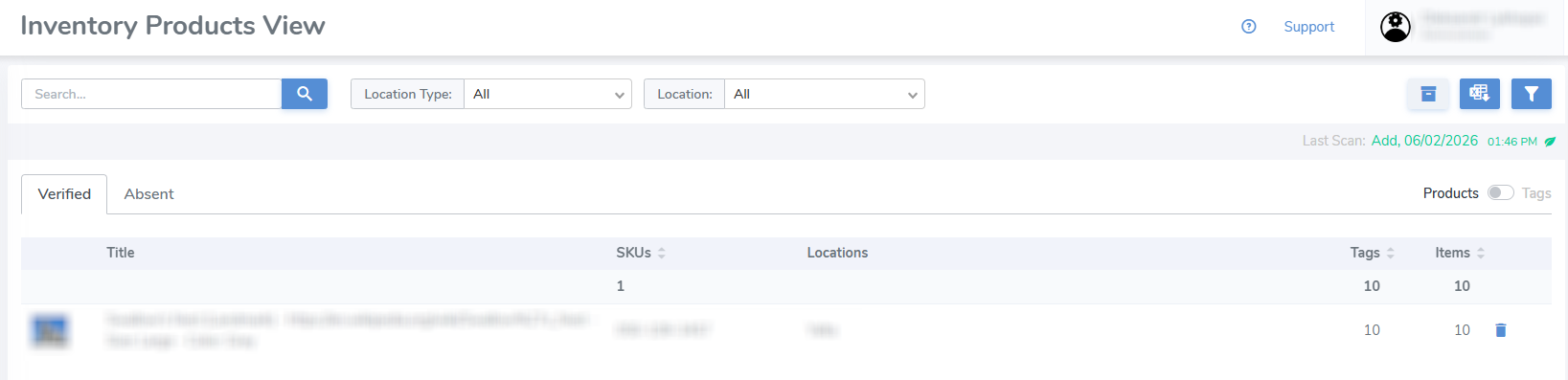](https://kb.simplerfid.com/uploads/images/gallery/2026-06/4hXimage.png) ##### The products that were not scanned during the inventory reset scan will be under the ****Absent**** tab. [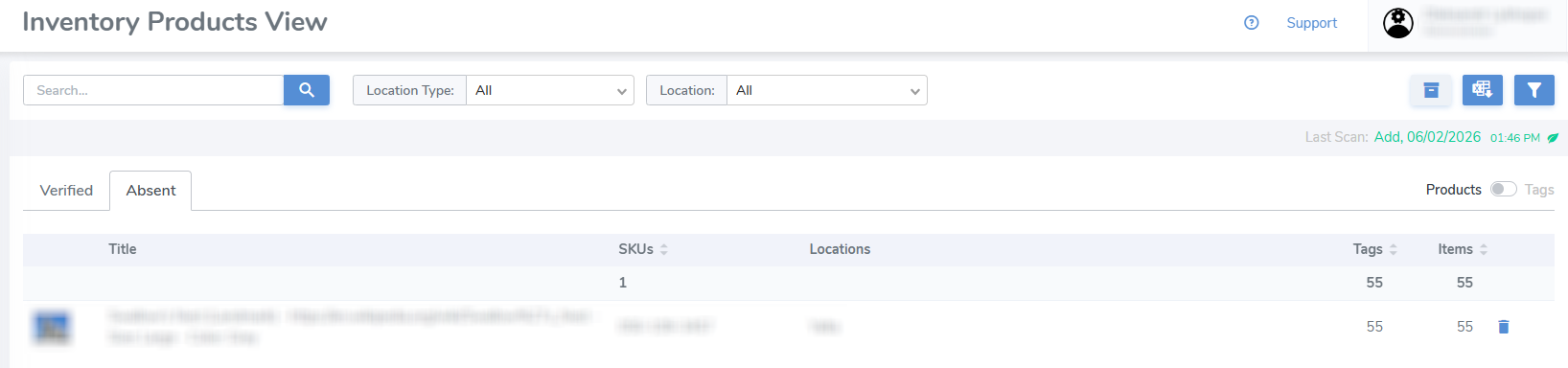](https://kb.simplerfid.com/uploads/images/gallery/2026-06/VjFimage.png) --- #### ****Generate Report**** ##### The report of the current inventory can be downloaded by clicking the second button in the top-right corner. [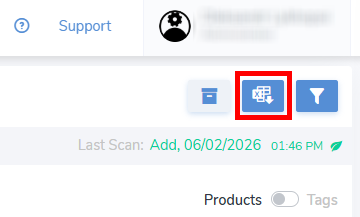](https://kb.simplerfid.com/uploads/images/gallery/2026-06/OVMimage.png)It's possible to download 2 different reports, one for ****Verified**** and another for ****Absent**** items, which depends on which ****Inventory**** tab is currently open.
##### ##### Each report is meant to represent specific information, but all of them can be downloaded. [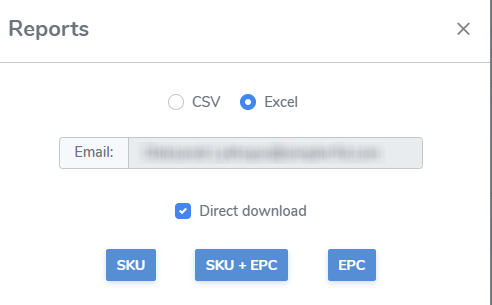](https://kb.simplerfid.com/uploads/images/gallery/2026-06/esvimage.png)The audit scan session can also be viewed and its report obtained via the [Scan Sessions](https://kb.simplerfid.com/books/software-web-portal/page/scan-sessions) tab in the navigation menu.