# Print Labels from Spreadsheet Upload
#### ****Print Labels from Spreadsheet Upload****
Add details to a print job using a spreadsheet. Use our formatted spreadsheet template, or use your own template.
#### ****Upload Your Spreadsheet****
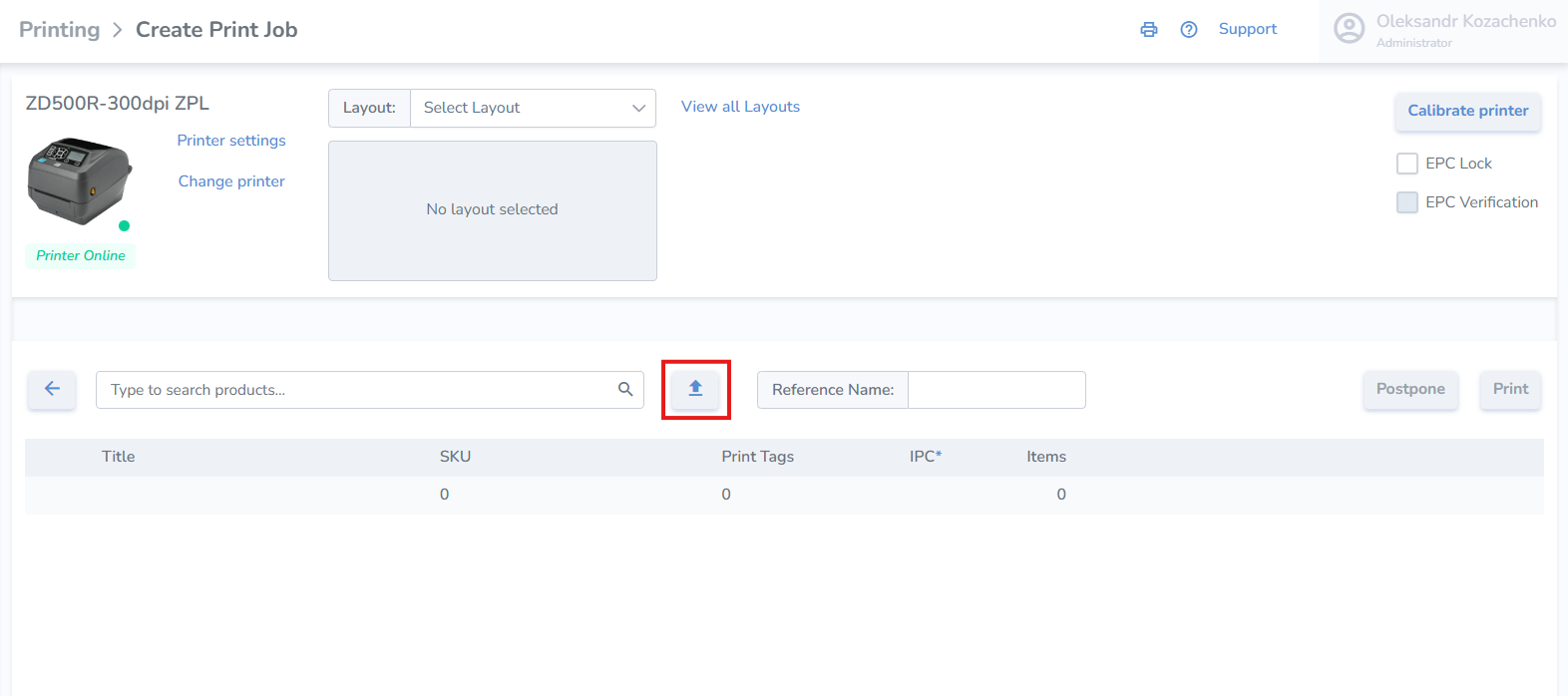
Inside the [Print Jobs > Create Print Job](https://portal.simplerfid.com/printing/add) page, click the ****upload button**** in the center
[](https://kb.simplerfid.com/uploads/images/gallery/2026-01/S5bimage.png)
##### ****Option 1: Using Our Template****
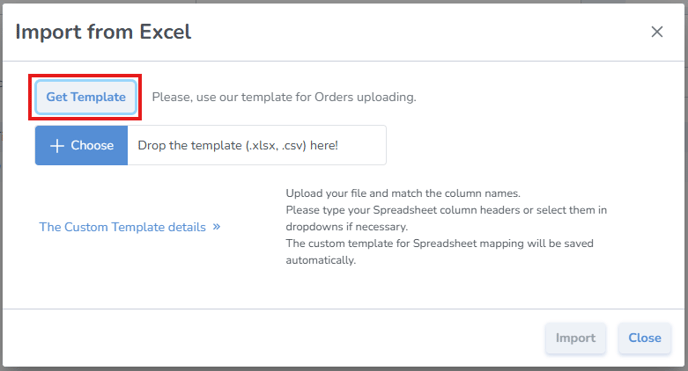
1. In the new pop up window, ****click**** on the ****Get Template***** button
[](https://kb.simplerfid.com/uploads/images/gallery/2026-01/c3mimage.png)
2. ****Fill out**** the information for your print job and ****save**** the spreadsheet
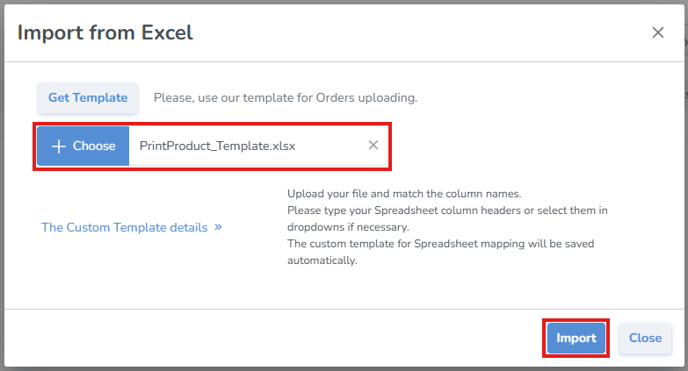
3. Back on the web, ****click**** the *****+ Choose***** button and select the file with the information you saved
[](https://kb.simplerfid.com/uploads/images/gallery/2026-01/4m6image.png)
4. Once the file has been selected, ****click**** *****Import*****
##### ****Option 2: Using Your Own Spreadsheet****
If you're using your own existing spreadsheet instead of the template:
1. ****Click**** the ****+ Choose***** button and select the file with the information
2. ****Click**** ****The Custom Template details*****
3. ****Select**** which columns contain the corresponding information
4. Once the file has been selected, ****click**** *****Import*****
##### ****Complete the Import****
The system will then add all the items to the print job, which you can print immediately or postpone.
If any of the information from the uploaded spreadsheet is invalid, you'll see a validation error on that item in the list.
---
##### ****Best Practice****
****A good practice is to scan the labels and upload them to verify that all tags have been printed correctly.****