# Troubleshooting USB Connection
In the Windows Search bar, type *****Device Manager***** and open it.
[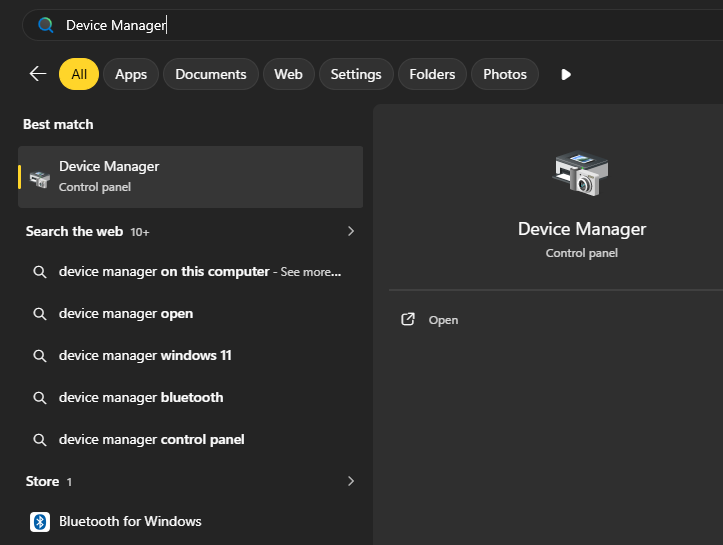](https://kb.simplerfid.com/uploads/images/gallery/2026-03/FlCimage.png)
Expand the *****Universal Serial Bus controllers***** section in the Device Manager window.
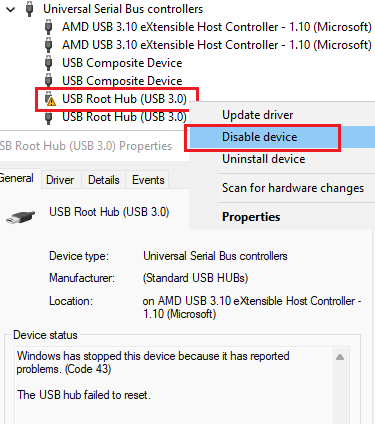Right-click the device with the warning icon, which is *****USB Root Hub (USB 3.0),***** and click *****Disable device.*****
Wait a couple of seconds for the same device to appear with the "down arrow" icon, then right-click it and select *****Enable Device.*****
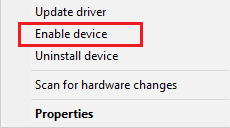a couple of seconds for the same device to appear with the "down arrow" icon, then right-click
Now, the *****USB Root Hub (USB 3.0)***** should appear with the regular icon and work properly.
[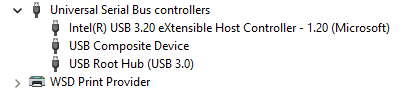](https://kb.simplerfid.com/uploads/images/gallery/2026-03/printer-root-hub-3.png)