****ATTENTION:**** We suggest ****first**** performing the [calibration from the website](https://kb.simplerfid.com/books/calibrate-printer/page/calibrate-from-the-web-portal). If the calibration fails, then follow these steps.
### Step 1: Media Calibration Hold the PAUSE + CANCEL buttons for 2 seconds to start the media calibration. ### Step 2: RFID Calibration Press the menus ‘Home’ ([](https://kb.simplerfid.com/uploads/images/gallery/2025-05/zd500r-home.png)) button. Navigate to the ‘RFID’ ([](https://kb.simplerfid.com/uploads/images/gallery/2025-05/zd500r-rfid.png)) menu button and press the ‘Select’ ( ****—**** ) button. Use the ****Left**** and ****Right**** navigation arrows to browse to the RFID CALIBRATE procedure. Press the select button ( ****—**** ) below the ****START**** on the lower right hand of the display. The printer will slowly feed a label while adjusting the location and RFID read/write communication settings for your chosen RFID tag/label. The printer will feed an additional label in some cases when calibration has completed successfully with the display message reading: READY At this point, you can open the printer and roll the excess labels back inside. Then, close the printer, unpause it, and you will be ready to print. # ZD500R: Alignment #### Adjusting the vertical print position on your labels From the main screen, press the ****Home**** button (house icon). [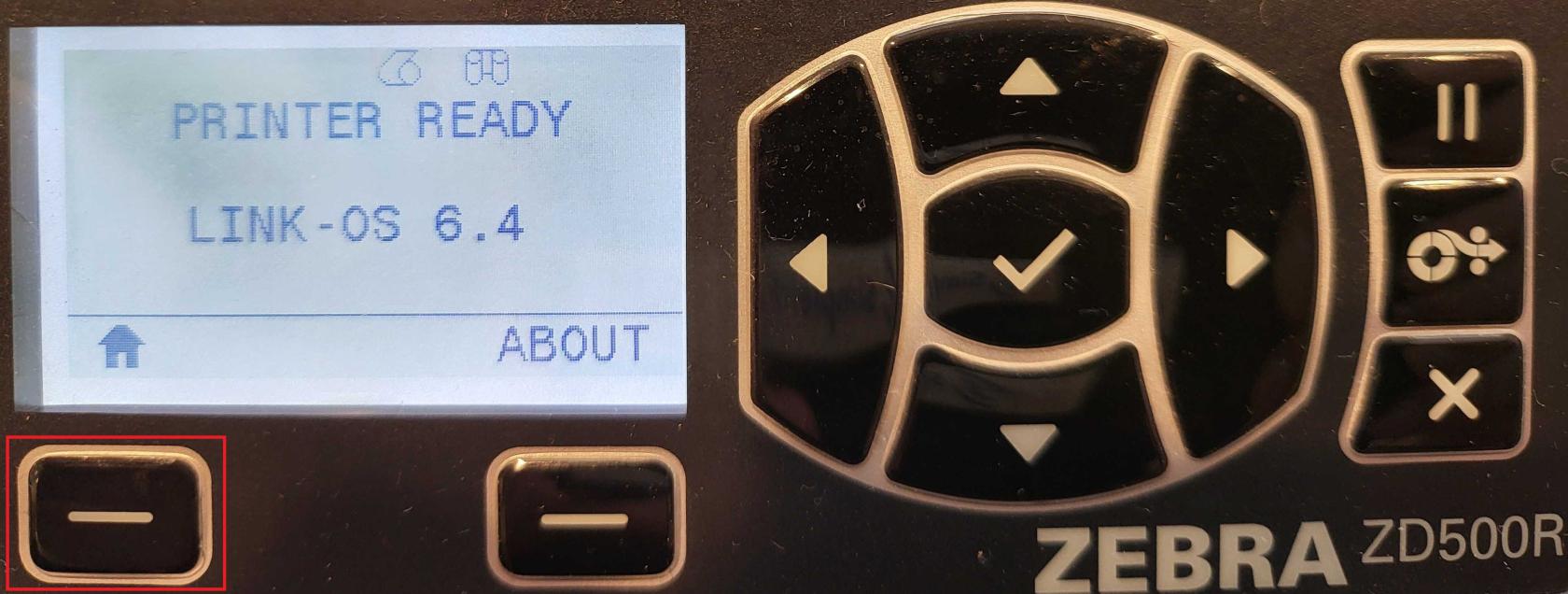](https://kb.simplerfid.com/uploads/images/gallery/2025-06/1.jpg) Select ****Settings**** (gear icon). [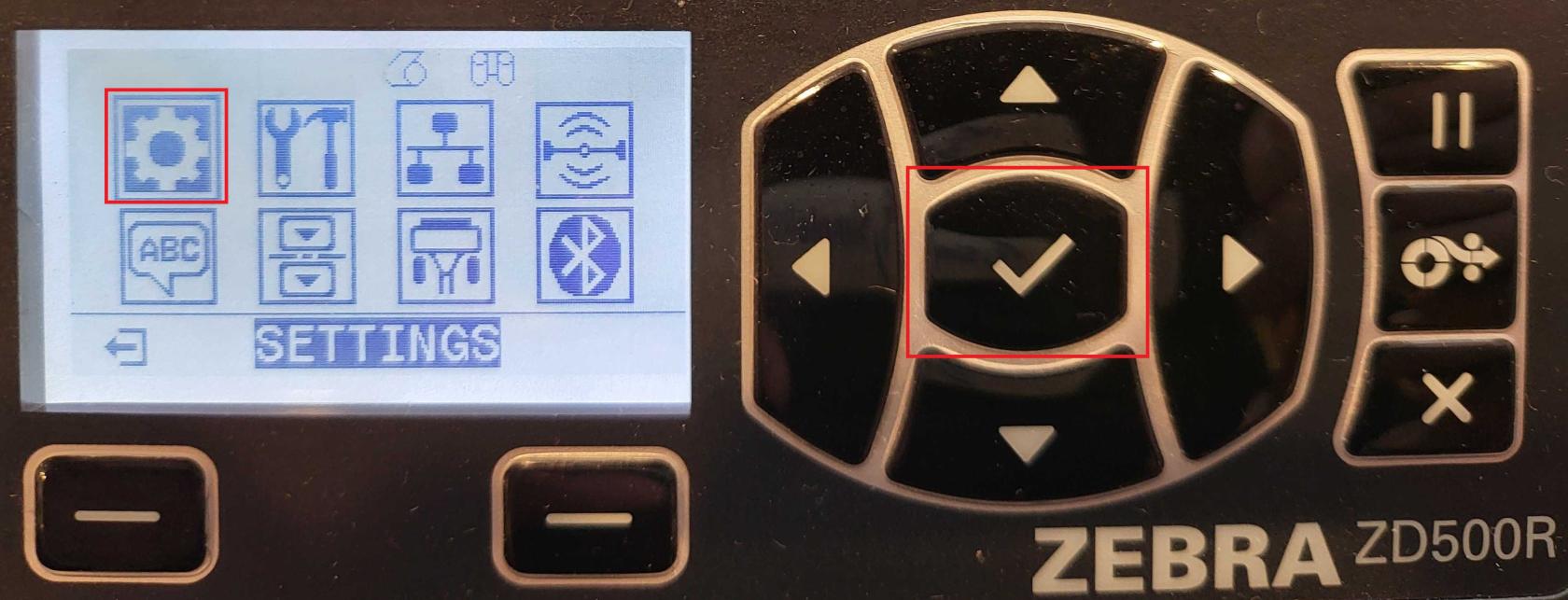](https://kb.simplerfid.com/uploads/images/gallery/2025-06/2.jpg) Use the ****right arrow**** on the navigation buttons until you reach ****LABEL TOP****. [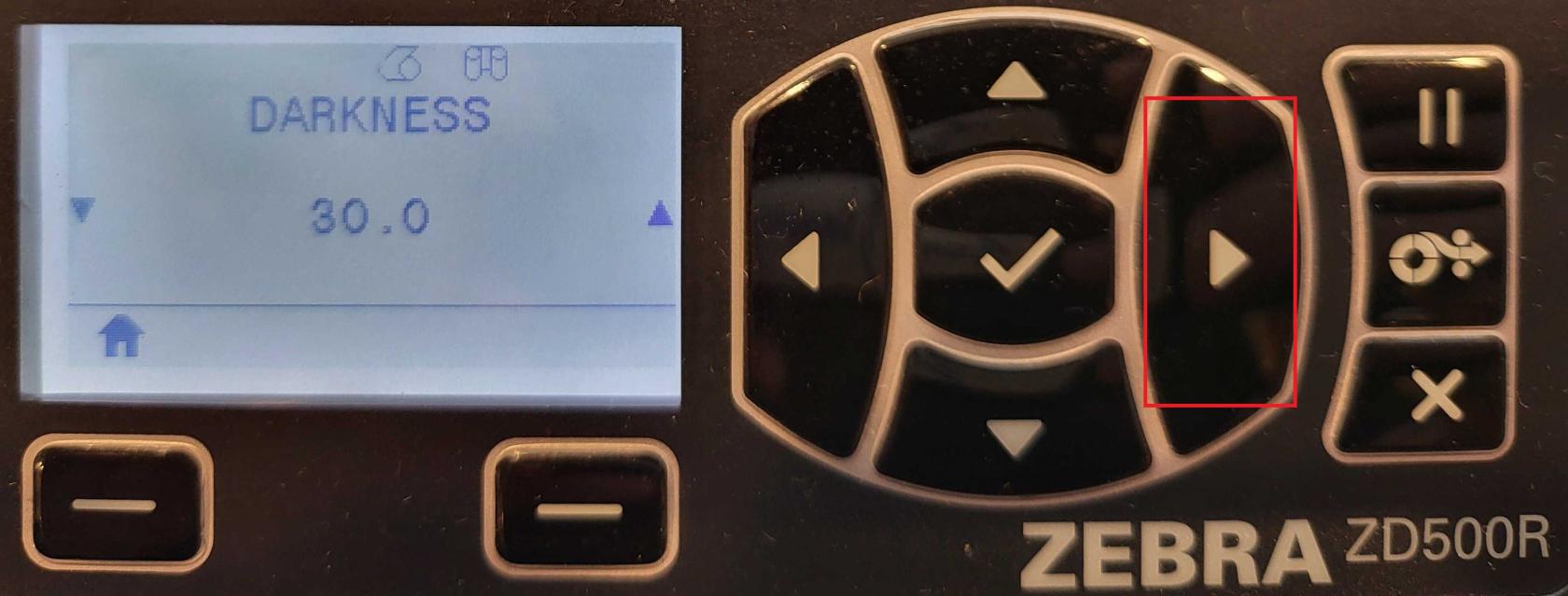](https://kb.simplerfid.com/uploads/images/gallery/2025-06/6Lu3.jpg) Use the ****up/down arrows**** to adjust the value: [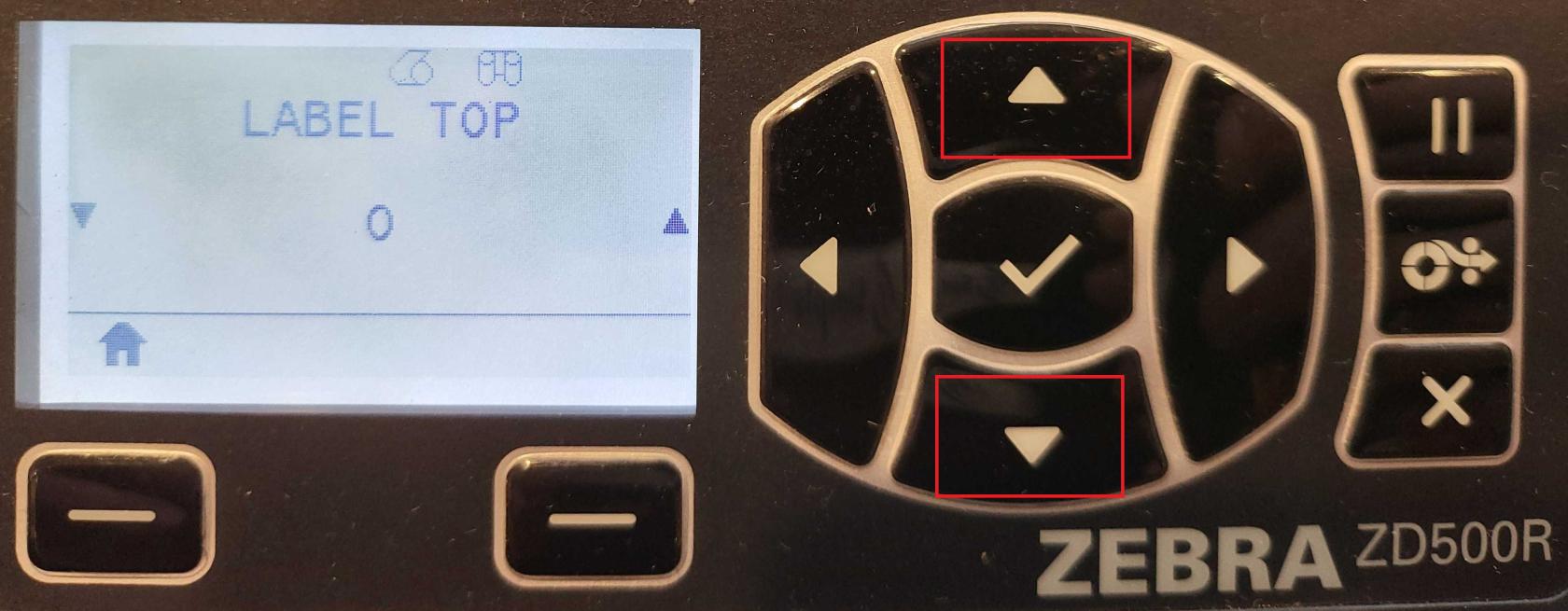](https://kb.simplerfid.com/uploads/images/gallery/2025-06/4.jpg) - Negative values move the print ****toward the top**** of the label. - Positive values move it ****away from the top****. - Accepted range: ****–120 to 120****.When you're done, press the ****Home**** button again. Your changes will be automatically saved.
# Zebra ZD621R # Zebra ZD621R: Alignment Select ****Menu**** from the home screen [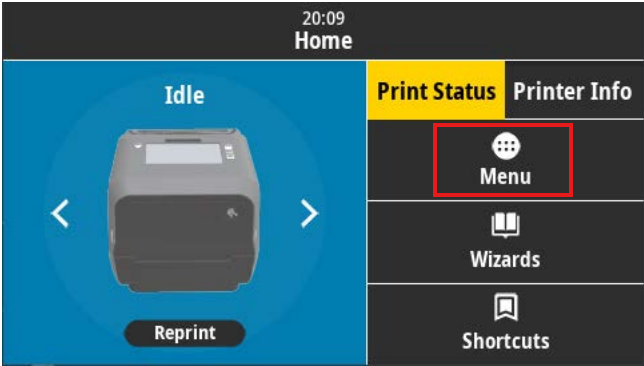](https://kb.simplerfid.com/uploads/images/gallery/2025-05/image.png) Select the ****Print**** icon [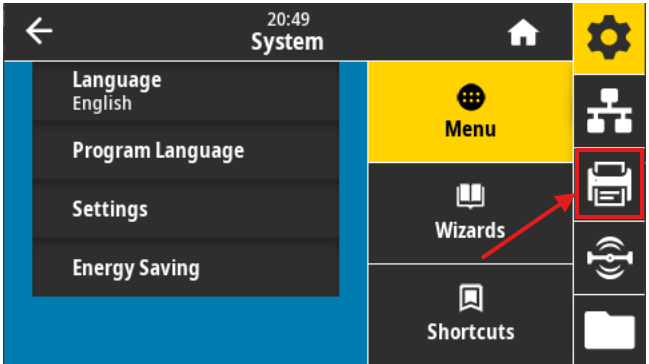](https://kb.simplerfid.com/uploads/images/gallery/2025-05/6aqimage.png) Select ****Label Position/Image Adjust**** [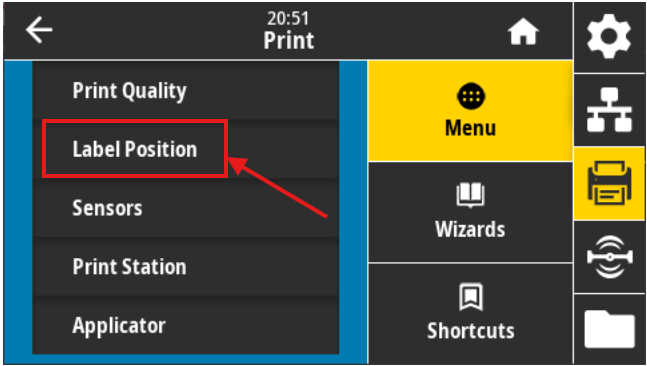](https://kb.simplerfid.com/uploads/images/gallery/2025-05/OQAimage.png) Select ****Vertical Label Offset**** or ****Horizontal Label Offset**** [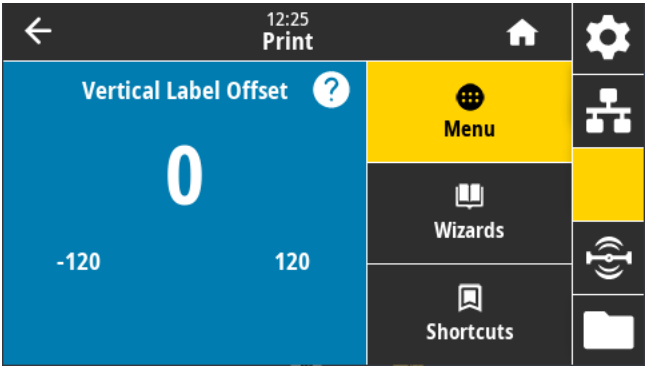](https://kb.simplerfid.com/uploads/images/gallery/2025-05/mtEimage.png) 5. ****Adjust**** the value (Accepted values: ****-120**** to ****120****)****Vertical Label Offset:**** Lower numbers shift everything higher on the label face. Inversely, higher numbers shift everything farther down on the label face, by the specified number of dots. ****Horizontal Label Offset:**** Lower numbers shift everything to the right on the label face. Inversely, higher numbers shift everything to the left on the label face, by the specified number of dots.
# Zebra ZD621R: Reset to Factory Defaults After starting the printer, use the touchscreen to click "Menu" [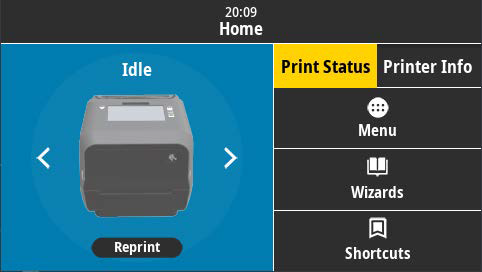](https://kb.simplerfid.com/uploads/images/gallery/2025-05/home-screen.png) On the left side of the screen, click "Settings" [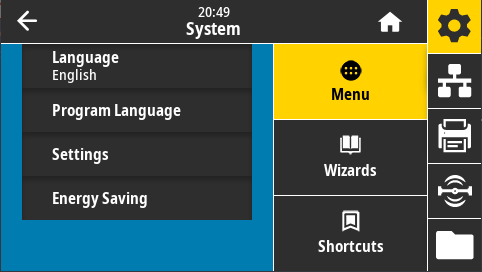](https://kb.simplerfid.com/uploads/images/gallery/2025-05/menu.png) Scroll down and click "Restore Defaults" Click on "Restore Printer" and accept the prompt [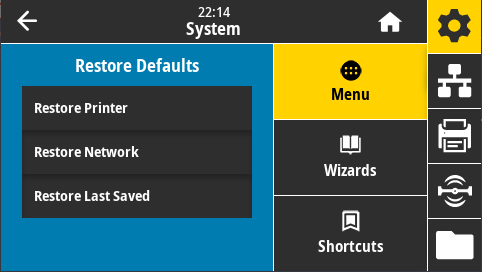](https://kb.simplerfid.com/uploads/images/gallery/2025-05/restore-defaults.png) This will reset the printer to factory defaults. # Zebra ZD621R: Calibrate from Printer's Interface****ATTENTION:**** We suggest ****first**** performing the [calibration from the website](https://kb.simplerfid.com/books/calibrate-printer/page/calibrate-from-the-web-portal). If the calibration fails, then follow these steps.
### Step 1: Media Calibration First, make sure media is properly loaded, the printer cover is closed, and printer power is ON. To perform a Media Calibration, press and hold PAUSE + CANCEL buttons for two seconds. [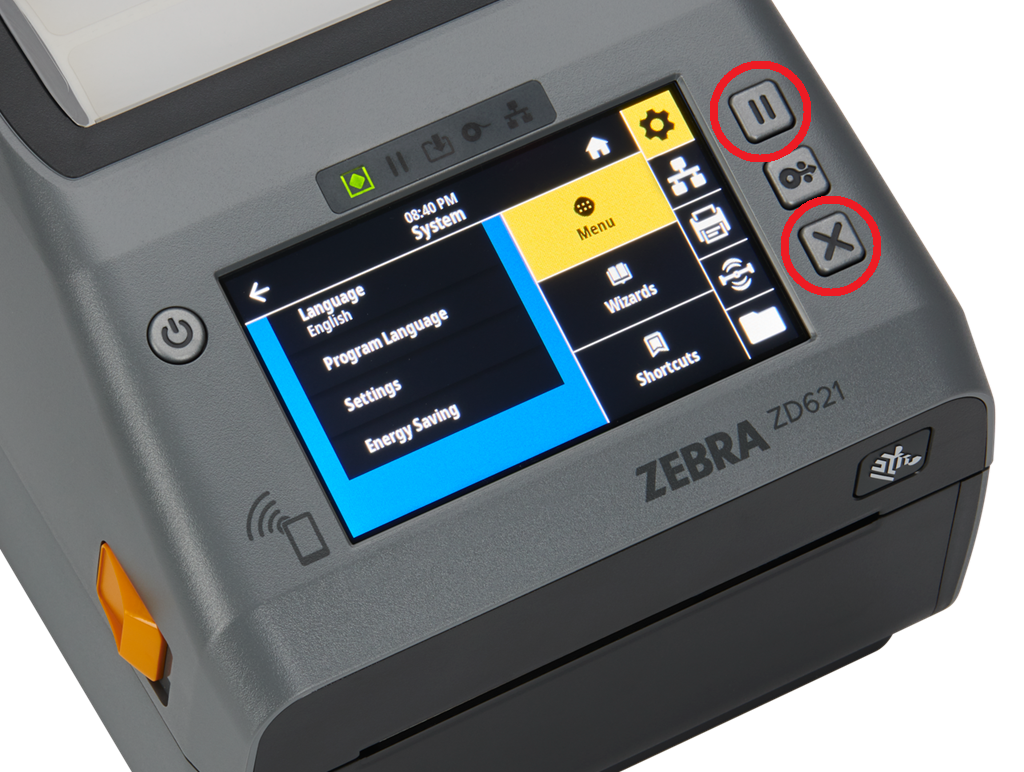](https://kb.simplerfid.com/uploads/images/gallery/2025-05/JmQimage.png) ### Step 2: RFID Calibration From the printer's Home screen, press the ****Menu**** button: [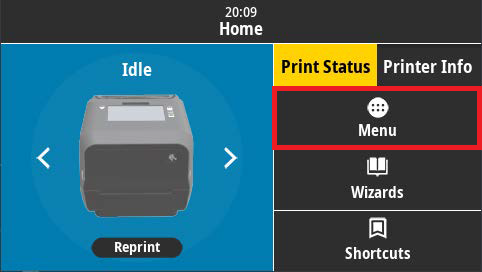](https://kb.simplerfid.com/uploads/images/gallery/2025-05/R9ahome-screen.png) Next, tap the ****RFID icon**** on the right side of the screen, then tap the ****RFID**** menu option: [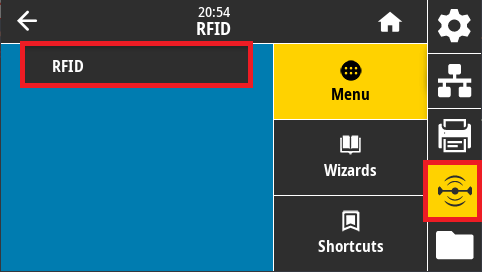](https://kb.simplerfid.com/uploads/images/gallery/2025-05/jTRrfid-menu.png) Tap ****RFID Calibrate****: [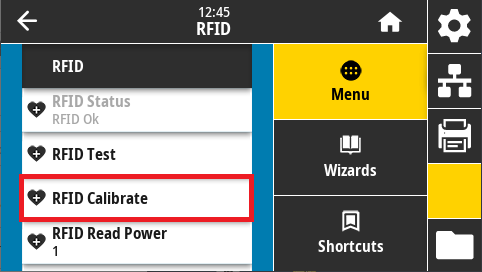](https://kb.simplerfid.com/uploads/images/gallery/2025-05/1Xjrfid-menu-options.png) Last, tap ****Start Calibration**** to perform the RFID calibration: [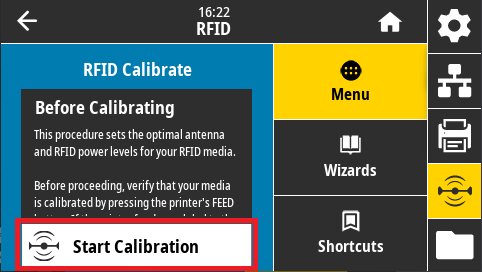](https://kb.simplerfid.com/uploads/images/gallery/2025-05/9BFstart-rfid-calibration.png) # Zebra ZD621R: Adjust Darkness 1. Using your printer's touchscreen, navigate to Menu > Printer (icon) > Print Quality > Darkness: [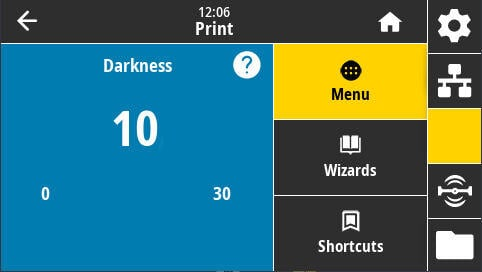](https://kb.simplerfid.com/uploads/images/gallery/2025-09/OYtimage.png) 2. Use the plus buttons, or slide the slider to increase or decrease the darkness setting. 3. If you are using resin ribbon, and you usually use wax, you will need to increase this value by at least 10. 4. The setting will be automatically applied; press the Home button to return to the Idle screen. # Zebra ZD621R: Setup Wireless Connection (WiFi) This setup guide ensures your printer is properly configured for network printing with secure WiFi connectivity. --- ## Prerequisites Before starting the setup, please make sure that your station has the "Show network printers" option set in your Print Station settings. Contact your Manager if you need assistance. --- ## Connection Setup Steps ### 1. Launch Wizards On the printer home screen, tap **Wizards**. ### 2. Select Connection Tap **Connection** and then **Start Connection**. ### 3. Configure Network Settings #### Wi-Fi Configuration - **Select** *Wi-Fi* > **Tap ✓** - **Set** *IP Port* to `6101` - **Set** *IP Alternate Port* to `9100` > **Tap ✓** - **Set** *Wired IP Protocol* to `All` > **Tap ✓** #### Wireless Network Settings - **Set** the *country* > **Tap** **✓** - **Select** *WPA PSK* > **Tap ✓** - In *Pre-shared Key,* **enter** your WiFi password > **Tap ✓** - **Tap** *Set All* > **Tap ✓** #### Network Name and Protocol - In *ESSID*, **set** your WiFi name > **Tap ✓****Note: Case sensitive - must match exactly as shown in other devices' WiFi lists. Example: `Wifi_Network_Name12345`**
- **Set** *WiFi IP Protocol* to `All` > **Tap ✓** #### Bluetooth Configuration - **Set** *Bluetooth On/Off* to `Off` > **Tap ✓** - **Set** *Bluetooth Discovery* to `Off` > **Tap ✓** #### Security Settings - In *Friendly Name*, **Tap ✓** - In *Security*, set value to `3` > **Tap ✓** - In *Authentication PIN*, > **Tap ✓** - In *Bluetooth Bonding*, **set** to `Off` ### 4. Complete Setup **Tap** *End Wizard.* ## Verification You should see the message: **"Connection Wizard Complete"** After completion, observe the network indicator (right side of screen): - Will display **red** for approximately 1 second - Will then turn **green** (indicating successful connection) - Printer should appear as **Online** in Simple RFID Website [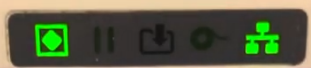](https://kb.simplerfid.com/uploads/images/gallery/2026-02/Gjuimage.png) # Zebra ZT411 # Load Labels & Ribbon into Zebra ZT411R [Watch this video](https://www.google.com/search?q=load+media+into+ZT411R+printer+zebra&rlz=1C1RXQR_enUS1050US1050&oq=load+media+into+ZT411R+printer+zebra&gs_lcrp=EgZjaHJvbWUyBggAEEUYOdIBCTEwNTE5ajBqN6gCALACAA&sourceid=chrome&ie=UTF-8#fpstate=ive&vld=cid:4f0ec10b,vid:qgcdmejldps,st:3) # Zebra ZT411 - Adjust Print Darkness To adjust the print darkness on your ZT411 printer, take the following steps: 1. On the home screen of the printer, tap the **Menu** button 2. Tap the **Print** icon, then **Print Quality**, then select the **Darkness** option 3. Adjust the darkness setting using the slider or **+** and **-** buttons. - The darkness setting ranges from 0 to **30**. - For **wax ribbon**, the recommended darkness setting is **10-15**. - For **resin ribbon**, the recommended darkness setting is **25-30**. 4. After adjusting the darkness, tap the **Home** button at the top-right of the screen to return to the home screen. 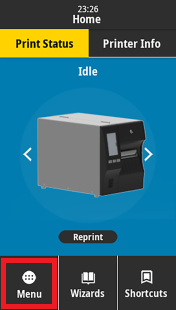 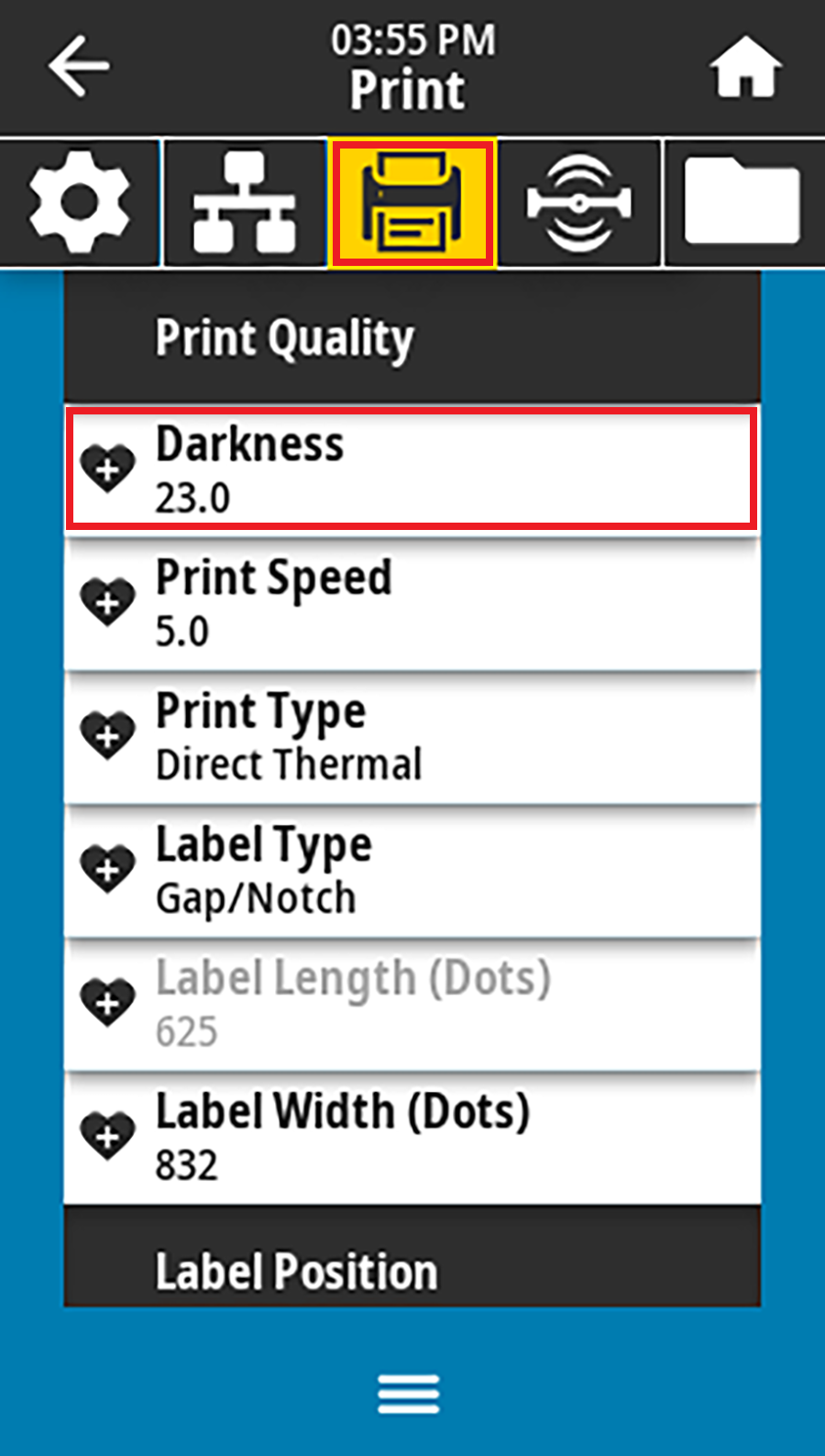 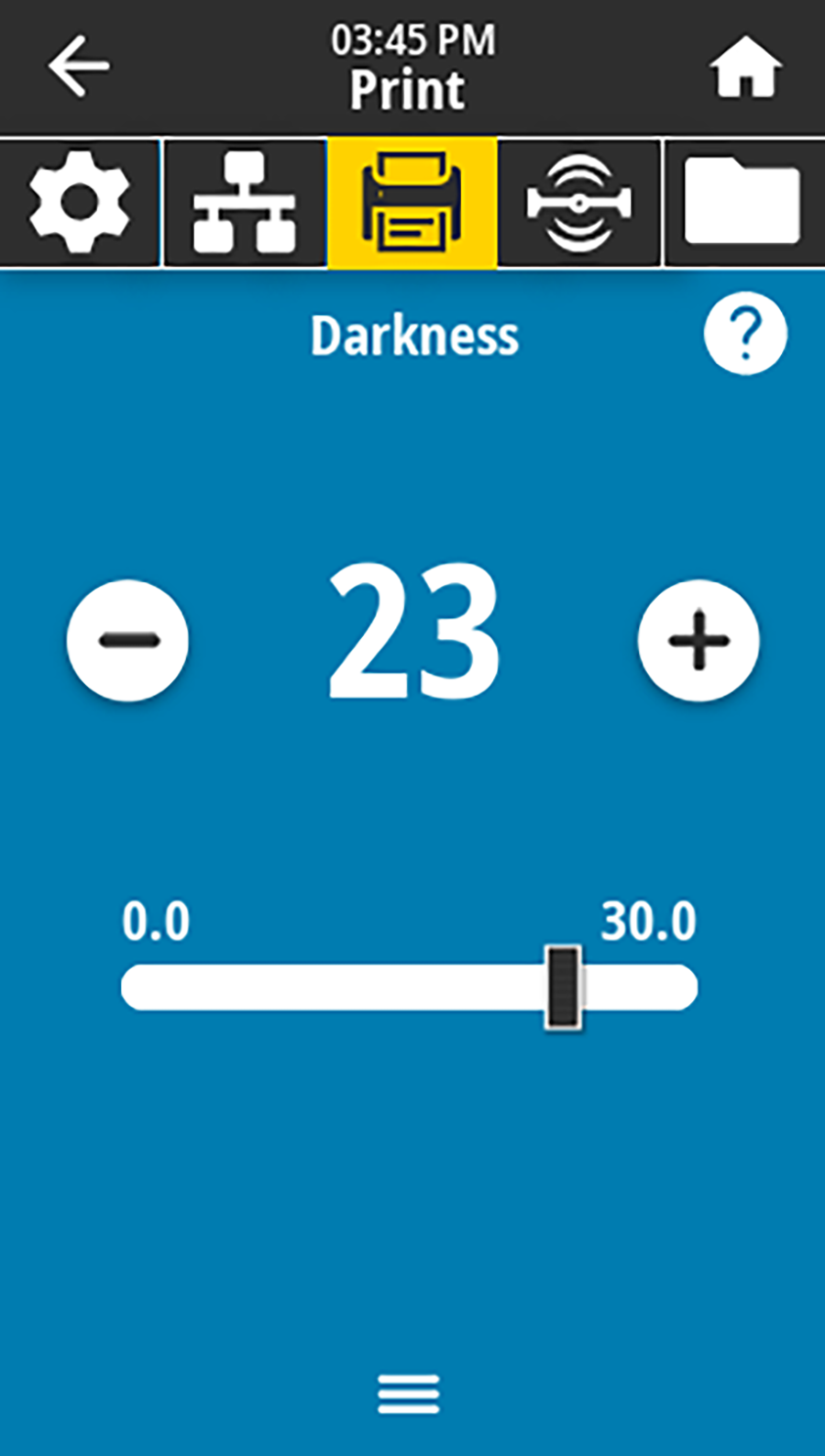 # ZT411R RFID Calibration****ATTENTION:**** We suggest ****first**** performing the [calibration from the website](https://kb.simplerfid.com/books/calibrate-printer/page/calibrate-from-the-web-portal). If the calibration fails, then follow these steps.
If the web calibration fails, please watch the video below to calibrate the RFID directly from the printer. # Zebra ZT410 # Load Media & Ribbon into Zebra ZT410R [Watch this video](https://www.google.com/search?q=load+media+into+ZT411R+printer+zebra&rlz=1C1RXQR_enUS1050US1050&oq=load+media+into+ZT411R+printer+zebra&gs_lcrp=EgZjaHJvbWUyBggAEEUYOdIBCTEwNTE5ajBqN6gCALACAA&sourceid=chrome&ie=UTF-8#fpstate=ive&vld=cid:4f0ec10b,vid:qgcdmejldps,st:3) # Calibrate ZT410R****ATTENTION:**** We suggest ****first**** performing the [calibration from the website](https://kb.simplerfid.com/books/calibrate-printer/page/calibrate-from-the-web-portal). If the calibration fails, then follow these steps.
To calibrate your printer directly from the printer follow the steps from this video: # Printronix: Calibration****ATTENTION:**** We suggest ****first**** performing the [calibration from the website](https://kb.simplerfid.com/books/calibrate-printer/page/calibrate-from-the-web-portal). If the calibration fails, then follow these steps.
Note: Before proceeding with calibration, it is best practice to ensure the onboard RAM is cleared by shutting off the printer, and waiting 30 seconds to power it back on.
### Step 1: Media Calibration First, press the green Pause button on your printer to access the main menu. The menu looks like this: 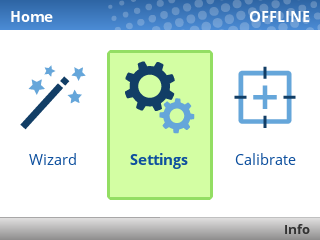 Press the right arrow key on the printer to select "Calibrate", then press the Enter key. The media calibration should only take a few seconds, and once finished, you may see an error similar to the following: 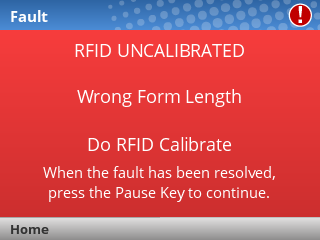 You can ignore this for now. Press ****Pause**** to dismiss the error. ### Step 2: RFID Calibration With the printer paused, using the arrow keys, navigate to ****Settings > RFID**** (second page) ****> Tag Calibration > RFID Calibrate****.  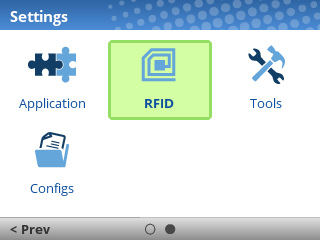 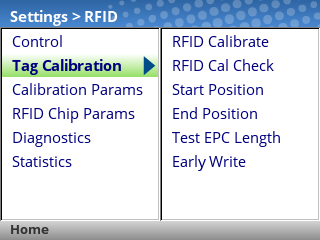 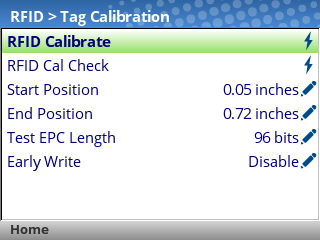If you see an "ENTER SWITCH LOCKED" error, just press the Up and Down keys once, at the same time. You should then see "ENTER SWITCH UNLOCKED" and then you can perform the calibration.
The printer may take a few minutes to complete the RFID calibration. While in progress, you'll see the following window, which will update as progress is made: 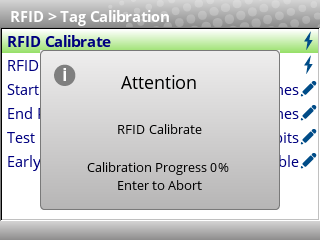 Once the calibration is completed you'll see the following confirmation message: 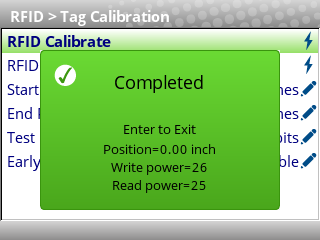 Press the green Pause button to unpause the printer, then select "Save permanently in Active Config" When all the steps have been completed the printer should show "ONLINE" in the top-right corner of the screen: 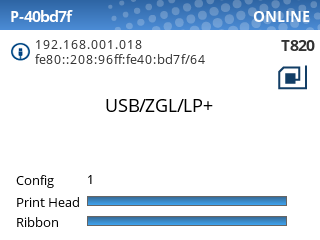Throughout the calibration process, quite a few labels will be fed out of the printer. These blank labels can still be used, so we recommend opening the printer and rolling these labels back up into the printer before printing. Make sure to unpause the printer again after closing it.
# Printronix: Alignment ### Step 1: ****Pause**** your printer using the green Pause button Using the arrow and enter keys, navigate to ****Settings > Media > Image**** and locate the ****Vertical Shift**** and ****Horizontal Shift**** settings:****NOTE:**** The values you see here will not necessarily be the values you need to set.
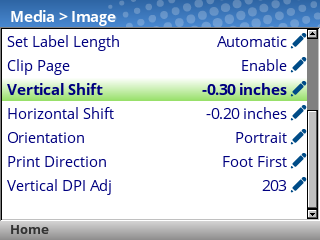 Adjust the values for these settings according to your needs. - Vertical Shift: ****Positive values**** will shift the image ****up,**** and ****negative values**** will shift the image ****down.**** - Horizontal Shift: ****Positive values**** will shift the image to the ****left,**** and ****negative values**** will shift the image to the ****right.**** - If you encounter the message ****ENTER SWITCH LOCKED****, press the Up and Down arrow keys together, then wait until the screen says ****ENTER SWITCH UNLOCKED****. You will then be able to edit these settings. When you've adjusted these settings ****unpause**** the printer using the green Pause button, then select ****Save permanently in Active Config**** ### Step 2: Try printing another label, and see if any further adjustments are necessary.After adjusting these settings, the printer will feed a few labels before printing again. This is expected behavior.
# Printronix: DarknessIf using wax ribbon, we recommend your darkness is set between 0 and 5.
If using resin ribbon, we recommend your darkness is set between 10 and 15.
Press the green ****Pause**** button on your printer to open the main menu. Use the physical navigation keys to navigate to ****Settings > Media > Image > Print Intensity**** 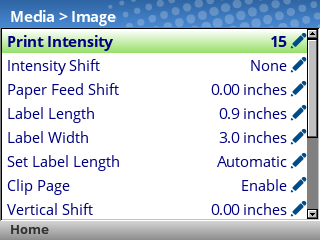 Press the ****Enter**** key, and use the ****Up**** and ****Down**** arrow keys to adjust the value. If you see the ****ENTER SWITCH LOCKED**** message, just press the ****Up**** and ****Down**** arrow keys at the same time, and you should then see ****ENTER SWITCH UNLOCKED****. Press ****Enter**** again to apply your settings, then unpause the printer and choose ****Save Permanently in Active Config.****Keep in mind that print quality/darkness is also affected by the Print Speed. The slower the Print Speed, the less energy is needed to transfer the ink; so the Print Intensity should also be lowered accordingly.
# Printronix: GAP NOT DETECTED A “GAP NOT DETECTED” error means that the printer was not able to find the gap/mark between labels. There are a few potential causes for this error: 1. The printer has not performed a media calibration on the labels - Solution: [Calibrate your printer.](https://kb.simplerfid.com/books/calibrate-printer/page/calibrate-your-printer "Calibrate your printer") 2. The labels are not feeding out of the printer correctly (most often because the labels were back-fed too far into the printer) - Solution: Ensure that at least 1 label is sitting past the [platen roller](https://kb.simplerfid.com/books/printers/page/what-is-a-platen-roller). 3. The media sensor is in the wrong place (it should be underneath the labels, lined up with the gap) - Solution: Ensure that the media sensor is sitting directly under the labels, so the gap between the labels will pass over the sensor when feeding/calibrating. - After adjusting the sensor, please calibrate your printer again. 4. The printer is set to the wrong media type (Gap vs. Mark) - Solution: Ensure that the ****Sensors > Control > Gap/Mark Sensor**** is set to the value that matches your labels (e.g. Gap). # Printronix: Connecting to Wi-Fi #### If you purchased a Printronix printer with Wi-Fi capabilities, follow these instructions to connect the printer to your network.This article assumes that your Wi-Fi network is protected by **WPA Personal** with an **ASCII** passphrase, which covers most cases. If your network is set up differently, contact your network administrator for the correct settings.
Press the **Pause** button, then use the **Left Arrow Key** to navigate to **Wizard**. Press **Enter**. 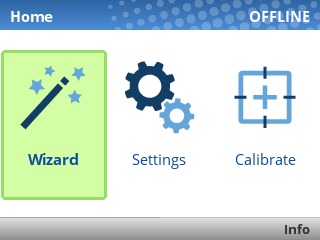 Press **Enter** again to select **Wizards**. 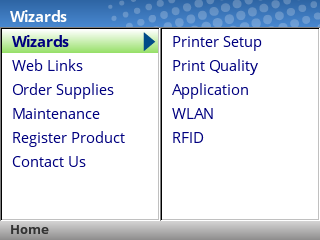 Use the **Down Arrow Key** to navigate to **WLAN**, then press **Enter**. 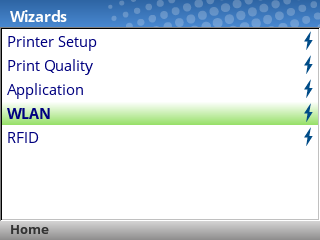If you see the **ENTER SWITCH LOCKED** message, just press the **Up** and **Down** arrow keys at the same time, then wait up to 5 seconds and you should then see **ENTER SWITCH UNLOCKED**.
You'll now be guided through the setup steps to connect to your Wi-Fi network. Press the **Right Arrow Key** to advance to the next screen. 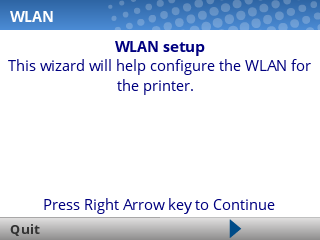 First, you 'll be asked for the **SSID** of your network. This is also known as the **name of your Wi-Fi network**. 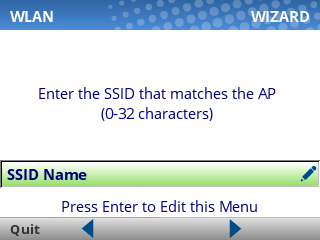 Press **Enter** to edit the **SSID Name** field, then use the provided keyboard to type the SSID. (Enter your own Wi-Fi name, **not** Simple RFiD 5G.) 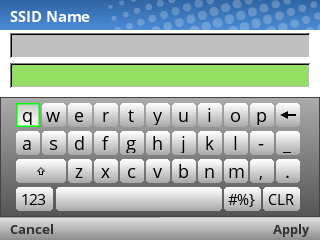 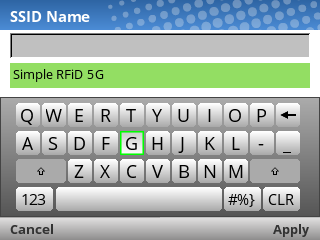The SSID name is case-sensitive, and must be an EXACT match in order to connect. Take care to capitalize the correct letters, and use spaces where needed.
Finally, press the **Right Soft Key** under "Apply" to move to the next setting. Next, you'll be asked for the **Security Type**. In most cases, this should be set to **WPA Personal**. Press **Enter** to edit the field, then choose the correct option and press **Enter** again. 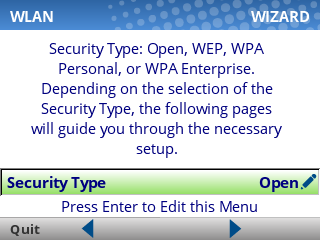 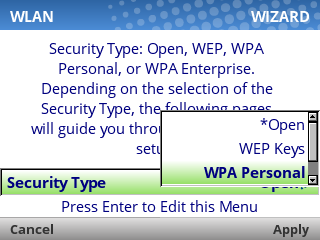 Next, you'll be asked for the **WPA Pass-Phrase Format.** In most cases, this should be set to **ASCII**. Press **Enter** to edit the field, then choose the correct option and press **Enter** again. 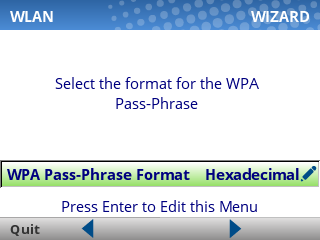 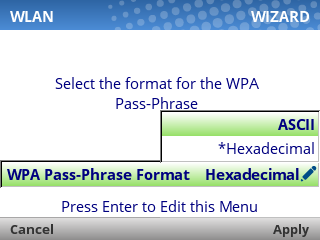 Next, you'll be asked for the **WPA Pass-Phrase.** This is your Wi-Fi password. Press **Enter** to edit the field, then use the provided keyboard to type the password (case-sensitive!). 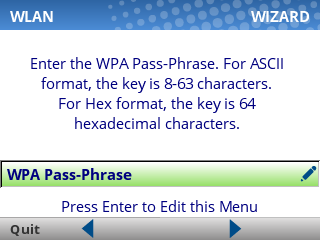 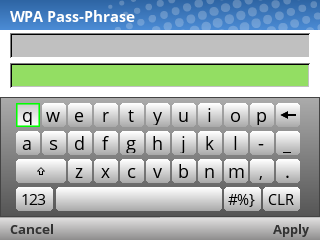 Finally, press the **Right Soft Key** under "Apply" to move to the next setting. Next, you'll be asked whether you'd like to enable **DHCP**. In most cases, this should be set to **Enable**. 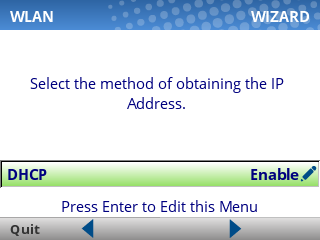 Press the **Right Arrow Key** to move to the next screen. you'll see a confirmation that you've completed the wizard. 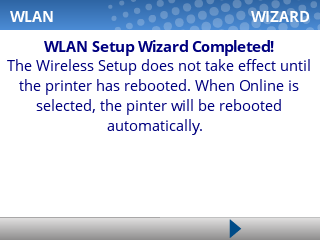 Press the **Right Arrow Key** to exit the wizard. Next, we'll change the Host I/O settings to ensure that the printer is listening for print jobs over the network. Press the **Left Arrow Key** until you're back to the Home screen, then select **Settings**: [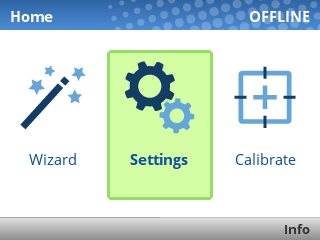](https://kb.simplerfid.com/uploads/images/gallery/2025-06/20250618-090959-251740.png) Navigate to **Host I/O > Interface**, and set this option to **Ethernet**. 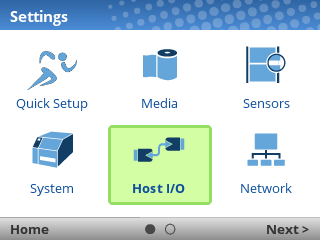 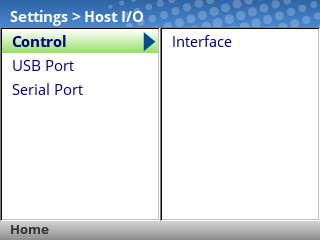 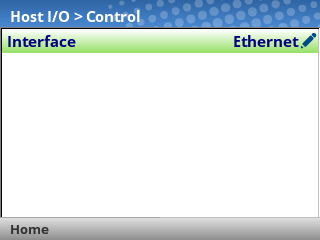 Last, **unpause the printer**, and select **Save Permanently in Active Config**. The printer will automatically reboot at this point, and when it finishes starting up you should see that your Wi-Fi connection is active: 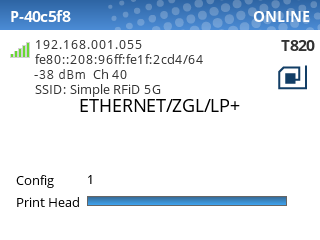 # Printronix: Check Firmware Version From the [web portal](https://portal.simplerfid.com/), click the ****Available Printers**** menu. 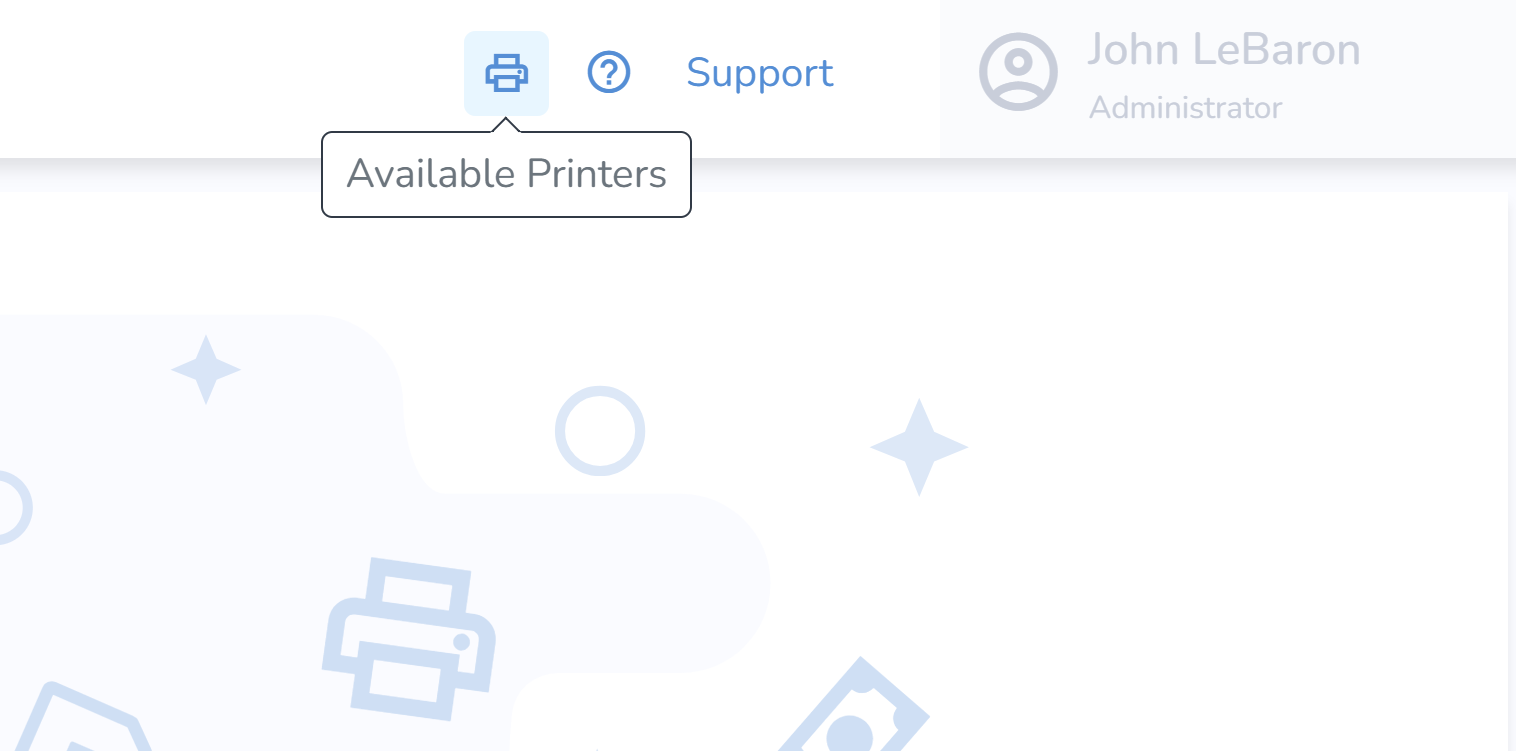 Locate your printer, then click the ****Settings**** icon. 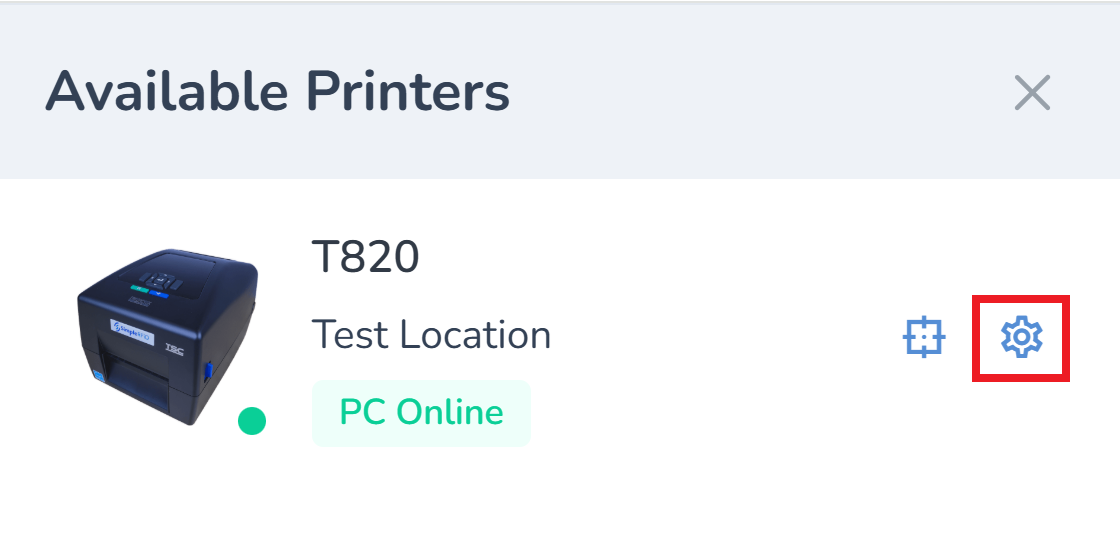 Check the value for the ****Firmware**** property. 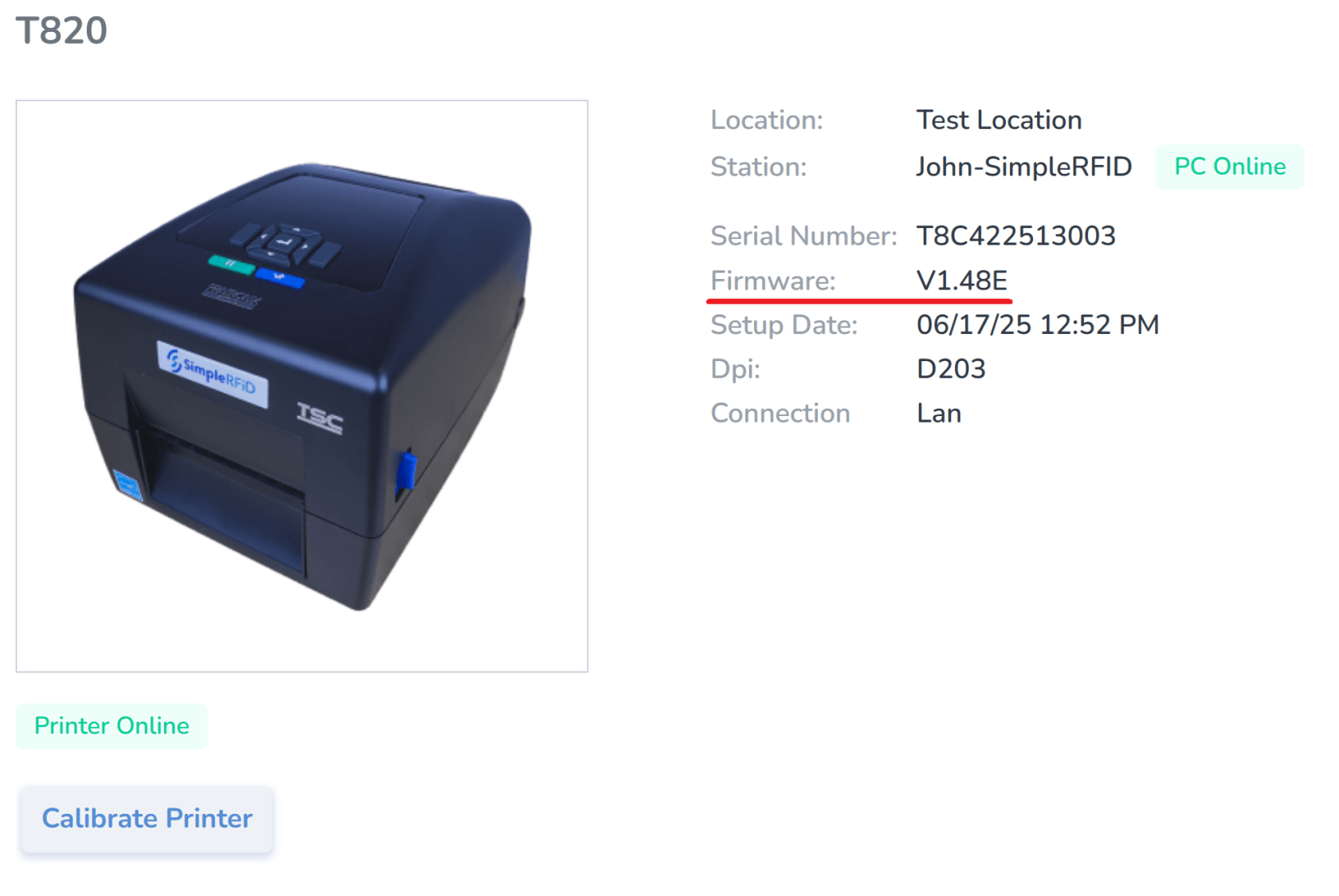 At the time of writing, these are the latest firmware versions: - T800 (T820, T830): ****V1.48E**** - T4000 (T4204): ****V1.46H**** - T6000e (T6304, T6604): ****V1.42E**** To update your printer, follow this guide: [****Printronix: Update Firmware****](https://kb.simplerfid.com/books/printers/page/printronix-update-firmware-via-webpage "Printronix: Update Firmware") # Printronix: Job in Process Printronix printers often state "Job in Process" (often misread as "Job in Progress") on their screen, as shown below: 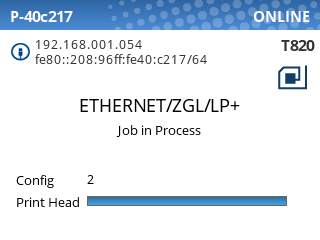 This message indicates that the printer is processing data from the host. ****Since this includes periodic status checks and other information, the Job in Process message does not necessarily mean that a print job is in progress.**** If the printer is idle (not currently printing), then you should be able to submit new print jobs without any issues. If you are unable to print, the most common cause is that the printer is offline. Follow the steps in this article to troubleshoot: [Printer Offline](https://kb.simplerfid.com/books/printing-issues/page/printer-offline "Printer Offline") # Printronix: ENTER SWITCH LOCKED Printronix printers lock the Enter switch to prevent accidental changes to settings. If you see the ****ENTER SWITCH LOCKED**** message, just press the ****Up**** and ****Down**** arrow keys at the same time, and you should then see ****ENTER SWITCH UNLOCKED****. # What is a Platen Roller? A platen roller is a rubber-coated cylinder in printers and labelers that drives media (paper/labels) past the printhead, ensuring proper, consistent pressure for high-quality, crisp printing. It serves as a hard, smooth surface against which the printhead presses, crucial for feeding materials without jamming or slippage. [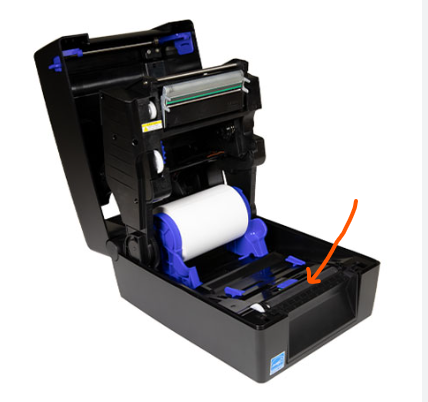](https://kb.simplerfid.com/uploads/images/gallery/2026-02/ZoJimage.png) [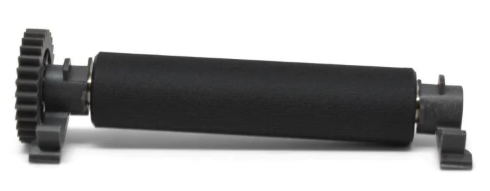](https://kb.simplerfid.com/uploads/images/gallery/2026-02/DLKimage.png) ****Key Functions and Details**** - ****Media Transport:**** It moves labels or paper through the printer, often serving as the primary drive mechanism. - ****Print Quality:**** By providing an even surface, it ensures that thermal transfer ribbons or direct thermal media make full contact with the printhead. - ****Wear and Maintenance:**** Over time, these rollers can develop "dips," become damaged by debris, or harden. - ****Signs of Failure:**** Faded, inconsistent, or wrinkled print, as well as frequent paper jams or slipping labels, indicates a need for cleaning or replacement. # Unpause your printer Printers will not print or calibrate if they're paused. Depending on the model of your printer, you'll see different indicators if the printer is paused. ### How to tell if your printer is paused ##### ****T800****: "OFFLINE" in top-right corner 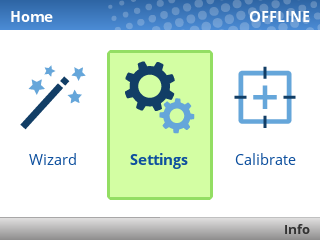 The OFFLINE text means the printer is paused. Unpause it using the green pause button ****\[ I I \]**** below the screen. If prompted to save settings, choose ****Save Permanently in Active Config****. You should then see ****ONLINE**** in the top-right corner of the screen, meaning the printer is ready. ##### ****ZD621R****: Pause indicator above screen  If the PAUSE light is lit up yellow, the printer is paused. Unpause it using the Pause button ****\[ I I \]**** to the right of the screen. ##### ****ZD500R****: PRINTER PAUSED message flashing on screen If the printer's screen flashes PRINTER PAUSED, unpause it using the Pause button ****\[ I I \]**** to the right of the screen. # Printronix: Updating Firmware # Printronix: Update Firmware via WebpageTo use this upgrade method, your printer ****must be connected to your network****. If a network connection is unavailable, [****update the firmware via a USB flash drive****](https://kb.simplerfid.com/books/printers/page/printronix-updating-firmware-via-flash-drive).
#### Requirements: - A device with a web browser, on the same network (LAN) as your printer - This device must be able to download and upload files. - An RJ-45 Ethernet cable to connect your printer to the network (unless you have a Wi-Fi enabled printer) ### Step 1: Download the latest firmware file Choose the appropriate file for your printer model: - [T800 firmware (T820, T830)](https://dl.simplerfid.dev/T800%201.52E%20P302271.prg) - [T4000 firmware (T4204)](https://dl.simplerfid.dev/T4000%20V1.46H.prg) - [T6000e firmware (T6304, T6604)](https://dl.simplerfid.dev/T6000e%20V1.42E.prg) ### Step 2: Connect the printer to your networkMake sure ****all**** ****USB cables**** are disconnected from the printer before continuing.
Using an Ethernet cable with RJ-45 connectors, or Wi-Fi on supported models, connect the printer to your network. 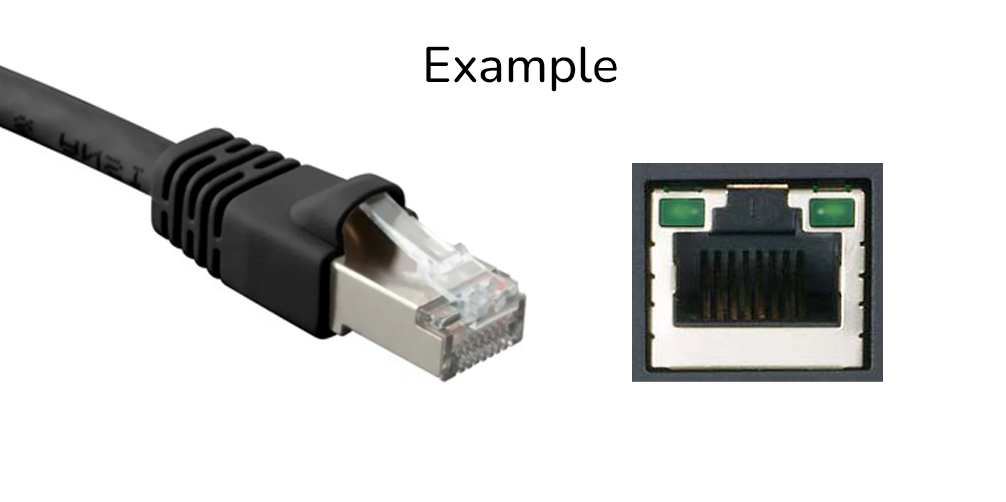 When the printer is connected to the network, you will see its IP address at the top-left of the screen: [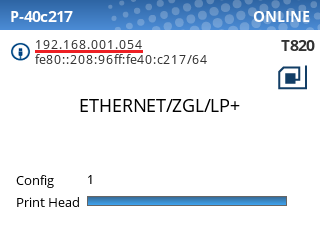](https://kb.simplerfid.com/uploads/images/gallery/2025-07/printronix-ip-address.png) (If you don't see this screen, you may need to unpause the printer using the green pause button \[ ****I I**** \]. ### Step 3: Navigate to the printer's web page Type the printer’s IP address into a web browser. You can omit leading zeros in each octet: 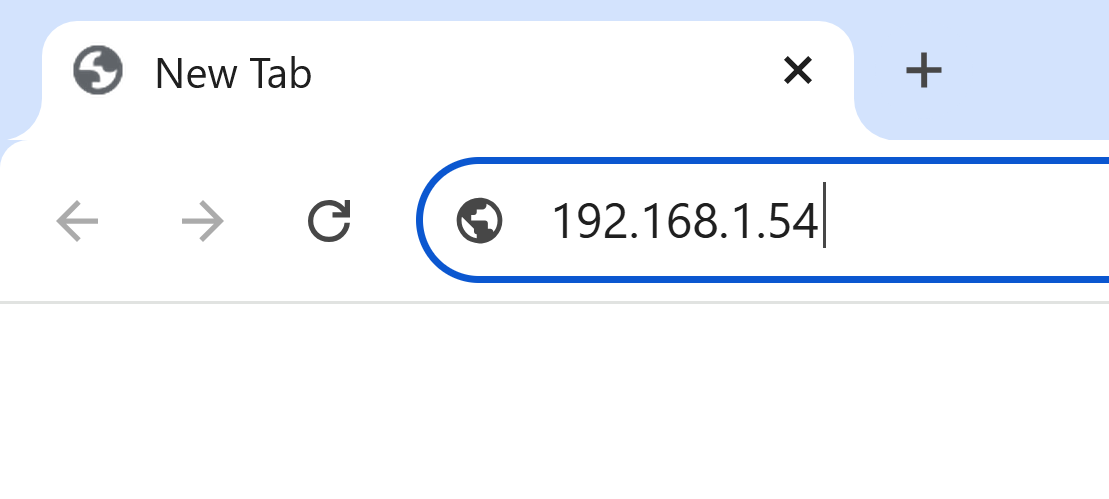 You should be greeted with the printer's home page: [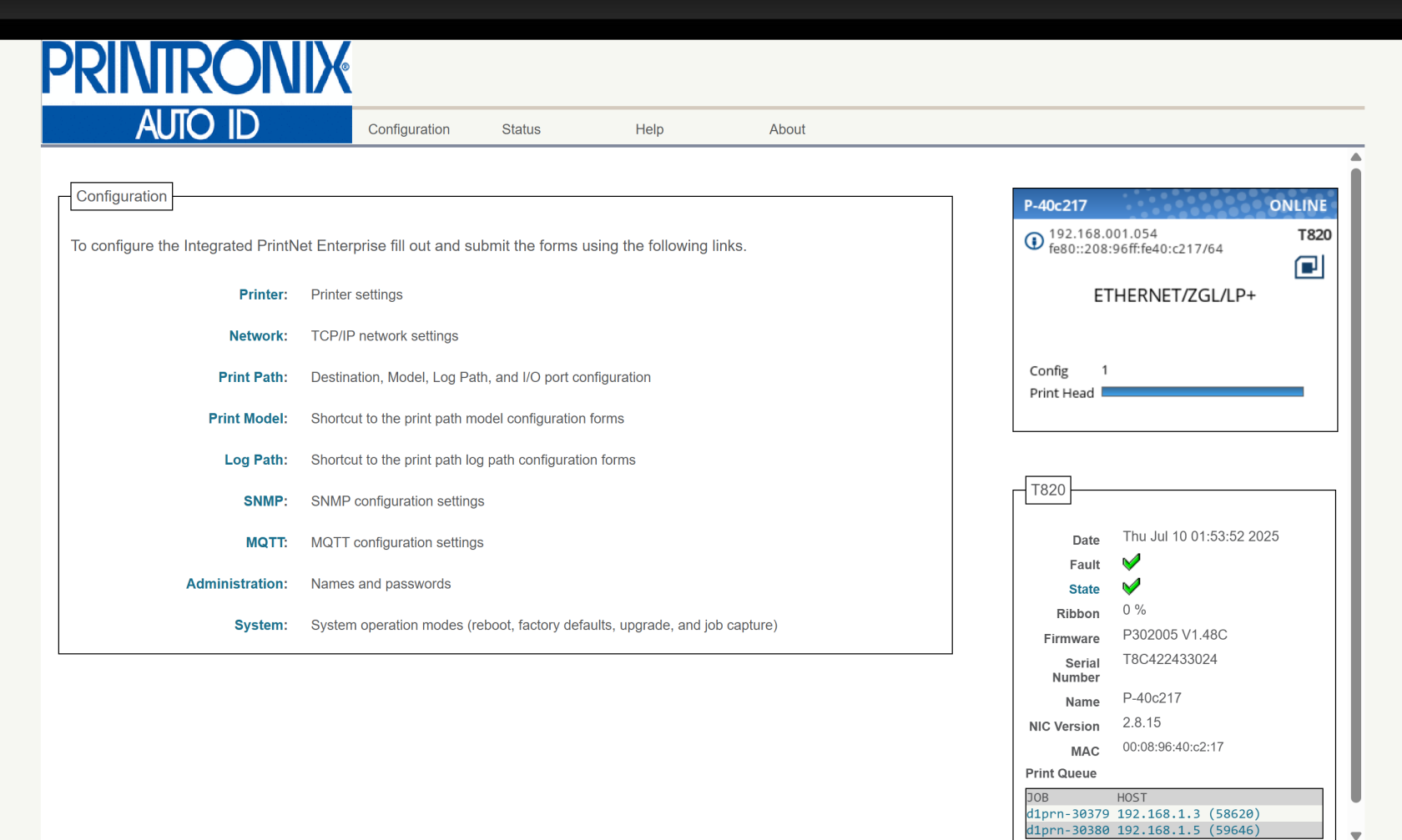](https://kb.simplerfid.com/uploads/images/gallery/2025-07/7Gwimage.png)If you see a page asking you to set a password, we recommend setting it to ****Print123!**** to remain consistent with other guides. If you set the password to something else, make sure you store the password somewhere it can be retrieved later.
### Step 4: Capture the printer's current configuration When you upgrade the firmware, the printer's current settings (including calibration, print intensity, vertical/horizontal shift, and more) will be lost. We will save the printer's current configuration to a file so we can restore it after the upgrade is complete. Click the ****Printer**** link at the top of the Configuration list.You may be prompted for a username and password at this point. The username is ****root**** and the password is ****Print123!**** or whatever you set it to in the previous step. If ****Print123!**** doesn't work, try leaving the password field blank.
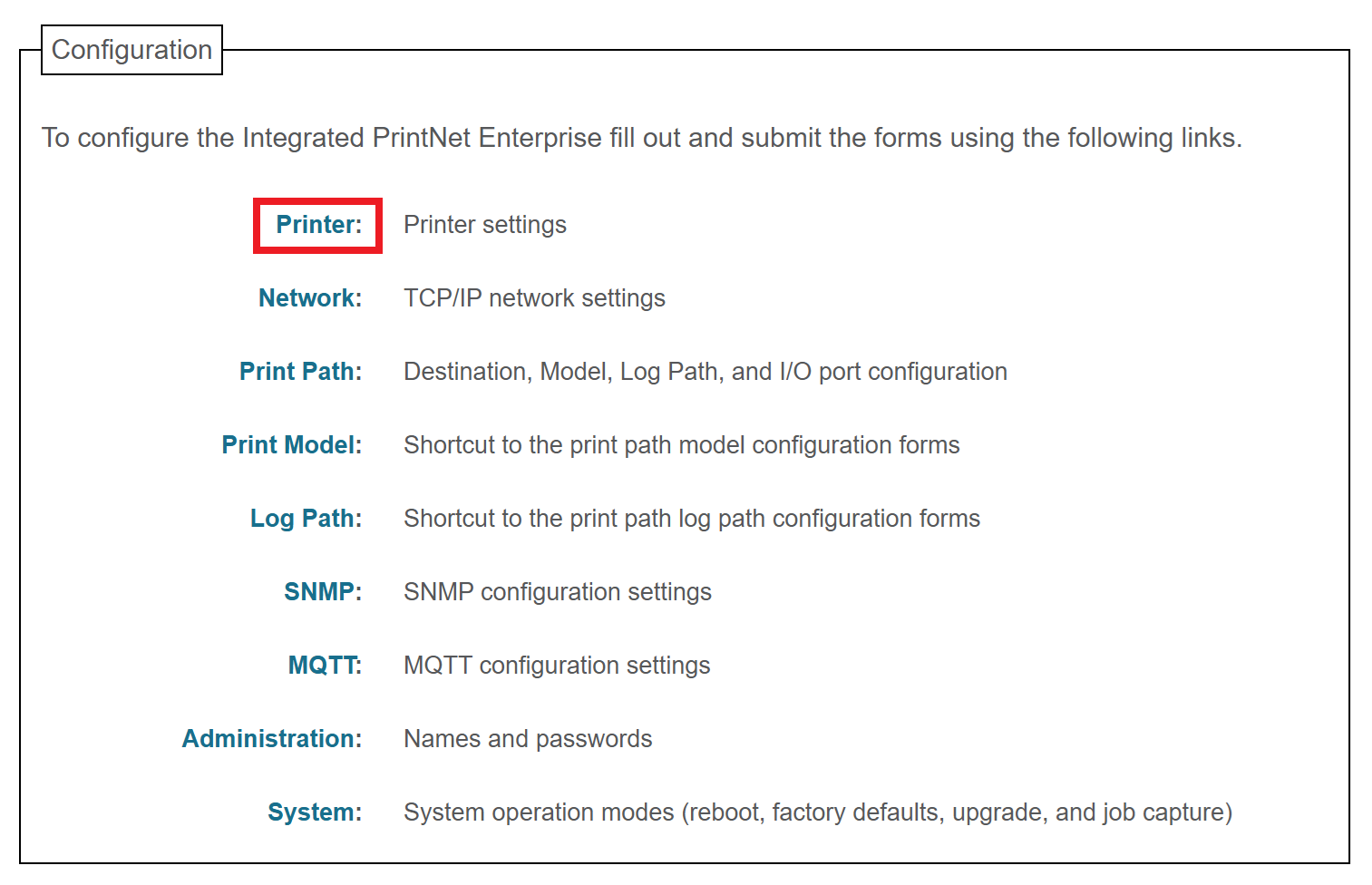 Click the ****Configuration Management**** link near the top of the page: 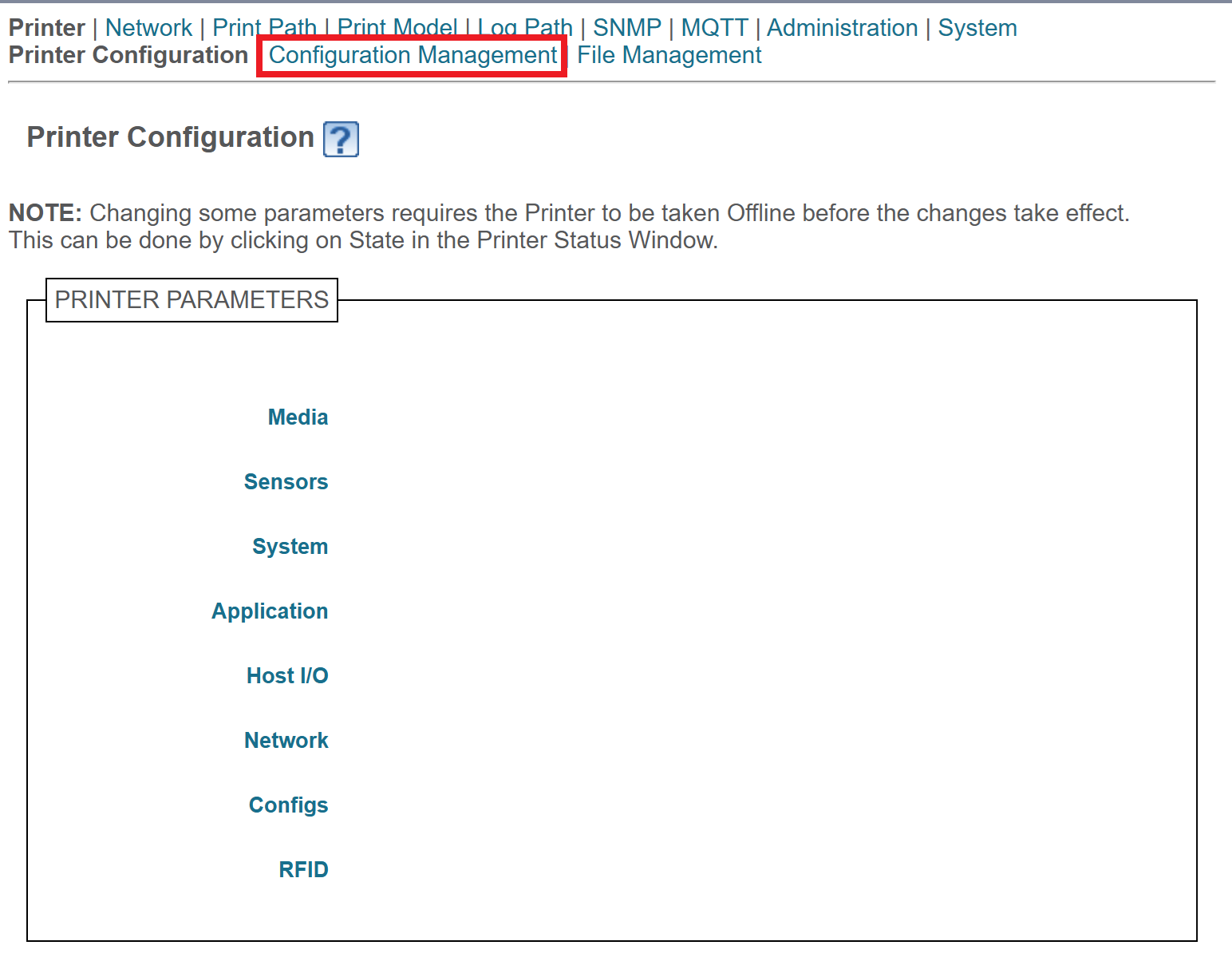 Click the ****Upload**** button. This will download a file containing the printer's current configuration. Save this file; we'll use it later to restore the configuration. 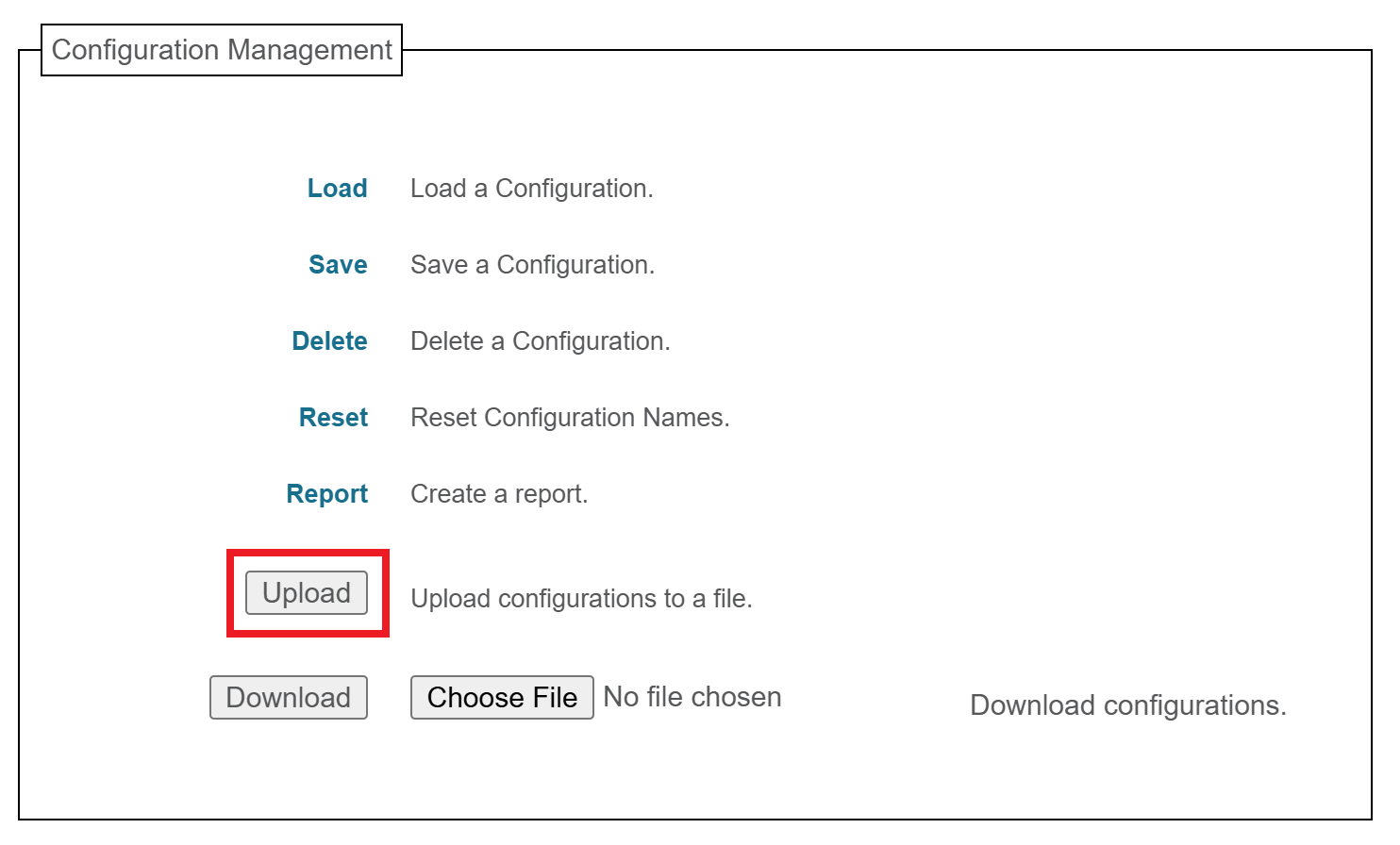If you see a message like ****Insecure download blocked****, make sure to Keep the download.
### Step 5: Perform the upgrade Click the ****Configuration**** link at the top of the page: [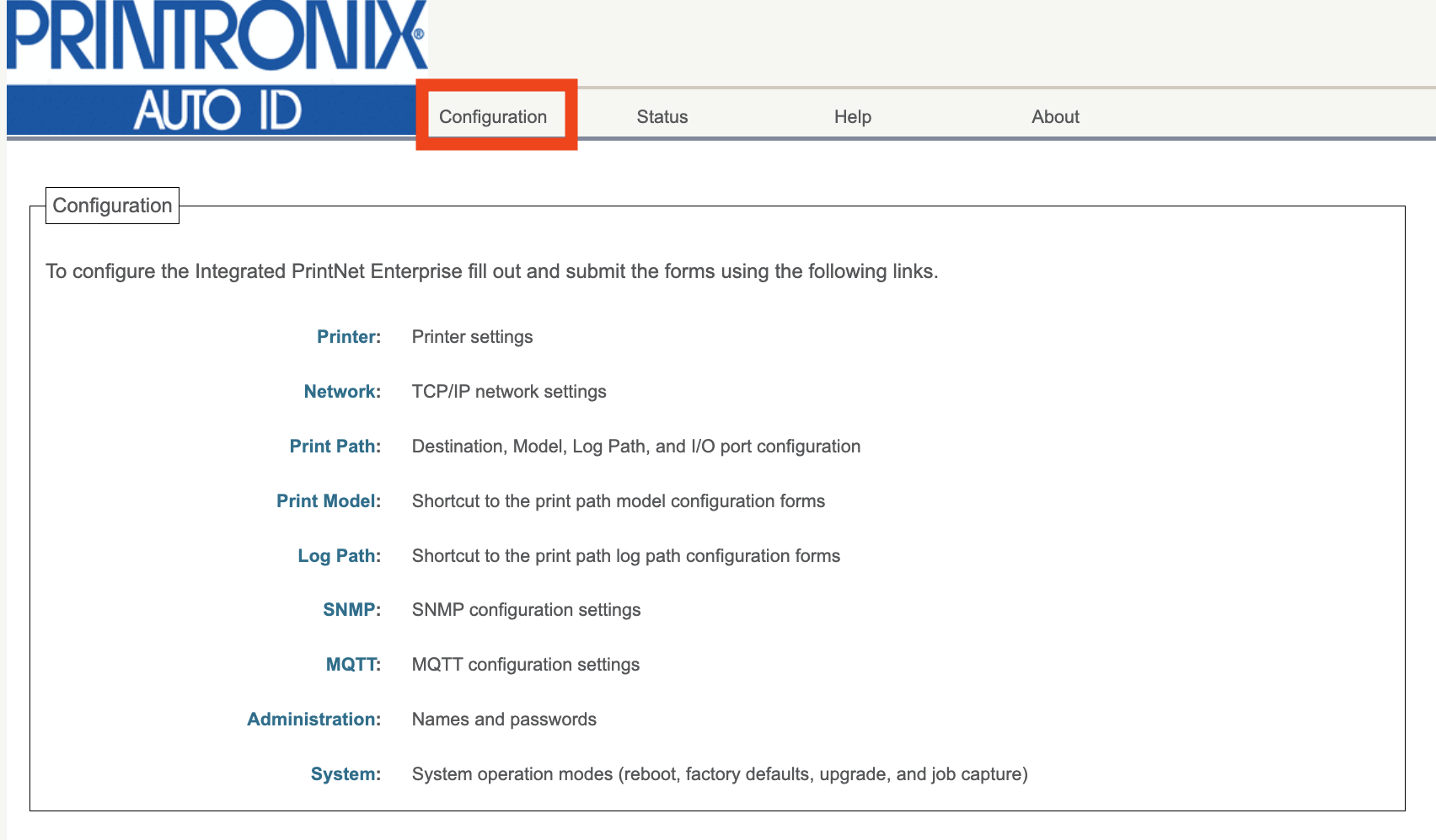](https://kb.simplerfid.com/uploads/images/gallery/2026-01/t96image.png) Click the ****System**** link at the bottom of the Configuration list: 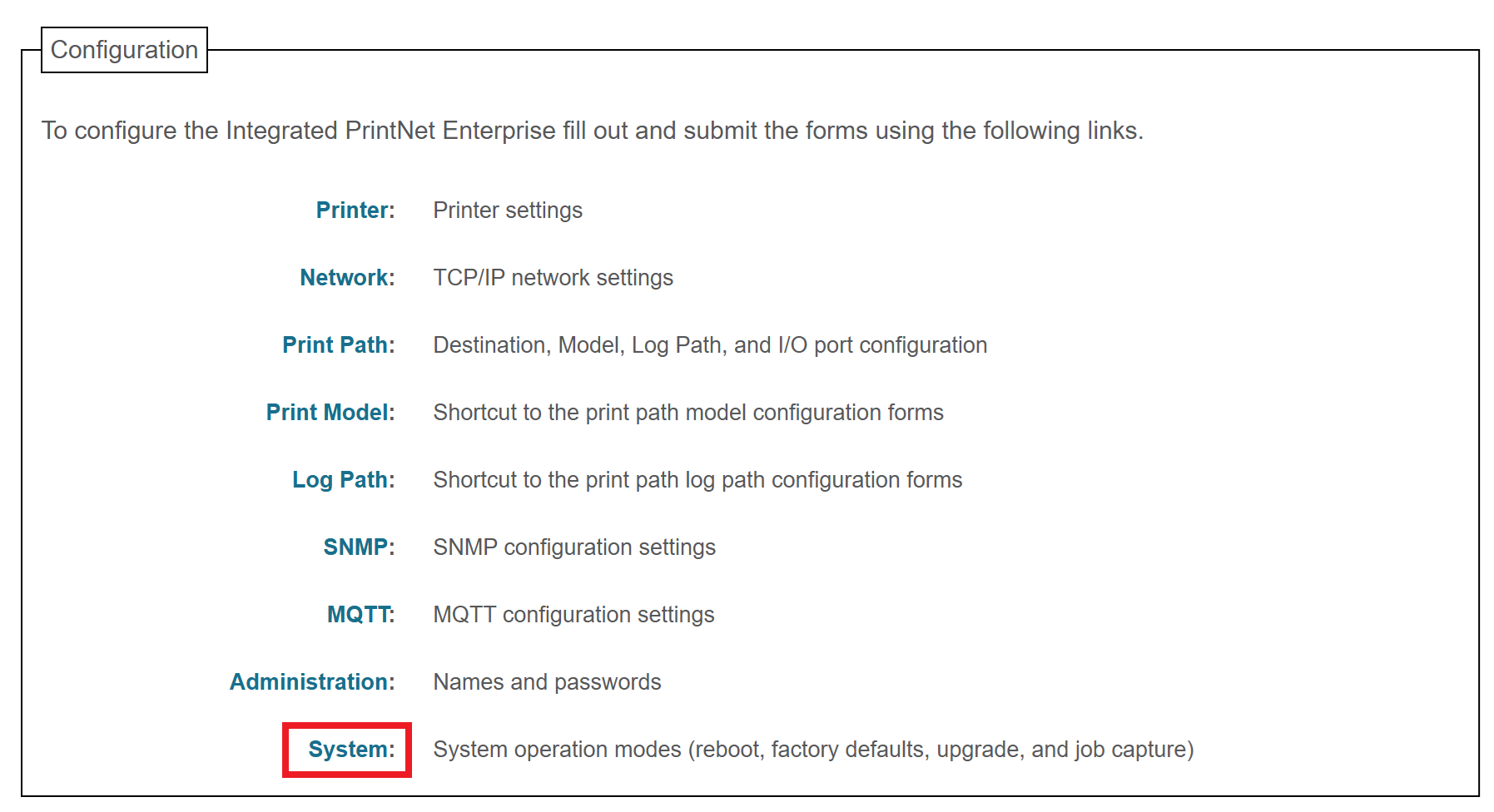You may be prompted for a username and password at this point. The username is ****root**** and the password is ****Print123!**** or whatever you set it to in the previous step. If ****Print123!**** doesn't work, try leaving the password field blank.
Next, click the ****Upgrade**** button in the System menu: 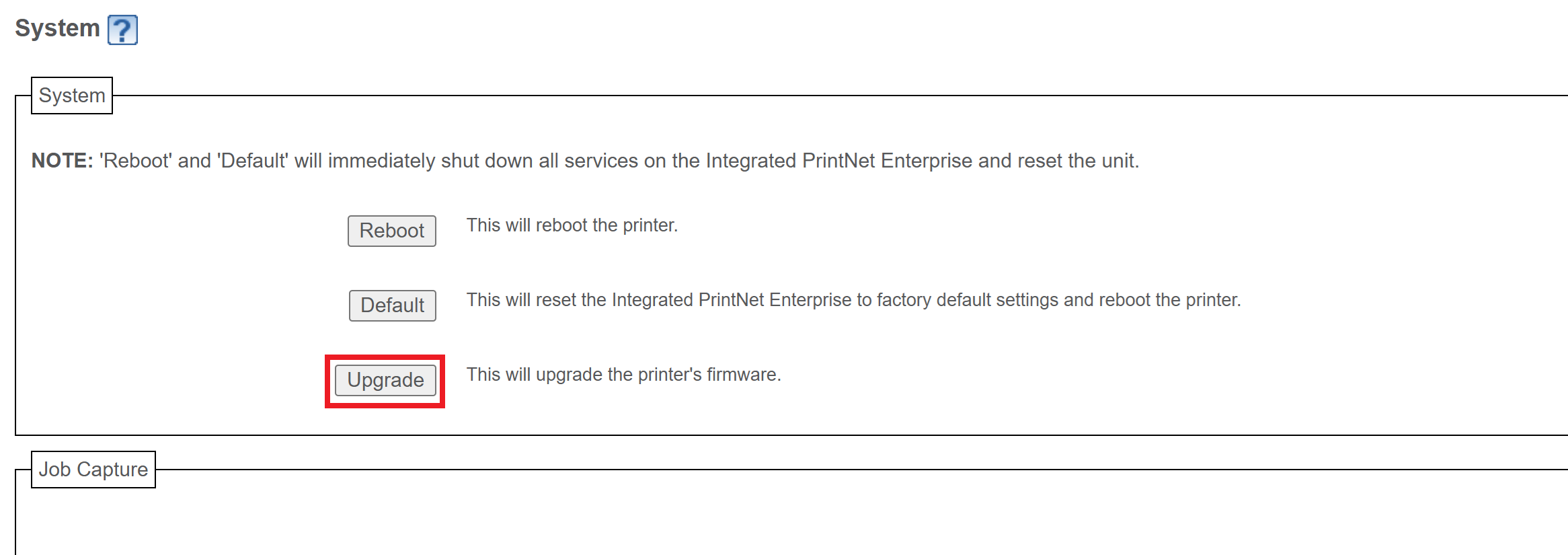 Click ****Choose File****, then choose the ****.prg**** firmware file you downloaded earlier. After selecting the file, you'll see its name listed next to the button. 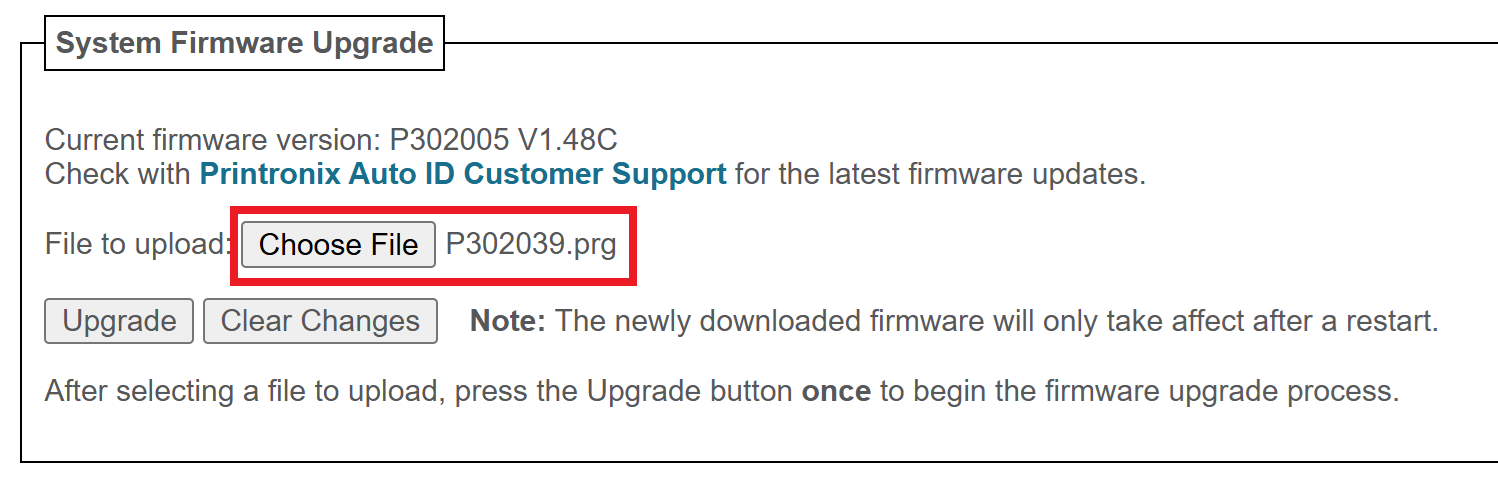 Click the ****Upgrade**** button. You'll be asked to confirm the operation: click ****OK****. 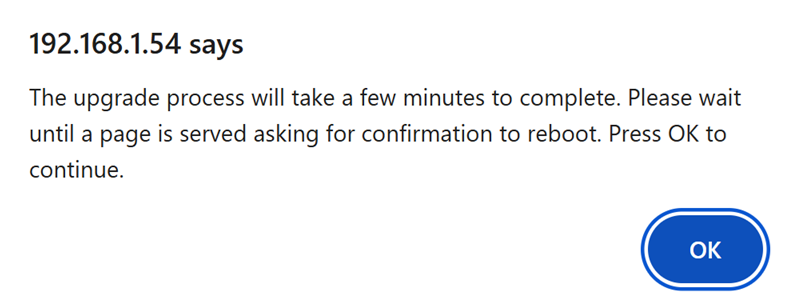 The firmware will now be downloaded to the printer. You should see a message on the printer stating that the Download is in progress: [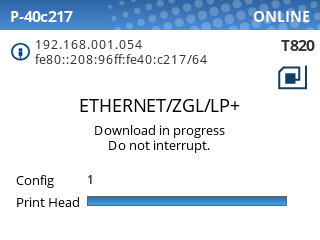](https://kb.simplerfid.com/uploads/images/gallery/2025-07/ZNPimage.png) When the printer has downloaded the firmware, the web page will prompt you to perform a restart. Click ****Yes****. 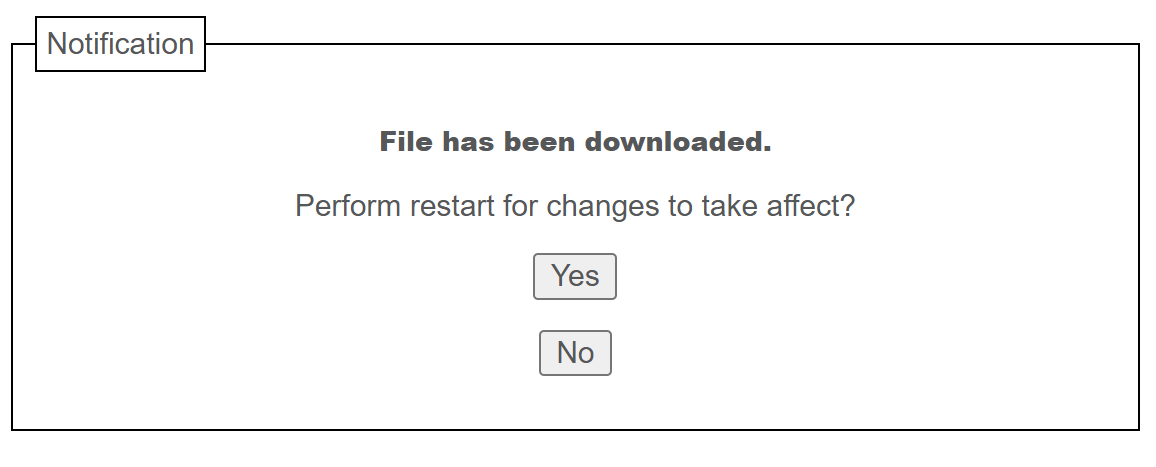 After a few minutes, the printer will reboot itself and apply the update. During this time, the web page will be unresponsive. After ****~2-3 minutes****, the upgrade will be complete. ### Step 6: Restore your previous printer config Refresh the web page so you're back at the Configuration page.If you see a page asking you to set a password, we recommend setting it to ****Print123!**** to remain consistent with other guides. If you set the password to something else, make sure you store the password somewhere it can be retrieved later.
Click the ****Printer**** link at the top of the Configuration list.  Click the ****Configuration Management**** link near the top of the page:  Click the ****Choose file**** button, and select the ****Printer.ptx**** configuration file we created earlier. Then, click the ****Download**** button. 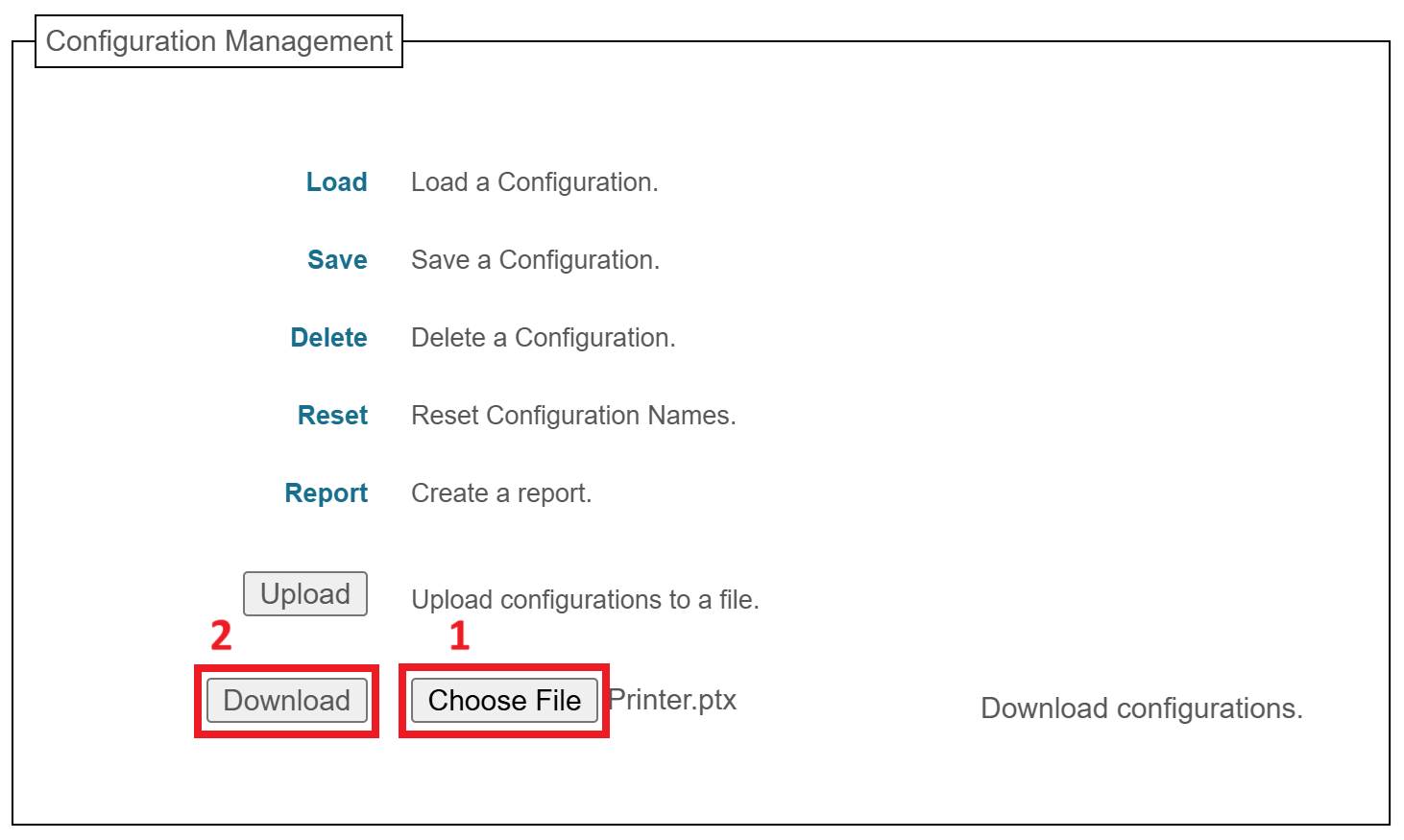 You'll see a message confirming that the configuration has been downloaded: 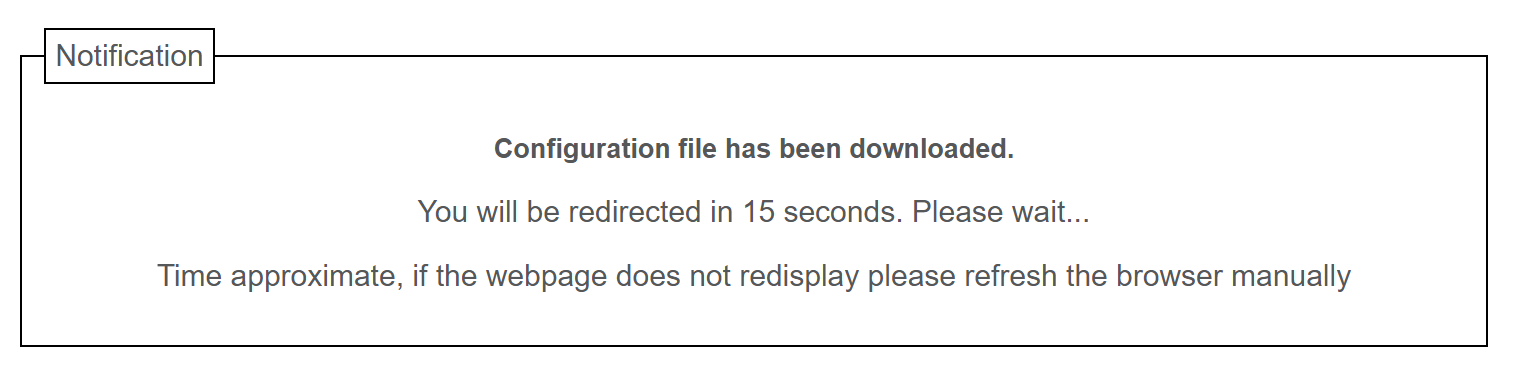 Wait for the page to be redirected, or refresh the page manually if it doesn't redirect within 15 seconds. Click the ****Load**** link at the top of the list. 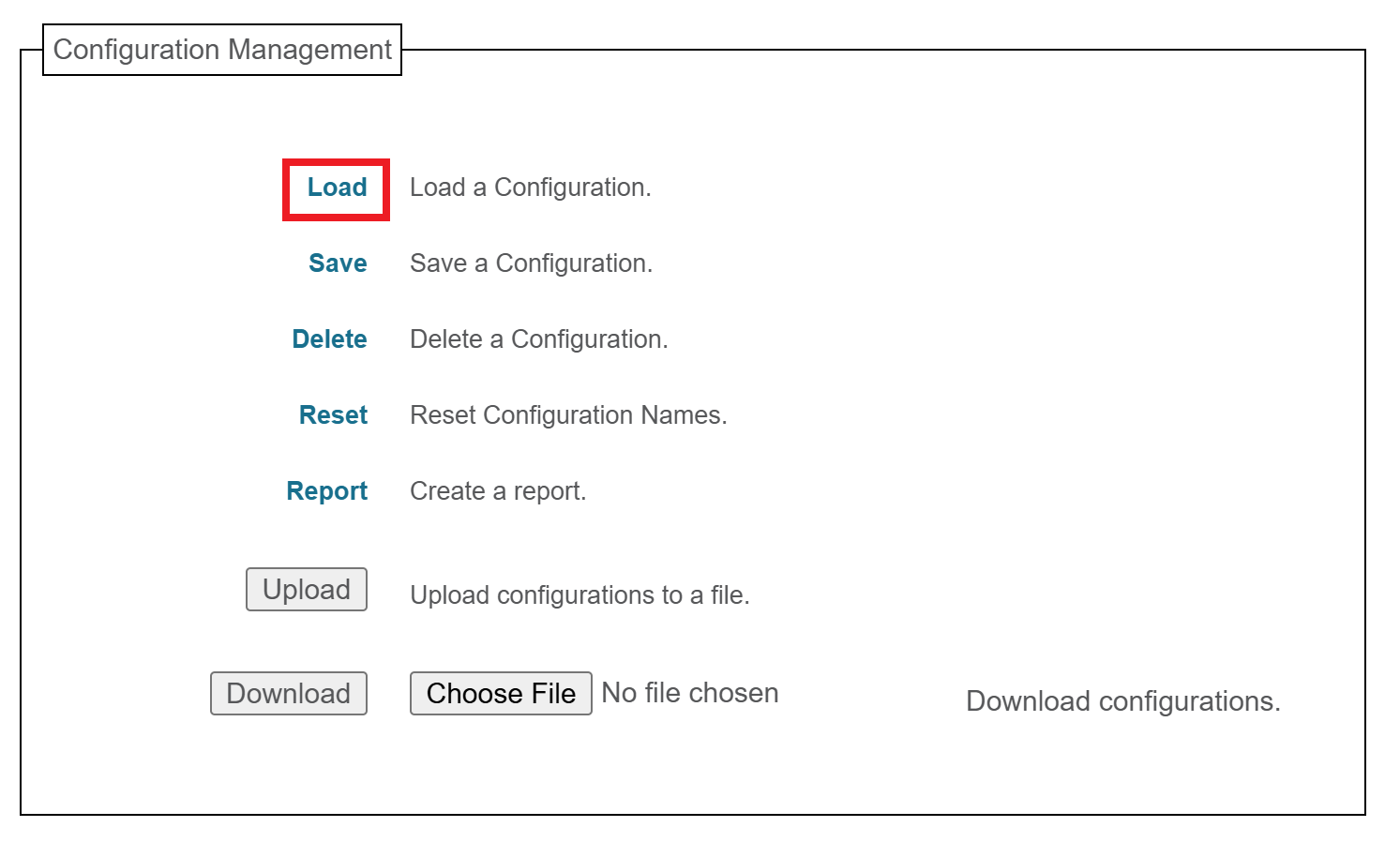 Make sure ****1**** is selected in the ****Load Config:**** dropdown, then click ****Submit****. 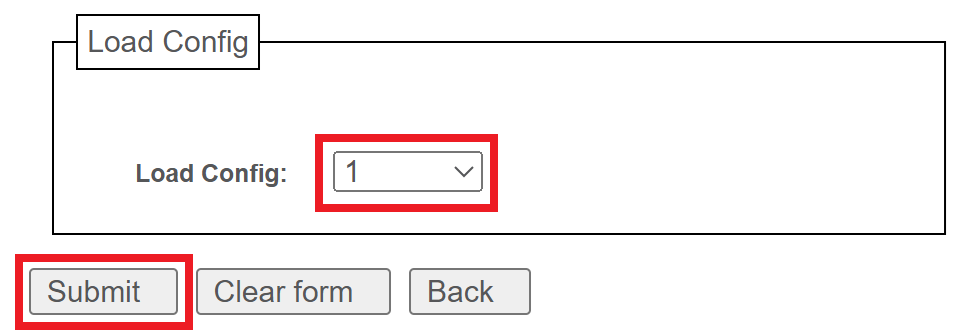 Your printer is now fully updated and configured; you can close the web page and use your printer as normal.If you have some issues configuring the printer, you can manually configure it: [Configuring Your Printronix Printer after a reset](https://kb.simplerfid.com/books/printer-set-up/page/configuring-your-printronix-printer-after-a-reset)
# Printronix: Updating Firmware via Flash DriveThis upgrade method will replace your printer's configuration with default values from Simple RFID, so you may need to adjust some settings after the upgrade to restore ideal print performance. If you'd like to preserve your current settings, [****update the firmware via the webpage****](https://kb.simplerfid.com/books/printers/page/printronix-update-firmware-via-webpage)****.****
****Make sure there is no important data stored on the flash drive before using this method. Formatting the drive will erase ALL data stored!****
### Requirements: - ****Flash Drive formatted with FAT32 and MBR partitioning**** - ****Printer set up with Power**** ### Step 1: Download the CCM Zip File Download the ZIP file from the link below which corresponds with your printer model: - ****T800 (T820, T830):**** [****T800 CCM 1.52E.zip****](https://dl.simplerfid.dev/T800%20CCM%201.52E.zip) - ****T6000e (T6204e, T6304e, T6604e):**** [****T6000e CCM 1.42E.zip****](https://dl.simplerfid.dev/T6000e%20CCM%201.42E.zip) ### Step 2: Extract the file onto your Flash Drive After downloading, open up file explorer to the file and Extract All from the zip file onto the Flash Drive. At this point the Flash Drive is ready. *****(Video instructions of this process can be found at the top of this article).***** ### Step 3: Turn off the Printer With the power cord still plugged in, switch the power off. [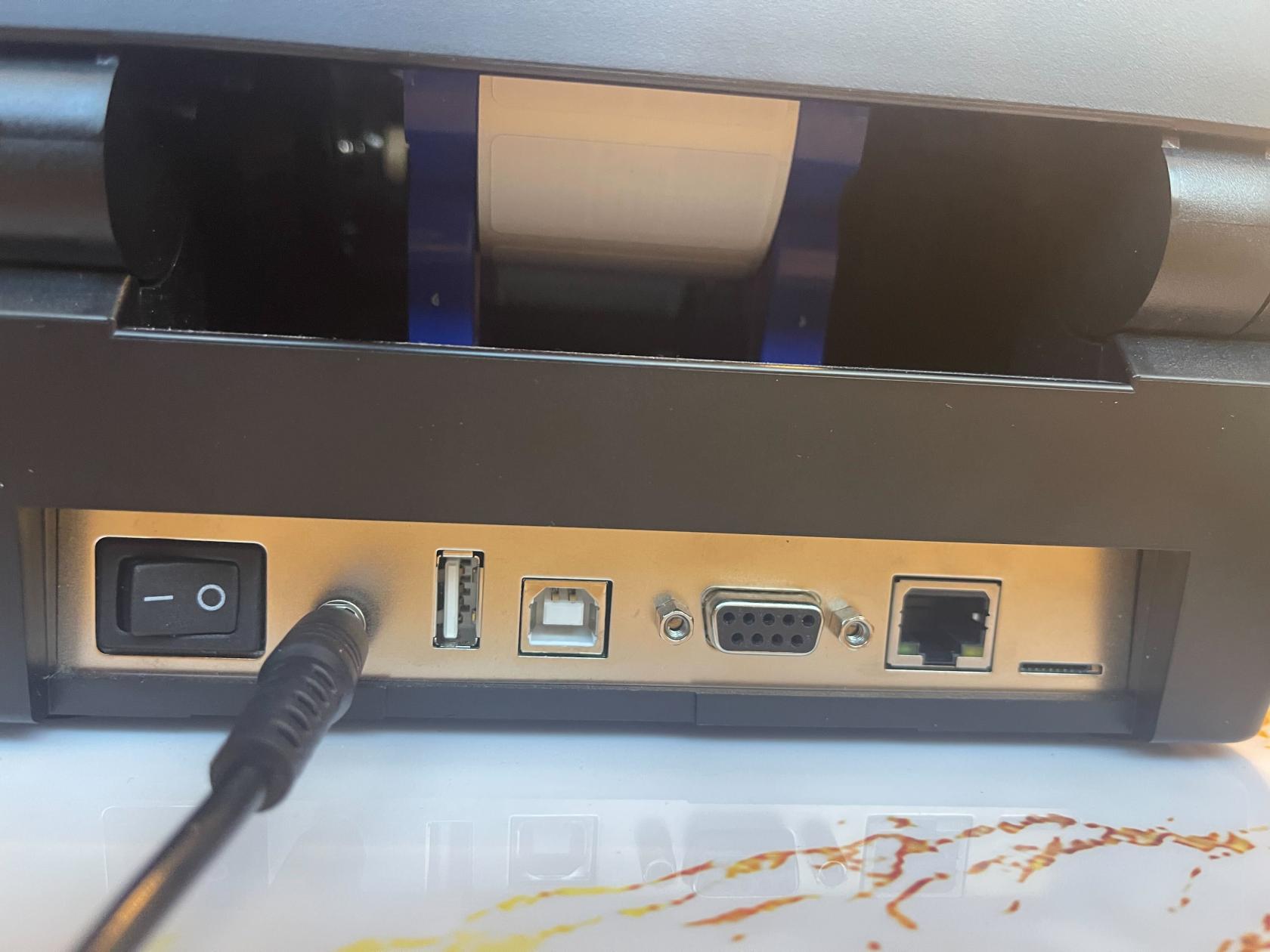](https://kb.simplerfid.com/uploads/images/gallery/2026-03/img-0155.jpg) ### Step 4: Plug the Flash Drive into your Printer \- Plug the Flash Drive into your Printer. [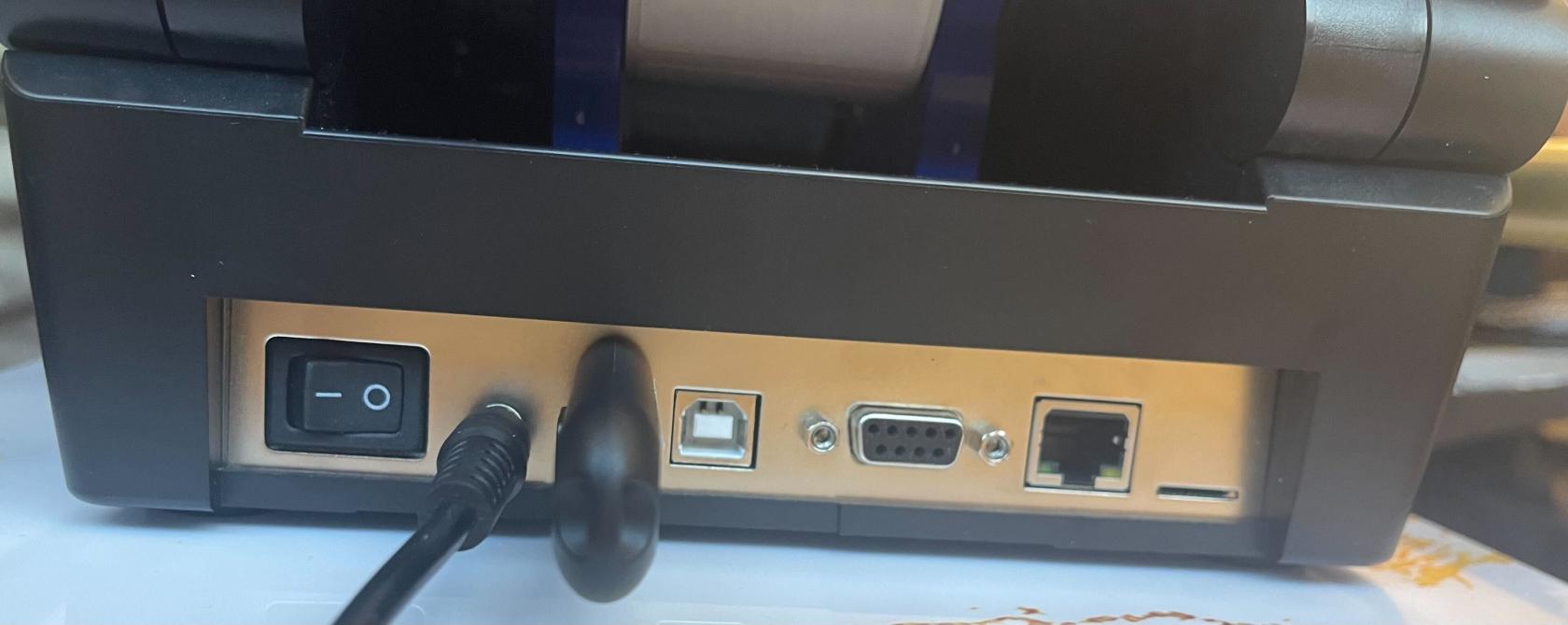](https://kb.simplerfid.com/uploads/images/gallery/2026-03/img-0156.jpg) ### Step 5: Power on and hold down the Up Arrow - While you flip the power switch on, hold down on the up arrow on the printer. Keep holding that down until you see *****"Config Module Detected"***** on the printer screen. 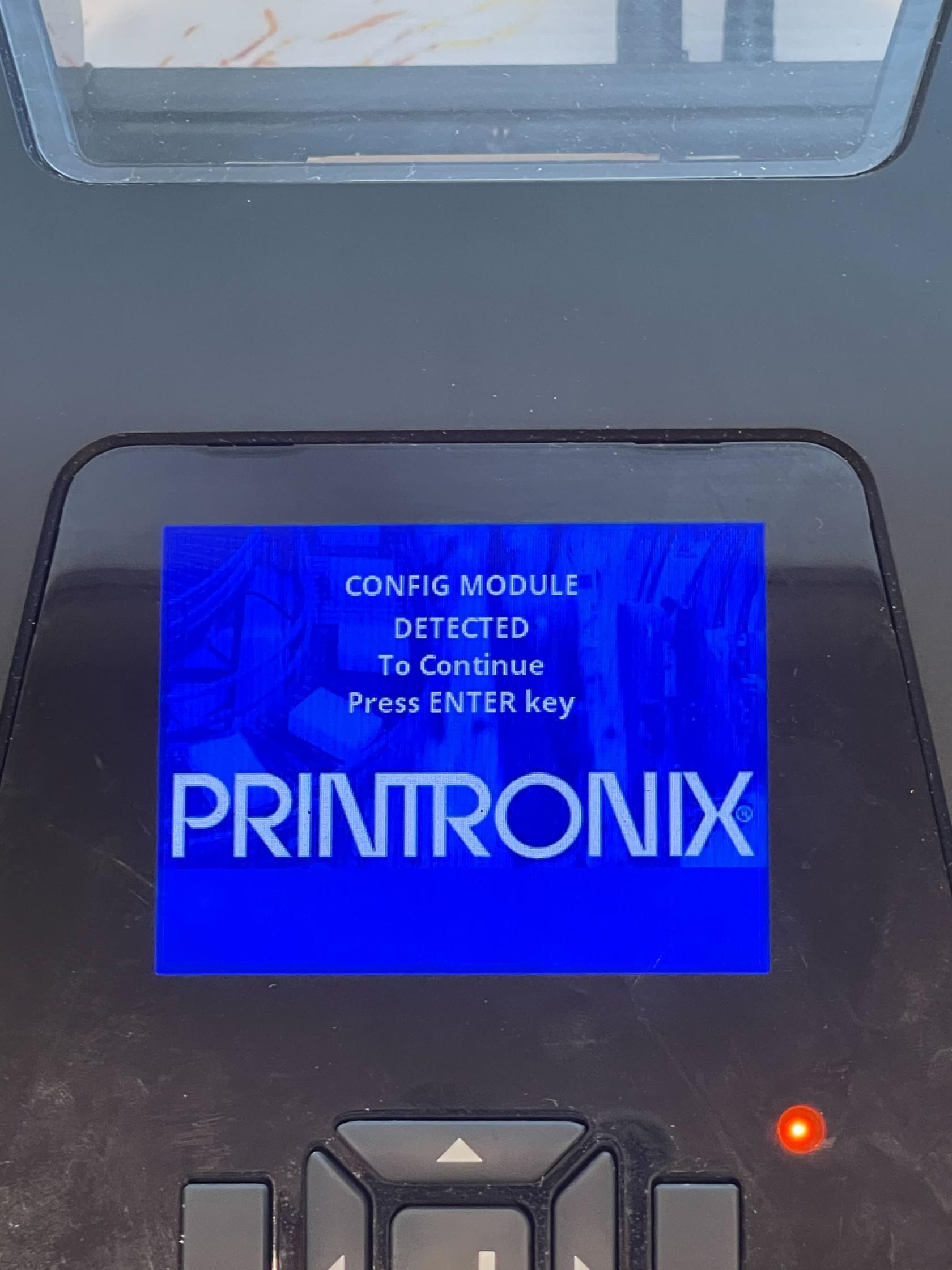### Step 6: Wait for the Printer to Reboot - At this point you will have to wait for the printer to process the files and upgrade. Wait until you see the printer reboot (the printer may reboot multiple times) and a screen that says *****"Printer Config Installed"*****. 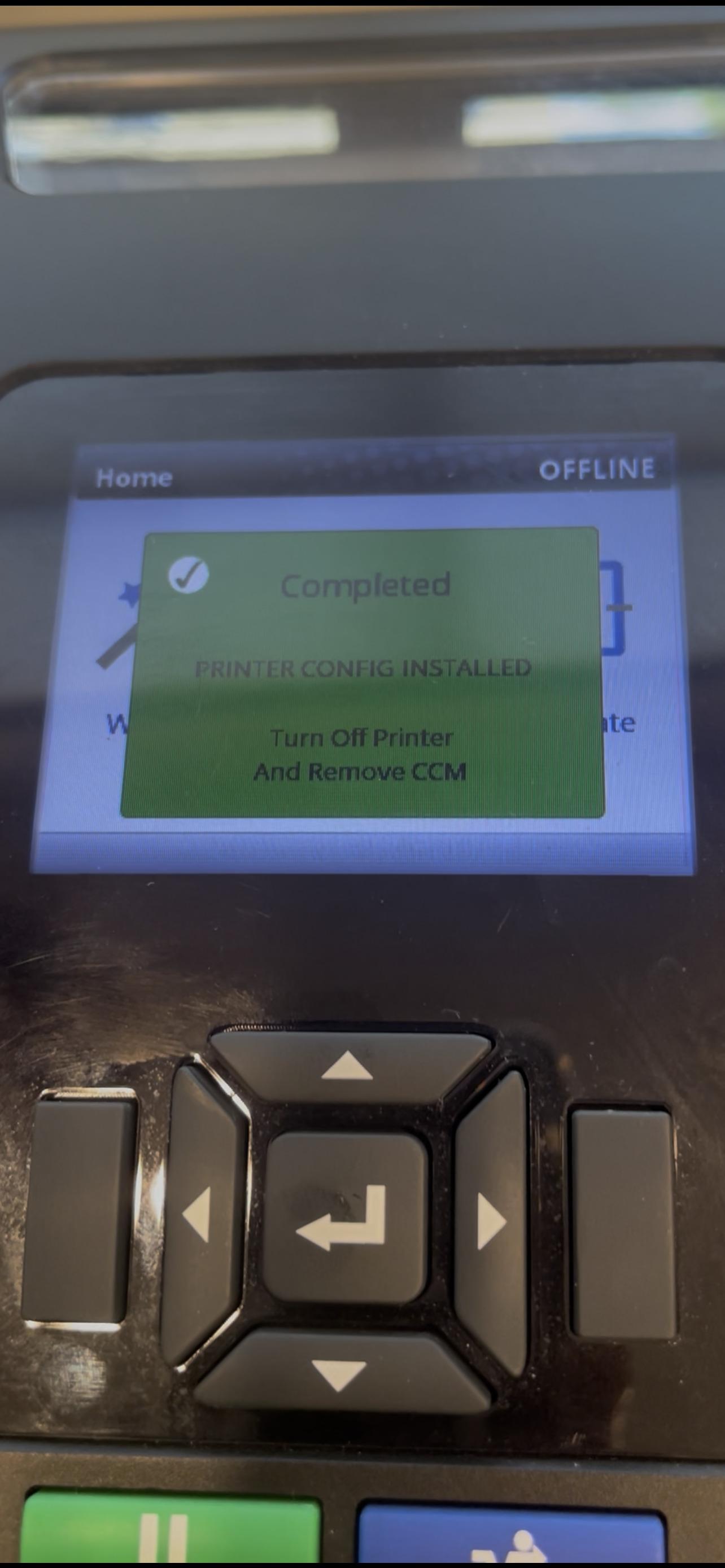### Step 7: Unplug the Flash Drive and Turn off the Printer - Go ahead and turn off the printer and take the flash drive out. At this point the printer is configured and updated. Go ahead and plug in the rest of your connections and power on. *****(Remember to Calibrate before printing again).*****The printer will be in ****Ethernet**** mode after the upgrade. If you're using a USB connection, change the printer's Interface setting to ****USB**** (Pause the printer > Settings > Host I/O > Interface).
# Printronix: Change Interface The ****Interface**** setting determines which interface the printer will be listening for print jobs on. It's important to have this set correctly, or your printer won't accept print jobs and may not even be detected by the Print Client. The current interface will show on the printer's Online screen: [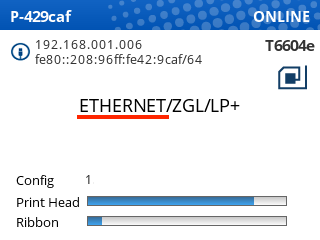](https://kb.simplerfid.com/uploads/images/gallery/2026-03/dKoimage.png) #### Changing the Interface setting 1. First, pause your printer. 2. Open ****Settings**** 3. Navigate to ****Host I/O > Control**** 4. Press Enter to edit the ****Interface**** setting - If you see ENTER SWITCH LOCKED, follow these steps: [ENTER SWITCH LOCKED](https://kb.simplerfid.com/books/printers/page/printronix-enter-switch-locked) 5. Use the up/down arrow keys to scroll to ****Ethernet**** or ****USB**** depending on how the printer is connected 6. Press Enter to select the correct setting 7. Unpause the printer, and choose ****Save Permanently in Active Config****. The printer should now display the correct interface.Follow this [article](https://kb.simplerfid.com/books/printer-set-up/page/what-needs-to-be-plugged-into-a-printronix-printer) if you are not sure what needs to be plugged into a Printronix printer.
# Zebra: Updating Firmware The following article describes upgrading the firmware for Zebra printers.Download the latest firmware file for your printer from [Zebra's website](https://www.zebra.com/us/en/support-downloads/printers.html). The download will be a .zip file, extract it to find the firmware file (.zpl).
### ****Network Methods**** These methods are recommended over USB for reliability #### ****Using cURL (cross-platform)**** Use `curl` in your system terminal to send the firmware file directly to the printer: ```bash curl -T