Zebra ZD621R
- Zebra ZD621R: Alignment
- Zebra ZD621R: Reset to Factory Defaults
- Zebra ZD621R: Calibrate from Printer's Interface
- Zebra ZD621R: Adjust Darkness
- Zebra ZD621R: Setup Wireless Connection (WiFi)
Zebra ZD621R: Alignment
Select Menu from the home screen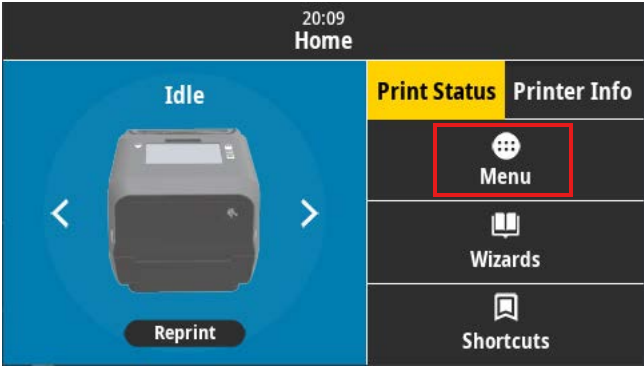
Select the Print icon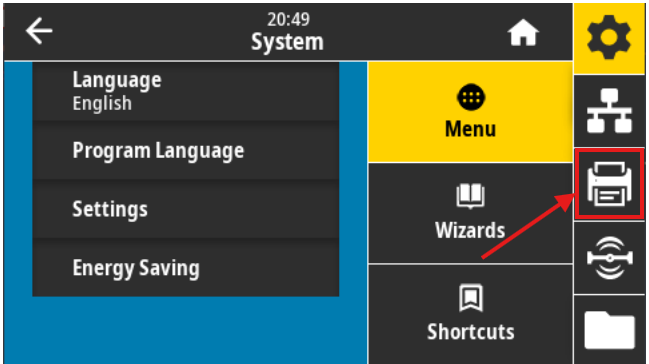
Select Label Position/Image Adjust 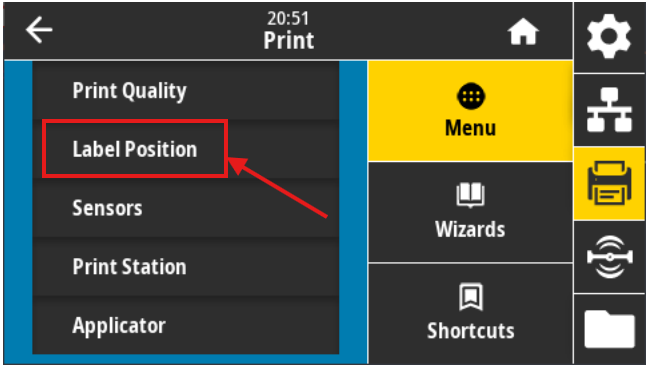
Select Vertical Label Offset or Horizontal Label Offset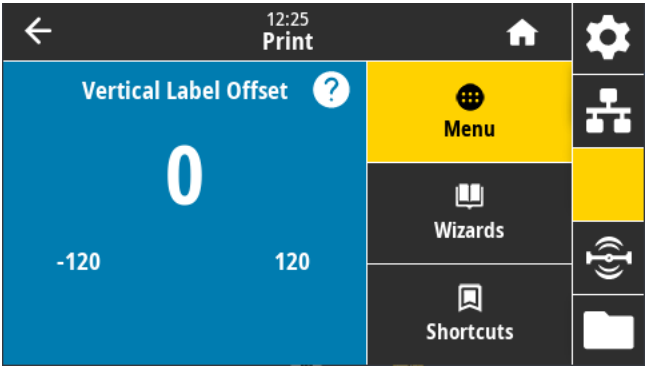
5. Adjust the value (Accepted values: -120 to 120)
Vertical Label Offset: Lower numbers shift everything higher on the label face. Inversely, higher numbers shift everything farther down on the label face, by the specified number of dots.
Horizontal Label Offset: Lower numbers shift everything to the right on the label face. Inversely, higher numbers shift everything to the left on the label face, by the specified number of dots.
Zebra ZD621R: Reset to Factory Defaults
After starting the printer, use the touchscreen to click "Menu"
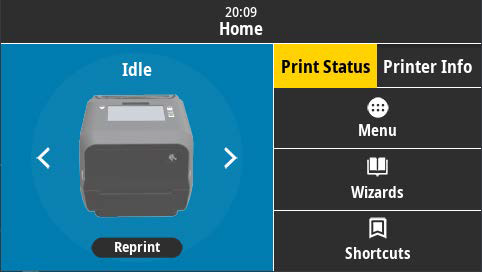
On the left side of the screen, click "Settings"
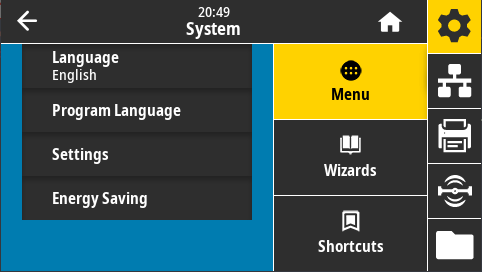
Scroll down and click "Restore Defaults"
Click on "Restore Printer" and accept the prompt
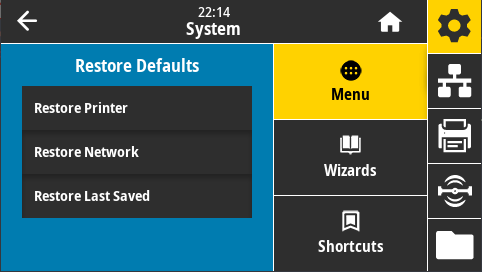
This will reset the printer to factory defaults.
Zebra ZD621R: Calibrate from Printer's Interface
ATTENTION: We suggest first performing the calibration from the website. If the calibration fails, then follow these steps.
Step 1: Media Calibration
First, make sure media is properly loaded, the printer cover is closed, and printer power is ON.
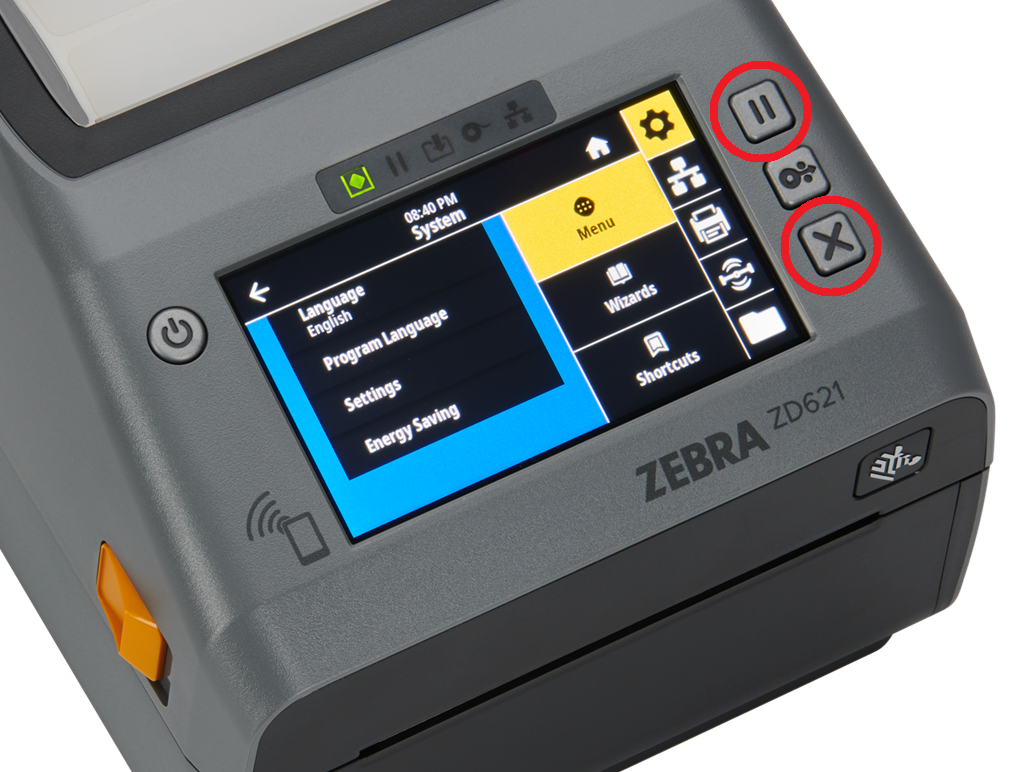
To perform a Media Calibration, press and hold PAUSE + CANCEL buttons for two seconds.
Step 2: RFID Calibration
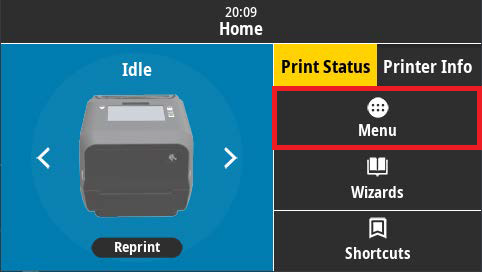
From the printer's Home screen, press the Menu button:
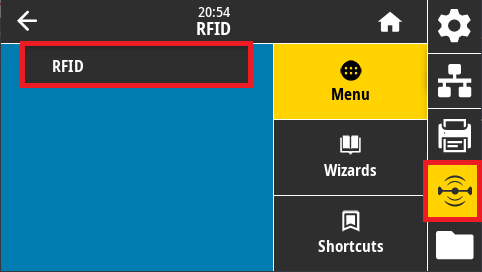
Next, tap the RFID icon on the right side of the screen, then tap the RFID menu option:
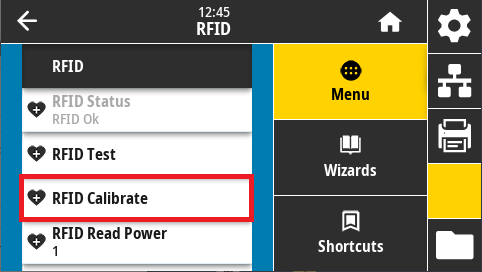
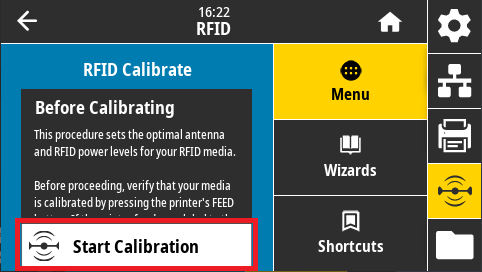
Tap RFID Calibrate:
Last, tap Start Calibration to perform the RFID calibration:
Zebra ZD621R: Adjust Darkness
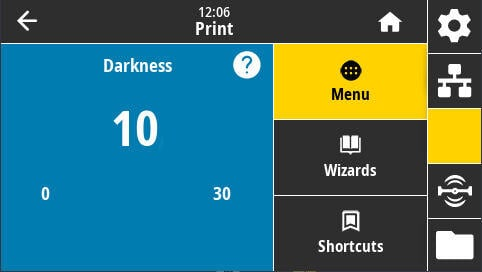
- Using your printer's touchscreen, navigate to Menu > Printer (icon) > Print Quality > Darkness:

- Use the plus buttons, or slide the slider to increase or decrease the darkness setting.
- If you are using resin ribbon, and you usually use wax, you will need to increase this value by at least 10.
- The setting will be automatically applied; press the Home button to return to the Idle screen.
Zebra ZD621R: Setup Wireless Connection (WiFi)
This setup guide ensures your printer is properly configured for network printing with secure WiFi connectivity.
Prerequisites
Before starting the setup, please make sure that your station has the "Show network printers" option set in your Print Station settings. Contact your Manager if you need assistance.
Connection Setup Steps
1. Launch Wizards
On the printer home screen, tap Wizards.
2. Select Connection
Tap Connection and then Start Connection.
3. Configure Network Settings
Wi-Fi Configuration
- Select Wi-Fi > Tap ✓
- Set IP Port to
6101 - Set IP Alternate Port to
9100> Tap ✓ - Set Wired IP Protocol to
All> Tap ✓
Wireless Network Settings
- Set the country > Tap ✓
- Select WPA PSK > Tap ✓
- In Pre-shared Key, enter your WiFi password > Tap ✓
- Tap Set All > Tap ✓
Network Name and Protocol
- In ESSID, set your WiFi name > Tap ✓
Note: Case sensitive - must match exactly as shown in other devices' WiFi lists.
Example: Wifi_Network_Name12345
- Set WiFi IP Protocol to
All> Tap ✓
Bluetooth Configuration
- Set Bluetooth On/Off to
Off> Tap ✓ - Set Bluetooth Discovery to
Off> Tap ✓
Security Settings
- In Friendly Name, Tap ✓
- In Security, set value to
3> Tap ✓ - In Authentication PIN, > Tap ✓
- In Bluetooth Bonding, set to
Off
4. Complete Setup
Tap End Wizard.
Verification
You should see the message: "Connection Wizard Complete"
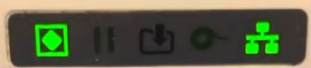
After completion, observe the network indicator (right side of screen):
- Will display red for approximately 1 second
- Will then turn green (indicating successful connection)
- Printer should appear as Online in Simple RFID Website