# Zebra ZD500R

# Zebra ZD500R: Reset to Factory Defaults

<span style="white-space: pre-wrap;">Turn off the printer using the switch on the back. </span>

[![image.png](https://kb.simplerfid.com/uploads/images/gallery/2026-05/scaled-1680-/sZoimage.png)](https://kb.simplerfid.com/uploads/images/gallery/2026-05/sZoimage.png)

Press and hold FEED + PAUSE while turning on the printer.

[![image.png](https://kb.simplerfid.com/uploads/images/gallery/2026-05/scaled-1680-/Byzimage.png)](https://kb.simplerfid.com/uploads/images/gallery/2026-05/Byzimage.png)

Continue holding FEED + PAUSE until the first control panel light turns off.

<p class="callout success">The printer configuration is now reset to the factory default values.</p>

# ZD500R: Calibrate from Printer's Interface

<p class="callout warning">****ATTENTION:****<span style="white-space: pre-wrap;"> We suggest </span>****first****<span style="white-space: pre-wrap;"> performing the </span>[calibration from the website](https://kb.simplerfid.com/books/calibrate-printer/page/calibrate-from-the-web-portal). If the calibration fails, then follow these steps.</p>

### Step 1: Media Calibration

Hold the PAUSE + CANCEL buttons for 2 seconds to start the media calibration.

### Step 2: RFID Calibration

Press the menus ‘Home’ ([![zd500r home.png](https://kb.simplerfid.com/uploads/images/gallery/2025-05/scaled-1680-/zd500r-home.png)](https://kb.simplerfid.com/uploads/images/gallery/2025-05/zd500r-home.png)) button. Navigate to the ‘RFID’ ([![zd500r rfid.png](https://kb.simplerfid.com/uploads/images/gallery/2025-05/scaled-1680-/zd500r-rfid.png)](https://kb.simplerfid.com/uploads/images/gallery/2025-05/zd500r-rfid.png)<span style="white-space: pre-wrap;">) menu button and press the ‘Select’ ( </span>****—****<span style="white-space: pre-wrap;"> ) button.</span>

<span style="white-space: pre-wrap;">Use the </span>****Left**** <span style="white-space: pre-wrap;">and </span>****Right****<span style="white-space: pre-wrap;"> navigation arrows to browse to the RFID CALIBRATE procedure. Press the select button ( </span>****—**** <span style="white-space: pre-wrap;">) below the </span>****START****<span style="white-space: pre-wrap;"> on the lower right hand of the display.</span>

The printer will slowly feed a label while adjusting the location and RFID read/write communication settings for your chosen RFID tag/label.

The printer will feed an additional label in some cases when calibration has completed successfully with the display message reading: READY

At this point, you can open the printer and roll the excess labels back inside. Then, close the printer, unpause it, and you will be ready to print.

# ZD500R: Alignment

#### Adjusting the vertical print position on your labels

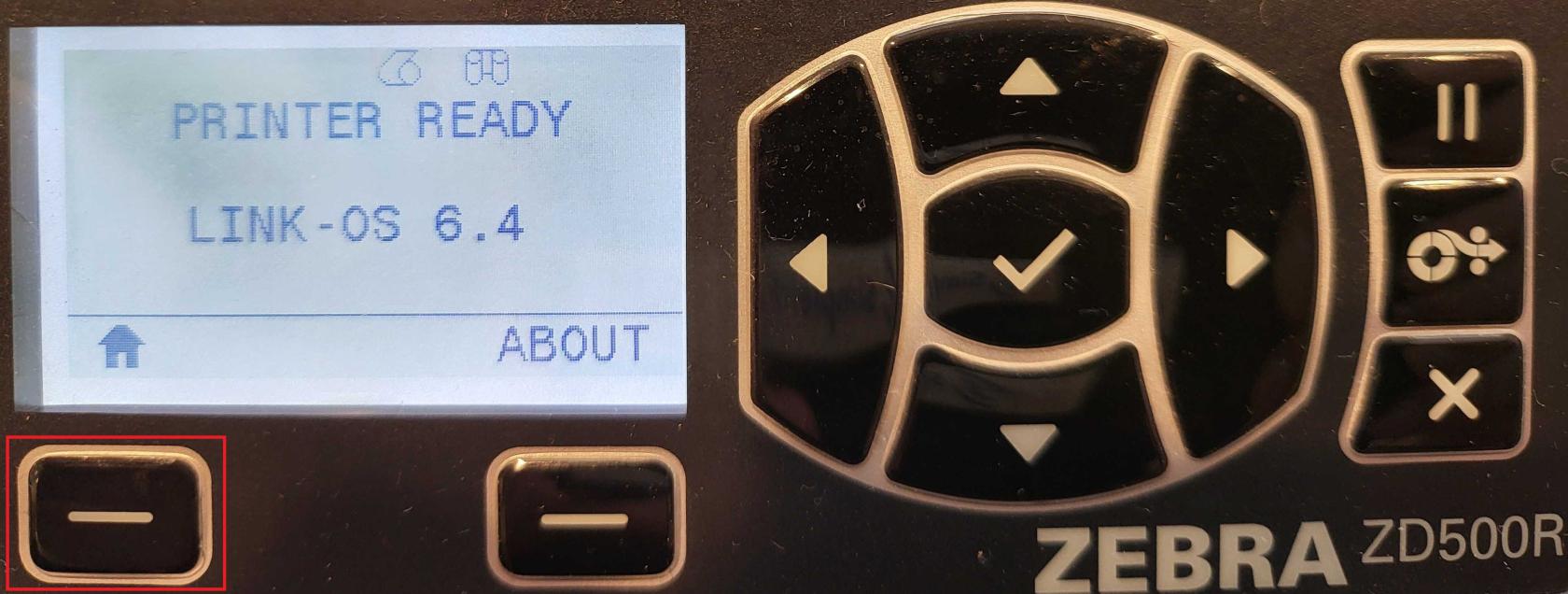
<span style="white-space: pre-wrap;">From the main screen, press the </span>****Home****<span style="white-space: pre-wrap;"> button (house icon).</span>

[![1.jpg](https://kb.simplerfid.com/uploads/images/gallery/2025-06/scaled-1680-/1.jpg)](https://kb.simplerfid.com/uploads/images/gallery/2025-06/1.jpg)

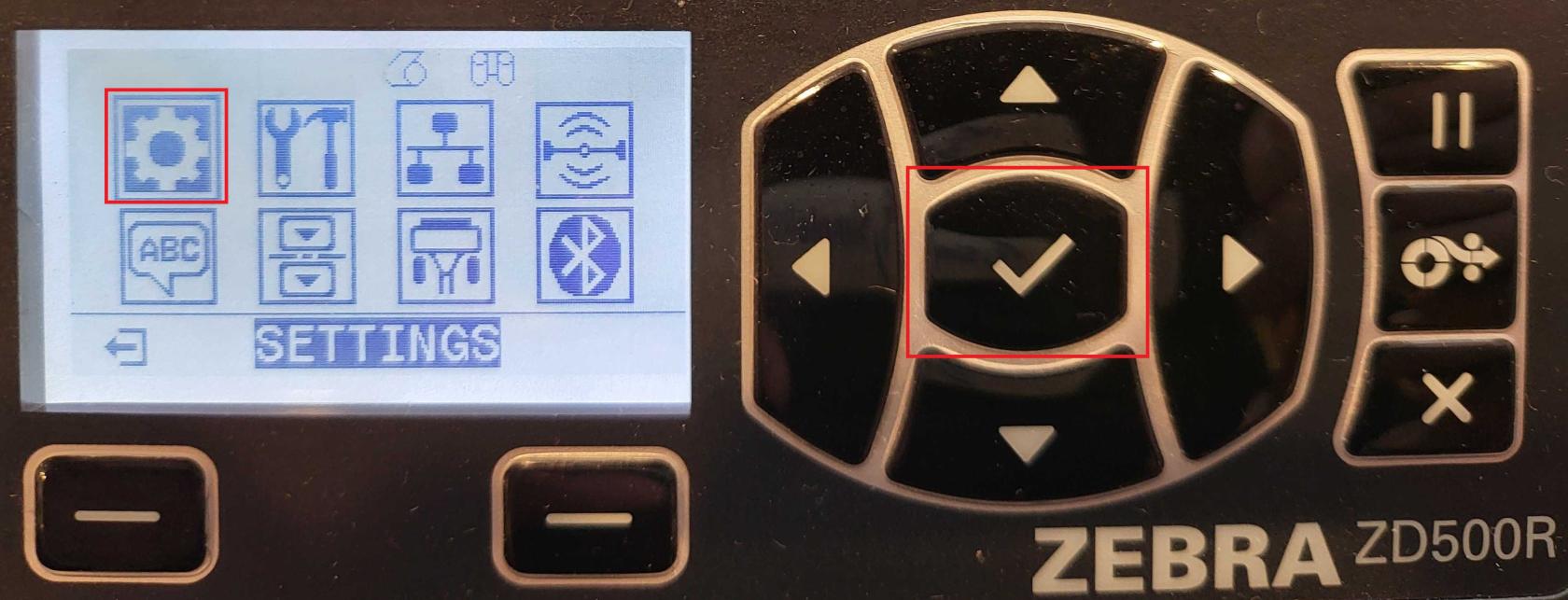
<span style="white-space: pre-wrap;">Select </span>****Settings****<span style="white-space: pre-wrap;"> (gear icon).</span>

[![2.jpg](https://kb.simplerfid.com/uploads/images/gallery/2025-06/scaled-1680-/2.jpg)](https://kb.simplerfid.com/uploads/images/gallery/2025-06/2.jpg)

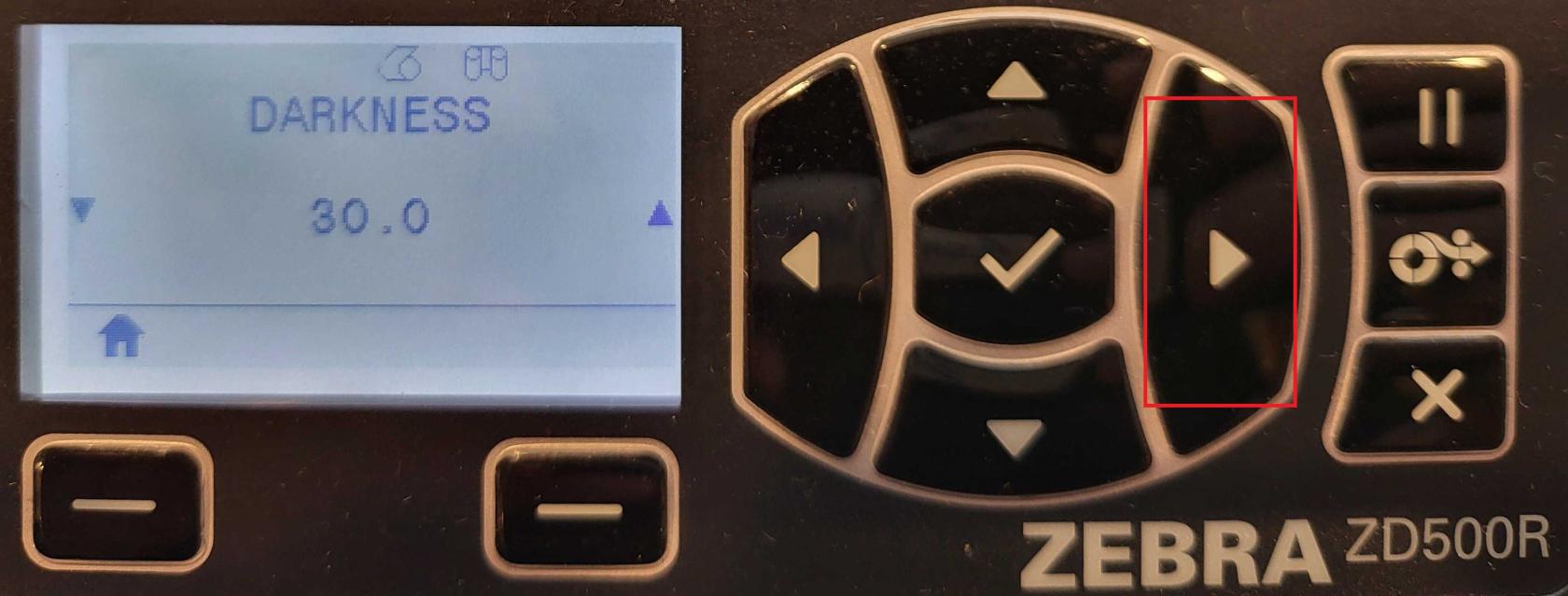
<span style="white-space: pre-wrap;">Use the </span>****right arrow****<span style="white-space: pre-wrap;"> on the navigation buttons until you reach </span>****LABEL TOP****.

[![3.jpg](https://kb.simplerfid.com/uploads/images/gallery/2025-06/scaled-1680-/6Lu3.jpg)](https://kb.simplerfid.com/uploads/images/gallery/2025-06/6Lu3.jpg)

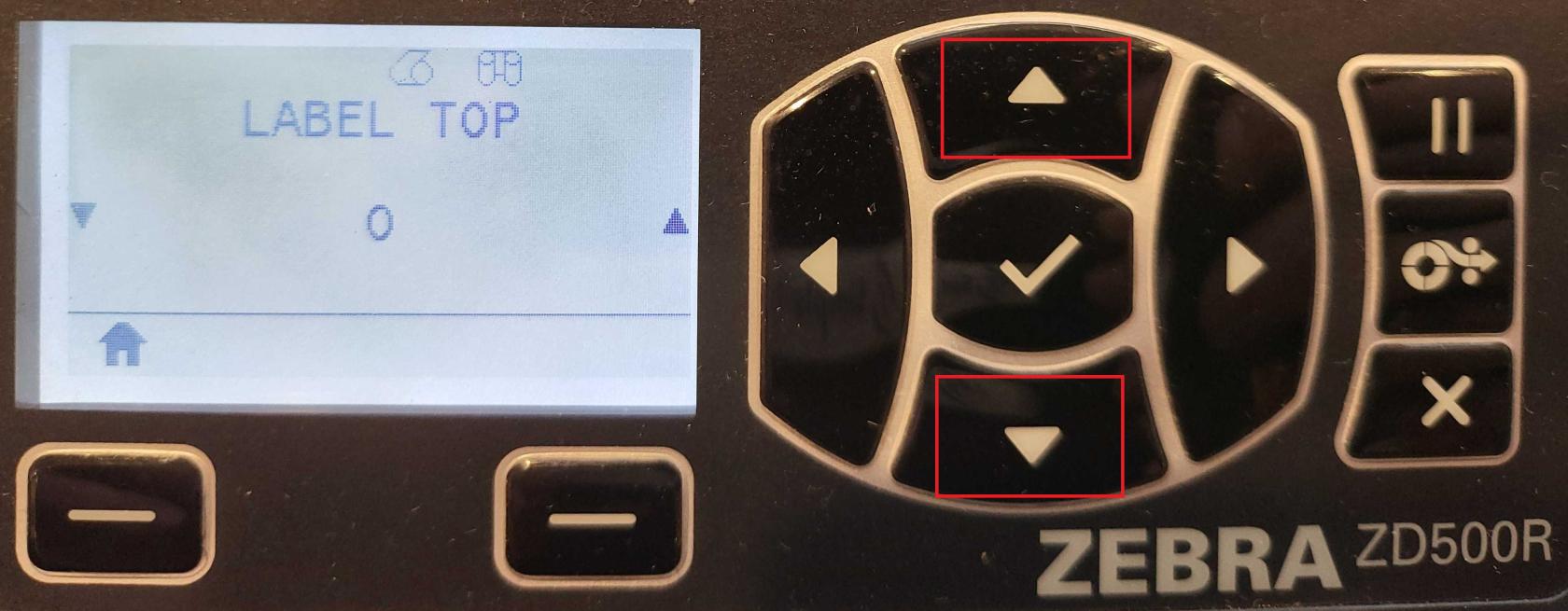
<span style="white-space: pre-wrap;">Use the </span>****up/down arrows****<span style="white-space: pre-wrap;"> to adjust the value:</span>

[![4.jpg](https://kb.simplerfid.com/uploads/images/gallery/2025-06/scaled-1680-/4.jpg)](https://kb.simplerfid.com/uploads/images/gallery/2025-06/4.jpg)

- <span style="white-space: pre-wrap;">Negative values move the print </span>****toward the top****<span style="white-space: pre-wrap;"> of the label.</span>
- <span style="white-space: pre-wrap;">Positive values move it </span>****away from the top****.
- <span style="white-space: pre-wrap;">Accepted range: </span>****–120 to 120****.

<p class="callout success"><span style="white-space: pre-wrap;">When you're done, press the </span>****Home****<span style="white-space: pre-wrap;"> button again. Your changes will be automatically saved.</span></p>