**When you update the firmware on your Printronix printer, or if you have to reset its settings during troubleshooting, you'll need to configure a few settings for the printer to work with Simple RFID.**
1. First, **navigate** to the Home screen of the printer by pressing the Pause button. You should see this screen: 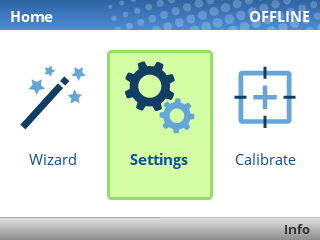 2. **Click** the *Settings* button 3. Within the *Settings* menu, **set** the following values:If you see an **ENTER SWITCH LOCKED** error, just press the Up and Down keys once, at the same time. You should then see **ENTER SWITCH UNLOCKED** and then you can perform the calibration.
- **Media > Image** - Print Intensity: **15** - **Sensors > Control - Gap/Mark Sensor: **Gap** - **Sensors > Calibrate - Power-Up Action: **Disable** - Head Close Action: **Seek TOF** - Threshold Range: **50%** - Label Window: **Enable** - **Host I/O > Control** - Interface: **USB** or **Ethernet** depending on how the printer is connected - **Application** - **Control** - Active IGP Emul: **ZGL** - **ZGL Setup** - Preparser: **Enable** After changing these settings, press the green **Pause** button to unpause the printer, then select **"Save permanently in Active Config"**. When all the steps have been completed the printer should show "**ONLINE**" in the top-right corner of the screen: 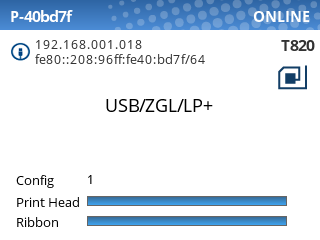 You should now be ready to print.