Purchase Orders must first be created in the web portal, and moved to Receiving status, to appear on the mobile app
To verify a Purchase Order click the ****Receive**** icon from the Home screen [](https://kb.simplerfid.com/uploads/images/gallery/2025-05/sLCimage.png) If you have access to more than one physical location, confirm the [Selected Location](https://kb.simplerfid.com/books/mobile-app/page/select-location) is correct. It will appear below '****Receive****' ##### ****Locate & Open Order**** From the ****Receive**** tab you will see the ****Purchase Orders****. Locate the order you are receiving [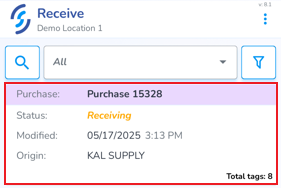](https://kb.simplerfid.com/uploads/images/gallery/2025-05/FSAimage.png) - Click on it to open it Purchase Orders contain two tabs: ****Info**** & ****Products**** The ****Info**** tab provides order details including status, origin, customer name, created & modified date, and a progress indicator at the bottom of the screen [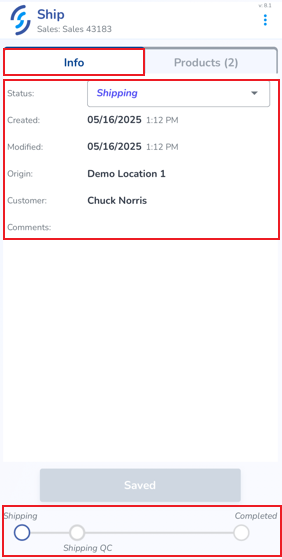](https://kb.simplerfid.com/uploads/images/gallery/2025-05/2BWimage.png) The second tab, ****Products**** displays the ordered item(s) [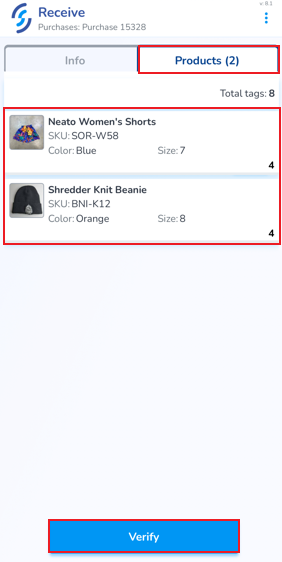](https://kb.simplerfid.com/uploads/images/gallery/2025-05/nOjimage.png) - [Pair Bluetooth](https://kb.simplerfid.com/books/mobile-app/page/pair-bluetooth) - To begin the verification process, click ****Verify**** The ordered items are now ready to be scanned to confirm accuracy. This process associates the serialized tags captured to the order and adds them to inventory [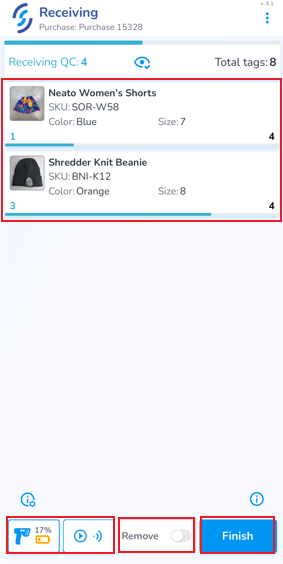](https://kb.simplerfid.com/uploads/images/gallery/2025-05/22pimage.png) At the bottom of the screen are the [Scan Settings and Auto-Scan](https://kb.simplerfid.com/books/mobile-app/page/scan-settings) button The ****Remove**** switch removes scanned items from the order ****Finish**** terminates the session ##### ****Remove Incorrect Items**** If an incorrect item is scanned, the word 'remove' appears at the top with the quantity to be removed, and the item to be removed appear in red. Incorrect items must be removed before the scan session can be completed [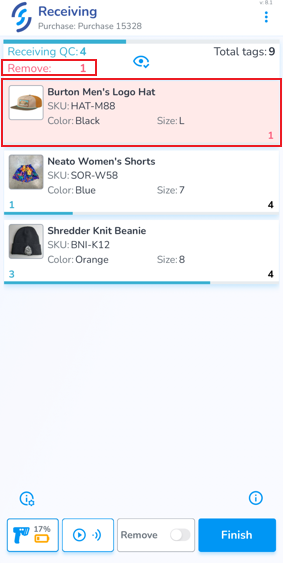](https://kb.simplerfid.com/uploads/images/gallery/2025-05/mgUimage.png) To remove incorrect items you can either: - Slide the incorrect item to the left, then click on the trash can icon [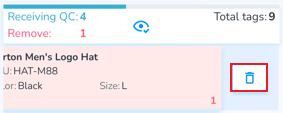](https://kb.simplerfid.com/uploads/images/gallery/2025-05/Dnjimage.png) - Click 'Ok' to the pop-up prompt [](https://kb.simplerfid.com/uploads/images/gallery/2025-05/stXimage.png) OR - Enable the Remove scan option - Scan the incorrect item(s) [](https://kb.simplerfid.com/uploads/images/gallery/2025-05/9Hdimage.png) ##### ****Remove Extra Items**** If more items are scanned than are ordered, the 'remove' message appears, and the item with extra items will appear in red, and the number of extra items is displayed on the left [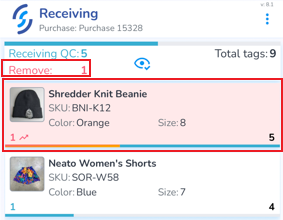](https://kb.simplerfid.com/uploads/images/gallery/2025-05/Htpimage.png) - Slide the item to the left, then tap the broom icon to clear all scans for the item [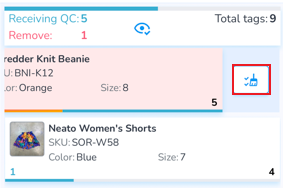](https://kb.simplerfid.com/uploads/images/gallery/2025-05/43ximage.png) - Click 'Ok' to the pop-up prompt [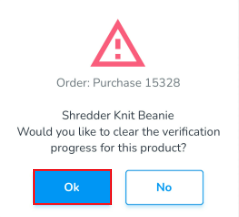](https://kb.simplerfid.com/uploads/images/gallery/2025-05/7zqimage.png) - Then rescan all tags for that product OR - Enable the Remove scan option - Scan only the items being removed [](https://kb.simplerfid.com/uploads/images/gallery/2025-05/9Hdimage.png) ##### ****Verify Order**** Correctly scanned items appear in green. The quantity scanned appears on the left, and the ordered quantity appears on the right. A blue progress bar indicates if any items are missing. [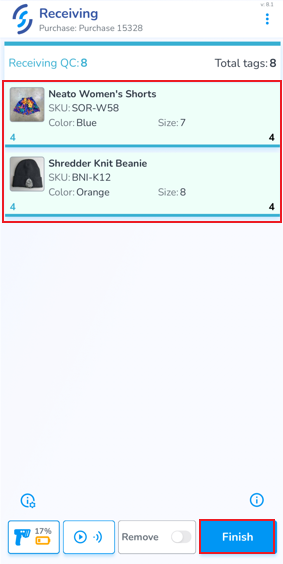](https://kb.simplerfid.com/uploads/images/gallery/2025-05/mLrimage.png) Once all items are scanned correctly & complete, click ****Finish**** - Click 'Ok' to the pop-up prompt [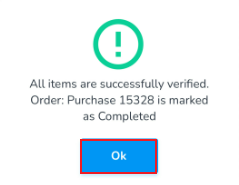](https://kb.simplerfid.com/uploads/images/gallery/2025-05/NGFimage.png) You will be returned back to the Receive orders list, and a toast pop-up will confirm the order as accurate [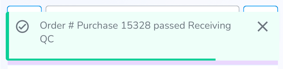](https://kb.simplerfid.com/uploads/images/gallery/2025-05/JYnimage.png)