Note: A user may be granted access to a specific location(s), or have access to all locations
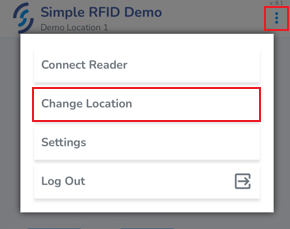
##### ****Select Location**** Upon first logging in, you will be prompted to select a location [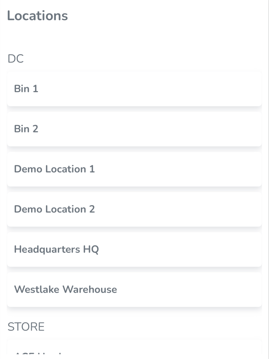](https://kb.simplerfid.com/uploads/images/gallery/2025-05/pCSimage.png) Once the location is selected it will appear at the top of the screen [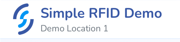](https://kb.simplerfid.com/uploads/images/gallery/2025-05/3qsimage.png) To change location, click on the ellipsis in the top right corner of the screen, then click ****Change location****If you don't see the ****Change Location**** option, it may not be available from the screen you're viewing. Press the Back button (or Simple RFID logo) to go back to the dashboard, then try again.
[](https://kb.simplerfid.com/uploads/images/gallery/2025-05/hyAimage.png) The currently selected location will be highlighted. Tap another location to switch. [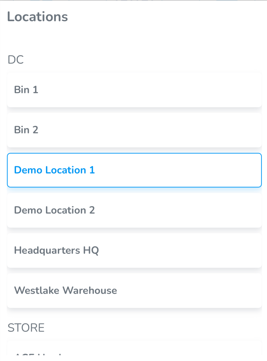](https://kb.simplerfid.com/uploads/images/gallery/2025-05/8EAimage.png)