Poor internet preventing your scan from uploading? [Save Scans](https://kb.simplerfid.com/books/mobile-app/page/save-scans) and upload later
Need to verify inventory accuracy? [Audit](https://kb.simplerfid.com/books/auditing/page/audit-shopify)
- If the scan was stopped during the process a pop-up message will appear at this point asking if you wish to ****Resume the last scan session****, or ****Delete the data without saving**** [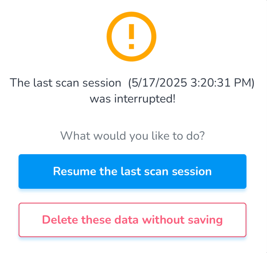](https://kb.simplerfid.com/uploads/images/gallery/2025-05/F4dimage.png) - [Pair Bluetooth](https://kb.simplerfid.com/books/mobile-app/page/pair-bluetooth) ##### ****Start Scan**** - To initiate the Scan: 1. Pull the trigger on the reader OR 2. Press the auto scan button [](https://kb.simplerfid.com/uploads/images/gallery/2025-05/9Lzimage.png) The total number of tags will appear in the Scan Summary screen, and below the items and their totals. Understand the [Scan Summary & Statuses](https://kb.simplerfid.com/books/mobile-app/page/scan-summary-statuses), and how each affects your inventory [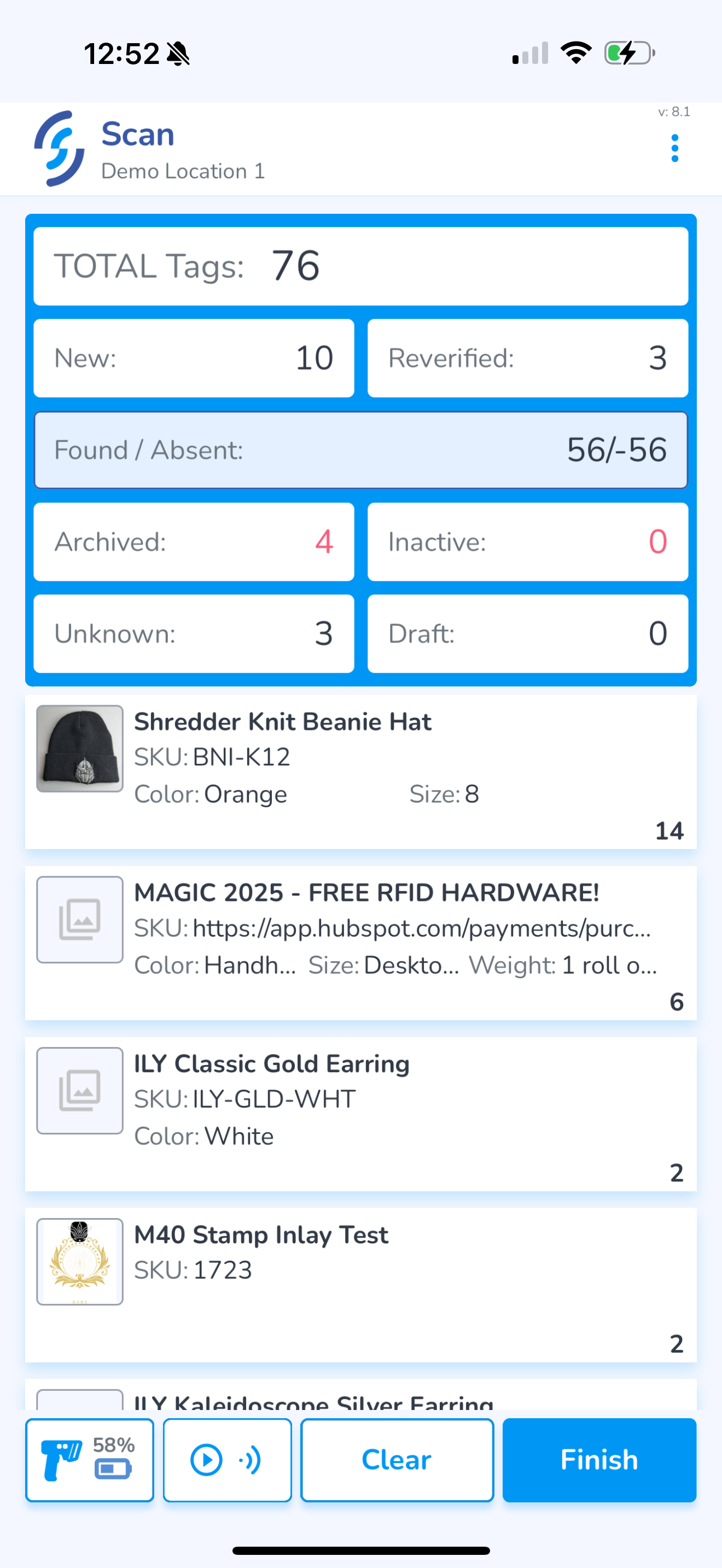](https://kb.simplerfid.com/uploads/images/gallery/2025-05/scaled-1680-/img-0416.PNG) To complete the scan and move to the upload screen, click ****Finish**** Choose the Statuses you wish to include in the upload [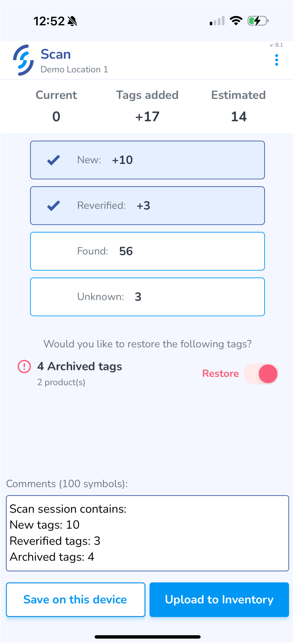](https://kb.simplerfid.com/uploads/images/gallery/2025-05/scaled-1680-/LbBimage.png) If you wish to add a note to the upload, click into the Comments window and type it in Finally, click ****Upload to Inventory**** Animation indicates the scan is being uploaded, followed by a green check mark for success If you are unable to upload due to poor internet connectivity, you can [Save Scans](https://kb.simplerfid.com/books/mobile-app/page/save-scans) on this device for later upload