Scan
Steps to Scan and Add items to inventory
- From the Home screen click Scan

- Tap the Start new scan session option
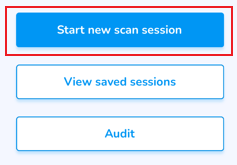
Poor internet preventing your scan from uploading? Save Scans and upload later
Need to verify inventory accuracy? Audit
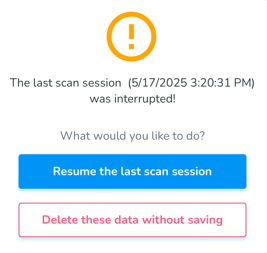
- If the scan was stopped during the process a pop-up message will appear at this point asking if you wish to Resume the last scan session, or Delete the data without saving
Start Scan
- To initiate the Scan:
- Pull the trigger on the reader OR
- Press the auto scan button

The total number of tags will appear in the Scan Summary screen, and below the items and their totals.
Understand the Scan Summary & Statuses, and how each affects your inventory
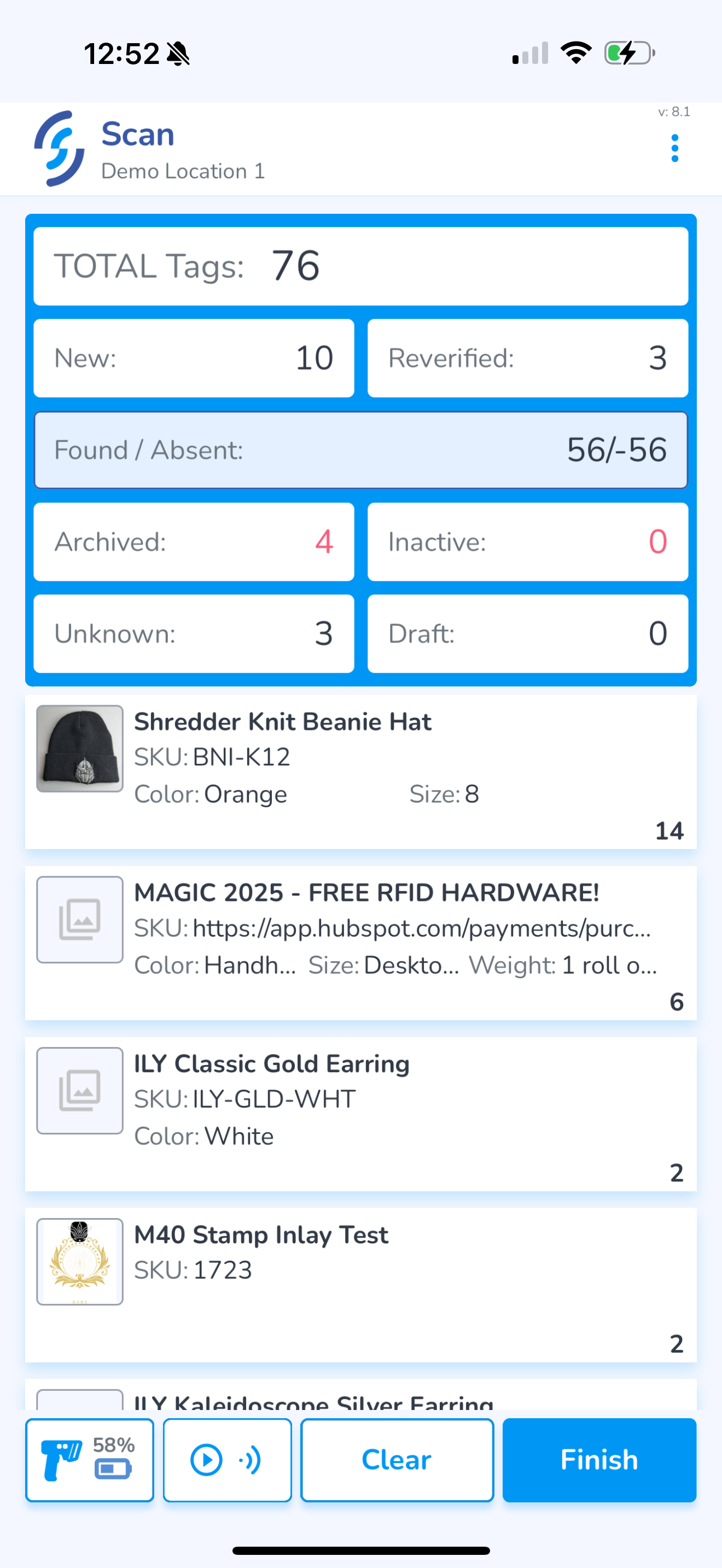
To complete the scan and move to the upload screen, click Finish
Choose the Statuses you wish to include in the upload
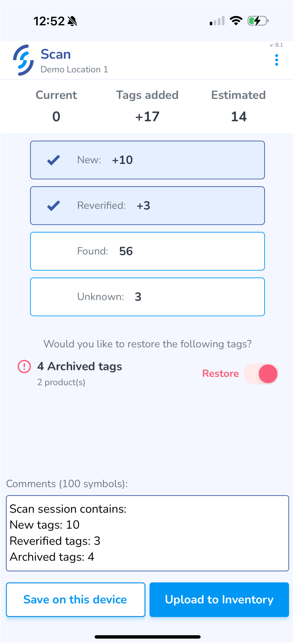
If you wish to add a note to the upload, click into the Comments window and type it in
Finally, click Upload to Inventory
Animation indicates the scan is being uploaded, followed by a green check mark for success
If you are unable to upload due to poor internet connectivity, you can Save Scans on this device for later upload