# Receive Menu (Purchase Orders & Transfers)
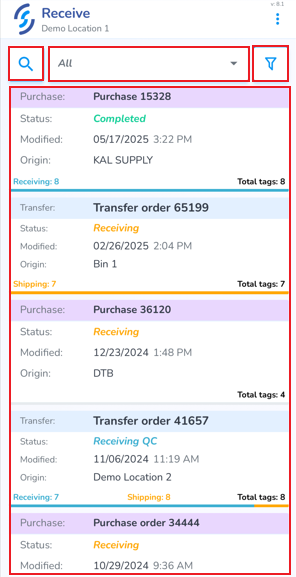
From the Receive screen contains the following tools to help locate your order:
- Search
- Status drop-down
- Filter menu
Below these filters are the orders
[](https://kb.simplerfid.com/uploads/images/gallery/2025-05/AZPimage.png)
##### ****Search****
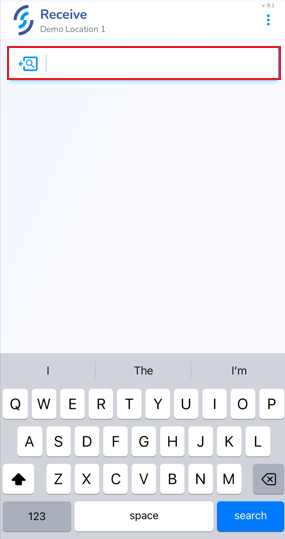
- Click on the search window to lookup a specific order
[](https://kb.simplerfid.com/uploads/images/gallery/2025-05/WBlimage.png)
##### ****Status Drop-down****
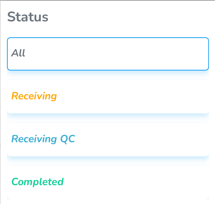
- Use the Status drop-down to choose a specific status
[](https://kb.simplerfid.com/uploads/images/gallery/2025-05/dKYimage.png)
##### ****Filter Menu****
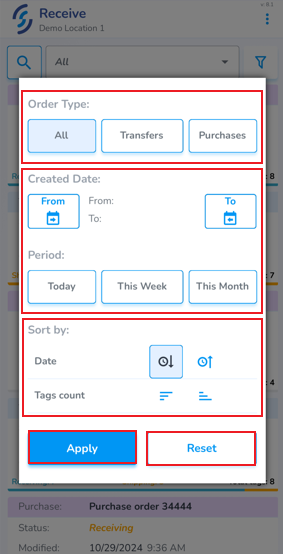
Click on the funnel icon to view the filter menu
- ****Order Type**** allows to view all order types, or only view Transfers and/or Purchases
- ****Created Date**** allows to choose from and to dates to display orders from a specific timeframe
- ****Period**** provides quick filters to display today, this week & this month
- ****Sort by**** allows to sort oldest to newest, and Tags count from largest to smallest
- Click ****Apply**** to save the settings
- Click ****Reset**** to remove the saved filter
[](https://kb.simplerfid.com/uploads/images/gallery/2025-05/49fimage.png)