# Pair Bluetooth

Steps to connect the handheld RFID reader to the mobile app

---

### ****iOS****

<span style="white-space: pre-wrap;">1. </span>****Tap**** <span style="white-space: pre-wrap;">the </span>**ellipsis**, which are three dots in the top right corner of the app

![image.png](https://kb.simplerfid.com/uploads/images/gallery/2025-05/scaled-1680-/Id2image.png)  
<span style="white-space: pre-wrap;">2. </span>****Tap**** **Connect Reader**

[![image.png](https://kb.simplerfid.com/uploads/images/gallery/2025-05/scaled-1680-/I2gimage.png)](https://kb.simplerfid.com/uploads/images/gallery/2025-05/I2gimage.png)  
<span style="white-space: pre-wrap;">3. </span>****Tap**** <span style="white-space: pre-wrap;">the </span>**Add new Reader**<span style="white-space: pre-wrap;"> button</span>

![image.png](https://kb.simplerfid.com/uploads/images/gallery/2025-05/scaled-1680-/wvaimage.png)  
<span style="white-space: pre-wrap;">4. </span>****Press**** the reader trigger button.

<p class="callout info">When the trigger is pulled a blue light will begin flashing on the side of the device indicating that the reader is in Bluetooth discovery.</p>

[![image.png](https://kb.simplerfid.com/uploads/images/gallery/2025-05/scaled-1680-/MDWimage.png)](https://kb.simplerfid.com/uploads/images/gallery/2025-05/MDWimage.png)

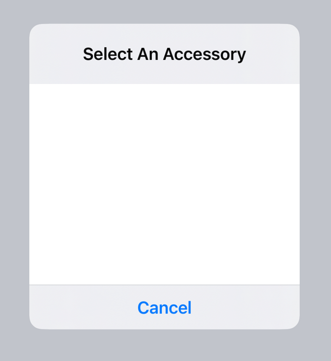
<span style="white-space: pre-wrap;">5. From the </span>**Select an Accessory**<span style="white-space: pre-wrap;"> window </span>****select****<span style="white-space: pre-wrap;"> the reader Bluetooth option which matches the serial number of your device. </span>  
A sticker containing the serial number of the device has been applied to the device.

<span style="white-space: pre-wrap;">Once the reader is paired it will be displayed as a </span>[Connected Reader](https://kb.simplerfid.com/books/mobile-app/page/connected-reader), the blue flashing light on the side of the reader will appear solid.

<p class="callout info"><span style="white-space: pre-wrap;">To simplify the pairing process, and automatically pair the reader by pulling the trigger, enable Auto-Reconnect from the </span>[Reader Settings](https://kb.simplerfid.com/books/mobile-app/page/reader-settings)<span style="white-space: pre-wrap;"> tab</span></p>

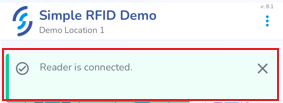
<span style="white-space: pre-wrap;">A toast pop-up will appear at the top of the screen indicating that the reader is </span>****connected****<span style="white-space: pre-wrap;">. </span>

[![image.png](https://kb.simplerfid.com/uploads/images/gallery/2025-05/scaled-1680-/Po3image.png)](https://kb.simplerfid.com/uploads/images/gallery/2025-05/Po3image.png)

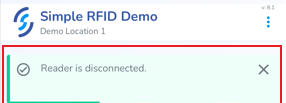
<span style="white-space: pre-wrap;">Another toast pop-up will appear when the Bluetooth is </span>****disconnected****.

[![image.png](https://kb.simplerfid.com/uploads/images/gallery/2025-05/scaled-1680-/JDyimage.png)](https://kb.simplerfid.com/uploads/images/gallery/2025-05/JDyimage.png)

---

### ****Android****

Steps might differ between different devices

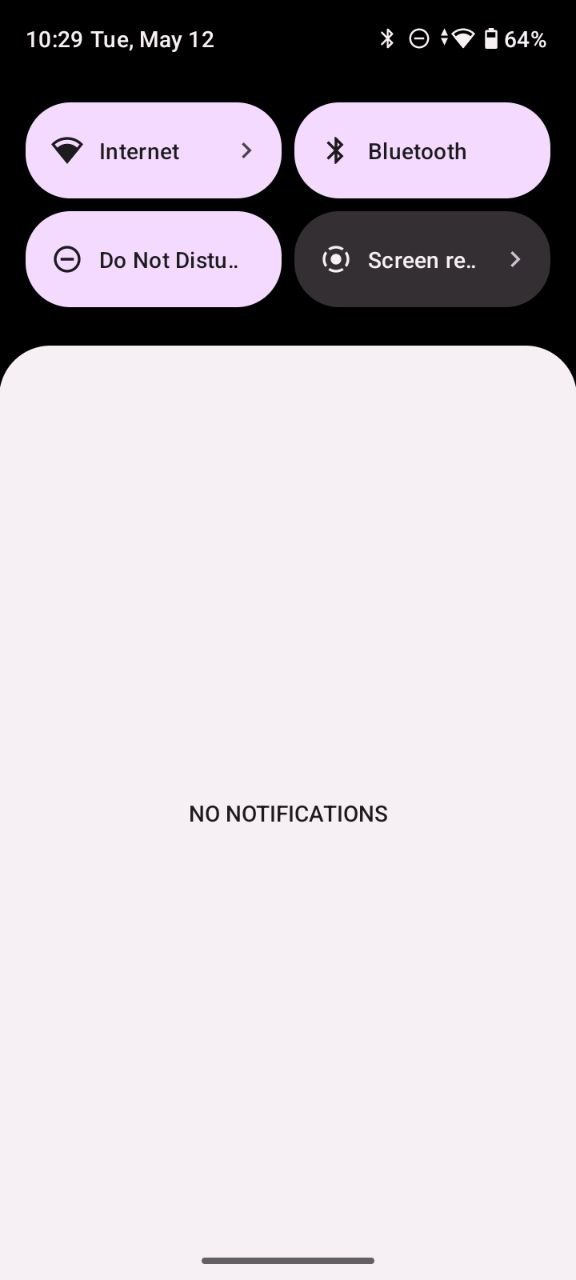
<span style="white-space: pre-wrap;">1. </span>****Swipe down****<span style="white-space: pre-wrap;"> the notification pane</span>

[![image.png](https://kb.simplerfid.com/uploads/images/gallery/2026-05/scaled-1680-/ItKimage.png)](https://kb.simplerfid.com/uploads/images/gallery/2026-05/ItKimage.png)

<span style="white-space: pre-wrap;">2. </span>****Tap**** **Bluetooth** to enable bluetooth

<span style="white-space: pre-wrap;">3. </span>****Tap&amp;Hold****<span style="white-space: pre-wrap;"> "</span>**Bluetooth**" until Bluetooth settings opened (or open Bluetooth settings from the device Settings)

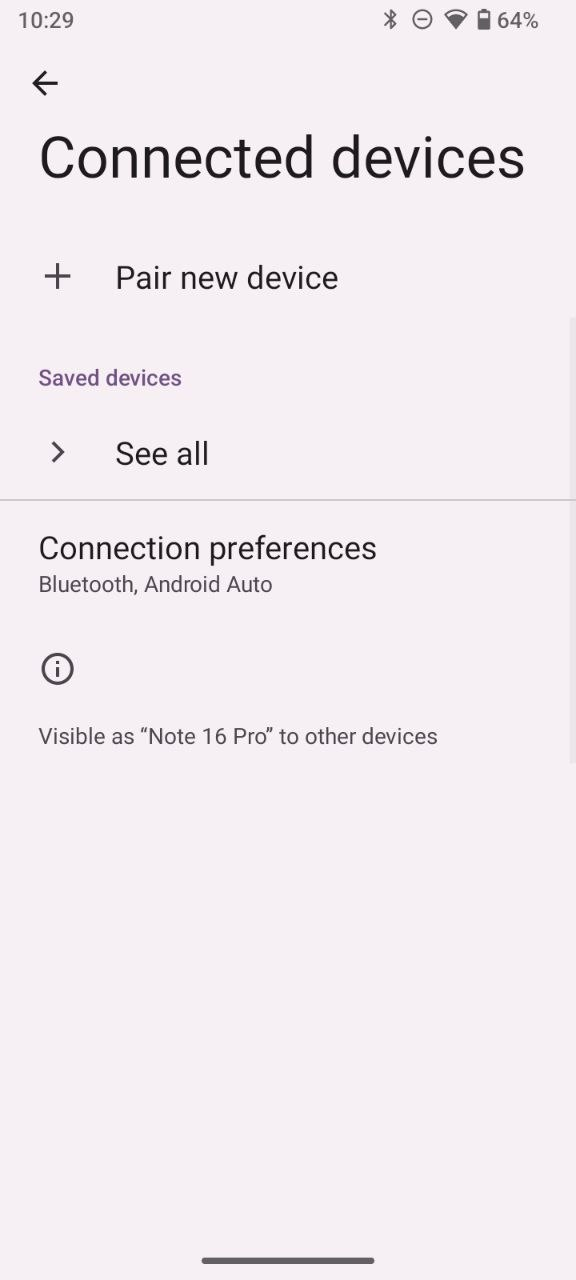
<span style="white-space: pre-wrap;">4. </span>****Tap**** **+ Pair new device**

[![image.png](https://kb.simplerfid.com/uploads/images/gallery/2026-05/scaled-1680-/8rWimage.png)](https://kb.simplerfid.com/uploads/images/gallery/2026-05/8rWimage.png)

<span style="white-space: pre-wrap;">5. </span>****Enable**** your reader (e.g. press the trigger button)

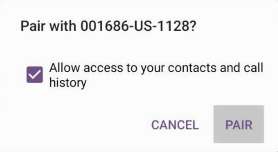
<span style="white-space: pre-wrap;">6. </span>****Select**** the reader from the devices list (e.g. 1128 is dispalyed as "xxxxxx-US-1128")

[![image.png](https://kb.simplerfid.com/uploads/images/gallery/2026-05/scaled-1680-/OAOimage.png)](https://kb.simplerfid.com/uploads/images/gallery/2026-05/OAOimage.png)
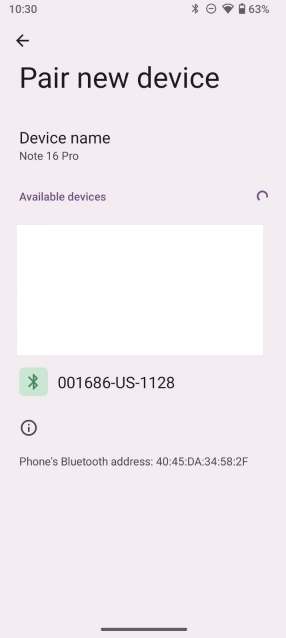
<span style="white-space: pre-wrap;">7. </span>****Tap**** <span style="white-space: pre-wrap;">Pair. </span>  
<span style="white-space: pre-wrap;">Device should appear in </span>**"Saved devices"**<span style="white-space: pre-wrap;"> section</span>

[![image.png](https://kb.simplerfid.com/uploads/images/gallery/2026-05/scaled-1680-/3sRimage.png)](https://kb.simplerfid.com/uploads/images/gallery/2026-05/3sRimage.png)

[![image.png](https://kb.simplerfid.com/uploads/images/gallery/2026-05/scaled-1680-/N00image.png)](https://kb.simplerfid.com/uploads/images/gallery/2026-05/N00image.png)
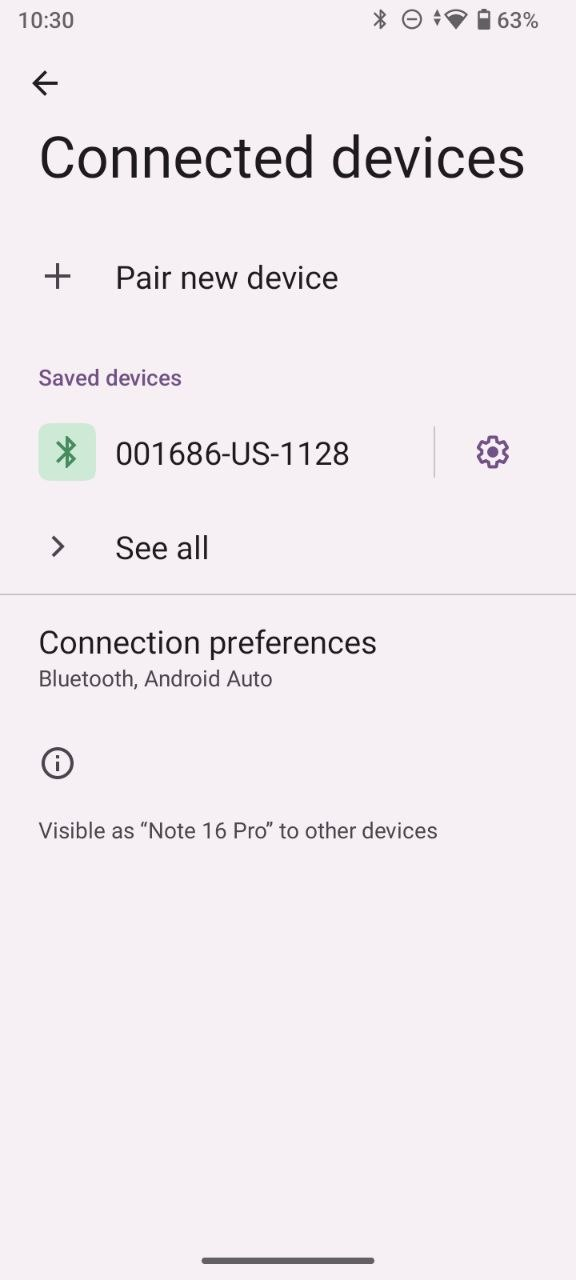
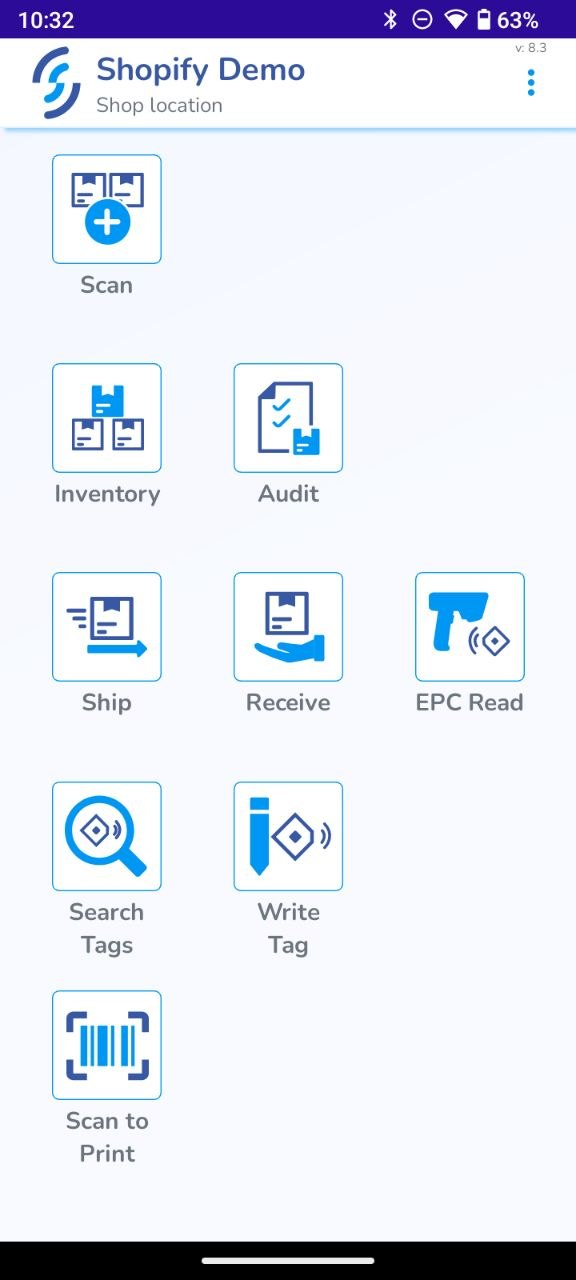
<span style="white-space: pre-wrap;">8. </span>****Open**** **Simple RFID mobile app**

<span style="white-space: pre-wrap;">9. </span>****Login&amp;go to****<span style="white-space: pre-wrap;"> the </span>**main menu (dashboard)**

[![image.png](https://kb.simplerfid.com/uploads/images/gallery/2026-05/scaled-1680-/N5cimage.png)](https://kb.simplerfid.com/uploads/images/gallery/2026-05/N5cimage.png)

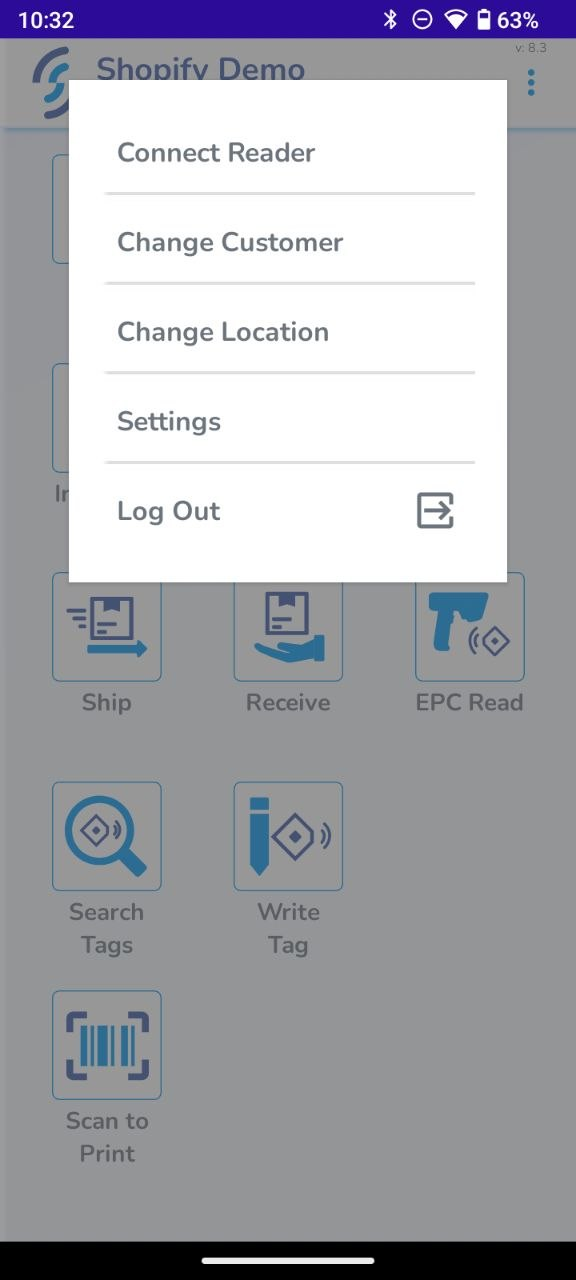
<span style="white-space: pre-wrap;">10. </span>****Tap**** **three dots**<span style="white-space: pre-wrap;"> on the top-right</span>

[![image.png](https://kb.simplerfid.com/uploads/images/gallery/2026-05/scaled-1680-/iPkimage.png)](https://kb.simplerfid.com/uploads/images/gallery/2026-05/iPkimage.png)

<span style="white-space: pre-wrap;">11. </span>****Tap**** **"Connect reader"**

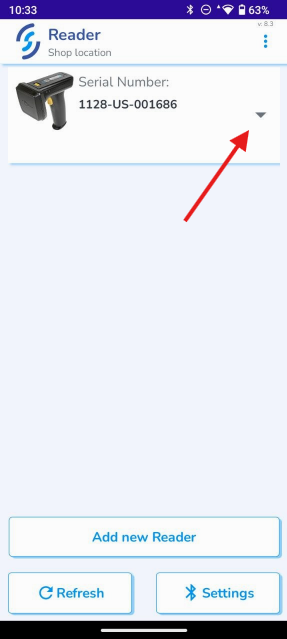
<span style="white-space: pre-wrap;">12. </span>****Tap**** <span style="white-space: pre-wrap;">the </span>**triangle**<span style="white-space: pre-wrap;"> near the appeared reader</span>

[![image.png](https://kb.simplerfid.com/uploads/images/gallery/2026-05/scaled-1680-/SYgimage.png)](https://kb.simplerfid.com/uploads/images/gallery/2026-05/SYgimage.png)

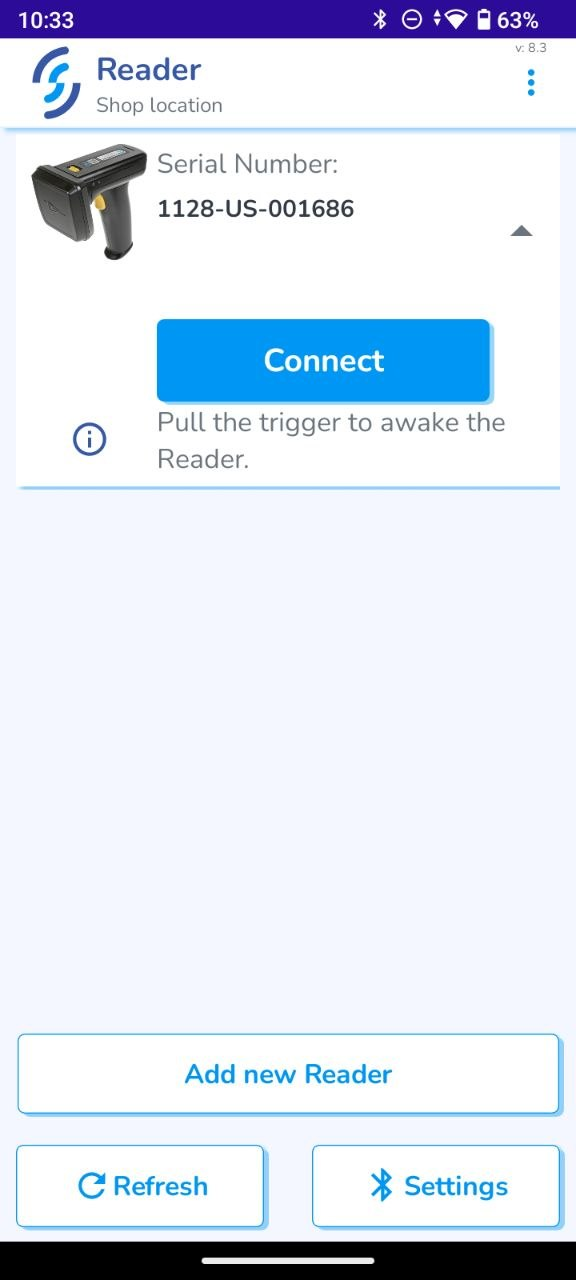
<span style="white-space: pre-wrap;">13. </span>****Tap**** **Connect**

[![image.png](https://kb.simplerfid.com/uploads/images/gallery/2026-05/scaled-1680-/xV5image.png)](https://kb.simplerfid.com/uploads/images/gallery/2026-05/xV5image.png)

<span style="white-space: pre-wrap;">You should see the battery percentage and the toast message </span>**"Reader is connected"**<span style="white-space: pre-wrap;">. </span>  
This means that the reader was connected successfully.

<p class="callout info"><span style="white-space: pre-wrap;">To simplify the pairing process, and automatically pair the reader by pulling the trigger, enable </span>****Auto-Reconnect****<span style="white-space: pre-wrap;"> from the </span>[Reader Settings](https://kb.simplerfid.com/books/mobile-app/page/reader-settings)<span style="white-space: pre-wrap;"> tab (tap the gear once connected)</span></p>

---

<span style="white-space: pre-wrap;">If you have any questions, feel free to email </span><support@simplerfid.com>!