Pair Bluetooth
Steps to connect the handheld RFID reader to the mobile app
iOS
1. Tap the ellipsis, which are three dots in the top right corner of the app

2. Tap Connect Reader
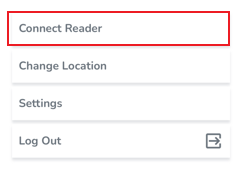
3. Tap the Add new Reader button

4. Press the reader trigger button.
When the trigger is pulled a blue light will begin flashing on the side of the device indicating that the reader is in Bluetooth discovery.
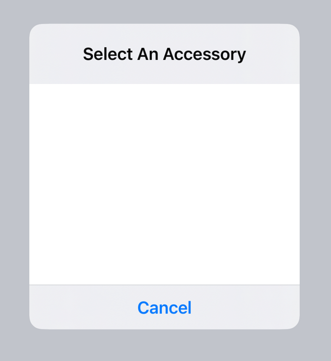
5. From the Select an Accessory window select the reader Bluetooth option which matches the serial number of your device.
A sticker containing the serial number of the device has been applied to the device.
Once the reader is paired it will be displayed as a Connected Reader, the blue flashing light on the side of the reader will appear solid.
To simplify the pairing process, and automatically pair the reader by pulling the trigger, enable Auto-Reconnect from the Reader Settings tab
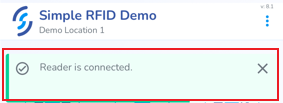
A toast pop-up will appear at the top of the screen indicating that the reader is connected.
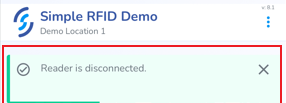
Another toast pop-up will appear when the Bluetooth is disconnected.
Android
Steps might differ between different devices
1. Swipe down the notification pane
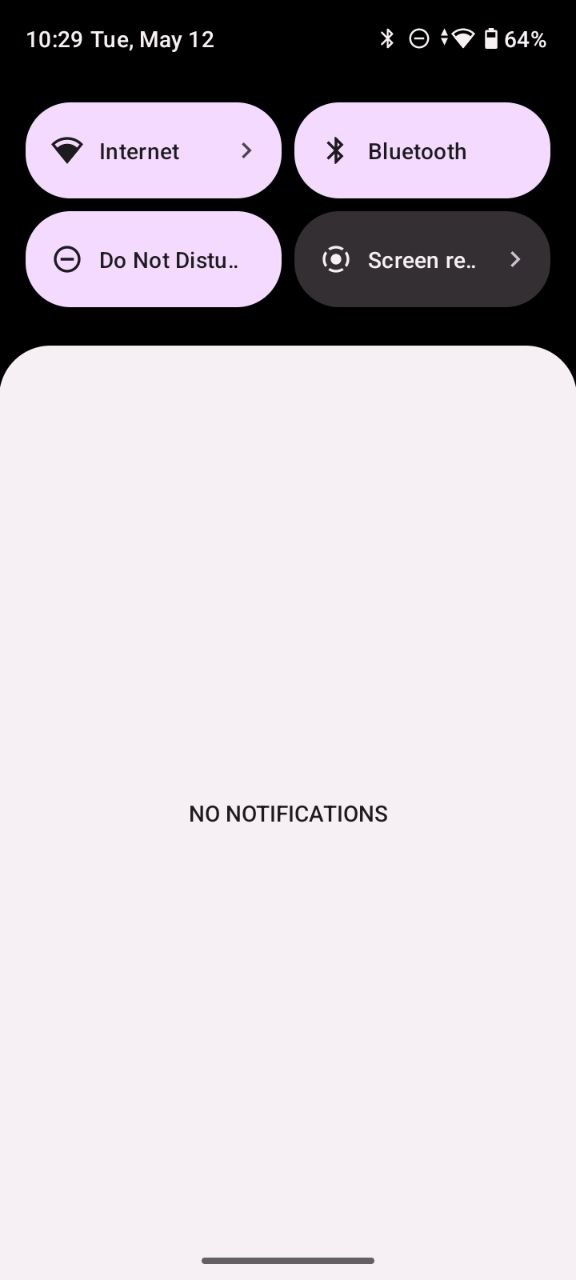
2. Tap Bluetooth to enable bluetooth
3. Tap&Hold "Bluetooth" until Bluetooth settings opened (or open Bluetooth settings from the device Settings)
4. Tap + Pair new device
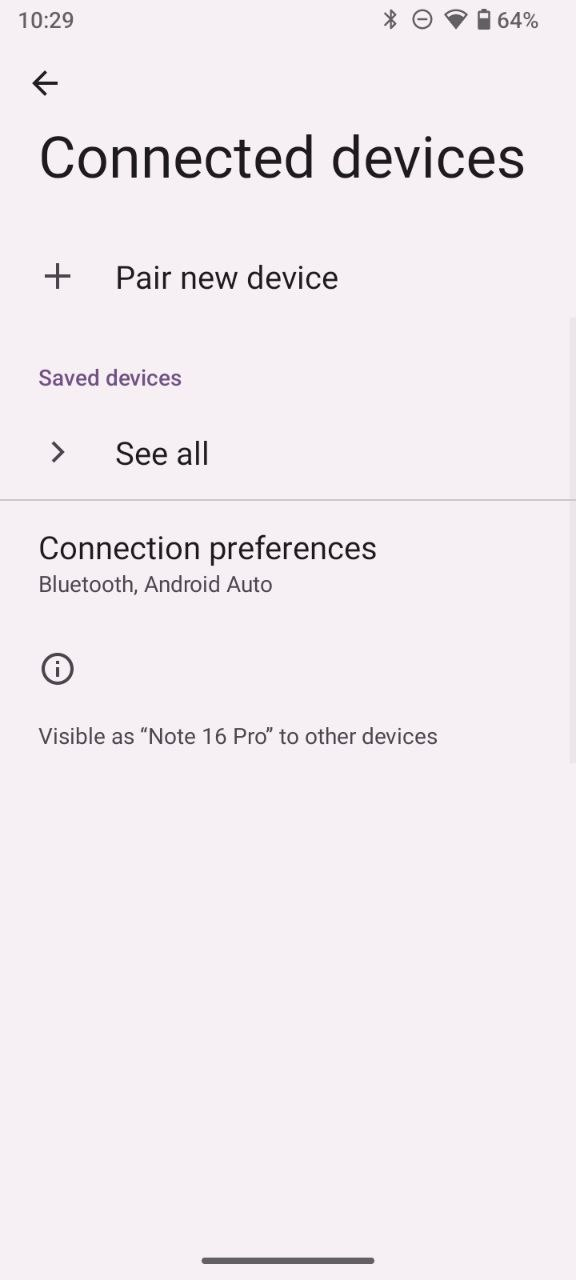
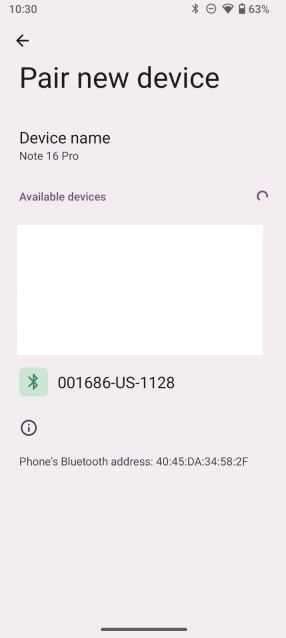
5. Enable your reader (e.g. press the trigger button)
6. Select the reader from the devices list (e.g. 1128 is dispalyed as "xxxxxx-US-1128")
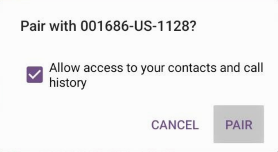
7. Tap Pair.
Device should appear in "Saved devices" section
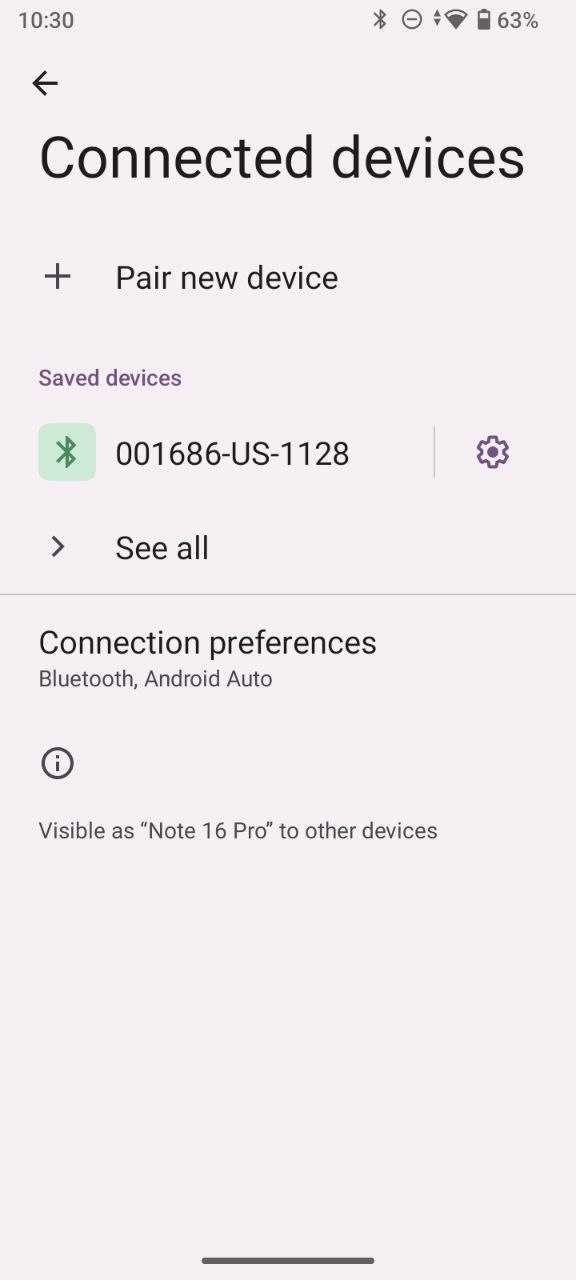
8. Open Simple RFID mobile app
9. Login&go to the main menu (dashboard)
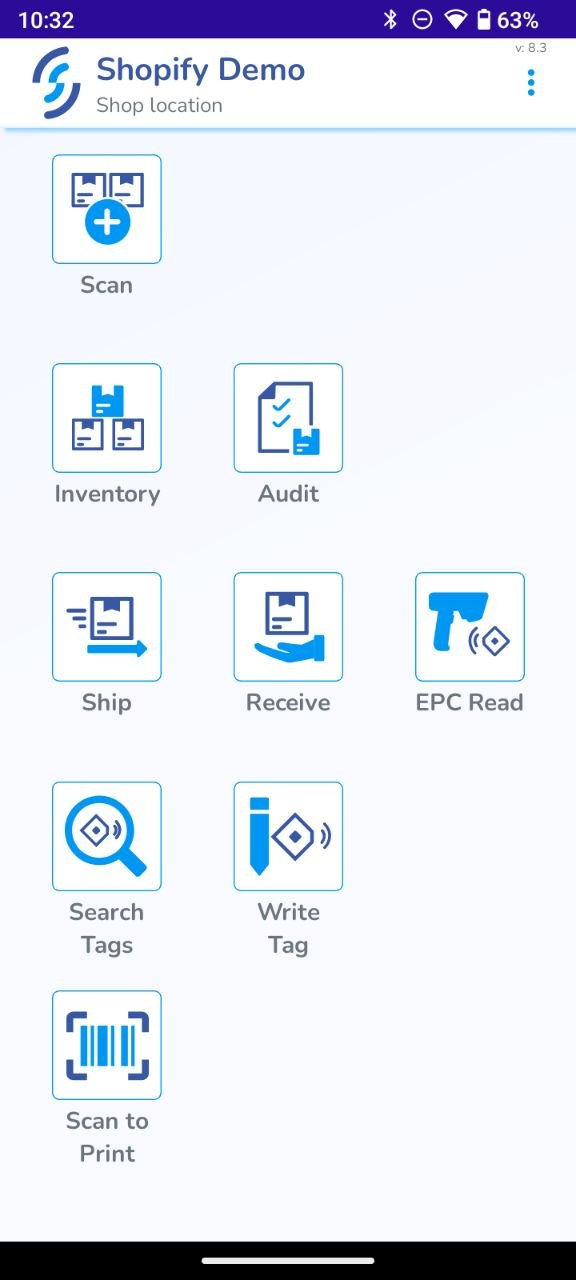
10. Tap three dots on the top-right
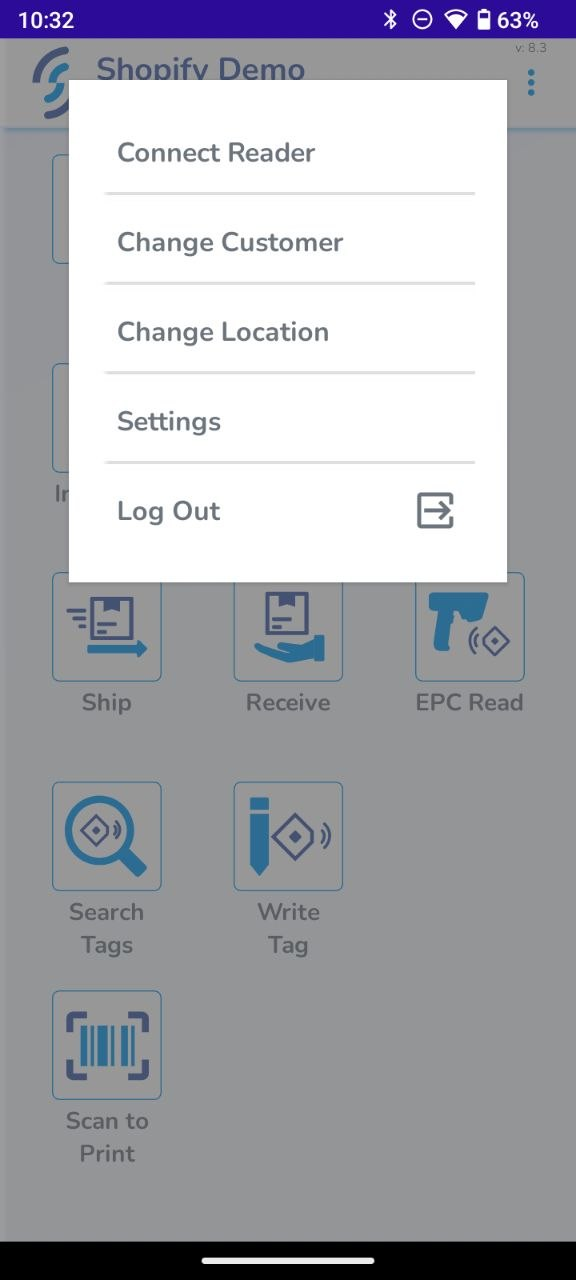
11. Tap "Connect reader"
12. Tap the triangle near the appeared reader
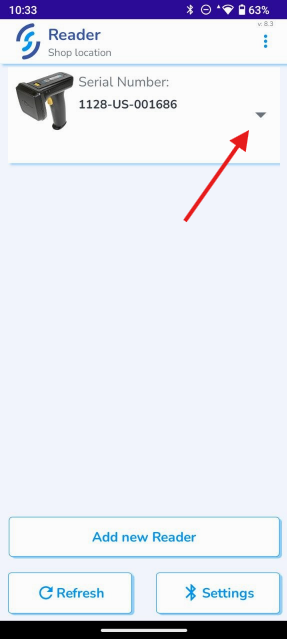
13. Tap Connect
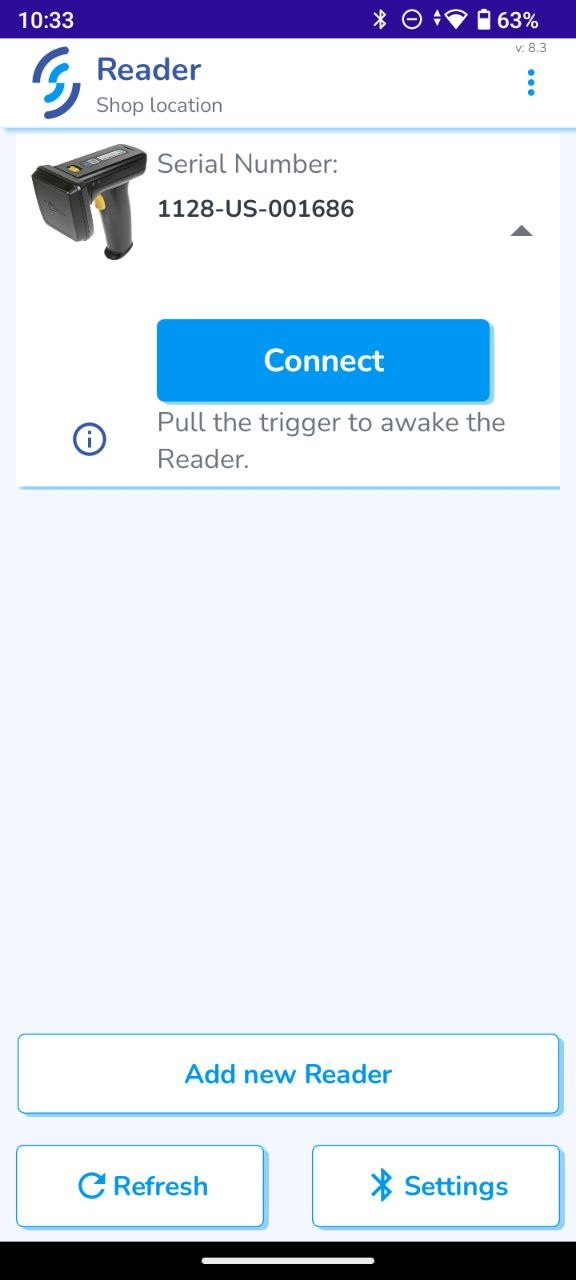
You should see the battery percentage and the toast message "Reader is connected".
This means that the reader was connected successfully.
To simplify the pairing process, and automatically pair the reader by pulling the trigger, enable Auto-Reconnect from the Reader Settings tab (tap the gear once connected)
If you have any questions, feel free to email support@simplerfid.com!