# Manual Reader Control
If you wish to control the reader via the standard RFID settings, you can enable in the [Application Settings](https://kb.simplerfid.com/books/mobile-app/page/application-settings) menu
****Manual Reader Control (Pro) Enabled****
These controls include;
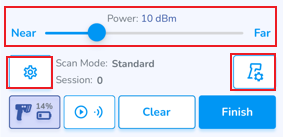
****Power Slider**** which is a single control to manage the reader power dynamically via a slider. Below this, a settings icon to manage the ****Scan Mode & Session**** of the Reader, and the current settings are displayed to the right of it. To the far right is the button to navigate to the [Connected Reader](https://kb.simplerfid.com/books/mobile-app/page/connected-reader)
[](https://kb.simplerfid.com/uploads/images/gallery/2025-05/3Bkimage.png)
****Session & Scan Mode****
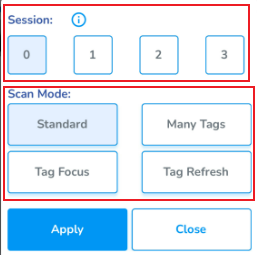
Sessions are 0, 1, 2 & 3
Scan Modes are Standard, Tag Focus, Many Tags, & Tag Refresh
[](https://kb.simplerfid.com/uploads/images/gallery/2025-05/cTRimage.png)
After making selection, click the ****Apply**** button to save changes
Click ****Close**** to exit the settings window