# EPC Read
##### Quickly confirm the information programmed into a tag by using the EPC Read feature.
### Requirements:
- A mobile device with the Simple RFID app installed
- A handheld TSL reader paired to the mobile device
- [Instructions for pairing your reader](https://kb.simplerfid.com/books/mobile-app/page/pair-bluetooth)
### Step 1: Select the EPC Read option on the mobile app
[](https://kb.simplerfid.com/uploads/images/gallery/2025-05/Ij6image.png)
### Step 2: Adjust the reader power
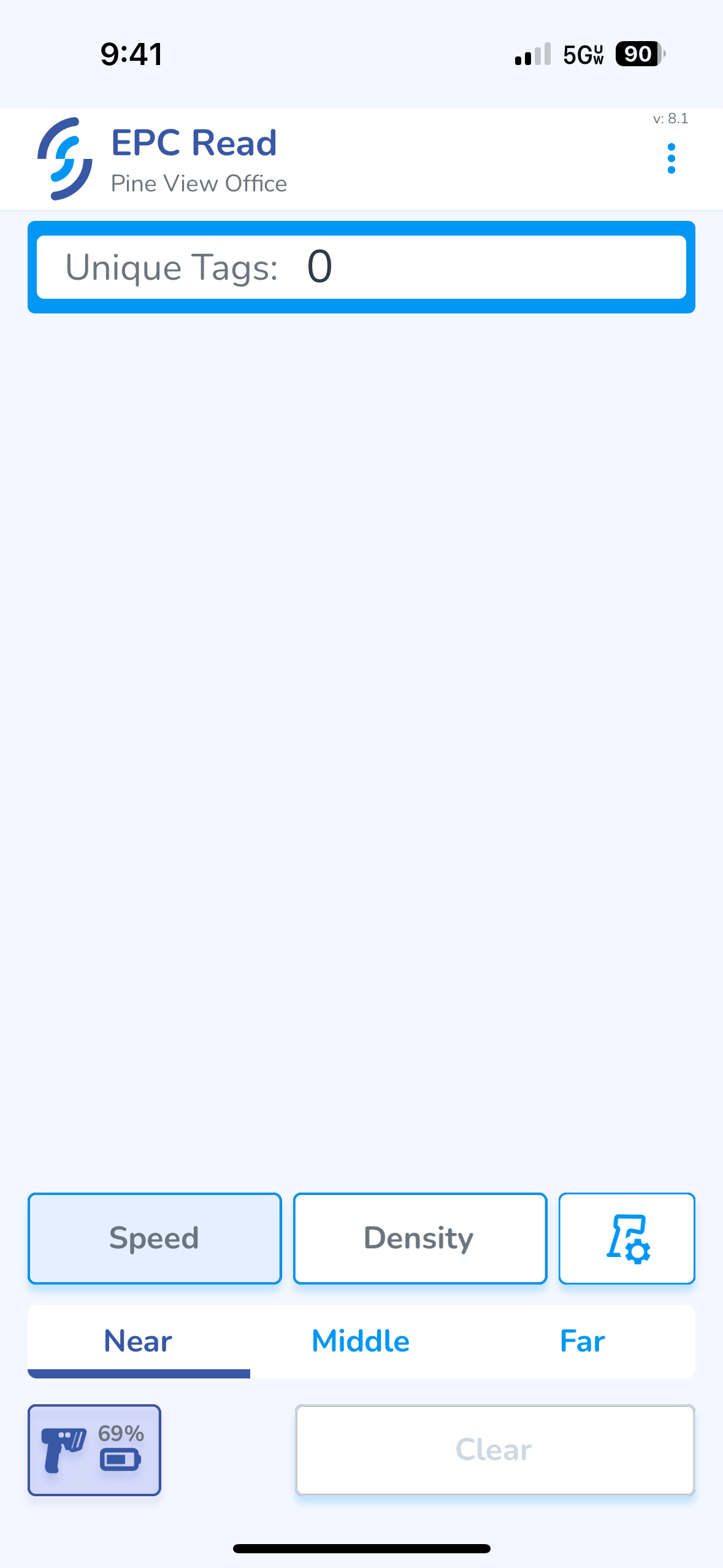
If you're trying to capture a specific tag, make sure to set the power to ****Near****, otherwise you may pick up other tags in the area, making it difficult to identify the correct tag.
### Step 3: Scan the tag(s)
****Pull the trigger**** to scan
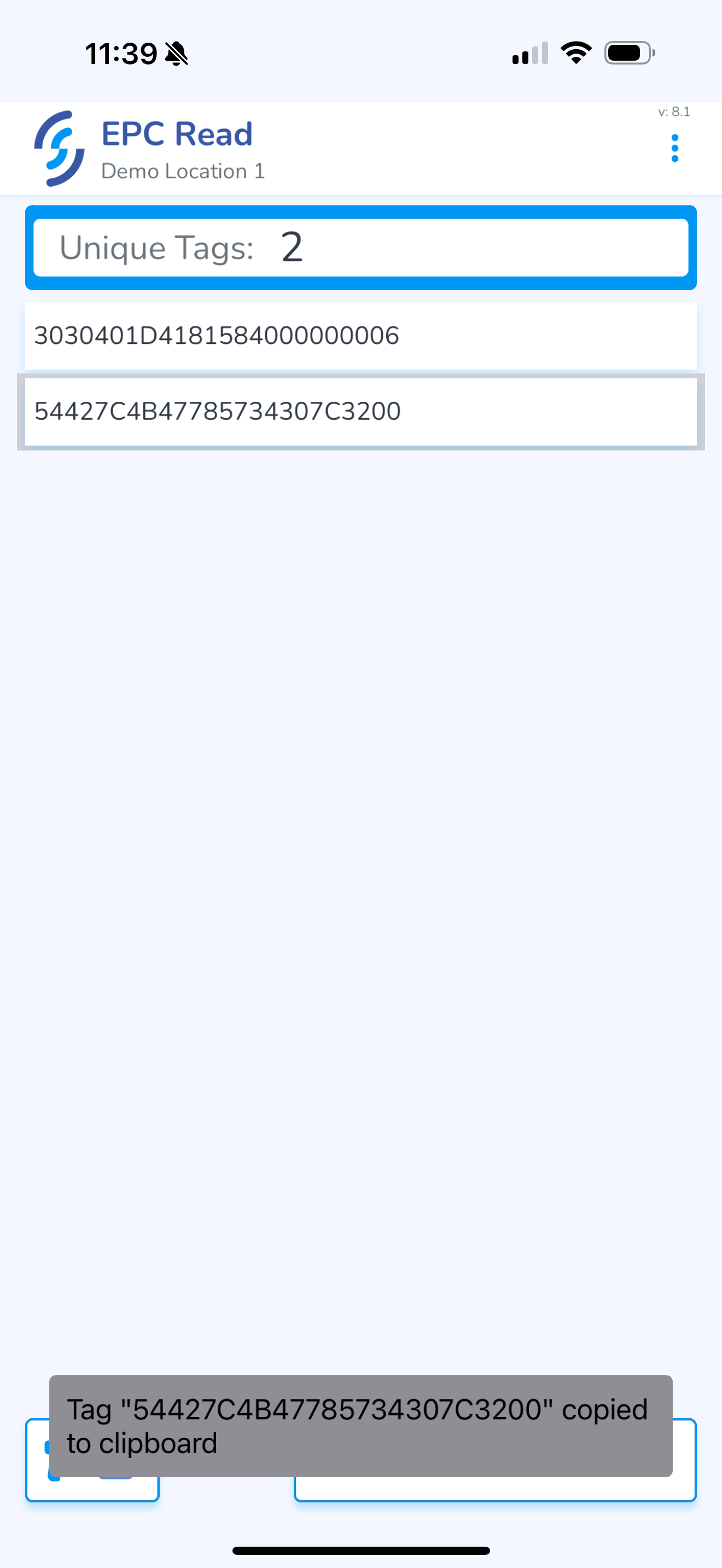
****Tap on the EPC**** you wish to copy to the device's clipboard
[](https://kb.simplerfid.com/uploads/images/gallery/2025-05/scaled-1680-/img-0450.PNG)
This will allow you to view & share EPC numbers for troubleshooting.