Transfer Orders can be created from the web or the mobile app, however creating them from the mobile is disabled by default. To enable, navigate to the [Application Settings](https://kb.simplerfid.com/books/mobile-app/page/application-settings) in the Ship section
At the bottom of the Ship menu click the 'Create new transfer' button to create [](https://kb.simplerfid.com/uploads/images/gallery/2025-05/N7mimage.png) ##### ****Info**** - Choose the location you are sending the transfer - Enter any notes you wish to include in the Comments section [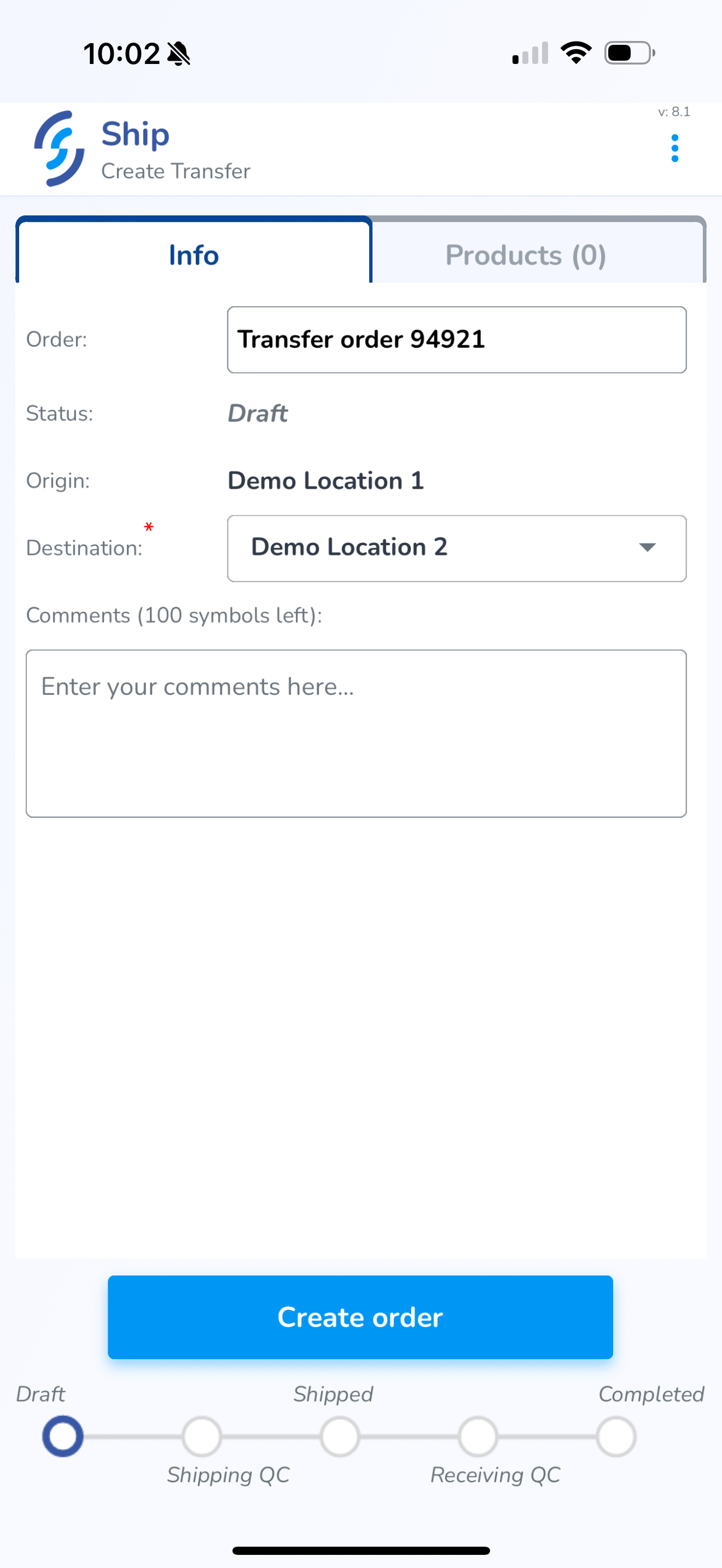](https://kb.simplerfid.com/uploads/images/gallery/2025-05/scaled-1680-/img-0434.PNG) ##### ****Products**** Click on the Products tab [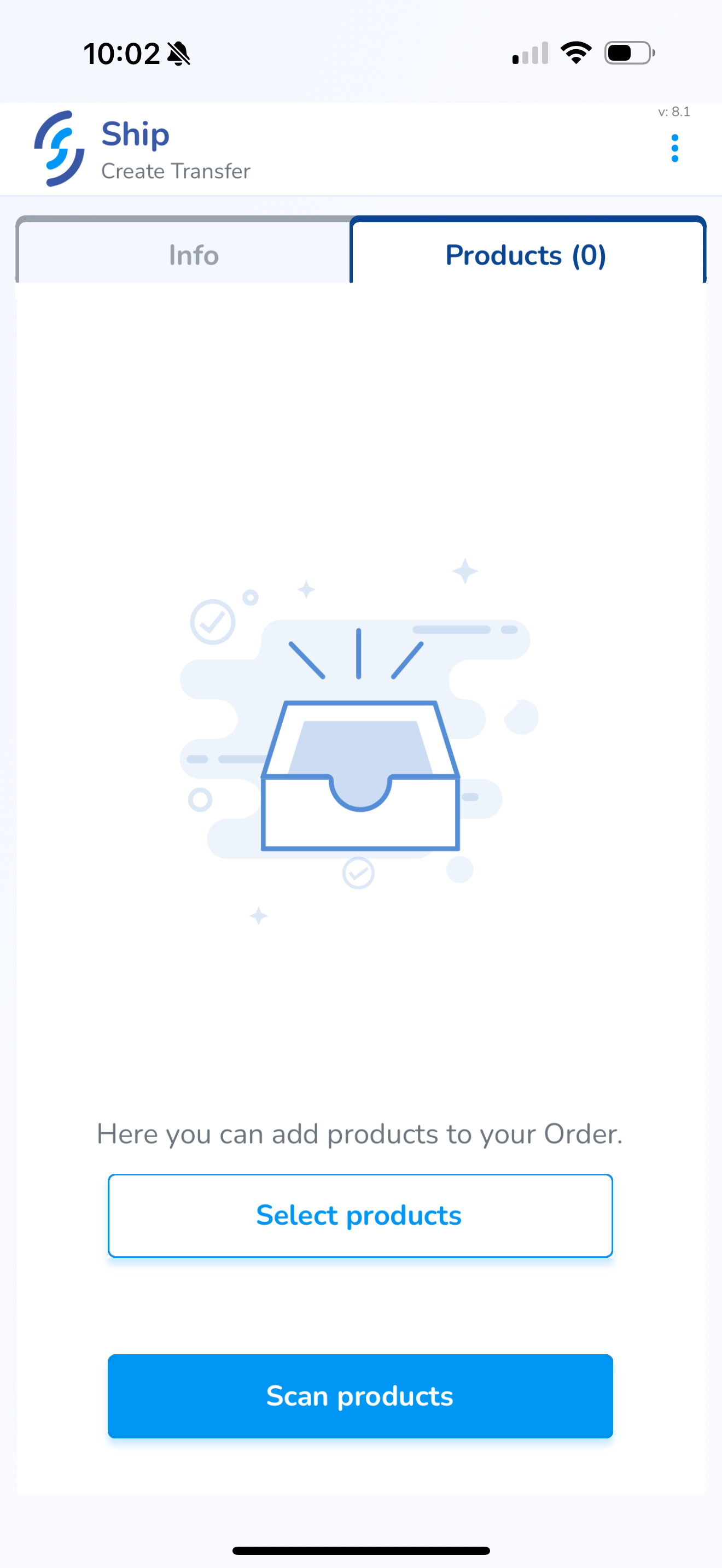](https://kb.simplerfid.com/uploads/images/gallery/2025-05/scaled-1680-/img-0435.PNG) ##### ****Scan Products**** Click ****Scan Products**** - [Pair Bluetooth](https://kb.simplerfid.com/books/mobile-app/page/pair-bluetooth) [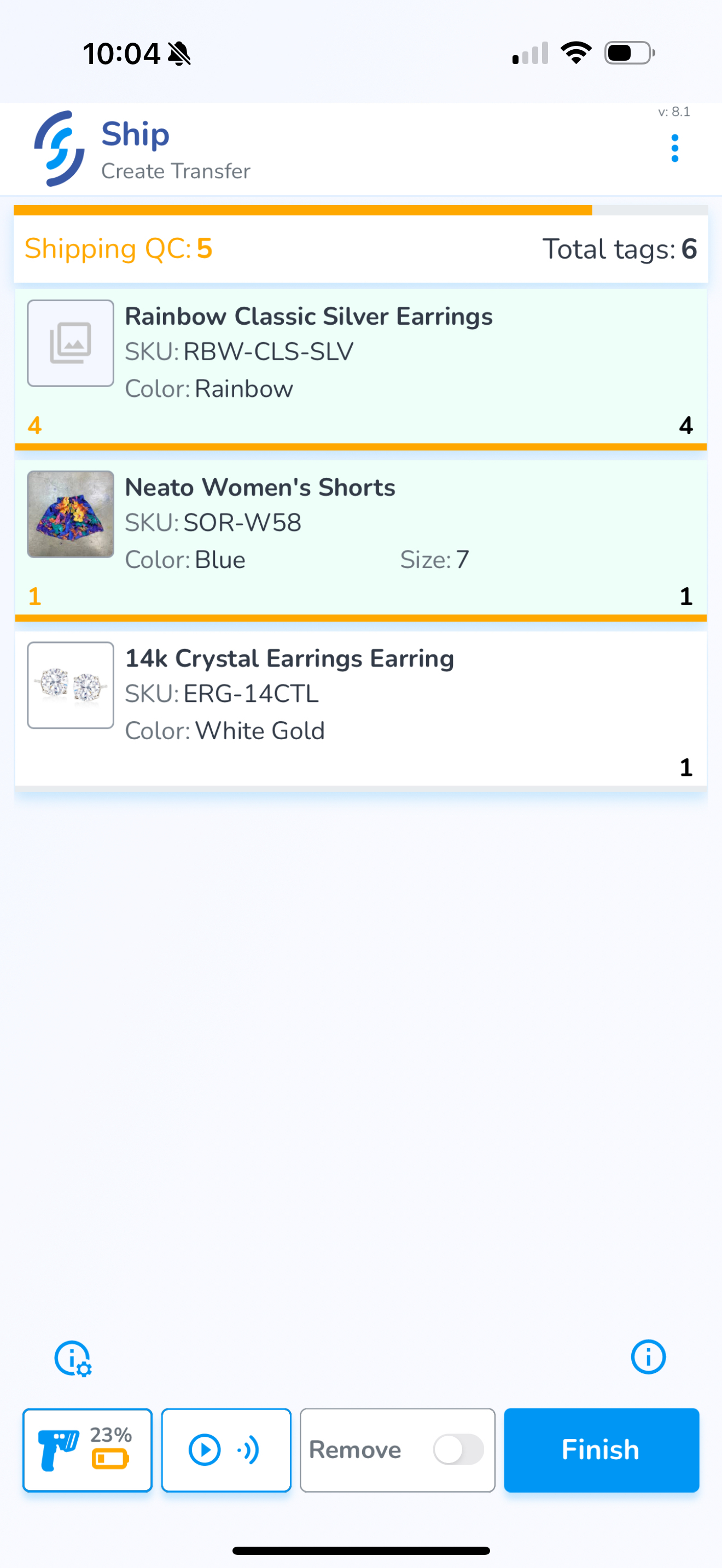](https://kb.simplerfid.com/uploads/images/gallery/2025-05/scaled-1680-/img-0439.PNG)Adding items via the Scan method adds items & quantities scanned to the order