# Connected Reader
View of connected reader
Once paired, the device appears as a ****Connected Reader****, and displays the reader's Serial Number, Firmware Version, & battery power level.
A settings icon navigates to [Reader Settings](https://kb.simplerfid.com/books/mobile-app/page/reader-settings)
Tapping the ****Find Reader**** button executes a sound from the reader to assist the operator in locating the device.
Clicking the ****Disconnect**** button terminates the connection to the device.
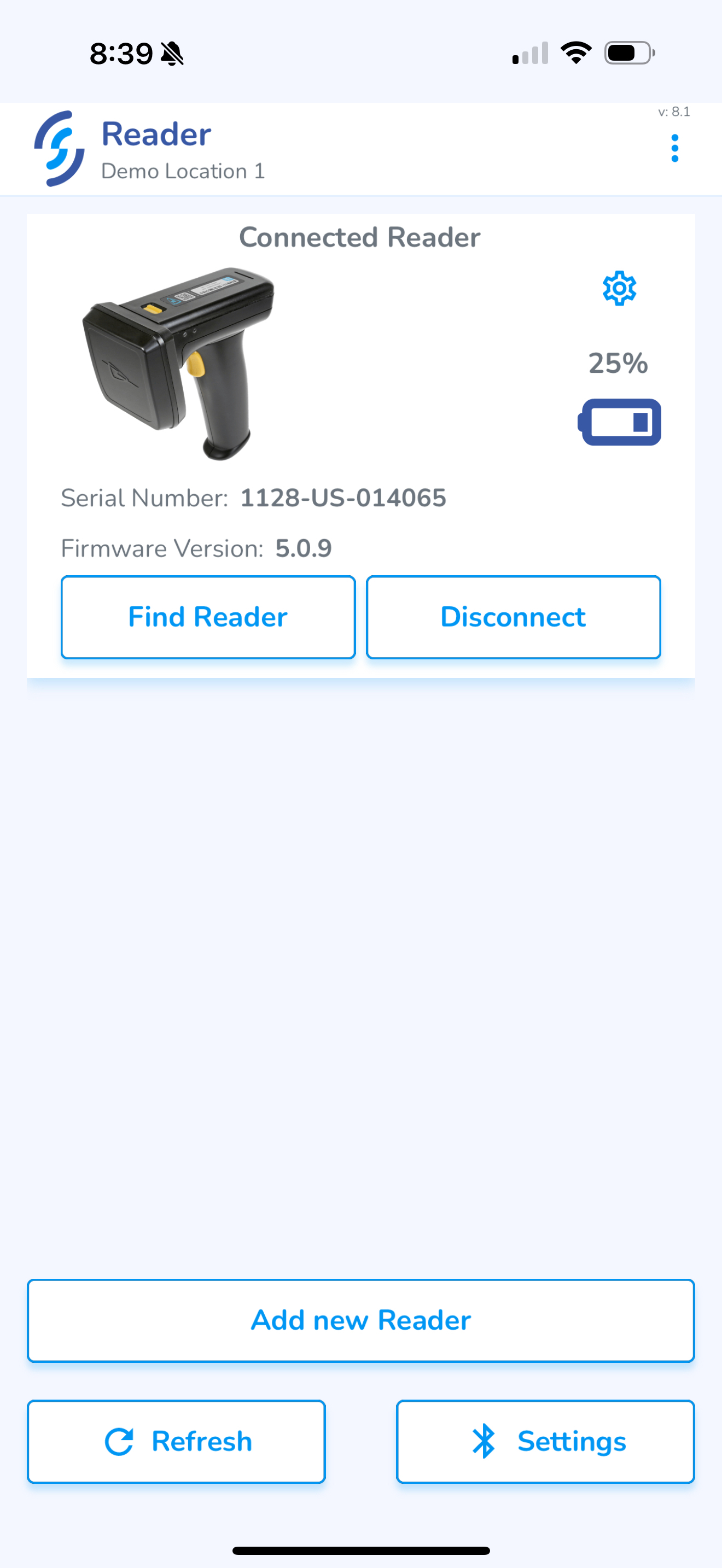At the bottom of this screen are tools to connect a new device including: ****Add new Reader**** to [Pair Bluetooth](https://kb.simplerfid.com/books/mobile-app/page/pair-bluetooth), ****Refresh**** to refresh the available Bluetooth connections, and Settings which navigates to the device's settings menu to enable the Bluetooth.