To login to the mobile app you will first need credentials to the Simple RFID portal. The same username and password to login to the web portal will be used to access the mobile app
# Log In & Log Out How to log in and log out Launch the app on your Android or iOS device [](https://kb.simplerfid.com/uploads/images/gallery/2025-05/3Cpimage.png) ##### ****Log in**** This opens the login screen. Enter your username & password.Note: This will be the same username & password you use to log into the web portal
[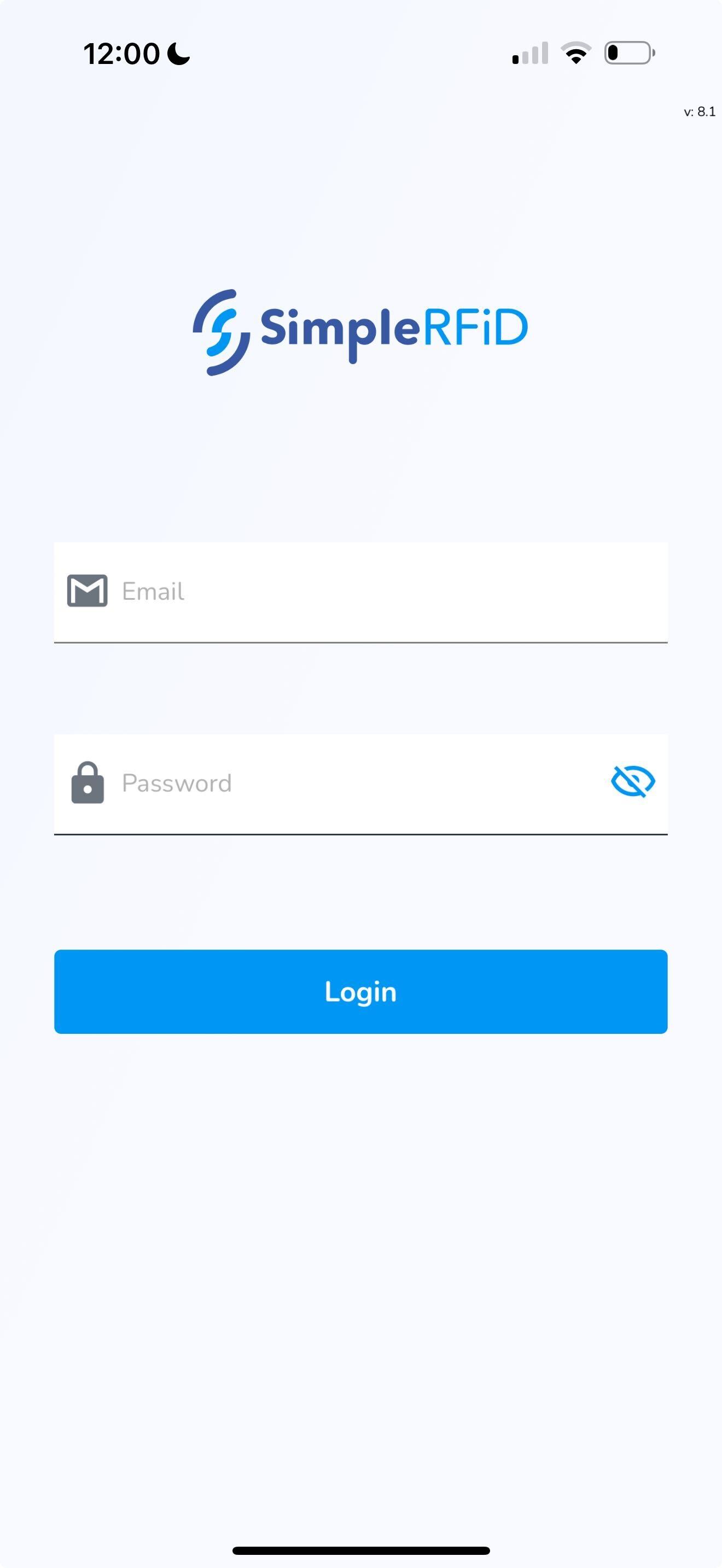](https://kb.simplerfid.com/uploads/images/gallery/2025-05/scaled-1680-/file-12.jpg) Click ****Login**** This will open the Home screen ##### ****Log out**** To log out click on the ellipsis in the top right corner of the screen Click ****Log Out**** [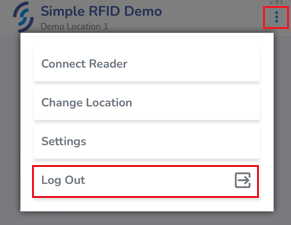](https://kb.simplerfid.com/uploads/images/gallery/2025-05/3pEimage.png) # Select Location How to select a locationNote: A user may be granted access to a specific location(s), or have access to all locations
##### ****Select Location**** Upon first logging in, you will be prompted to select a location [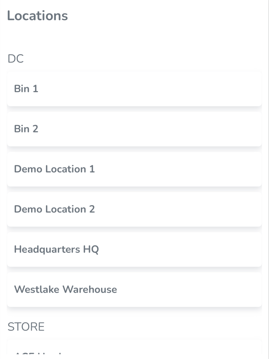](https://kb.simplerfid.com/uploads/images/gallery/2025-05/pCSimage.png) Once the location is selected it will appear at the top of the screen [](https://kb.simplerfid.com/uploads/images/gallery/2025-05/3qsimage.png) To change location, click on the ellipsis in the top right corner of the screen, then click ****Change location****If you don't see the ****Change Location**** option, it may not be available from the screen you're viewing. Press the Back button (or Simple RFID logo) to go back to the dashboard, then try again.
[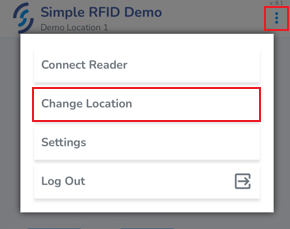](https://kb.simplerfid.com/uploads/images/gallery/2025-05/hyAimage.png) The currently selected location will be highlighted. Tap another location to switch. [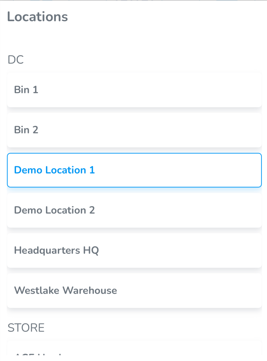](https://kb.simplerfid.com/uploads/images/gallery/2025-05/8EAimage.png) # Pair Bluetooth Steps to connect the handheld RFID reader to the mobile app --- ### ****iOS**** 1. ****Tap**** the **ellipsis**, which are three dots in the top right corner of the app 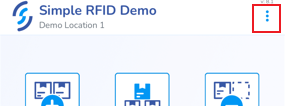 2. ****Tap**** **Connect Reader** [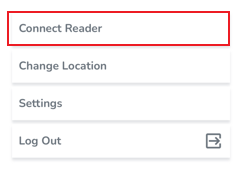](https://kb.simplerfid.com/uploads/images/gallery/2025-05/I2gimage.png) 3. ****Tap**** the **Add new Reader** button  4. ****Press**** the reader trigger button.When the trigger is pulled a blue light will begin flashing on the side of the device indicating that the reader is in Bluetooth discovery.
[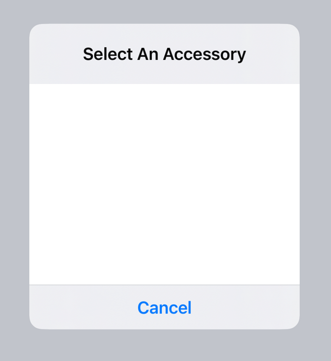](https://kb.simplerfid.com/uploads/images/gallery/2025-05/MDWimage.png) 5. From the **Select an Accessory** window ****select**** the reader Bluetooth option which matches the serial number of your device. A sticker containing the serial number of the device has been applied to the device. Once the reader is paired it will be displayed as a [Connected Reader](https://kb.simplerfid.com/books/mobile-app/page/connected-reader), the blue flashing light on the side of the reader will appear solid.To simplify the pairing process, and automatically pair the reader by pulling the trigger, enable Auto-Reconnect from the [Reader Settings](https://kb.simplerfid.com/books/mobile-app/page/reader-settings) tab
A toast pop-up will appear at the top of the screen indicating that the reader is ****connected****. [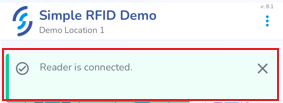](https://kb.simplerfid.com/uploads/images/gallery/2025-05/Po3image.png) Another toast pop-up will appear when the Bluetooth is ****disconnected****. [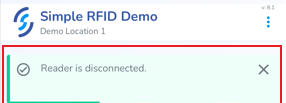](https://kb.simplerfid.com/uploads/images/gallery/2025-05/JDyimage.png) --- ### ****Android**** Steps might differ between different devices 1. ****Swipe down**** the notification pane [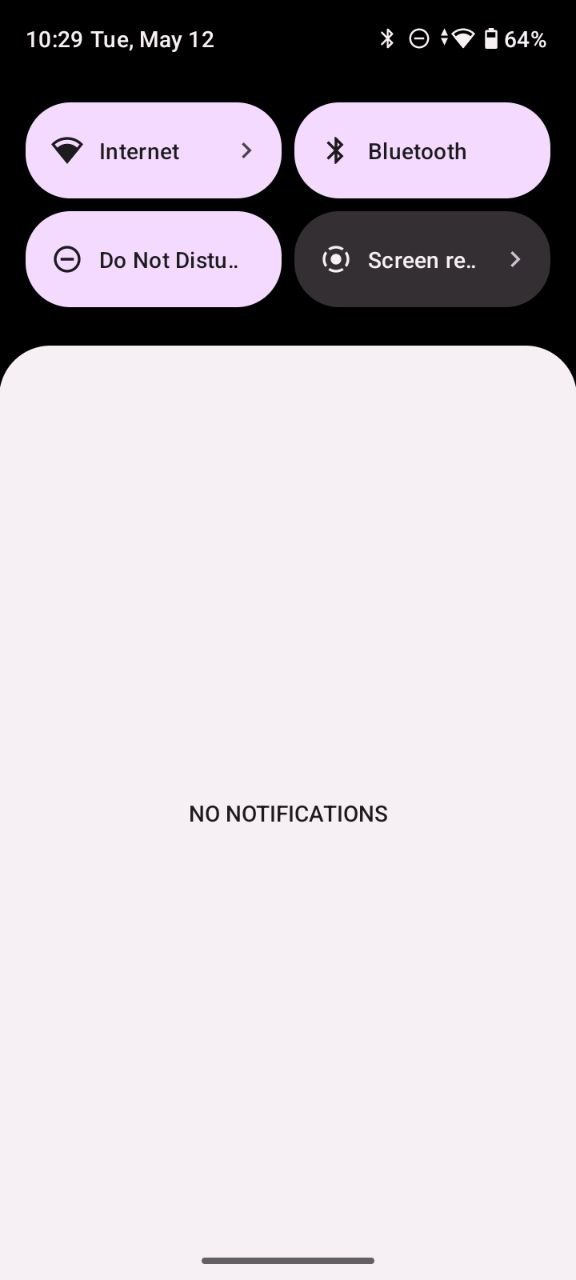](https://kb.simplerfid.com/uploads/images/gallery/2026-05/ItKimage.png) 2. ****Tap**** **Bluetooth** to enable bluetooth 3. ****Tap&Hold**** "**Bluetooth**" until Bluetooth settings opened (or open Bluetooth settings from the device Settings) 4. ****Tap**** **+ Pair new device** [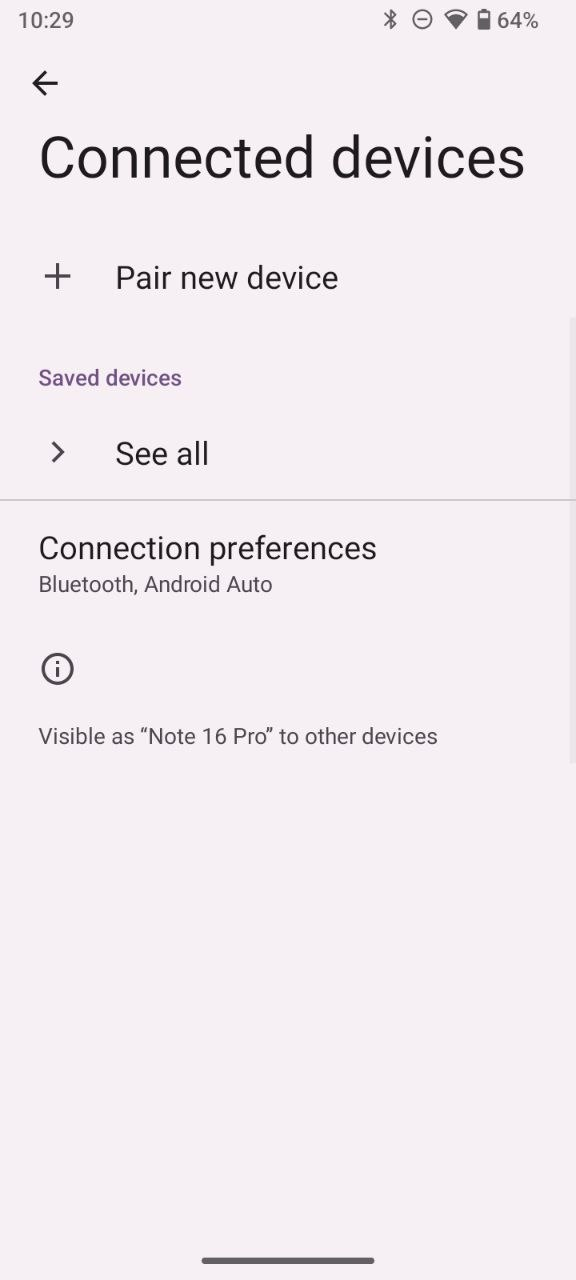](https://kb.simplerfid.com/uploads/images/gallery/2026-05/8rWimage.png) 5. ****Enable**** your reader (e.g. press the trigger button) 6. ****Select**** the reader from the devices list (e.g. 1128 is dispalyed as "xxxxxx-US-1128") [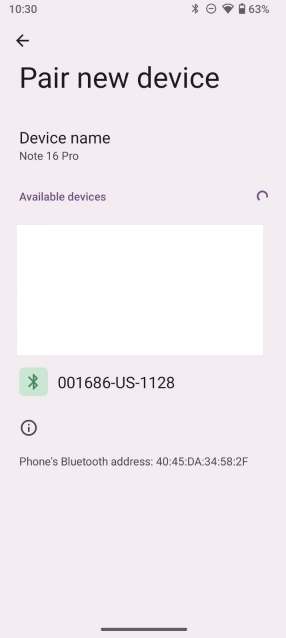](https://kb.simplerfid.com/uploads/images/gallery/2026-05/OAOimage.png) 7. ****Tap**** Pair. Device should appear in **"Saved devices"** section [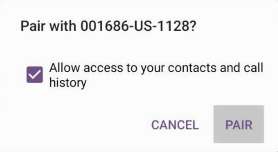](https://kb.simplerfid.com/uploads/images/gallery/2026-05/3sRimage.png) [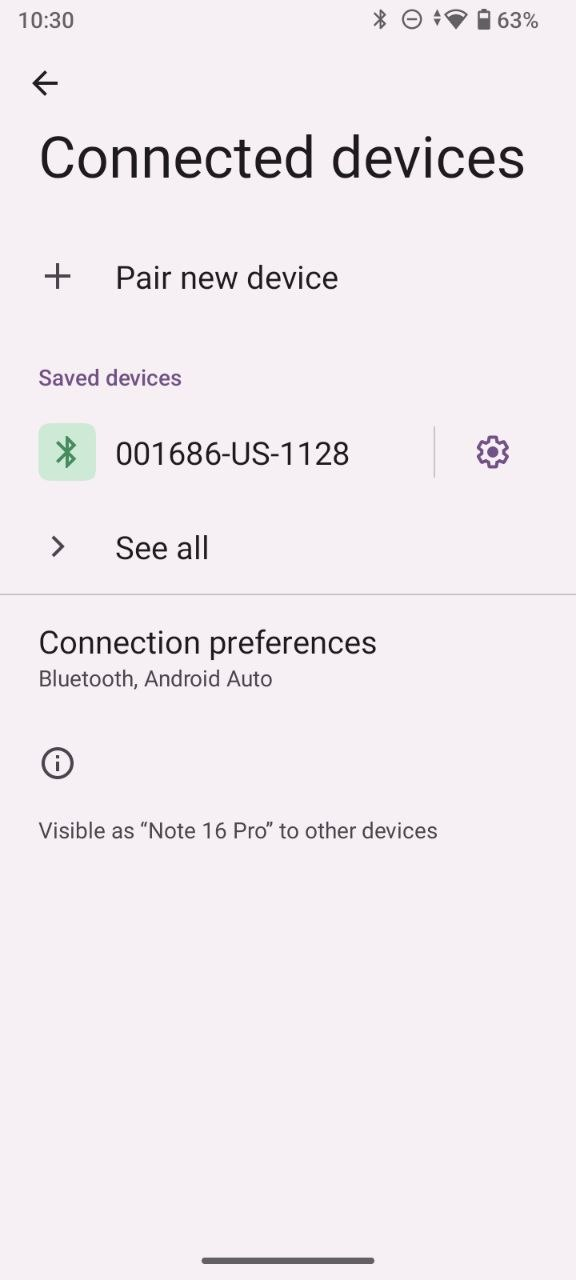](https://kb.simplerfid.com/uploads/images/gallery/2026-05/N00image.png) 8. ****Open**** **Simple RFID mobile app** 9. ****Login&go to**** the **main menu (dashboard)** [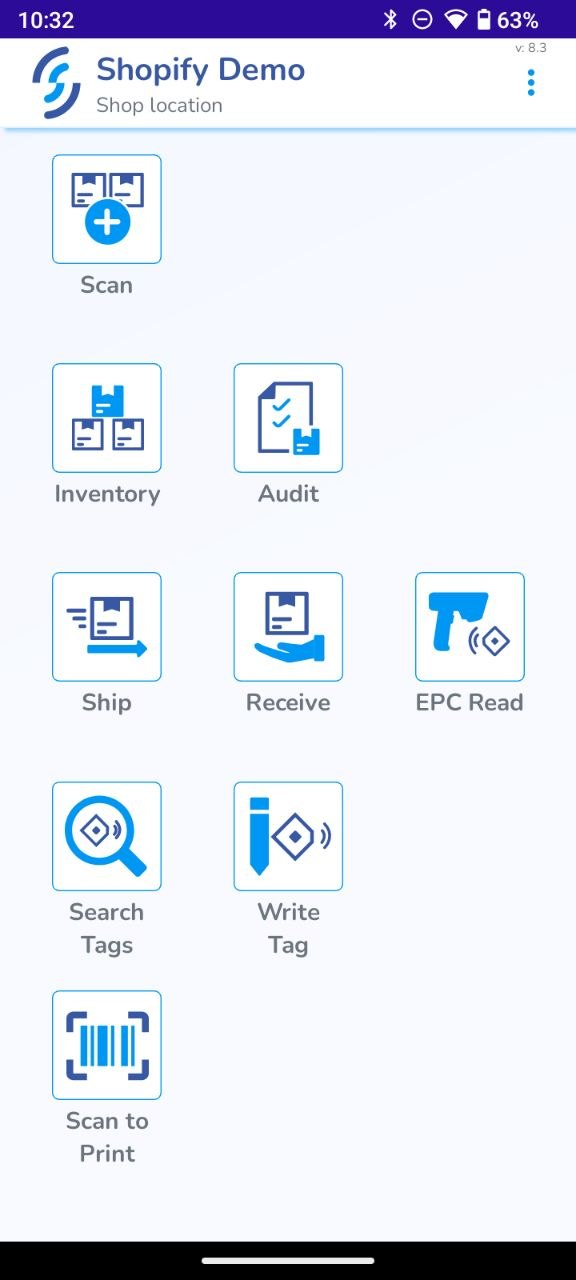](https://kb.simplerfid.com/uploads/images/gallery/2026-05/N5cimage.png) 10. ****Tap**** **three dots** on the top-right [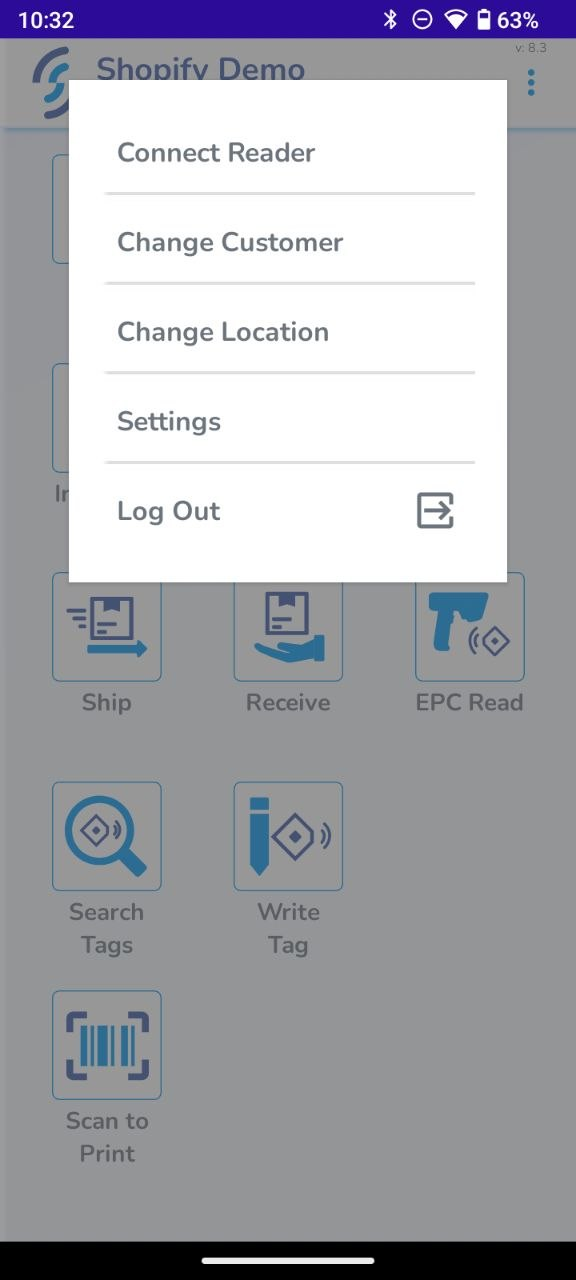](https://kb.simplerfid.com/uploads/images/gallery/2026-05/iPkimage.png) 11. ****Tap**** **"Connect reader"** 12. ****Tap**** the **triangle** near the appeared reader [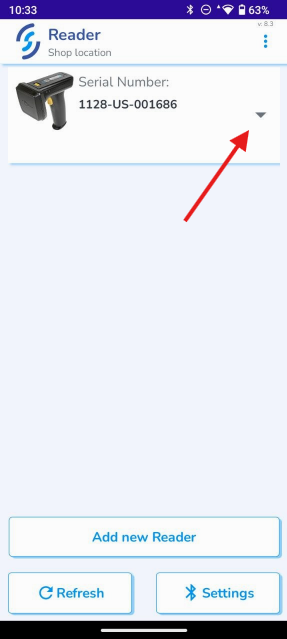](https://kb.simplerfid.com/uploads/images/gallery/2026-05/SYgimage.png) 13. ****Tap**** **Connect** [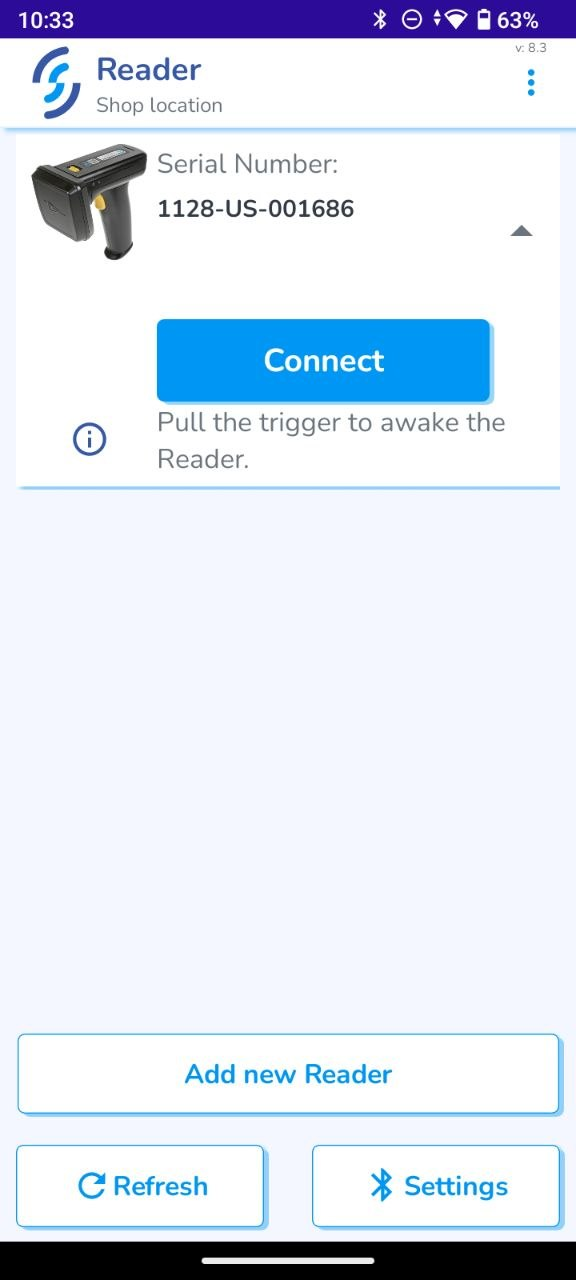](https://kb.simplerfid.com/uploads/images/gallery/2026-05/xV5image.png) You should see the battery percentage and the toast message **"Reader is connected"**. This means that the reader was connected successfully.To simplify the pairing process, and automatically pair the reader by pulling the trigger, enable ****Auto-Reconnect**** from the [Reader Settings](https://kb.simplerfid.com/books/mobile-app/page/reader-settings) tab (tap the gear once connected)
--- If you have any questions, feel free to emailIf Auto-Reconnect has been enabled for multiple devices, the reader may pair with any of them making it difficult to determine which device the reader is paired with. This can lead to confusion when attempting to pair as the Bluetooth option never appears. To determine if the reader is already paired, check to see if the blue light on the side of the reader is solid
The Buzzer switch enables or disables the device's audio feature The Vibrate switch enables or disables the device vibrate feature The Reading sensitivity settings allows to set the default power settings for Near, Middle & Far presets # Scan Steps to Scan and Add items to inventory - From the Home screen click ****Scan**** [](https://kb.simplerfid.com/uploads/images/gallery/2025-05/fTeimage.png) - Tap the ****Start new scan session**** option [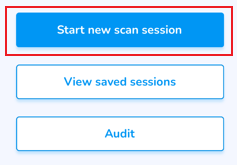](https://kb.simplerfid.com/uploads/images/gallery/2025-05/unnimage.png)Poor internet preventing your scan from uploading? [Save Scans](https://kb.simplerfid.com/books/mobile-app/page/save-scans) and upload later
Need to verify inventory accuracy? [Audit](https://kb.simplerfid.com/books/auditing/page/audit-shopify)
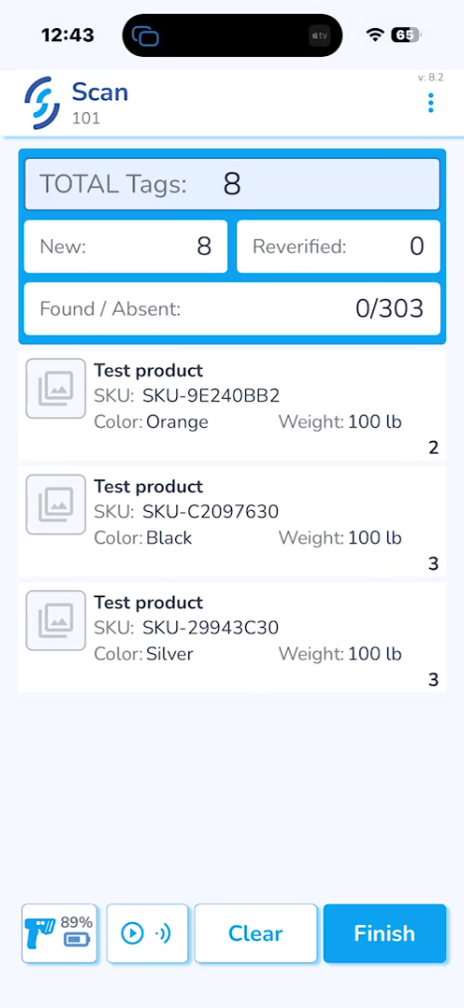
- If the scan was stopped during the process a pop-up message will appear at this point asking if you wish to ****Resume the last scan session****, or ****Delete the data without saving**** [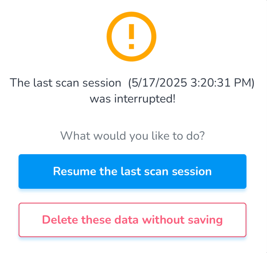](https://kb.simplerfid.com/uploads/images/gallery/2025-05/F4dimage.png) - [Pair Bluetooth](https://kb.simplerfid.com/books/mobile-app/page/pair-bluetooth) ##### ****Start Scan**** - To initiate the Scan: 1. Pull the trigger on the reader OR 2. Press the auto scan button [](https://kb.simplerfid.com/uploads/images/gallery/2025-05/9Lzimage.png) The total number of tags will appear in the Scan Summary screen, and below the items and their totals. Understand the [Scan Summary & Statuses](https://kb.simplerfid.com/books/mobile-app/page/scan-summary-statuses), and how each affects your inventory [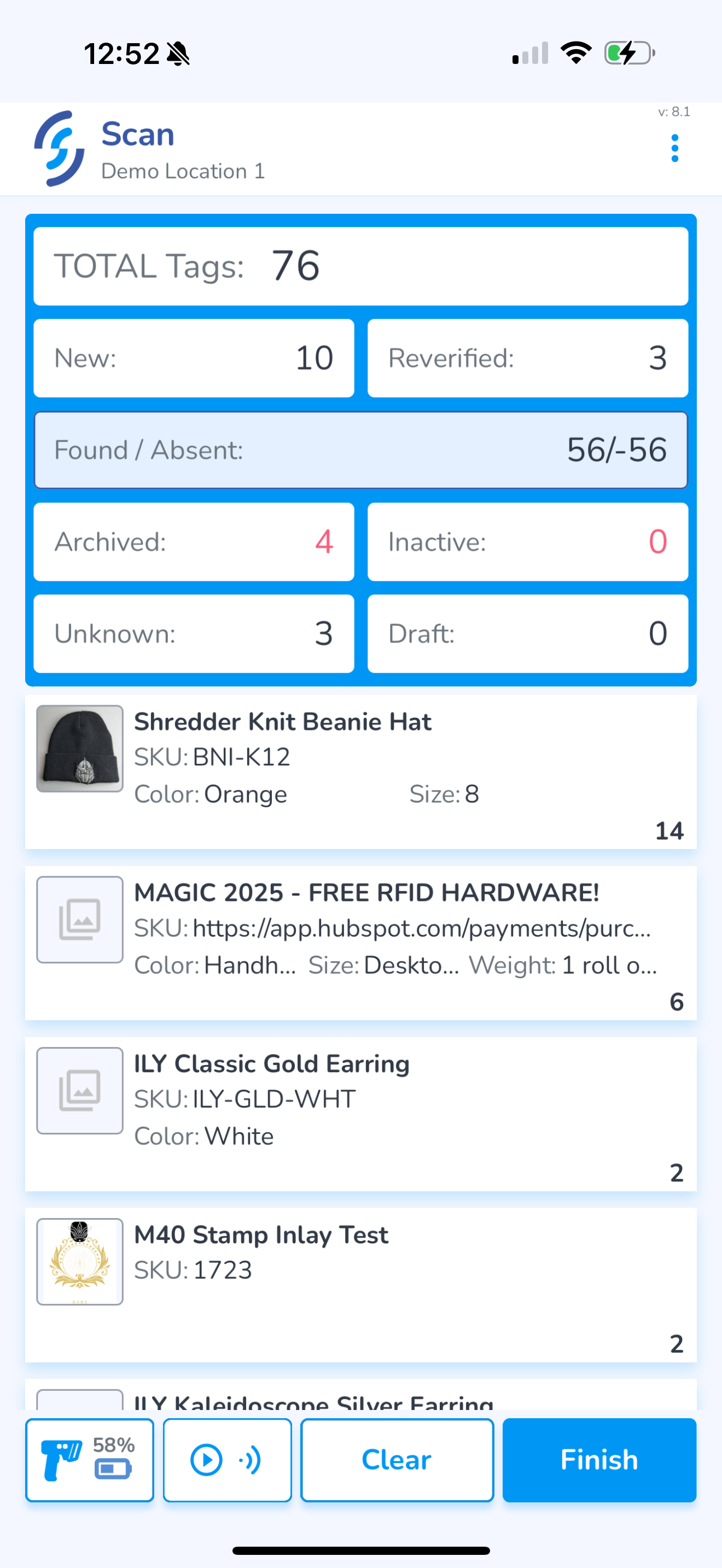](https://kb.simplerfid.com/uploads/images/gallery/2025-05/scaled-1680-/img-0416.PNG) To complete the scan and move to the upload screen, click ****Finish**** Choose the Statuses you wish to include in the upload [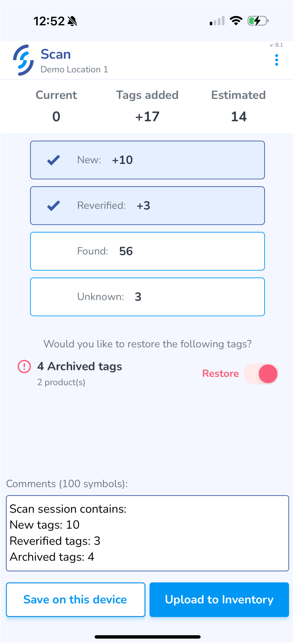](https://kb.simplerfid.com/uploads/images/gallery/2025-05/scaled-1680-/LbBimage.png) If you wish to add a note to the upload, click into the Comments window and type it in Finally, click ****Upload to Inventory**** Animation indicates the scan is being uploaded, followed by a green check mark for success If you are unable to upload due to poor internet connectivity, you can [Save Scans](https://kb.simplerfid.com/books/mobile-app/page/save-scans) on this device for later upload # Scan Settings View and manage scan settings including power, speed & densityWe have simplified the standard RFID settings to provide better more intuitive controls. If you wish to use the standard RFID reader controls you can enable [Manual Reader Controls (Pro)](https://kb.simplerfid.com/books/mobile-app/page/manual-reader-control) from the [Application Settings](https://kb.simplerfid.com/books/mobile-app/page/application-settings)
Click the r****eader & battery power icon**** in the bottom left corner of the screen to pop-up the ****Scan Settings**** The ****Speed & Density**** settings are designed to optimize scanning for different environments. It is recommended to use ****Speed**** to capture product quickly. When tags are difficult to capture, use ****Density**** To the right of the Speed & Density settings is the [Connected Reader](https://kb.simplerfid.com/books/mobile-app/page/connected-reader) ****Near, Middle & Far**** presets allow to quickly adjust the reader power. Use the Near option to scan items up close and avoid capturing unintended tags. Use Middle for defined tasks such as verifying orders, and use Far whenever Auditing and scanning for accuracy. These presets can be modified from the [Reader Settings](https://kb.simplerfid.com/books/mobile-app/page/reader-settings) To the right of the ****Scan Settings**** button is the ****Auto-Scan**** button which allows the scanner to capture tags without holding the trigger ****Clear**** allows the scan results to be erased ****Finish**** terminates the session [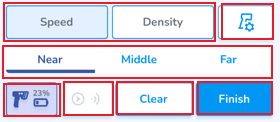](https://kb.simplerfid.com/uploads/images/gallery/2025-05/WDzimage.png) # Scan Summary & Statuses The grid identifies what items the scanner captures & groups the totals by statusThere are two views to scan items: Basic, & Advanced. Enable Advanced tag counting mode in the [Application Settings](https://kb.simplerfid.com/books/mobile-app/page/application-settings)
##### ****Summary Screen**** ****Total Tags**** - This is the total of all statuses ****Active Statuses**** - ****New**** - Tags scanned at the location for the first time, or returning to the location, not yet in inventory - ****Reverified**** - Tags already scanned into inventory in Verified status, which are scanned again - ****Found / Absent**** - This displays the number of Absent Items which have been Found. ****Absent**** tags are items that haven't been scanned since the last Audit. ****Inactive Statuses**** - ****Archived**** - This displays all Archived items scanned. - ****Inactive**** - Products which are moved to Inactive on the Products tab of the web portal - ****Unknown**** - Tags which do not correspond with any Products - ****Draft**** - Items in Draft status. **\*Unknown items are automatically created as Draft Products if "Brand Magic" is enabled from the Web Portal**Items can be moved to Archived via [Archive Scans](https://kb.simplerfid.com/books/mobile-app/page/archive), & verifying [Sales Orders](https://kb.simplerfid.com/books/mobile-app/page/verify-accuracy-of-sales-orders)
****Basic**** Basic is designed for instances where, due to the volume of inventory, the app performance is negatively impacted It groups all tags in ****Active status into one total**** [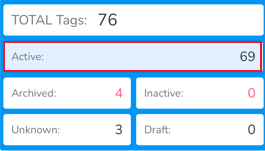](https://kb.simplerfid.com/uploads/images/gallery/2025-05/tlximage.png) As well when uploading [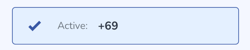](https://kb.simplerfid.com/uploads/images/gallery/2025-05/kdqimage.png) ****Advanced**** Advanced displays all ****Active statuses separately,**** providing more granular visibility into what is being scanned. [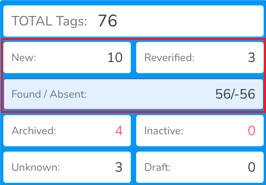](https://kb.simplerfid.com/uploads/images/gallery/2025-05/bLZimage.png) Which allows the option for separate uploading [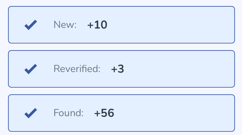](https://kb.simplerfid.com/uploads/images/gallery/2025-05/hvJimage.png) ##### ****Inactive Statuses & Restoring Archived**** ****Inactive statuses**** are included in both Basic & Advanced scans, however only if the items are captured in the scan [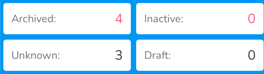](https://kb.simplerfid.com/uploads/images/gallery/2025-05/mM6image.png) From the Upload screen, Archived tags can be [restored](https://kb.simplerfid.com/books/mobile-app/page/restoring-archived-tags) by moving the switcher to 'Restore' [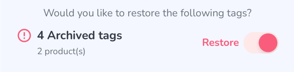](https://kb.simplerfid.com/uploads/images/gallery/2025-05/h0zimage.png) # Save Scans Steps to save scans to the mobile deviceIf you are unable to upload scan data due to poor internet connectivity you can save the results to the device for upload when service is restored
##### ****Save Scans**** At the end of a scan session is the option to ****Save on this device**** [](https://kb.simplerfid.com/uploads/images/gallery/2025-05/neKimage.png) After clicking 'Save on this device' you will see a summary of the scan session and a prompt to Save or Cancel [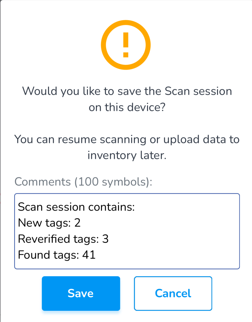](https://kb.simplerfid.com/uploads/images/gallery/2025-05/Ij1image.png) Click ****Save**** A navigation prompt will then appear and ask if you wish to start a new scan session or go to dashboard [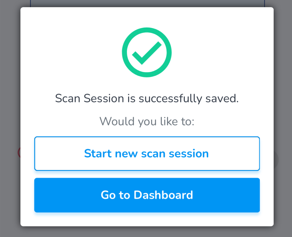](https://kb.simplerfid.com/uploads/images/gallery/2025-05/Bteimage.png) ##### ****Continue a saved scan session**** From the Home screen, click ****Scan**** [](https://kb.simplerfid.com/uploads/images/gallery/2025-05/Ju0image.png) Click ****View saved sessions**** [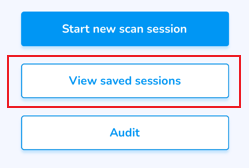](https://kb.simplerfid.com/uploads/images/gallery/2025-05/KBgimage.png) This will display any ****Saved Sessions**** Click on the arrow to open the scan session [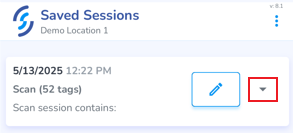](https://kb.simplerfid.com/uploads/images/gallery/2025-05/nuaimage.png) Click ****Continue**** to continue or complete the session Click the ****Pencil icon**** to name the scan Click the ****Trash Can icon**** to delete the scan [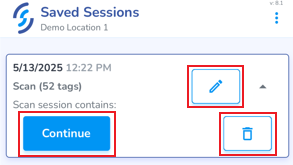](https://kb.simplerfid.com/uploads/images/gallery/2025-05/D5mimage.png) # Inventory View inventory including verified & absent Click the ****Inventory**** tab on the Home screen [](https://kb.simplerfid.com/uploads/images/gallery/2025-05/xjZimage.png)Do you have items in your Verified inventory that are no longer present? Perform an [Audit](https://kb.simplerfid.com/books/auditing/page/audit-shopify) to remove these items
##### ****Verified**** status Default status is ****Verified****. Verified status are items that have been scanned and added into inventory since the last audit. [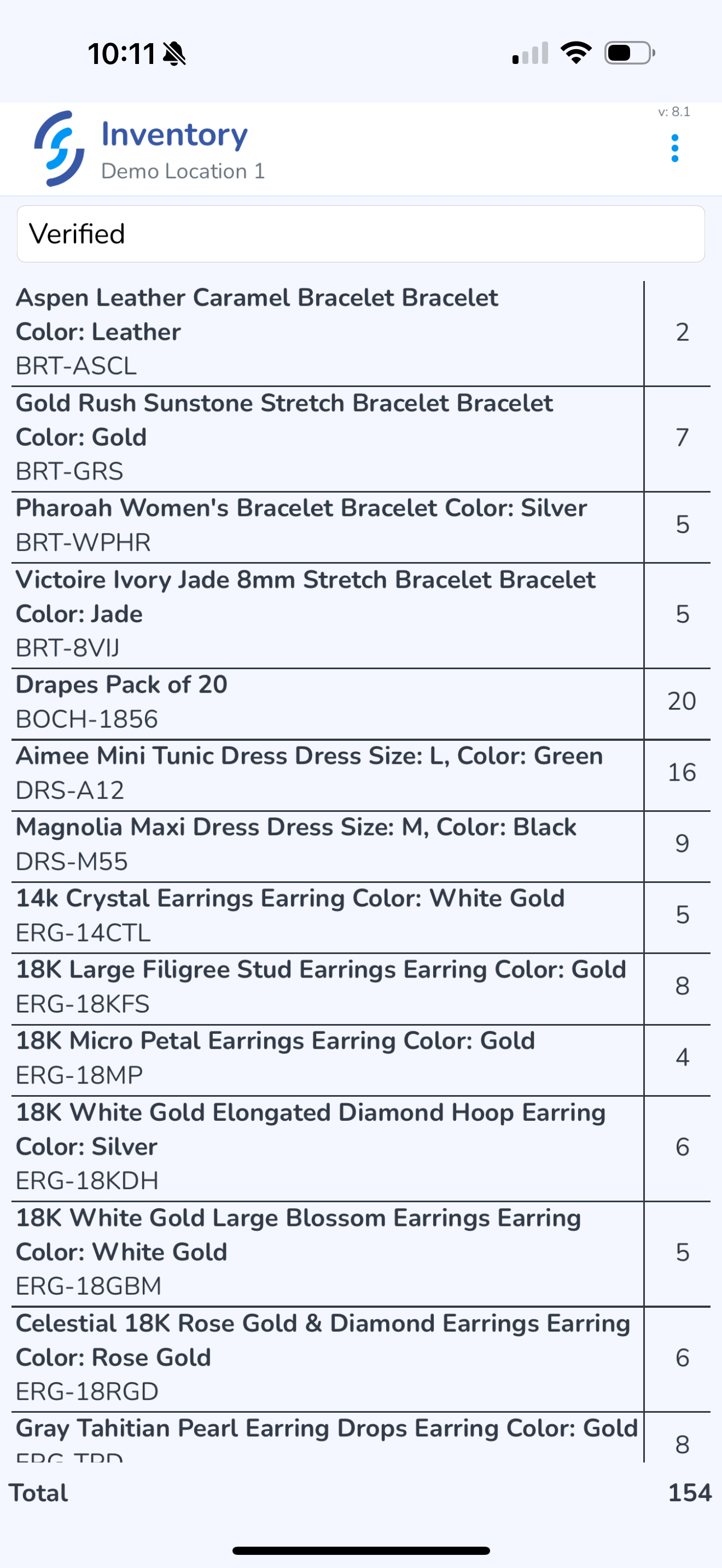](https://kb.simplerfid.com/uploads/images/gallery/2025-05/scaled-1680-/img-0440.PNG) ##### ****Status**** selector Click on the Status to view the selector [](https://kb.simplerfid.com/uploads/images/gallery/2025-05/gUximage.png) ##### ****Absent**** status Absent items are items which were not scanned since the last audit. [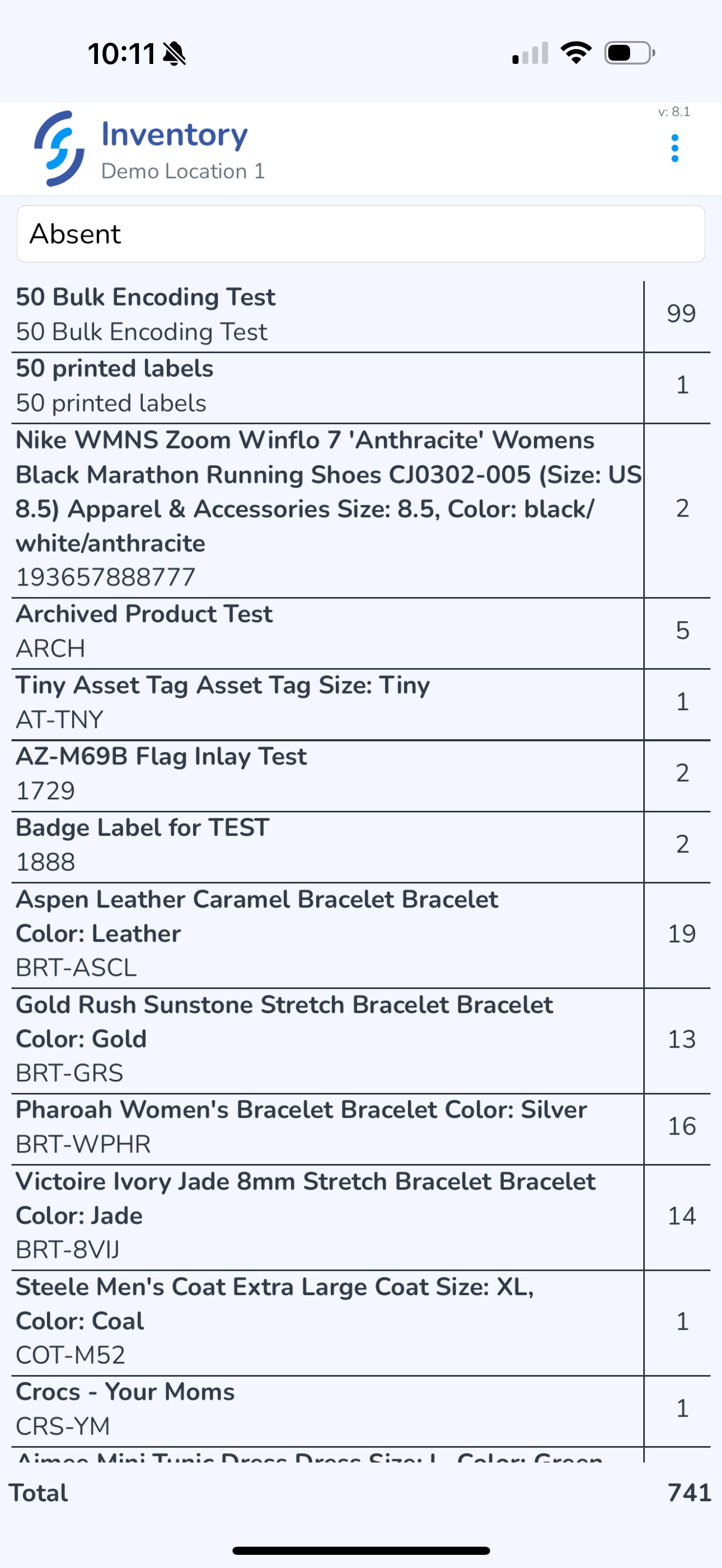](https://kb.simplerfid.com/uploads/images/gallery/2025-05/scaled-1680-/img-0442.PNG) # Archive Steps to remove (Archive) items from inventoryThis feature is hidden by default, however it can be enabled from the [Application Settings](https://kb.simplerfid.com/books/mobile-app/page/application-settings) page. Once enabled, the ****Archive**** button will appear on the home screen
Remove items from inventory using the Archive scan. In addition to the Archive scan, [Sales Order](https://kb.simplerfid.com/books/mobile-app/page/verify-accuracy-of-sales-orders) verification Archives tags. Archived items no longer appear in Active Statuses, however they can be [Restored](https://kb.simplerfid.com/books/mobile-app/page/scan-summary-statuses).
[](https://kb.simplerfid.com/uploads/images/gallery/2025-05/wXEimage.png) - [Pair Bluetooth](https://kb.simplerfid.com/books/mobile-app/page/pair-bluetooth) 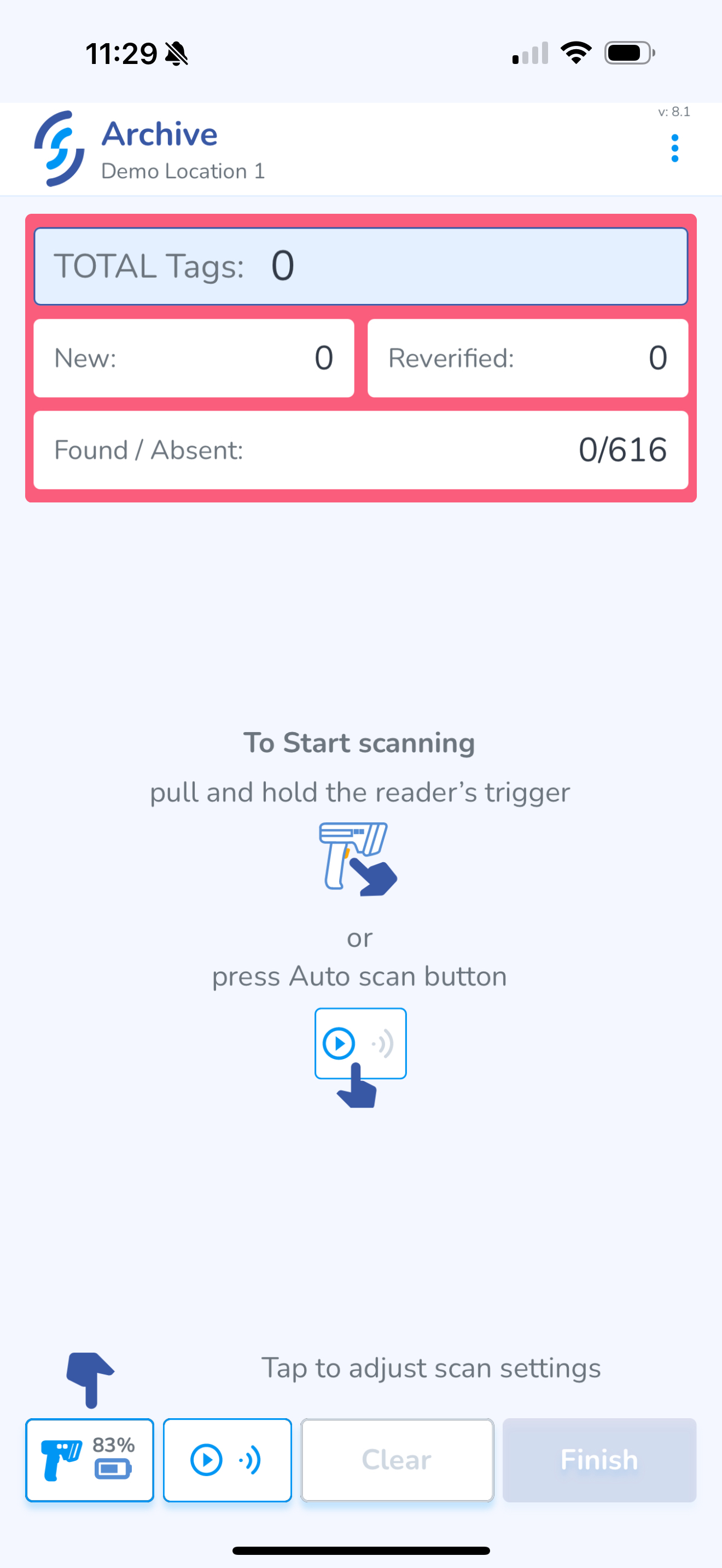- Scan the item(s) you wish to Archive [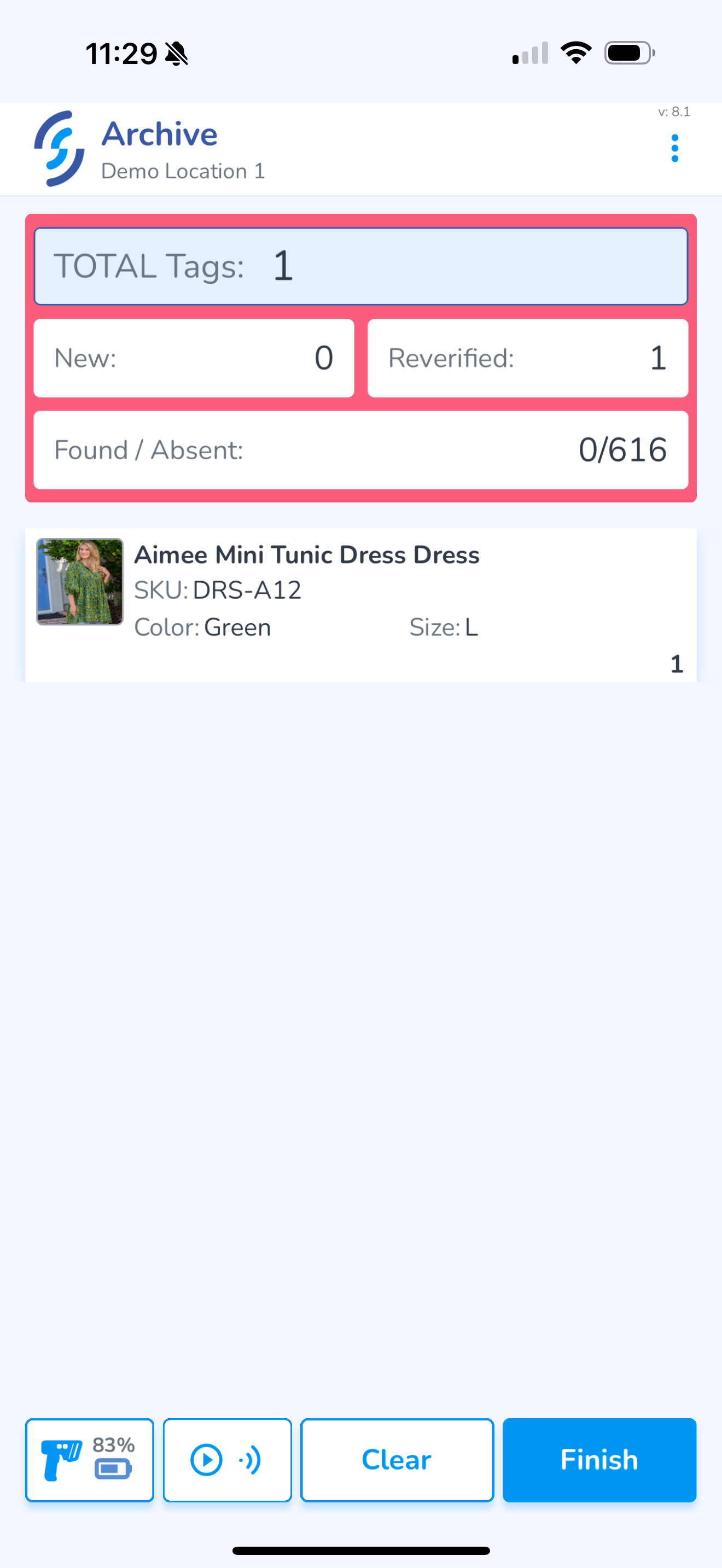](https://kb.simplerfid.com/uploads/images/gallery/2025-05/scaled-1680-/img-0444.PNG) - Click ****Finish**** Review the summary and confirm what is being uploaded [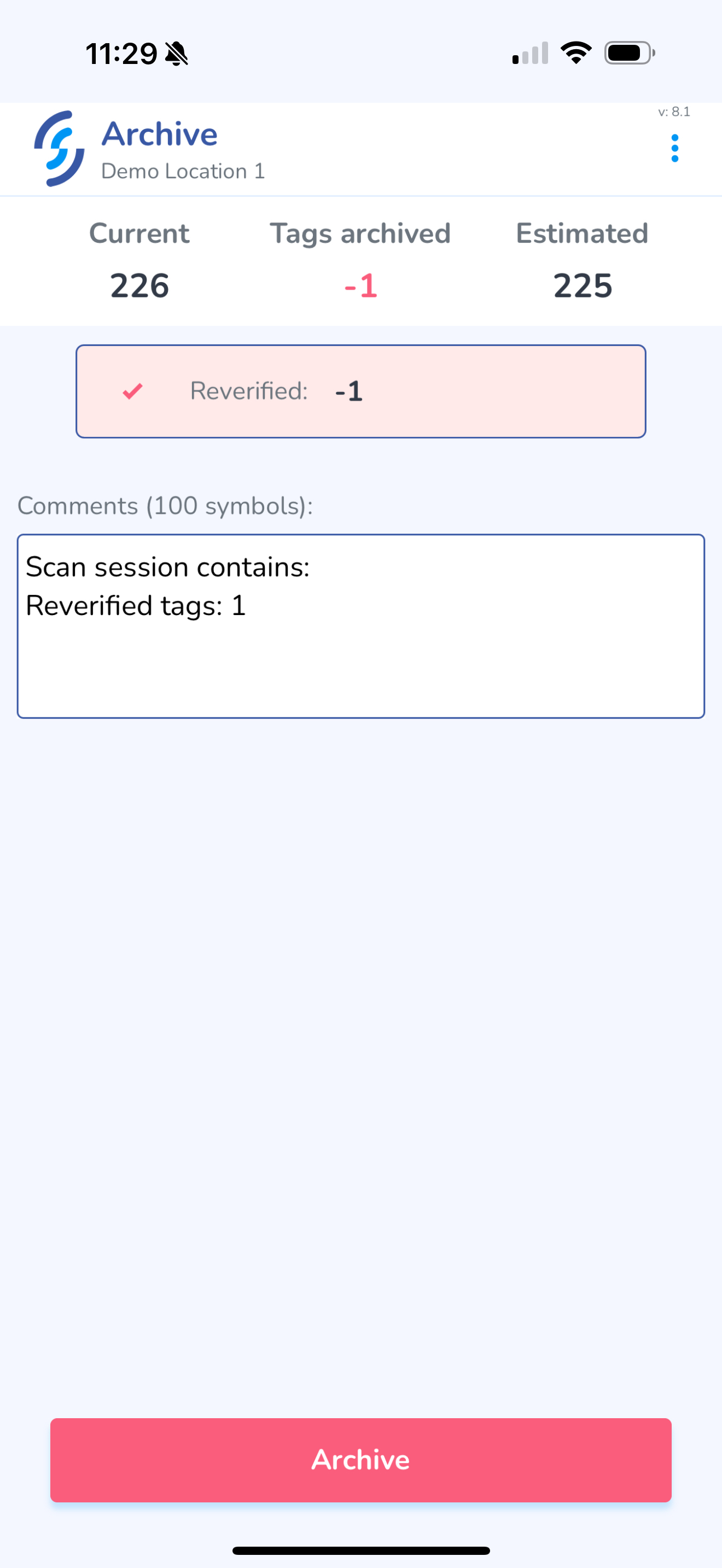](https://kb.simplerfid.com/uploads/images/gallery/2025-05/scaled-1680-/img-0445.PNG) - Click ****Archive**** [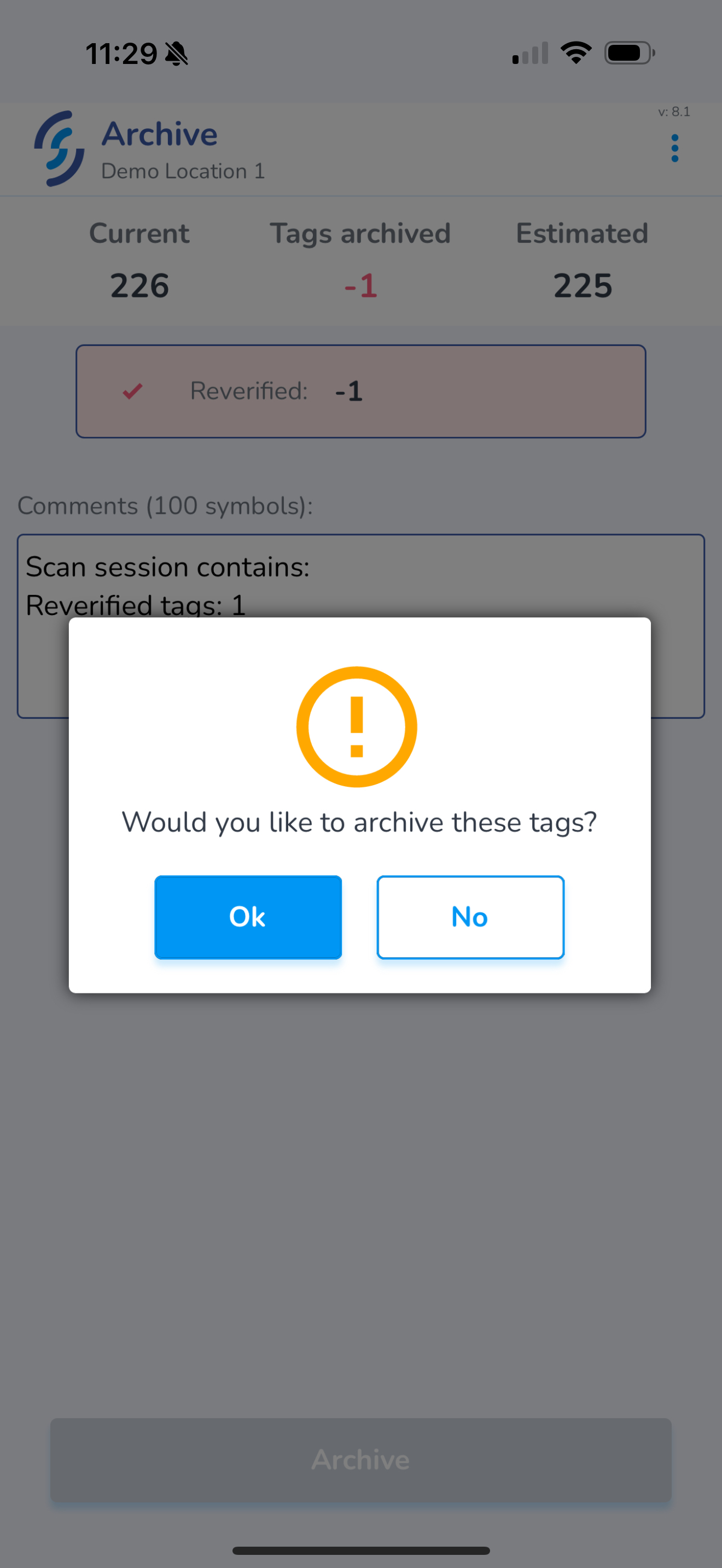](https://kb.simplerfid.com/uploads/images/gallery/2025-05/scaled-1680-/img-0446.PNG) - Click ****Ok**** to the prompt This open the navigation prompt to: - ****Start new scan session**** or - ****Go to Dashboard**** screen [](https://kb.simplerfid.com/uploads/images/gallery/2025-05/scaled-1680-/img-0447.PNG) # Ship Menu (Sales Orders & Transfers) From the Ship screen contains the following tools to help locate your order: - Search - Status drop-down - Filter menu Below these filters are the orders [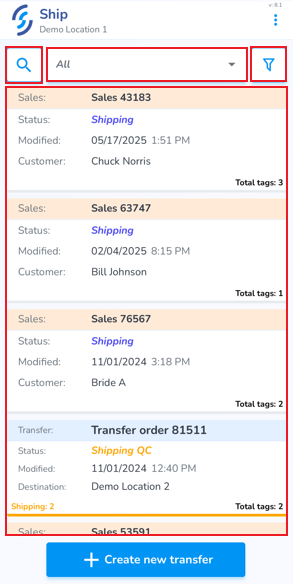](https://kb.simplerfid.com/uploads/images/gallery/2025-05/Yzrimage.png) ##### ****Search**** - Click on the search window to lookup a specific order [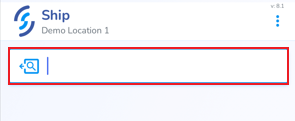](https://kb.simplerfid.com/uploads/images/gallery/2025-05/sx4image.png) ##### ****Status Drop-down**** - Use the Status drop-down to choose a specific status [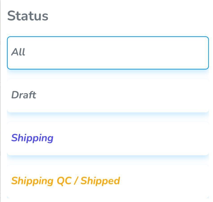](https://kb.simplerfid.com/uploads/images/gallery/2025-05/1PSimage.png)You can expand the statuses to include Receive statuses for orders shipping by enabling [Display Receiving Statuses in Ship](https://kb.simplerfid.com/books/mobile-app/page/display-receiving-statuses-in-ship-menu) menu from the [Application Settings](https://kb.simplerfid.com/books/mobile-app/page/application-settings)
##### ****Filter Menu**** Click on the funnel icon to view the filter menu - ****Order Type**** allows to view all order types, or only view Transfers and/or Sales - ****Created Date**** allows to choose from and to dates to display orders from a specific timeframe - ****Period**** provides quick filters to display today, this week & this month - ****Sort by**** allows to sort oldest to newest, and Tags count from largest to smallest - Click ****Apply**** to save the settings - Click ****Reset**** to remove the saved filter [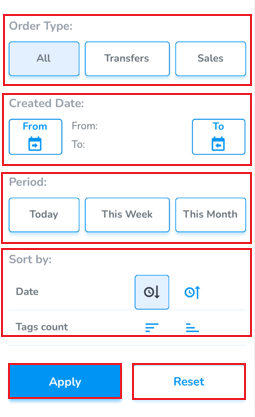](https://kb.simplerfid.com/uploads/images/gallery/2025-05/FI2image.png) # Verify Accuracy of Sales Orders Sales Orders can be scanned to verify the physical items match the ordered items. Items verified in Sales Orders are Archived.[Sales Orders must first be created in the web portal](https://kb.simplerfid.com/books/web-portal/page/sales-order), and moved to Shipping status, to appear on the mobile app
To verify a Sales Order click the ****Ship**** icon from the Home screen [](https://kb.simplerfid.com/uploads/images/gallery/2025-05/tqdimage.png) If you have access to more than one physical location, confirm the [Selected Location](https://kb.simplerfid.com/books/mobile-app/page/select-location) is correct. It will appear below '****Ship****' ##### ****Locate & Open Order**** From the ****Ship**** tab you will see the ****Sales Orders (****which appear peach). Locate the order you are verifying [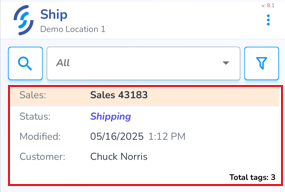](https://kb.simplerfid.com/uploads/images/gallery/2025-05/gBsimage.png) - Click on it to open it. Sales Orders contain two tabs: ****Info**** & ****Products**** The ****Info**** tab provides order details including status, origin, customer name, created & modified date, and a progress indicator at the bottom of the screen [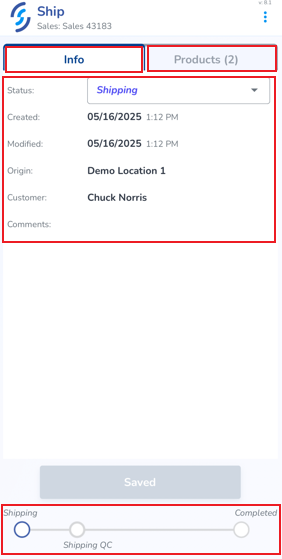](https://kb.simplerfid.com/uploads/images/gallery/2025-05/Uqcimage.png) The second tab, ****Products**** displays the ordered item(s) [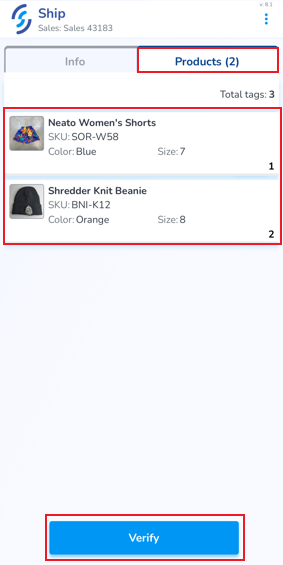](https://kb.simplerfid.com/uploads/images/gallery/2025-05/Yddimage.png) - To begin the verification process, click ****Verify**** - [Pair Bluetooth](https://kb.simplerfid.com/books/mobile-app/page/pair-bluetooth) The ordered items are now ready to be scanned to confirm accuracy [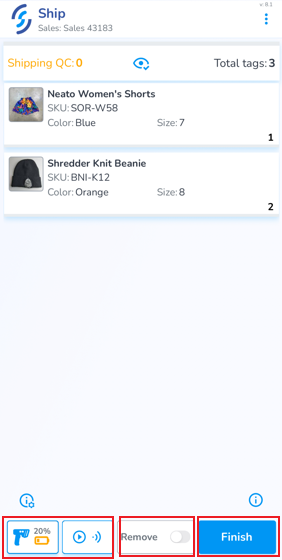](https://kb.simplerfid.com/uploads/images/gallery/2025-05/tAnimage.png) At the bottom of the screen are the [Scan Settings and Auto-Scan](https://kb.simplerfid.com/books/mobile-app/page/scan-settings) button The ****Remove**** switch removes scanned items from the order ****Finish**** terminates the session ##### ****Removing Incorrect Items**** If an incorrect item is scanned, the word 'remove' appears at the top with the quantity to be removed, and the item(s) to be removed appear in red. Incorrect items must be removed before the scan session can be terminated [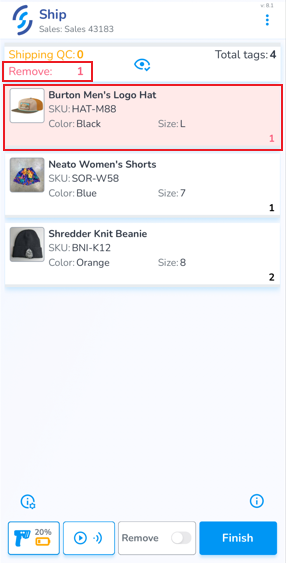](https://kb.simplerfid.com/uploads/images/gallery/2025-05/Dmuimage.png) To remove incorrect items you can either: - Slide the incorrect item to the left, then click on the trash can icon [](https://kb.simplerfid.com/uploads/images/gallery/2025-05/OYoimage.png) - Click 'Ok' to the pop-up prompt [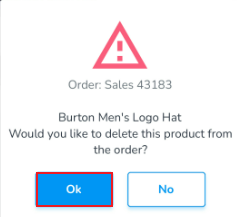](https://kb.simplerfid.com/uploads/images/gallery/2025-05/a5Uimage.png) OR - Enable the Remove scan option - Scan the incorrect item(s) [](https://kb.simplerfid.com/uploads/images/gallery/2025-05/9Hdimage.png) ##### ****Removing Extra Items**** If more items are scanned than are ordered, the 'remove' message appears, and the item with extra items will appear in red, and the number of extra items is displayed on the left [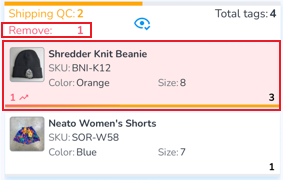](https://kb.simplerfid.com/uploads/images/gallery/2025-05/p8bimage.png) - Slide the item to the left, then tap the broom icon to clear all scans for the item [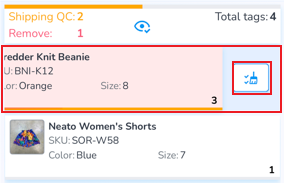](https://kb.simplerfid.com/uploads/images/gallery/2025-05/Mosimage.png) - Click 'Ok' to the pop-up prompt [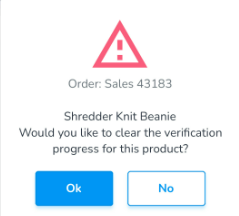](https://kb.simplerfid.com/uploads/images/gallery/2025-05/IaWimage.png) - Then rescan all tags for that product OR - Enable the Remove scan option - Scan only the items being removed [](https://kb.simplerfid.com/uploads/images/gallery/2025-05/9Hdimage.png) ##### ****Verify Order**** Correctly scanned items appear in green. The quantity scanned appears on the left, and the ordered quantity appears on the right. A yellow progress bar indicates if any items are missing. [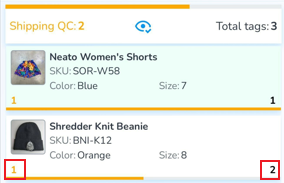](https://kb.simplerfid.com/uploads/images/gallery/2025-05/RY9image.png) Once all items are scanned correctly & complete, click ****Finish**** [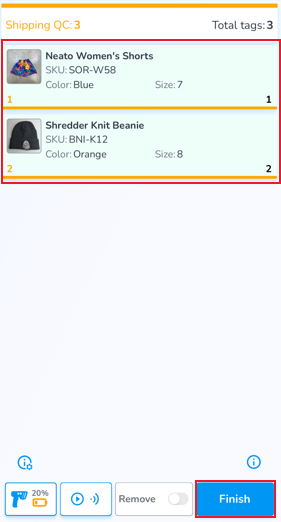](https://kb.simplerfid.com/uploads/images/gallery/2025-05/ZYaimage.png) - Click 'Ok' to the pop-up prompt [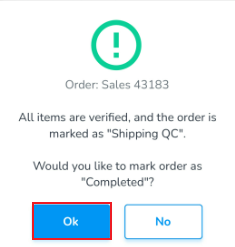](https://kb.simplerfid.com/uploads/images/gallery/2025-05/BQrimage.png) You will be returned back to the Ship orders list, and a toast pop-up will confirm the order is completed [](https://kb.simplerfid.com/uploads/images/gallery/2025-05/nJ5image.png) # Display Receiving Statuses in Ship menuThis feature is disabled by default. To enable this additional view go to the [Application Settings](https://kb.simplerfid.com/books/mobile-app/page/application-settings)
If this is enabled the Status filter menu will include the Receiving statuses in the Ship menu. These additional statuses include: - Receiving QC - Completed [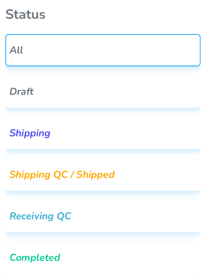](https://kb.simplerfid.com/uploads/images/gallery/2025-05/d5fimage.png) # Ship & Receive Transfers Steps to verify transfers at shipping and receiving To verify ****Transfer orders**** at shipping click the ****Ship**** icon from the Home screen ##### ****Ship Transfer**** Click on the Ship icon [](https://kb.simplerfid.com/uploads/images/gallery/2025-05/Zfrimage.png) Choose an ****Existing order****, or ****Create new transfer**** from the mobile. You may also [create a transfer by simply scanning items](https://kb.simplerfid.com/books/mobile-app/page/create-transfer-from-the-mobile).Transfer Orders can be created from the web or the mobile app, however creating them from the mobile is disabled by default. To enable, navigate to the [Application Settings](https://kb.simplerfid.com/books/mobile-app/page/application-settings) in the Ship section
****Choose Location**** If you have access to more than one physical location, confirm the [Selected Location](https://kb.simplerfid.com/books/mobile-app/page/select-location) is correct. It will appear below '****Ship****' ##### ****Locate & Open Order**** From the ****Ship**** tab you will see the ****Transfer Orders****. Locate the order you are verifying [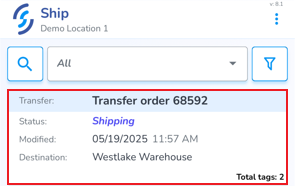](https://kb.simplerfid.com/uploads/images/gallery/2025-05/DSvimage.png) - Click on it to open it. Transfer Orders contain two tabs: ****Info**** & ****Products**** The ****Info**** tab provides order details including status, origin, customer name, created & modified date, and a progress indicator at the bottom of the screen [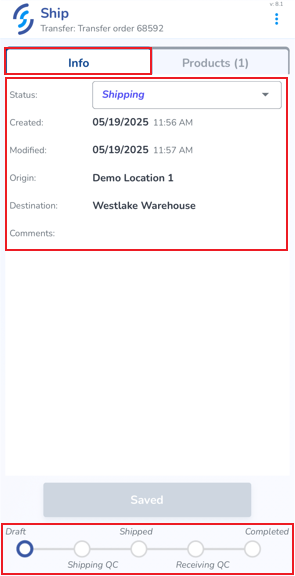](https://kb.simplerfid.com/uploads/images/gallery/2025-05/x8Timage.png) The second tab, ****Products**** displays the ordered item(s) [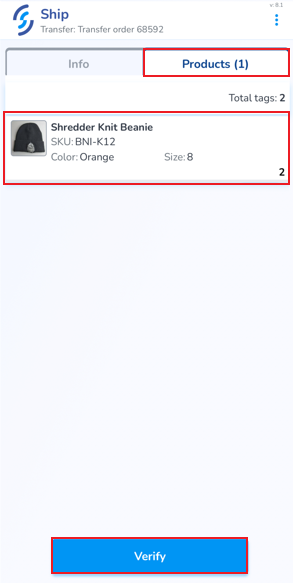](https://kb.simplerfid.com/uploads/images/gallery/2025-05/PgKimage.png) - To begin the verification process, click ****Verify**** - [Pair Bluetooth](https://kb.simplerfid.com/books/mobile-app/page/pair-bluetooth) The ordered items are now ready to be scanned to confirm accuracy. [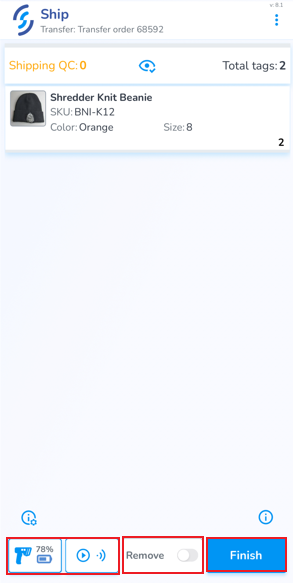](https://kb.simplerfid.com/uploads/images/gallery/2025-05/ERRimage.png) At the bottom of the screen are the [Scan Settings and Auto-Scan](https://kb.simplerfid.com/books/mobile-app/page/scan-settings) button The ****Remove**** switch removes scanned items from the order ****Finish**** terminates the session ##### ****Scanning Incorrect Items**** If an incorrect items is scanned, the word 'remove' appears at the top with the quantity to be removed, and the item(s) to be removed appears in red. Incorrect items must be removed before the scan session can be terminated [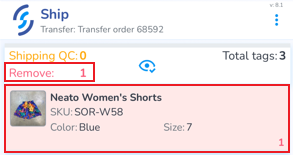](https://kb.simplerfid.com/uploads/images/gallery/2025-05/vhDimage.png) To remove incorrect items you can either: - Slide the incorrect item to the left, then click on the trash can icon [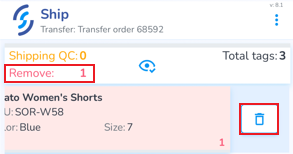](https://kb.simplerfid.com/uploads/images/gallery/2025-05/PL1image.png) - Click 'Ok' to the pop-up prompt [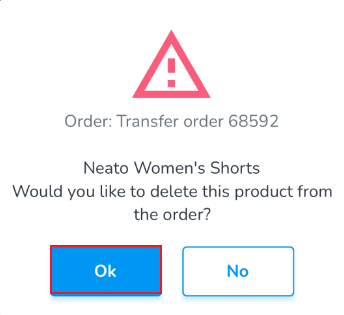](https://kb.simplerfid.com/uploads/images/gallery/2025-05/tfuimage.png) OR - Enable the Remove scan option - Scan the incorrect item(s) [](https://kb.simplerfid.com/uploads/images/gallery/2025-05/9Hdimage.png) ##### ****Scanning Extra Items**** If more items are scanned than are ordered, the 'remove' message appears, and the item with extra items will appear in red, and the number of extra items is displayed on the left [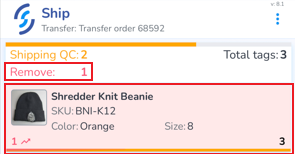](https://kb.simplerfid.com/uploads/images/gallery/2025-05/9Tzimage.png) - Slide the item to the left, then tap the broom icon to clear all scans for the item [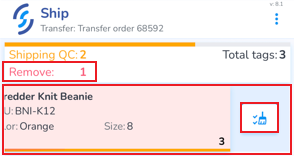](https://kb.simplerfid.com/uploads/images/gallery/2025-05/KYUimage.png) - Click 'Ok' to the pop-up prompt [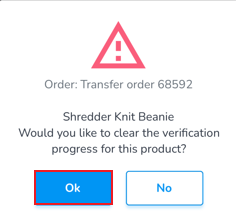](https://kb.simplerfid.com/uploads/images/gallery/2025-05/cUximage.png) - Then rescan all tags for that product OR - Enable the Remove scan option - Scan only the items being removed [](https://kb.simplerfid.com/uploads/images/gallery/2025-05/9Hdimage.png) ##### ****Complete Shipping Order**** Correctly scanned items appear in green. The quantity scanned appears on the left, and the ordered quantity appears on the right. A yellow progress bar indicates if any items are missing. [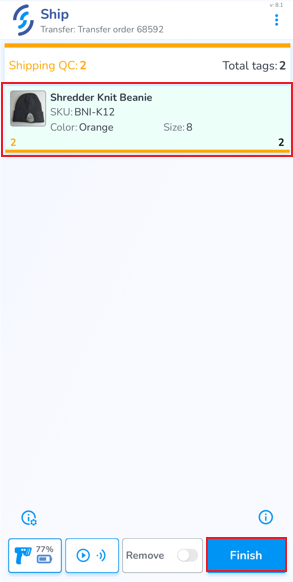](https://kb.simplerfid.com/uploads/images/gallery/2025-05/C8Himage.png) Once all items are scanned correctly & complete, click ****Finish**** - Click 'Ok' to the pop-up prompt [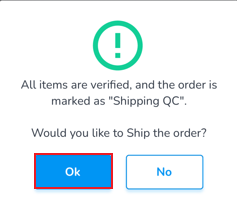](https://kb.simplerfid.com/uploads/images/gallery/2025-05/oMPimage.png) You will be returned back to the Ship orders list, and a toast pop-up will confirm the order is completed [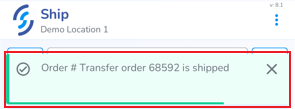](https://kb.simplerfid.com/uploads/images/gallery/2025-05/lUmimage.png) ##### ****Receive Transfer**** ****Choose Location**** If you have access to more than one physical location, confirm the [Selected Location](https://kb.simplerfid.com/books/mobile-app/page/select-location) is correct. It will appear below '****Receive****' [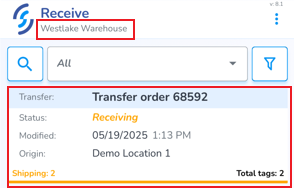](https://kb.simplerfid.com/uploads/images/gallery/2025-05/XqPimage.png) - Click on it to open it Transfer Orders contain two tabs: ****Info**** & ****Products**** The ****Info**** tab provides order details including status, origin, customer name, created & modified date, and a progress indicator at the bottom of the screen [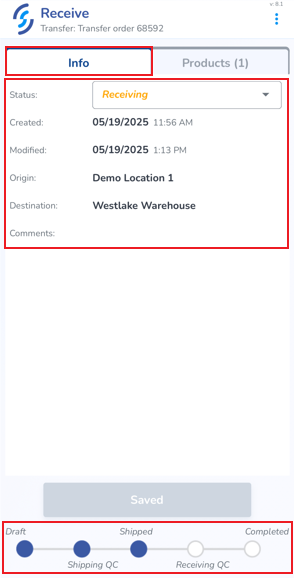](https://kb.simplerfid.com/uploads/images/gallery/2025-05/o7Limage.png) The second tab, ****Products**** displays the ordered item(s) [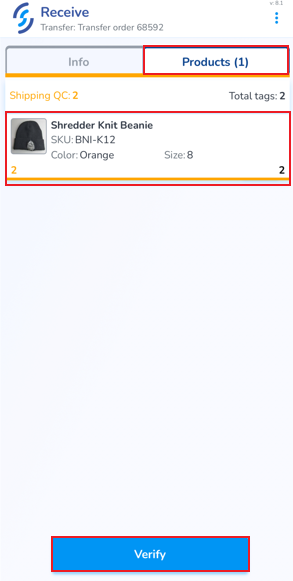](https://kb.simplerfid.com/uploads/images/gallery/2025-05/zz5image.png) - [Pair Bluetooth](https://kb.simplerfid.com/books/mobile-app/page/pair-bluetooth) - To begin the verification process, click ****Verify**** The ordered items are now ready to be scanned to confirm accuracy. This process associates the serialized tags captured to the order and adds them to the destination inventory [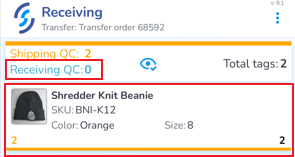](https://kb.simplerfid.com/uploads/images/gallery/2025-05/x7wimage.png) Correctly scanned items appear in green. The quantity scanned appears on the left, and the ordered quantity appears on the right. A blue progress bar indicates if any items are missing. [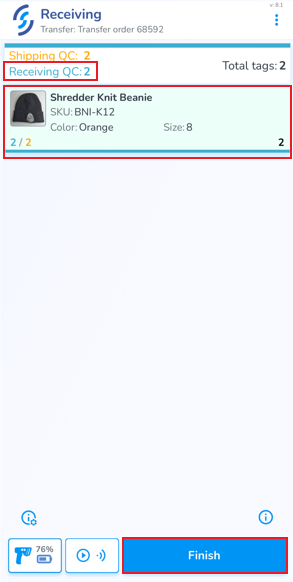](https://kb.simplerfid.com/uploads/images/gallery/2025-05/h34image.png) Click ****Finish**** to complete the Transfer receiving - Click OK on the prompt [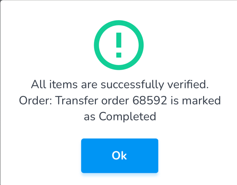](https://kb.simplerfid.com/uploads/images/gallery/2025-05/lbQimage.png) - A toast pop-up message will appear confirming the order has been received complete [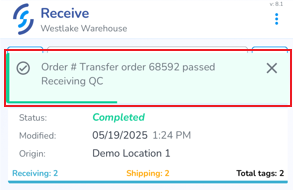](https://kb.simplerfid.com/uploads/images/gallery/2025-05/8CYimage.png)Only the tags included in the order can be scanned at Transfer Receiving.
#### Verifying a partial order If you want to complete an order that doesn't contain all the items originally intended, you can do so by finishing the verification, then moving the order to the next status manually via the web portal. First, click Finish in the mobile app. You'll be warned that the order has unverified items. Click ****Ok**** to continue: [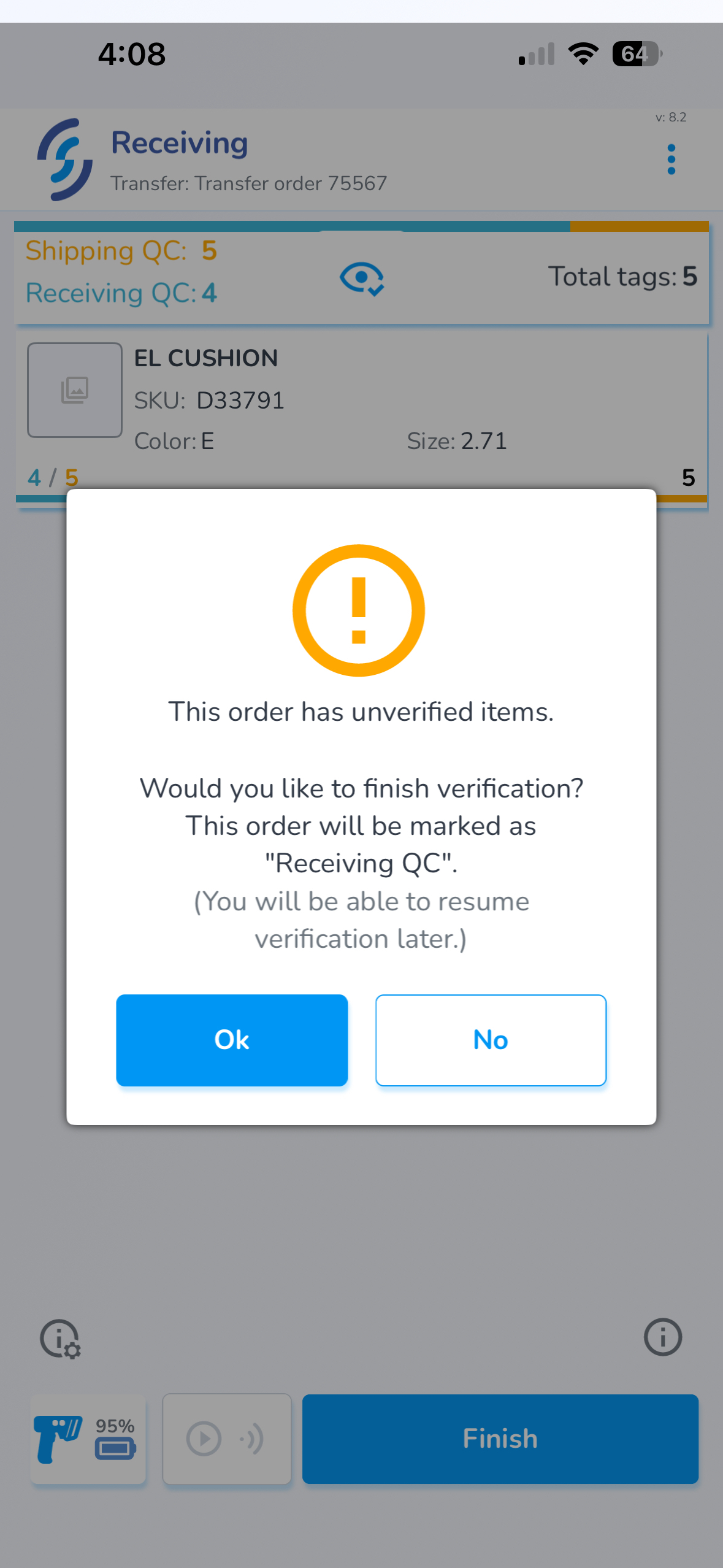](https://kb.simplerfid.com/uploads/images/gallery/2025-11/image.png) Then, from the web portal, select the order and change the status. - If the order is outbound, and still needs to be verified at the destination, select ****Shipped/Receiving****. - If the order is inbound, and you are completing the Receiving verification, select ****Completed.**** [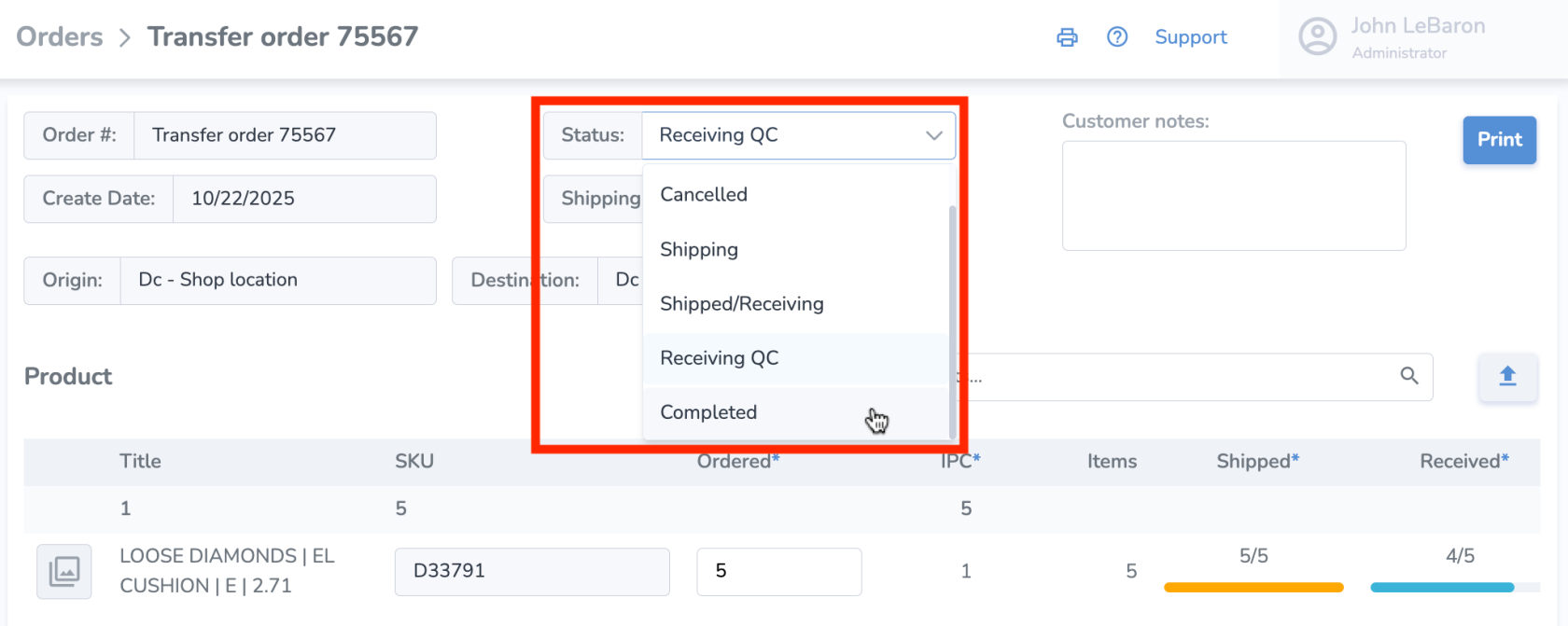](https://kb.simplerfid.com/uploads/images/gallery/2025-11/aopimage.png) Finally, click ****Save**** to finalize your changes. # Create Transfer by Scanning from the Mobile ##### ****Create from Mobile**** Create a transfer order by scanning itemsTransfer Orders can be created from the web or the mobile app, however creating them from the mobile is disabled by default. To enable, navigate to the [Application Settings](https://kb.simplerfid.com/books/mobile-app/page/application-settings) in the Ship section
At the bottom of the Ship menu click the 'Create new transfer' button to create [](https://kb.simplerfid.com/uploads/images/gallery/2025-05/N7mimage.png) ##### ****Info**** - Choose the location you are sending the transfer - Enter any notes you wish to include in the Comments section [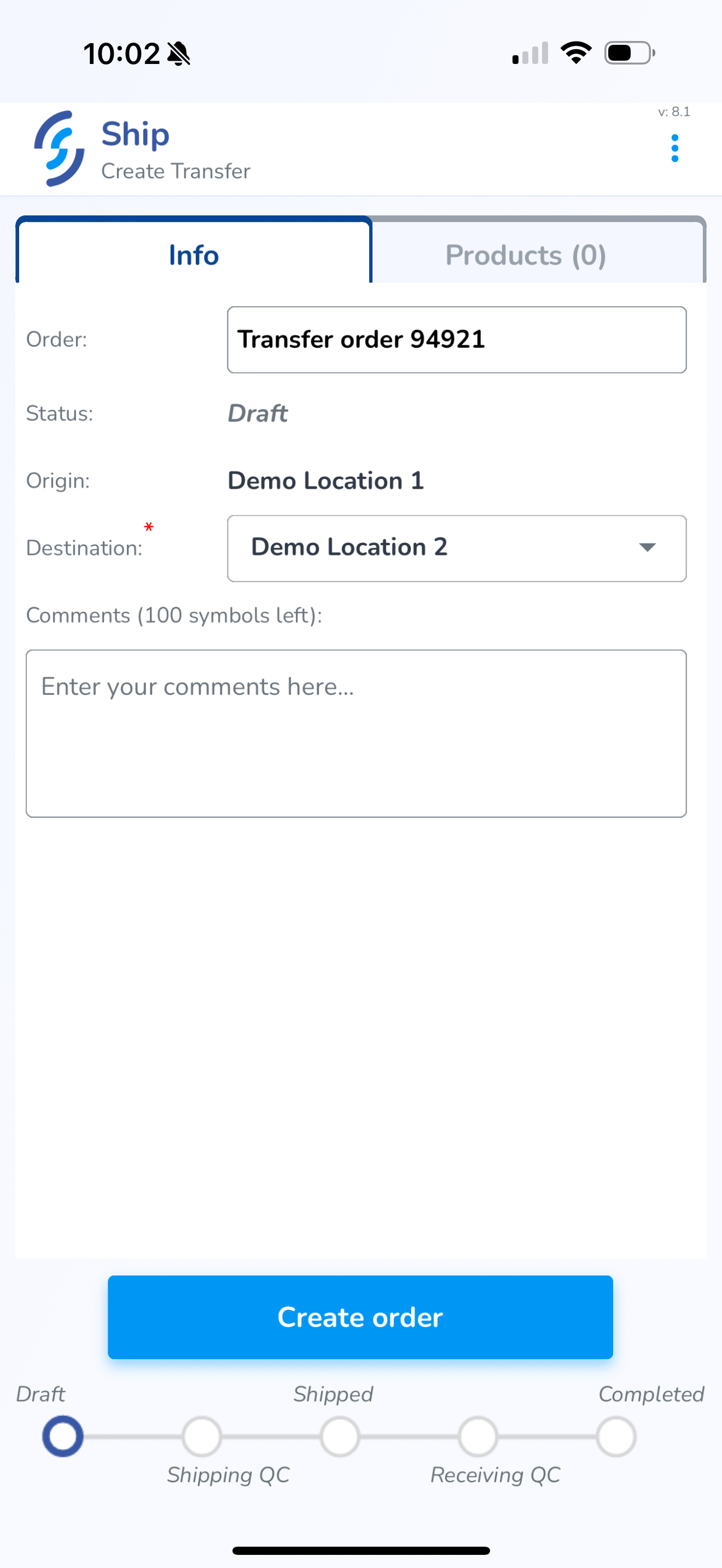](https://kb.simplerfid.com/uploads/images/gallery/2025-05/scaled-1680-/img-0434.PNG) ##### ****Products**** Click on the Products tab [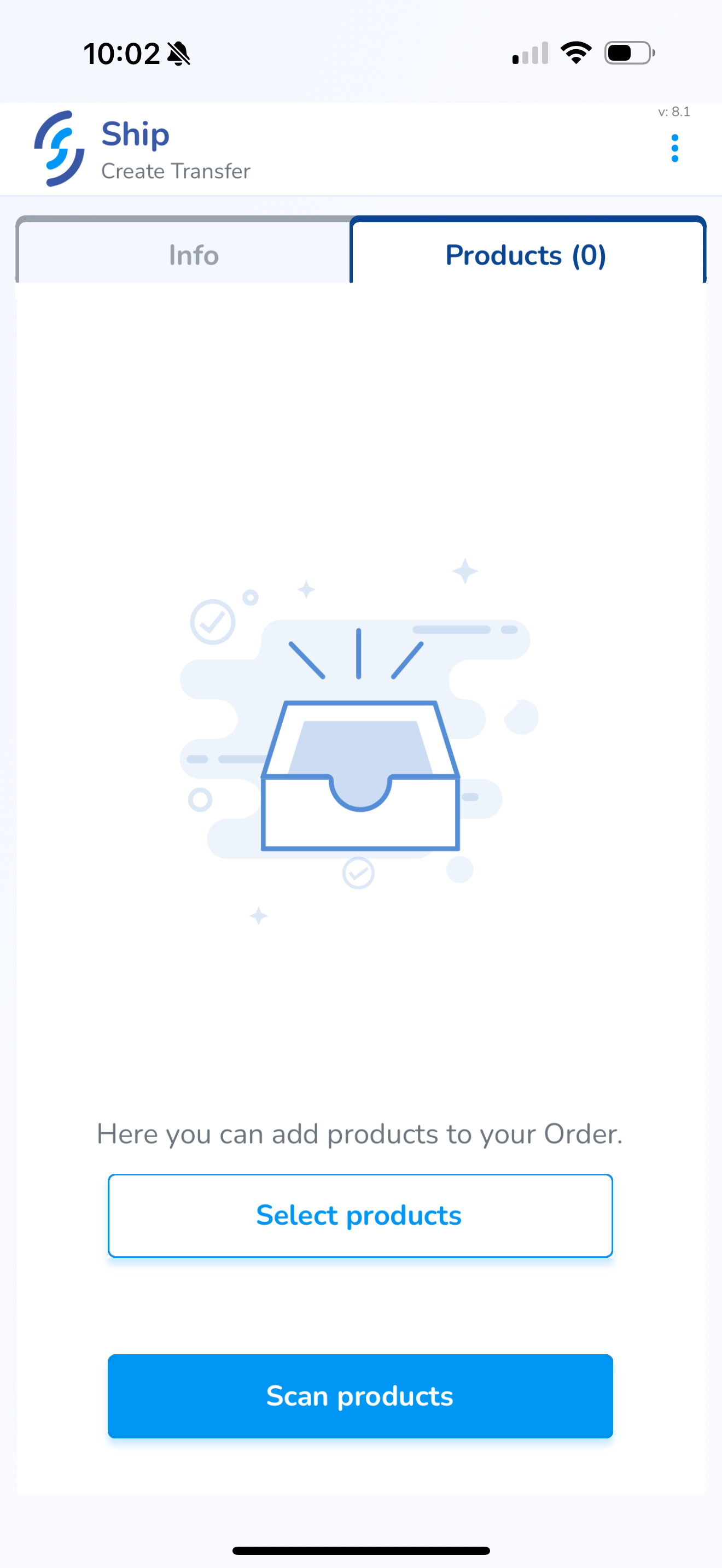](https://kb.simplerfid.com/uploads/images/gallery/2025-05/scaled-1680-/img-0435.PNG) ##### ****Scan Products**** Click ****Scan Products**** - [Pair Bluetooth](https://kb.simplerfid.com/books/mobile-app/page/pair-bluetooth) [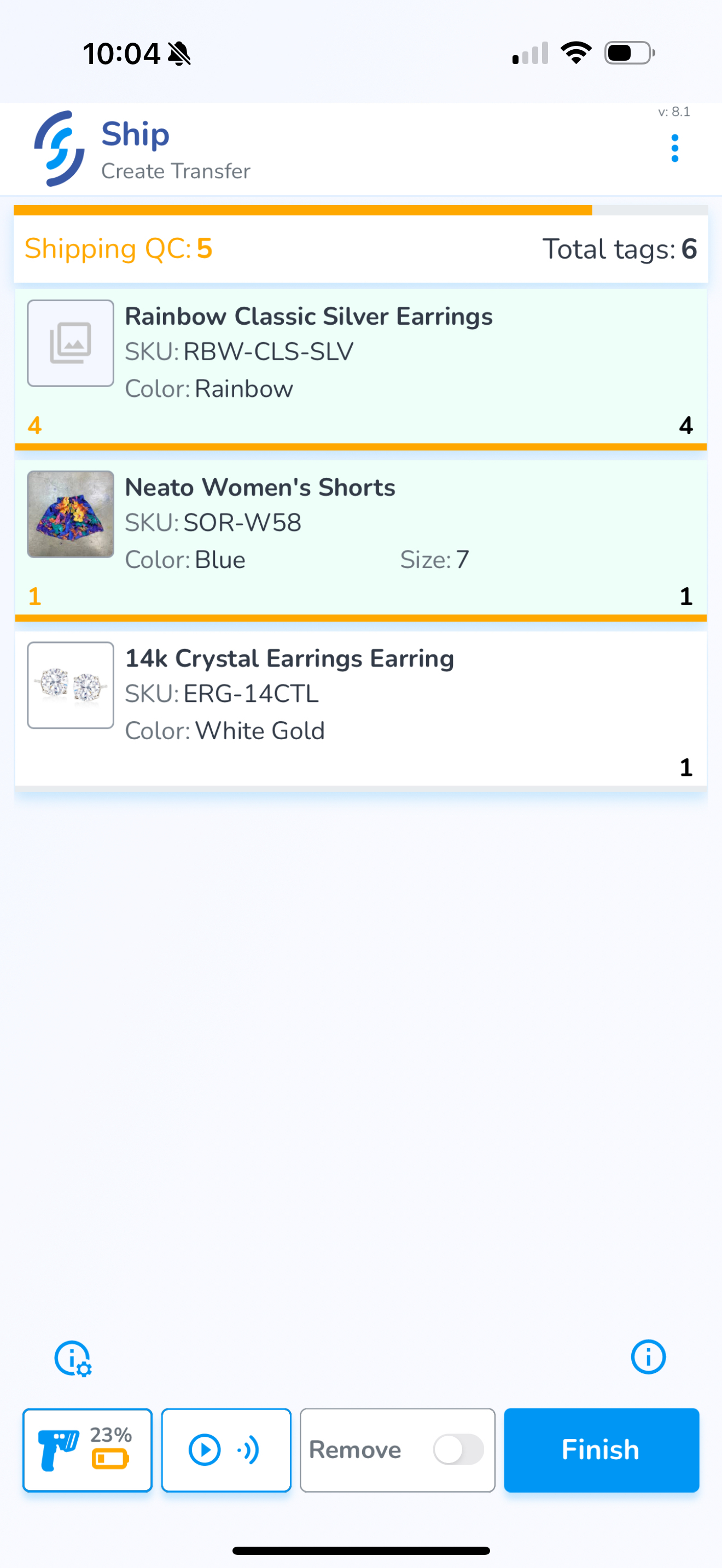](https://kb.simplerfid.com/uploads/images/gallery/2025-05/scaled-1680-/img-0439.PNG)Adding items via the Scan method adds items & quantities scanned to the order
# Receive Menu (Purchase Orders & Transfers) From the Receive screen contains the following tools to help locate your order: - Search - Status drop-down - Filter menu Below these filters are the orders [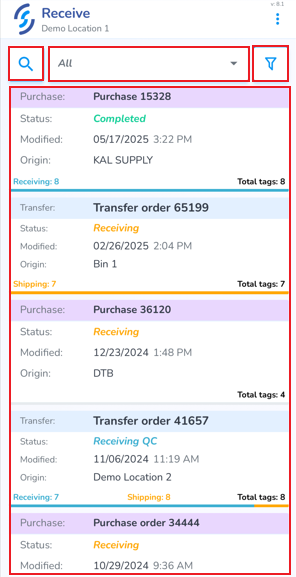](https://kb.simplerfid.com/uploads/images/gallery/2025-05/AZPimage.png) ##### ****Search**** - Click on the search window to lookup a specific order [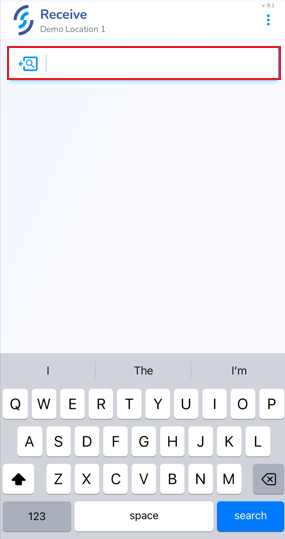](https://kb.simplerfid.com/uploads/images/gallery/2025-05/WBlimage.png) ##### ****Status Drop-down**** - Use the Status drop-down to choose a specific status [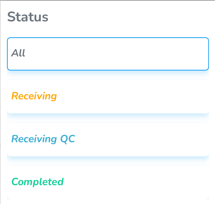](https://kb.simplerfid.com/uploads/images/gallery/2025-05/dKYimage.png) ##### ****Filter Menu**** Click on the funnel icon to view the filter menu - ****Order Type**** allows to view all order types, or only view Transfers and/or Purchases - ****Created Date**** allows to choose from and to dates to display orders from a specific timeframe - ****Period**** provides quick filters to display today, this week & this month - ****Sort by**** allows to sort oldest to newest, and Tags count from largest to smallest - Click ****Apply**** to save the settings - Click ****Reset**** to remove the saved filter [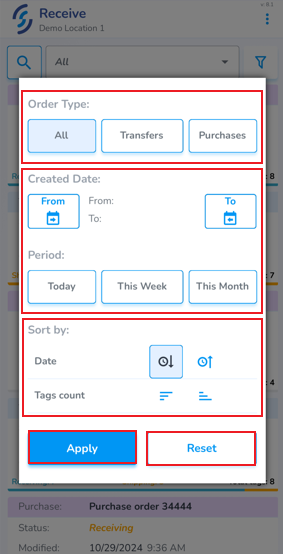](https://kb.simplerfid.com/uploads/images/gallery/2025-05/49fimage.png) # Verify Receipt of Purchase Orders Purchase Orders can be scanned to verify the physical items match the ordered items. This verification process is called QC or Quality ControlPurchase Orders must first be created in the web portal, and moved to Receiving status, to appear on the mobile app
To verify a Purchase Order click the ****Receive**** icon from the Home screen [](https://kb.simplerfid.com/uploads/images/gallery/2025-05/sLCimage.png) If you have access to more than one physical location, confirm the [Selected Location](https://kb.simplerfid.com/books/mobile-app/page/select-location) is correct. It will appear below '****Receive****' ##### ****Locate & Open Order**** From the ****Receive**** tab you will see the ****Purchase Orders****. Locate the order you are receiving [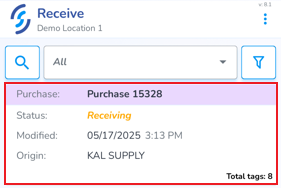](https://kb.simplerfid.com/uploads/images/gallery/2025-05/FSAimage.png) - Click on it to open it Purchase Orders contain two tabs: ****Info**** & ****Products**** The ****Info**** tab provides order details including status, origin, customer name, created & modified date, and a progress indicator at the bottom of the screen [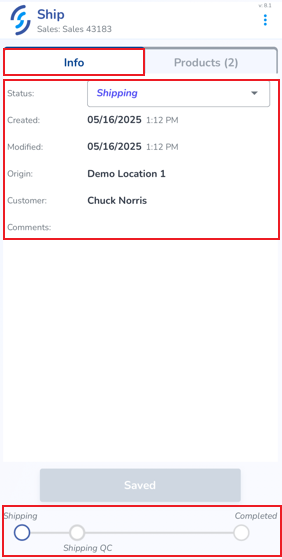](https://kb.simplerfid.com/uploads/images/gallery/2025-05/2BWimage.png) The second tab, ****Products**** displays the ordered item(s) [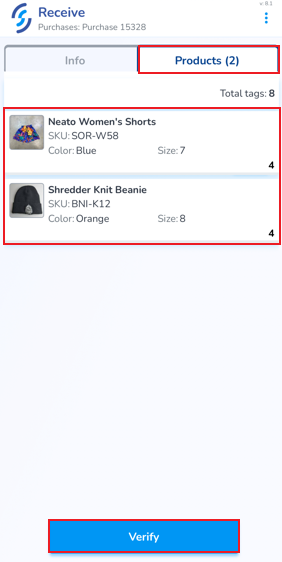](https://kb.simplerfid.com/uploads/images/gallery/2025-05/nOjimage.png) - [Pair Bluetooth](https://kb.simplerfid.com/books/mobile-app/page/pair-bluetooth) - To begin the verification process, click ****Verify**** The ordered items are now ready to be scanned to confirm accuracy. This process associates the serialized tags captured to the order and adds them to inventory [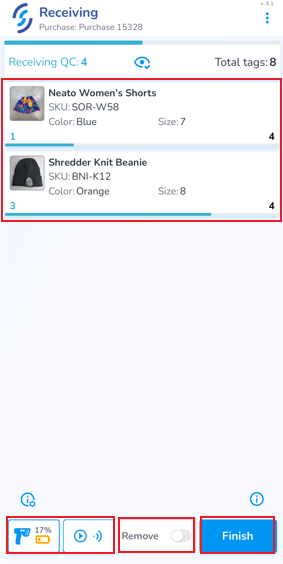](https://kb.simplerfid.com/uploads/images/gallery/2025-05/22pimage.png) At the bottom of the screen are the [Scan Settings and Auto-Scan](https://kb.simplerfid.com/books/mobile-app/page/scan-settings) button The ****Remove**** switch removes scanned items from the order ****Finish**** terminates the session ##### ****Remove Incorrect Items**** If an incorrect item is scanned, the word 'remove' appears at the top with the quantity to be removed, and the item to be removed appear in red. Incorrect items must be removed before the scan session can be completed [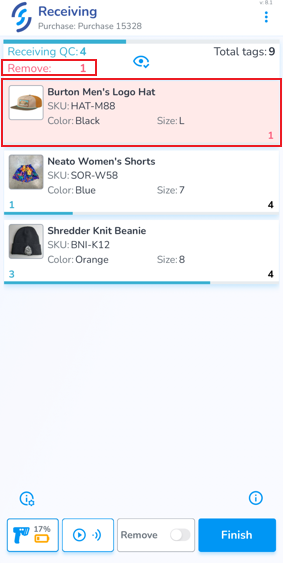](https://kb.simplerfid.com/uploads/images/gallery/2025-05/mgUimage.png) To remove incorrect items you can either: - Slide the incorrect item to the left, then click on the trash can icon [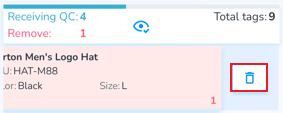](https://kb.simplerfid.com/uploads/images/gallery/2025-05/Dnjimage.png) - Click 'Ok' to the pop-up prompt [](https://kb.simplerfid.com/uploads/images/gallery/2025-05/stXimage.png) OR - Enable the Remove scan option - Scan the incorrect item(s) [](https://kb.simplerfid.com/uploads/images/gallery/2025-05/9Hdimage.png) ##### ****Remove Extra Items**** If more items are scanned than are ordered, the 'remove' message appears, and the item with extra items will appear in red, and the number of extra items is displayed on the left [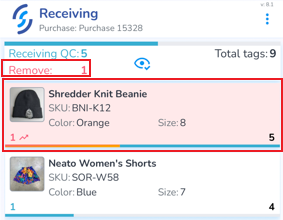](https://kb.simplerfid.com/uploads/images/gallery/2025-05/Htpimage.png) - Slide the item to the left, then tap the broom icon to clear all scans for the item [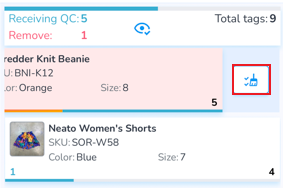](https://kb.simplerfid.com/uploads/images/gallery/2025-05/43ximage.png) - Click 'Ok' to the pop-up prompt [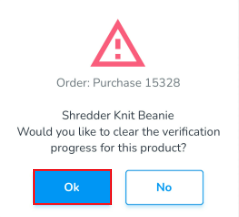](https://kb.simplerfid.com/uploads/images/gallery/2025-05/7zqimage.png) - Then rescan all tags for that product OR - Enable the Remove scan option - Scan only the items being removed [](https://kb.simplerfid.com/uploads/images/gallery/2025-05/9Hdimage.png) ##### ****Verify Order**** Correctly scanned items appear in green. The quantity scanned appears on the left, and the ordered quantity appears on the right. A blue progress bar indicates if any items are missing. [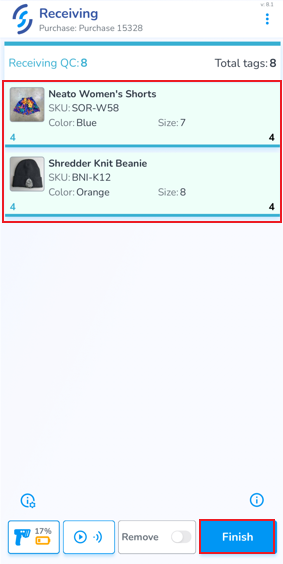](https://kb.simplerfid.com/uploads/images/gallery/2025-05/mLrimage.png) Once all items are scanned correctly & complete, click ****Finish**** - Click 'Ok' to the pop-up prompt [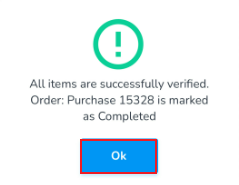](https://kb.simplerfid.com/uploads/images/gallery/2025-05/NGFimage.png) You will be returned back to the Receive orders list, and a toast pop-up will confirm the order as accurate [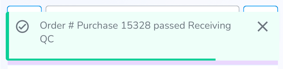](https://kb.simplerfid.com/uploads/images/gallery/2025-05/JYnimage.png) # Write Tags Program tags using the Handheld Reader. There are two approaches to doing this; Single Tag Encoding & Bulk Encoding Click the ****Write Tags**** option from the Home Screen [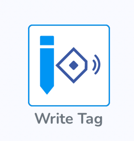](https://kb.simplerfid.com/uploads/images/gallery/2025-05/WcQimage.png) [Pair Bluetooth](https://kb.simplerfid.com/books/mobile-app/page/pair-bluetooth) ##### ****Single Tag Encoding**** Use this option when needing to program a small number of tags Click ****Single Tag Encoding**** [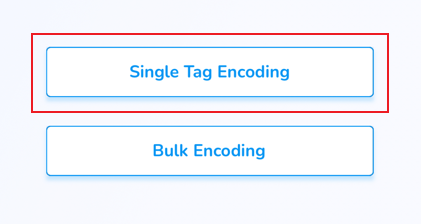](https://kb.simplerfid.com/uploads/images/gallery/2025-05/oMDimage.png) This will open the Search window [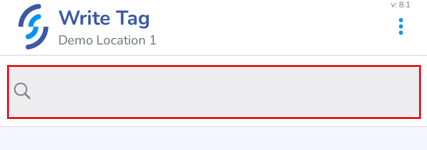](https://kb.simplerfid.com/uploads/images/gallery/2025-05/KoFimage.png) Enter the desired quantity of items you wish to encode [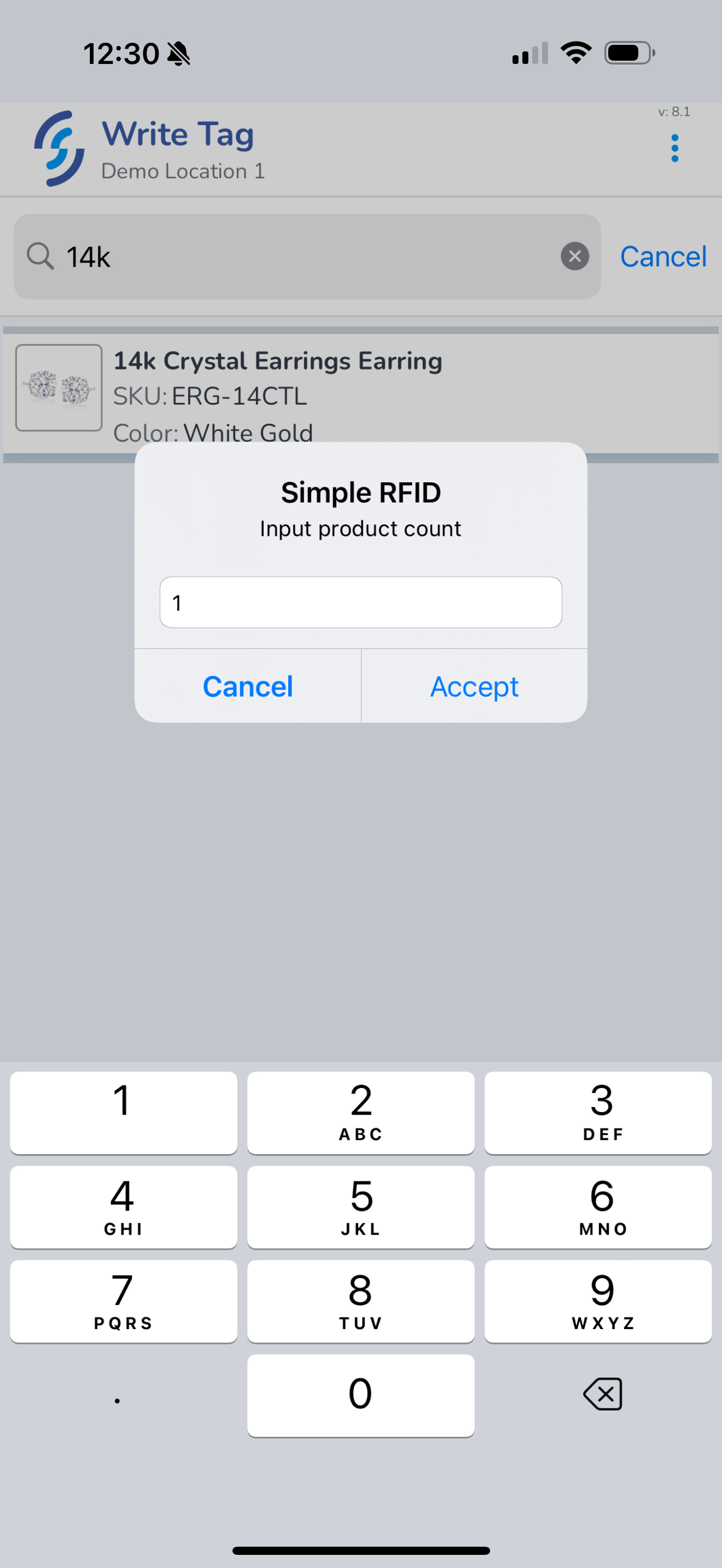](https://kb.simplerfid.com/uploads/images/gallery/2025-05/scaled-1680-/img-0453.PNG) [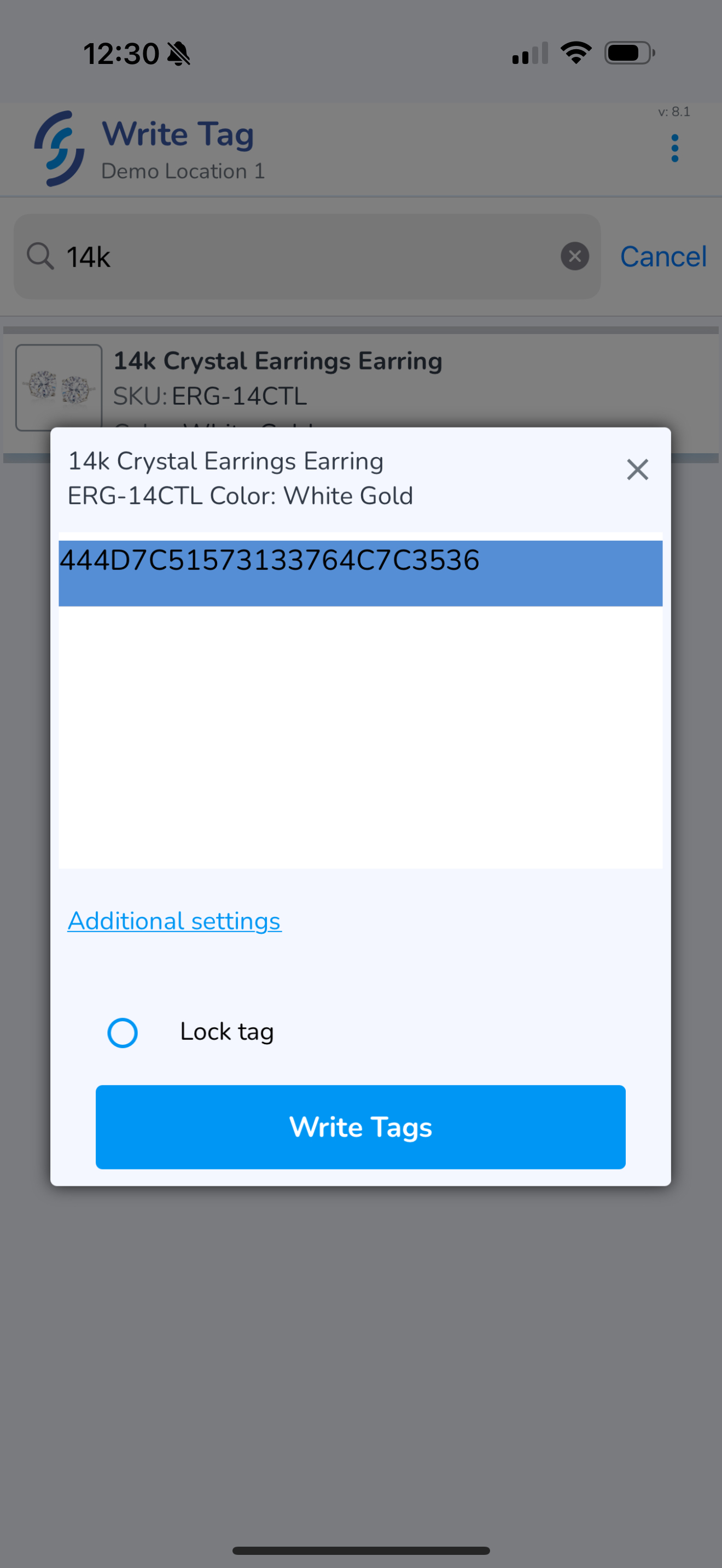](https://kb.simplerfid.com/uploads/images/gallery/2025-05/scaled-1680-/img-0454.PNG) ##### ****Adding Tag Level Properties**** Click the "Additional settings" button to open tag level properties which can then be set including: - SN (Serial Number) - Expiration Date - Lot Number - Cost - Sell By [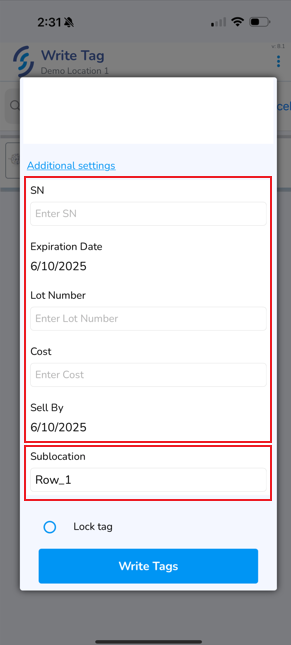](https://kb.simplerfid.com/uploads/images/gallery/2025-06/tSsimage.png) - Sublocation The Sublocation is a drop-down and the values can be created from the [Location Framework](https://kb.simplerfid.com/books/web-portal/page/location-framework) section of the web portal. [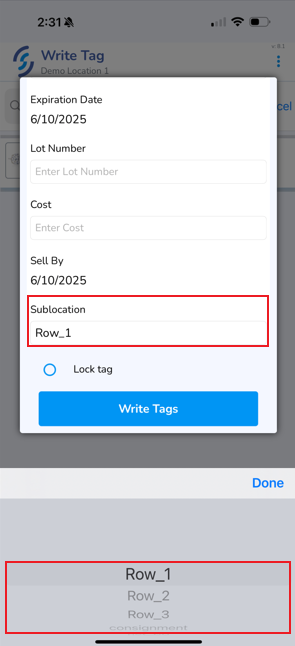](https://kb.simplerfid.com/uploads/images/gallery/2025-06/21Aimage.png) - Pull the trigger or click the Write Tags button [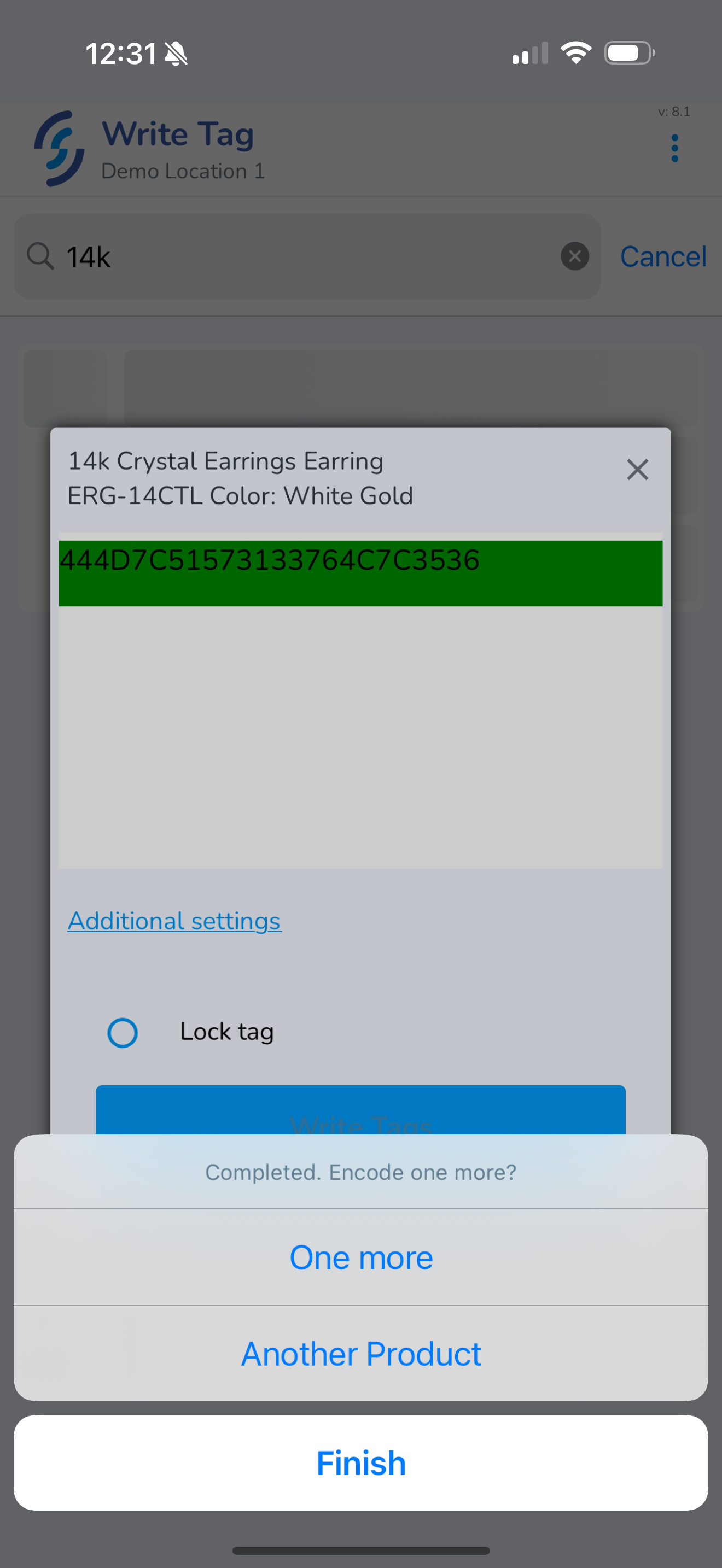](https://kb.simplerfid.com/uploads/images/gallery/2025-05/scaled-1680-/img-0455.PNG) As each tag is programmed successfully it will turn green Once all tags are programmed successfully a finishing prompt will appear asking - One more - to program more quantity of the same Product - Another Product - to search for a new Product to program - Finish to complete the process and return to the Home screen ##### ****Bulk Encoding**** Use this option when needing to program a large number of tagsCaution: When using this feature, it is critical that any blank tags are removed from the field of view to avoid unintentionally encoding tags
Select ****Bulk Encoding**** [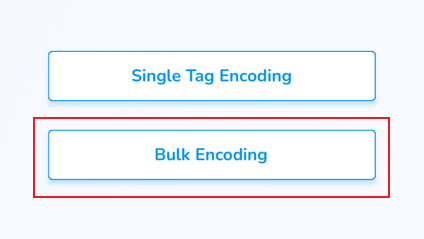](https://kb.simplerfid.com/uploads/images/gallery/2025-05/MS9image.png) [Pair Bluetooth](https://kb.simplerfid.com/books/mobile-app/page/pair-bluetooth) Use the search for the item you wish to encode Once located, select it [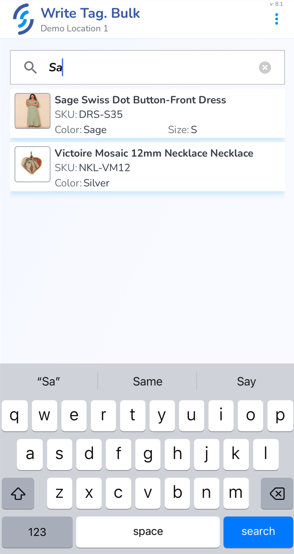](https://kb.simplerfid.com/uploads/images/gallery/2025-05/15eimage.png)As a safety precaution, only blank tags never before encoded, are eligible to be bulk encoded. This is a feature designed to prevent overwriting existing tags
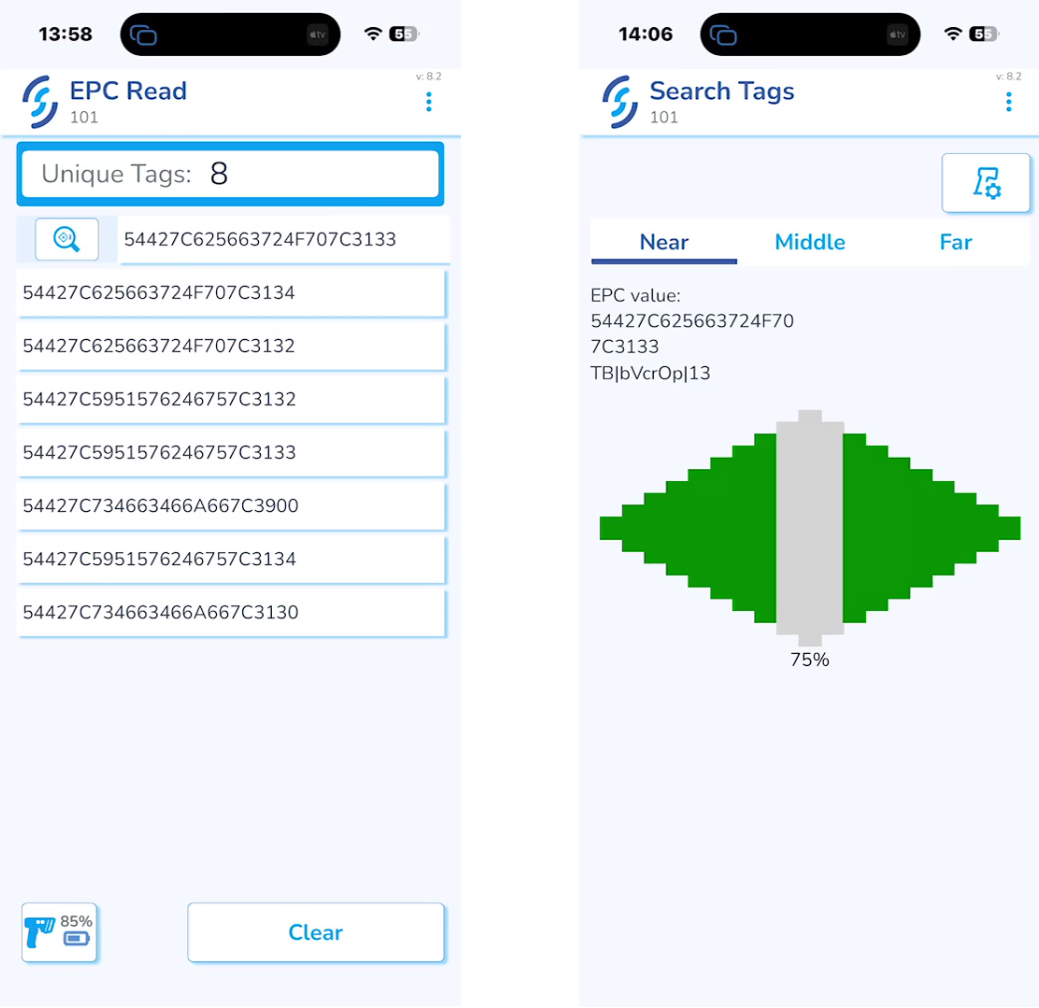
Scan the tags to identify the number of available tags to encode [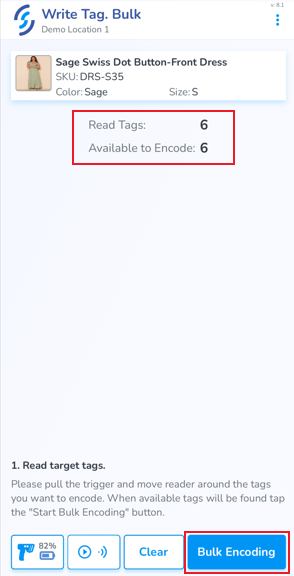](https://kb.simplerfid.com/uploads/images/gallery/2025-05/6RCimage.png) Click Bulk Encoding Slowly move the reader over the tags You will see the number of tags Available to Encode decrease. Once the 'available' total is 0 a finishing prompt will appear [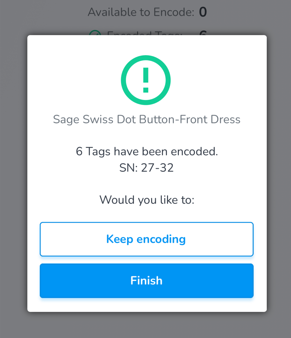](https://kb.simplerfid.com/uploads/images/gallery/2025-05/biaimage.png) # EPC Read ##### Quickly confirm the information programmed into a tag by using the EPC Read feature. ### Requirements: - A mobile device with the Simple RFID app installed - A handheld TSL reader paired to the mobile device - [Instructions for pairing your reader](https://kb.simplerfid.com/books/mobile-app/page/pair-bluetooth) ### Step 1: Select the EPC Read option on the mobile app [](https://kb.simplerfid.com/uploads/images/gallery/2025-05/Ij6image.png) ### Step 2: Adjust the reader power If you're trying to capture a specific tag, make sure to set the power to ****Near****, otherwise you may pick up other tags in the area, making it difficult to identify the correct tag. 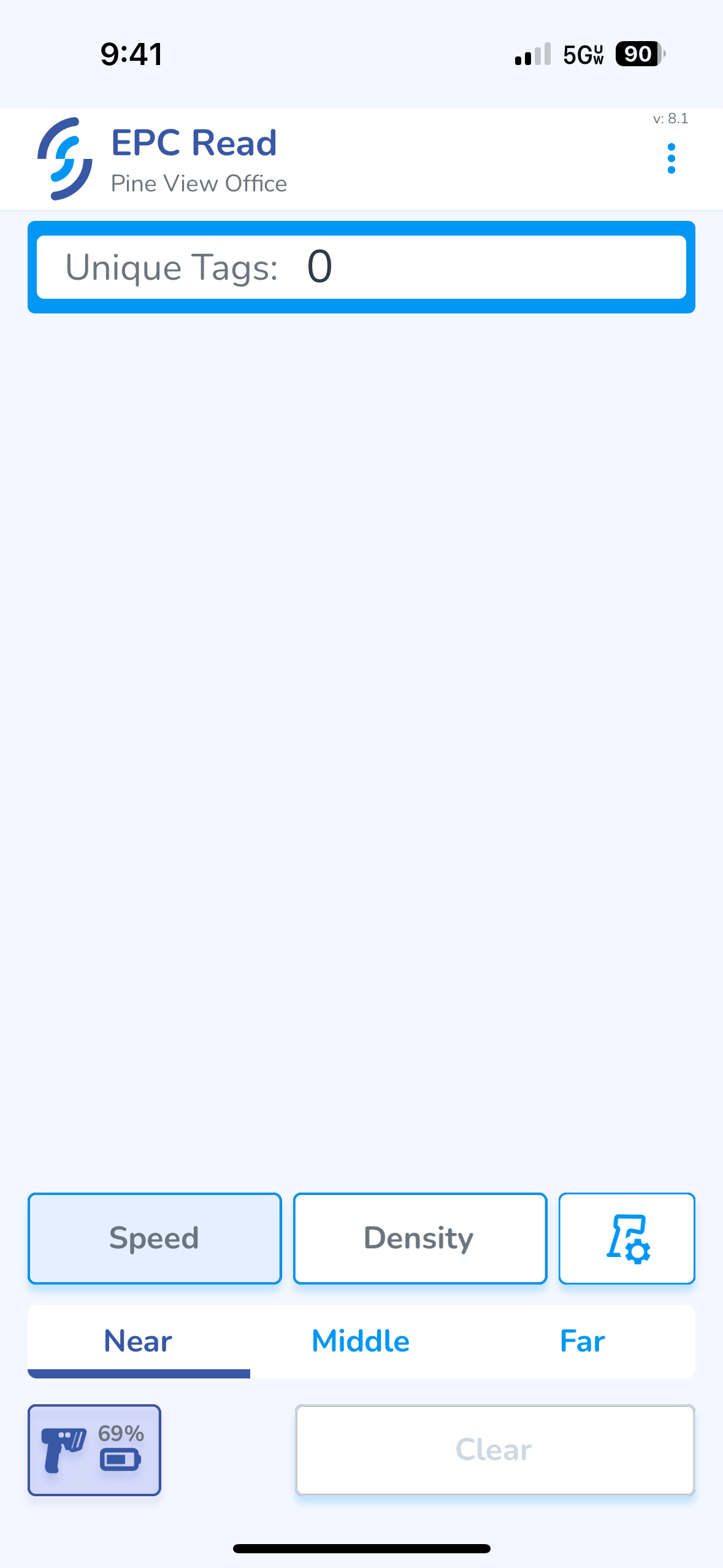 ### Step 3: Scan the tag(s) ****Pull the trigger**** to scan ****Tap on the EPC**** you wish to copy to the device's clipboard [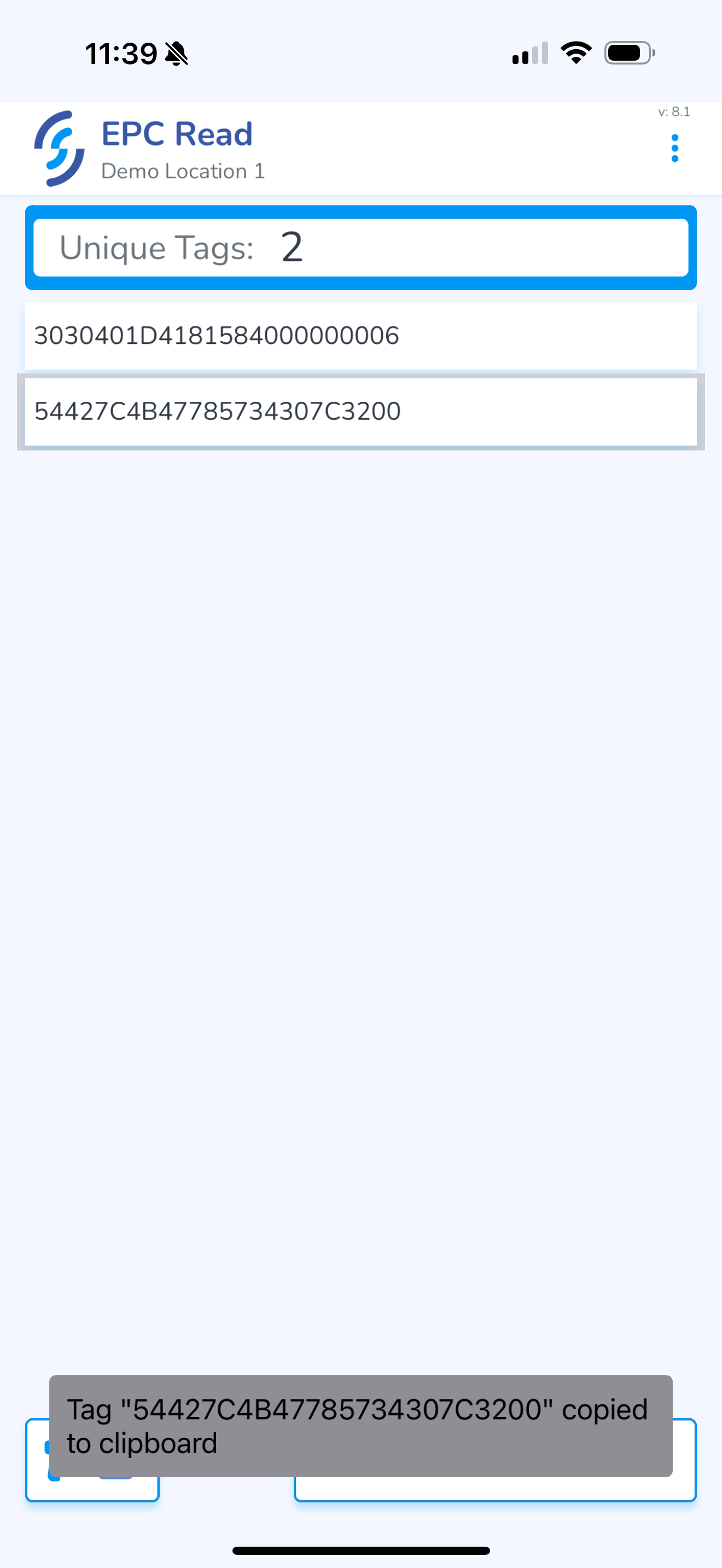](https://kb.simplerfid.com/uploads/images/gallery/2025-05/scaled-1680-/img-0450.PNG) This will allow you to view & share EPC numbers for troubleshooting. # Search Tags From the home screen click ****Search Tags**** [Pair Bluetooth](https://kb.simplerfid.com/books/mobile-app/page/pair-bluetooth) From the input window, enter the item you wish to locate, and select it [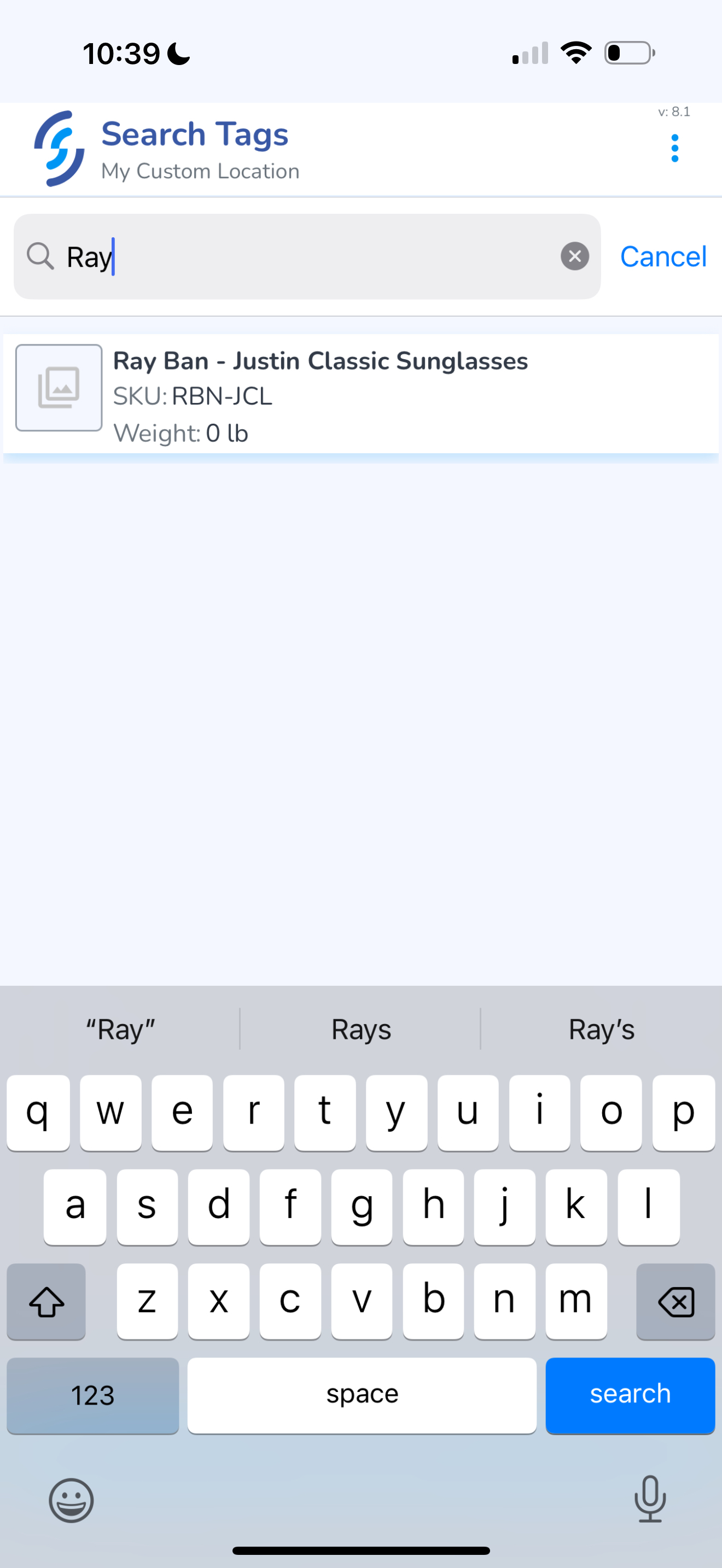](https://kb.simplerfid.com/uploads/images/gallery/2025-05/scaled-1680-/img-0393.PNG) Once it is selected, click the ****Search/Seek**** button [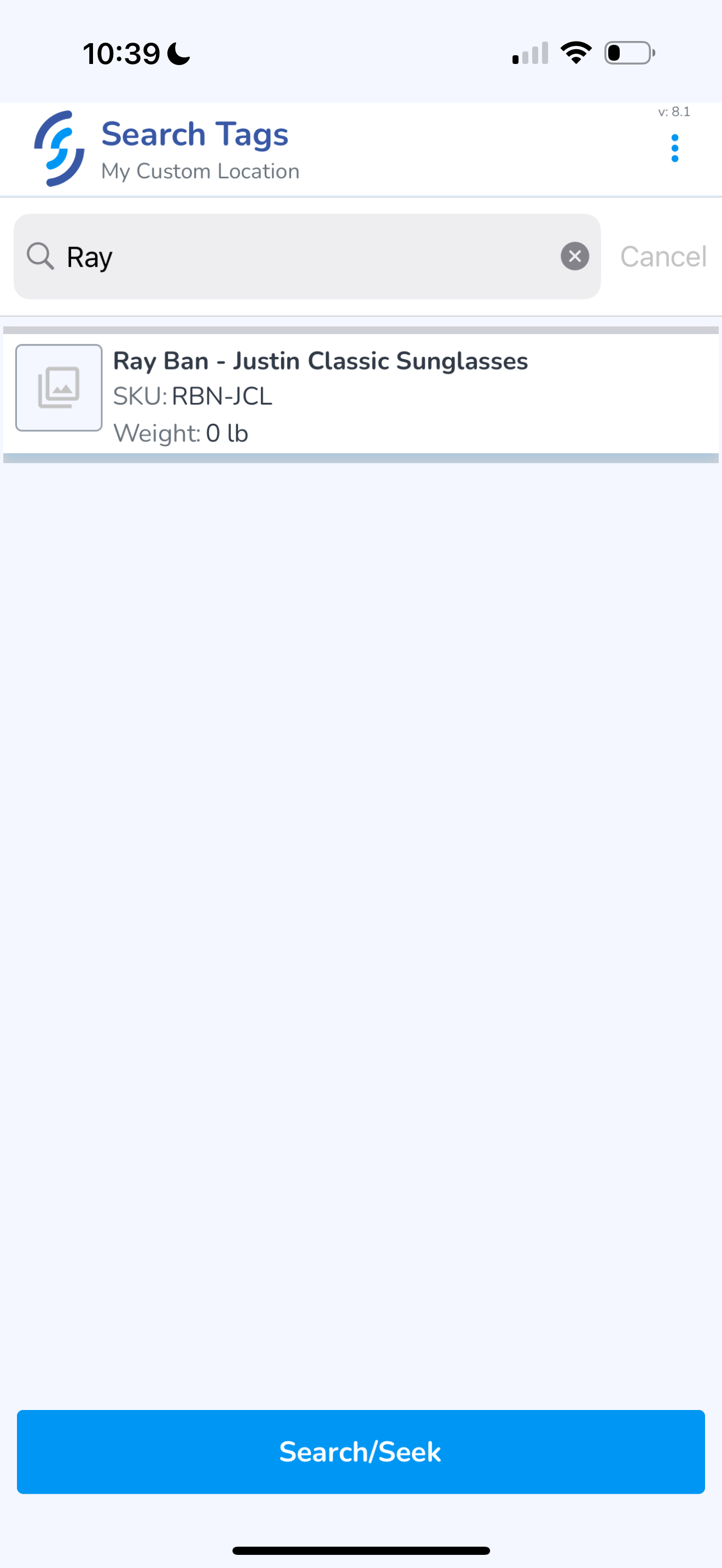](https://kb.simplerfid.com/uploads/images/gallery/2025-05/scaled-1680-/img-0394.PNG) This will initiate Search mode. Choose Near, Middle or Far option to adjust the power.Tip: Some environments may produce more reflection causing the reader to produce false positive results making it appear that the item is closer than it actually is. In these instances, once the signal is detected choose a lower power setting to reduce the read range which will help reduce the false positive signal
[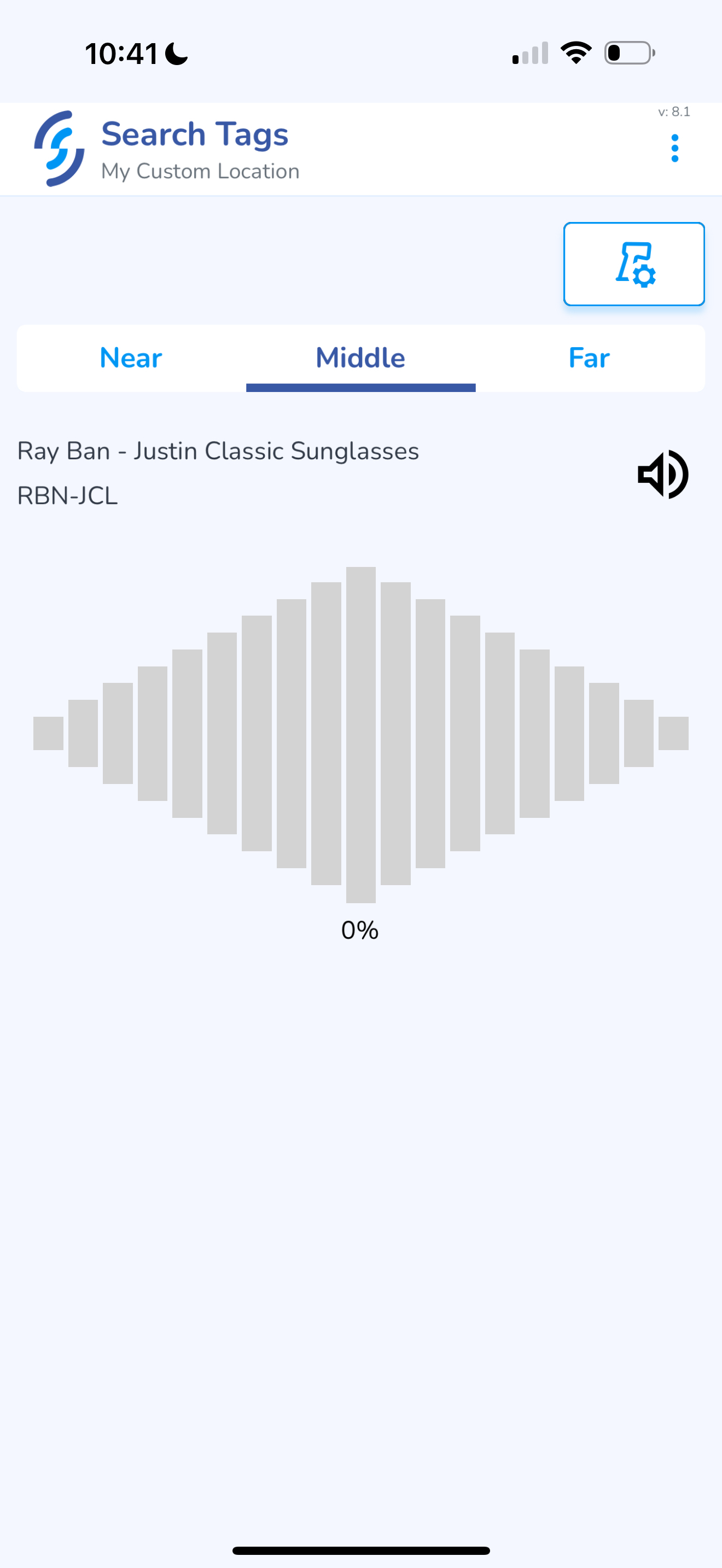](https://kb.simplerfid.com/uploads/images/gallery/2025-05/scaled-1680-/img-0396.PNG) Pull the trigger on the reader. If the item is within range the signal will indicate [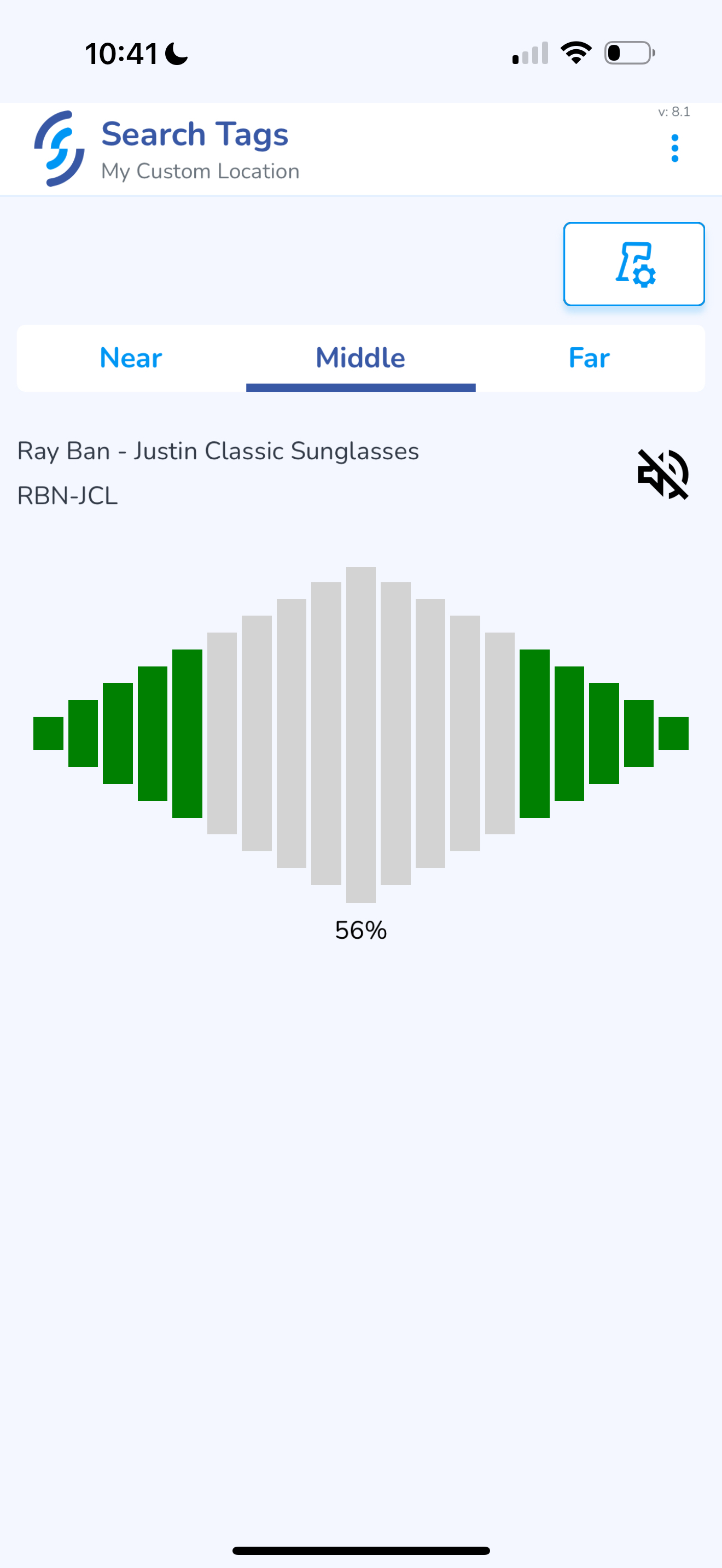](https://kb.simplerfid.com/uploads/images/gallery/2025-05/scaled-1680-/img-0398.PNG) The grid will display 100% when the item is within 6" [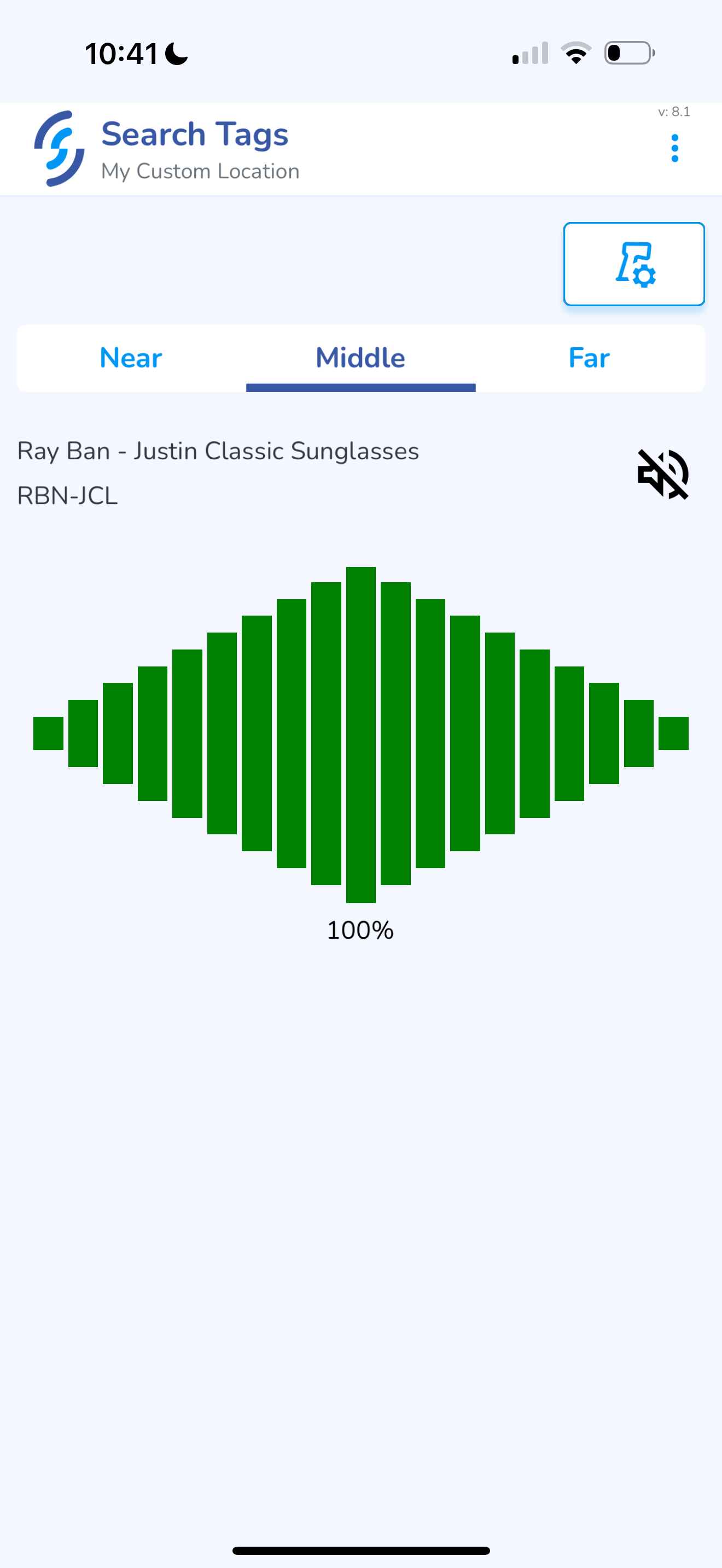](https://kb.simplerfid.com/uploads/images/gallery/2025-05/scaled-1680-/img-0399.PNG) #### ****Alternative Access to Search Tags feature**** In addition to the standard Home Screen access, ****Search Tags**** can be accessed directly from the multiple locations, like ****Scan****, ****Archive****, ****Ship****, ****Receive****, ****EPC Read****, ****Audi & Compare**** in the same way as it is shown in the example below: From the ****Scan**** menu, find the specific product you need to locate.This process can be used to search for unknown tags as well
[](https://kb.simplerfid.com/uploads/images/gallery/2026-04/scaled-1680-/scan1.png) ****Swipe right**** on the product row. 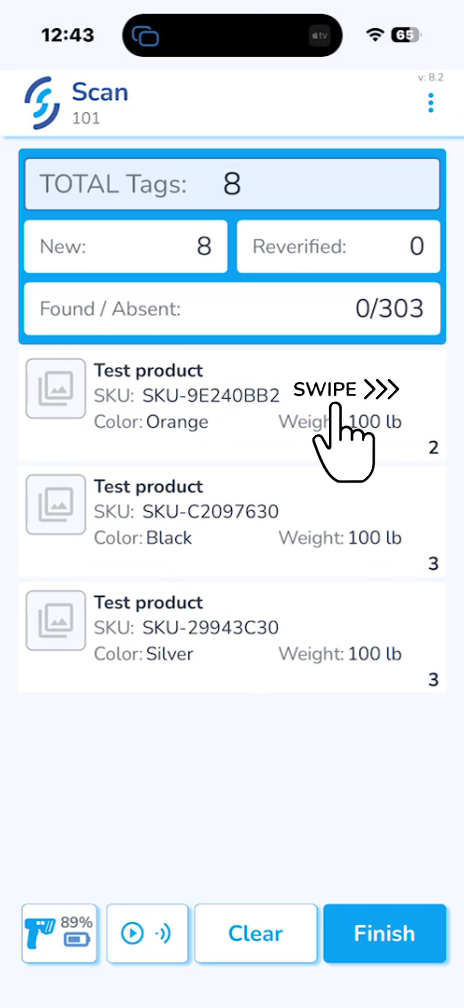A small icon will appear to the left of the product. Press this icon to jump immediately into the ****Search Tags**** feature with that item pre-selected. [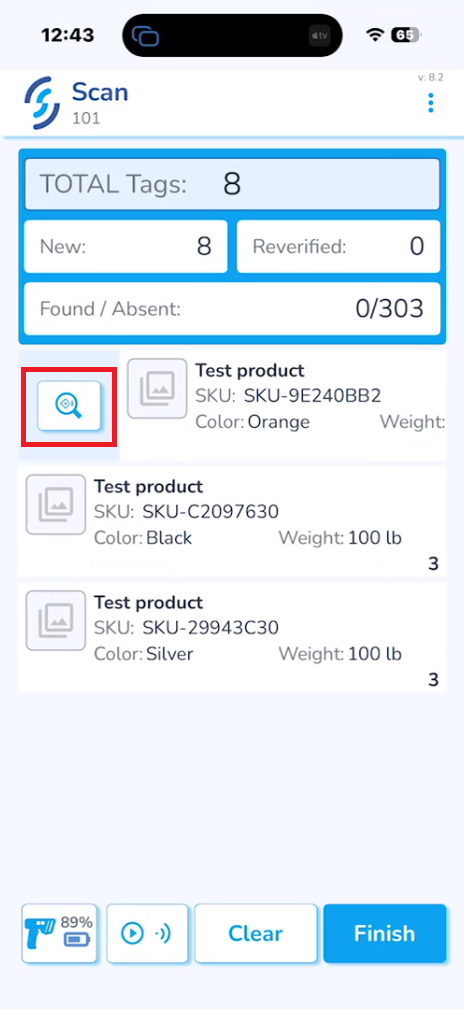](https://kb.simplerfid.com/uploads/images/gallery/2026-04/scaled-1680-/scan2.png) Pull the trigger on the reader. A signal will appear if the item is nearby. [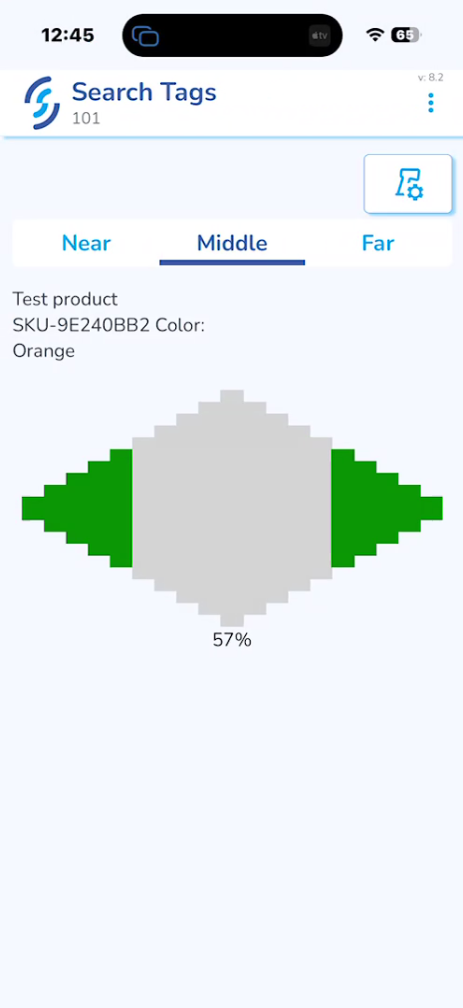](https://kb.simplerfid.com/uploads/images/gallery/2026-04/scaled-1680-/scan3.png) Functionality of the ****Search Tags**** from the ****Scan**** menu: [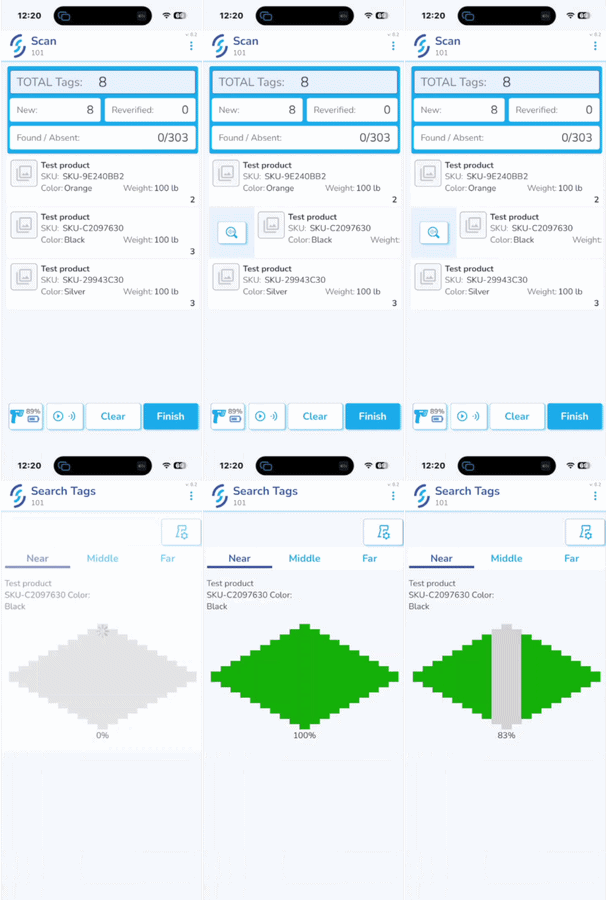](https://kb.simplerfid.com/uploads/images/gallery/2026-04/ezgif-com-crop-1.gif)If using ****Search Tags**** feature from ****EPC Read**** menu it will be searching specifically for tags and ****not**** the whole products
[](https://kb.simplerfid.com/uploads/images/gallery/2026-04/xdbimage.png) # Application Settings The Application settings allows users to enable & disable features & views inside the app ****Scan & Archive**** [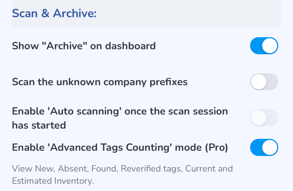](https://kb.simplerfid.com/uploads/images/gallery/2025-05/Iimimage.png) - Enable to display the "[Archive](https://kb.simplerfid.com/books/mobile-app/page/archive)" option. If this option is disabled the user will not see this option. - Scan the unknown company prefixes. Enabling this option will allow the reader to capture tags not associated with your account - Enable the "Auto-scanning" once the scan session has started. This option is not yet available for use. - Enable "Advanced Tags Counting" mode (Pro) ****Ship**** [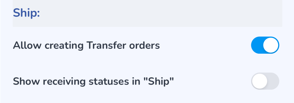](https://kb.simplerfid.com/uploads/images/gallery/2025-05/QrXimage.png) - Enable if you wish to create Transfer orders from the app - Enable if you wish to view the receiving statuses in the Ship menu ****Product View**** [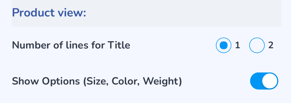](https://kb.simplerfid.com/uploads/images/gallery/2025-05/Jqnimage.png) - Number of lines for Title can be adjusted from 1 to 2 - Show Options (Size, Color, Weight) displays the Variant properties ****Reader Control**** [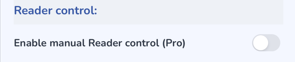](https://kb.simplerfid.com/uploads/images/gallery/2025-05/rhZimage.png) - Enable [manual Reader Control (Pro)](https://kb.simplerfid.com/books/mobile-app/page/manual-reader-control) restores the original reader controls, and instead of Speed & Distance, the user can adjust the Scan Modes & Sessions. Instead of the preset power options of Near, Middle & Far, the reader power is a slider ****Search Tags**** [](https://kb.simplerfid.com/uploads/images/gallery/2025-05/ep4image.png) - If tags aren't able to be searched it may be due to the filter value. Enabling this allows searching for tags containing any filter value ****Actions**** [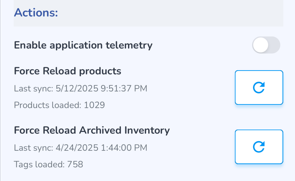](https://kb.simplerfid.com/uploads/images/gallery/2025-05/AcHimage.png) - Enable the application telemetry to provide additional details in logs sent to Support - If, when scanning items, the product details (photos, name, size, etc.) do not appear, click this to reimport products - If when scanning items, Archived inventory does not load, click this to reload Archived Inventory # Manual Reader Control If you wish to control the reader via the standard RFID settings, you can enable in the [Application Settings](https://kb.simplerfid.com/books/mobile-app/page/application-settings) menu ****Manual Reader Control (Pro) Enabled**** These controls include; ****Power Slider**** which is a single control to manage the reader power dynamically via a slider. Below this, a settings icon to manage the ****Scan Mode & Session**** of the Reader, and the current settings are displayed to the right of it. To the far right is the button to navigate to the [Connected Reader](https://kb.simplerfid.com/books/mobile-app/page/connected-reader) [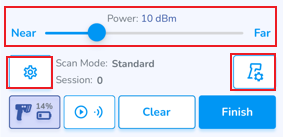](https://kb.simplerfid.com/uploads/images/gallery/2025-05/3Bkimage.png) ****Session & Scan Mode**** Sessions are 0, 1, 2 & 3 Scan Modes are Standard, Tag Focus, Many Tags, & Tag Refresh [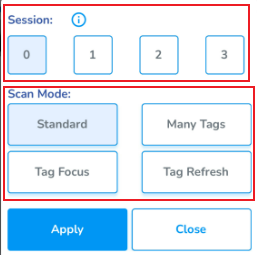](https://kb.simplerfid.com/uploads/images/gallery/2025-05/cTRimage.png) After making selection, click the ****Apply**** button to save changes Click ****Close**** to exit the settings window # Change CustomerThis setting only applies if you have more than 1 account created in Simple RFID.
If you have more than one Customer account created in Simple RFID, that you are assigned to from the mobile, it will appear in the ellipsis menu in the top right Click ****Change Customer**** [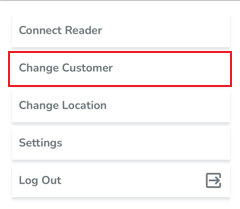](https://kb.simplerfid.com/uploads/images/gallery/2025-05/HERimage.png) Choose Customer from the list [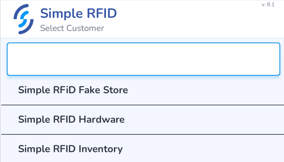](https://kb.simplerfid.com/uploads/images/gallery/2025-05/Bhkimage.png) # Increase Max Reader Power # Scan to Print FeaturePrint to Scan feature requires the Barcode to be unique to each product
### 1- Login to the Simple RFID mobile app - Select your Business and Location ### 2- Select "Scan to Print" - Scan to Print button will be located at the bottom of the home page[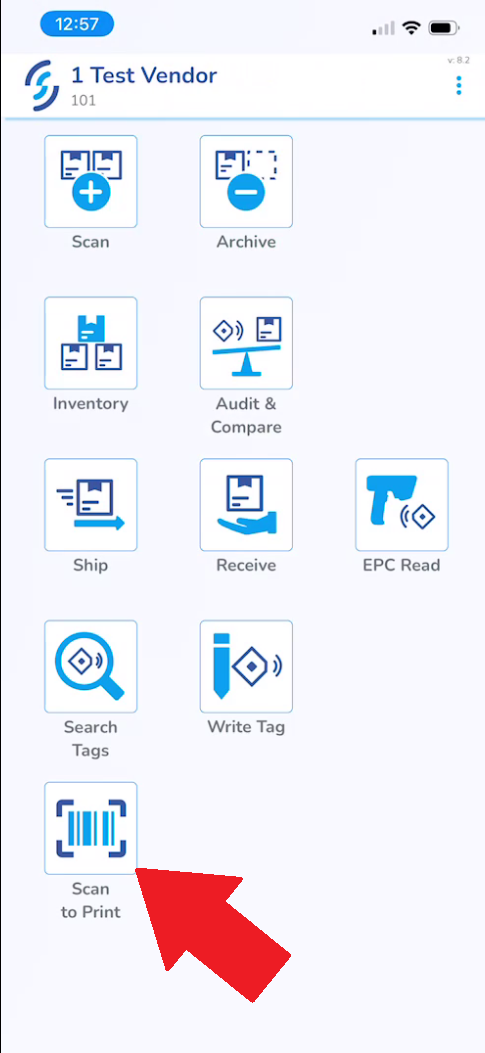](https://kb.simplerfid.com/uploads/images/gallery/2026-04/stjscreenshot-2026-04-01-125757.png) - ### 3 - Select Printer and Label Layout - At the top of the Scan to Print page you have the option to select a printer - At the top right of the page you can select the label layout you'd like to print ### 4 - Scan the unique SKU/Barcode - At this point you are ready to start scanning tags to print - Once scanned it will give you the option to select the quantity of tags you'd like to printThe "Instant Print" feature will instantly create a Print Job for one tag
### 5 - Errors? - If you run into any errors please feel free to reach out to support with the link below [https://support.simplerfid.com/support/tickets/new](https://support.simplerfid.com/support/tickets/new) # Restoring Archived Tags ##### Previously Archived tags can always be restored from the SimpleRFID app. To restore archived tags, start a new ****Scan**** session. [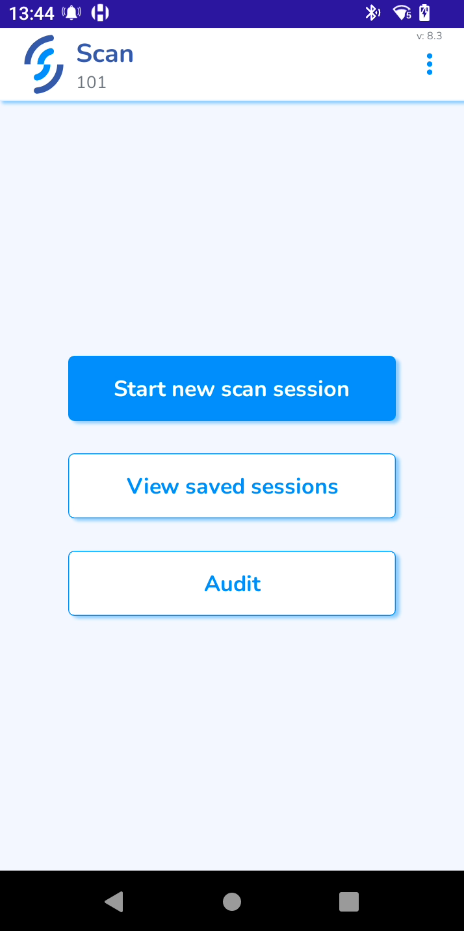](https://kb.simplerfid.com/uploads/images/gallery/2026-05/0Jeimage.png) Start scanning the tags. You should now see ****Archived**** tags appear. [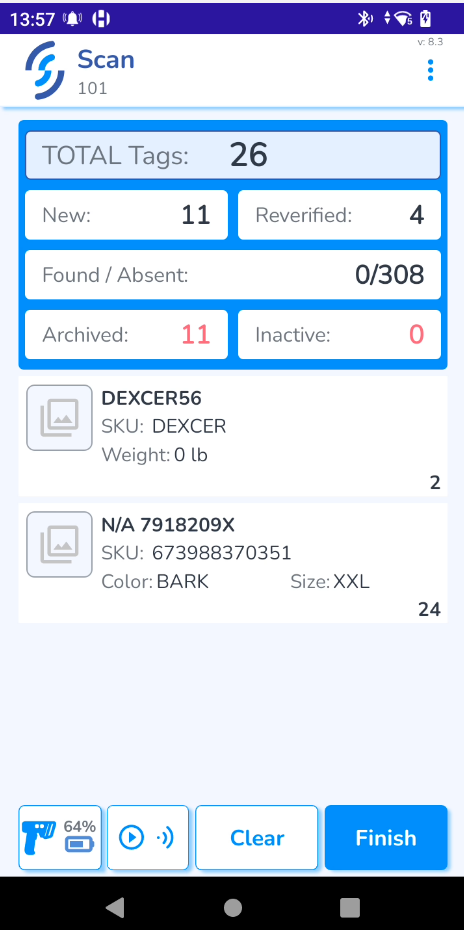](https://kb.simplerfid.com/uploads/images/gallery/2026-05/iZRimage.png) Click ****Finish****. It will take you to the final screen, where the ****Archived**** tags can be restored. [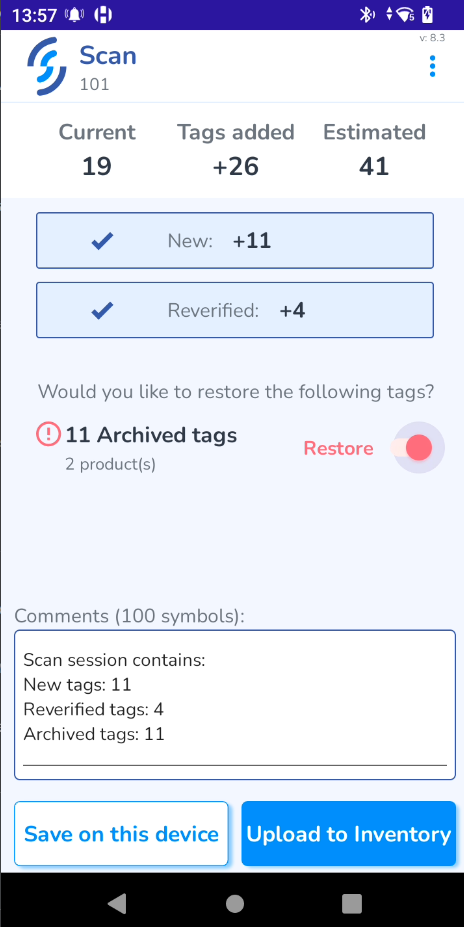](https://kb.simplerfid.com/uploads/images/gallery/2026-05/VKGimage.png) Click ****Upload to Inventory**** and then ****OK****. [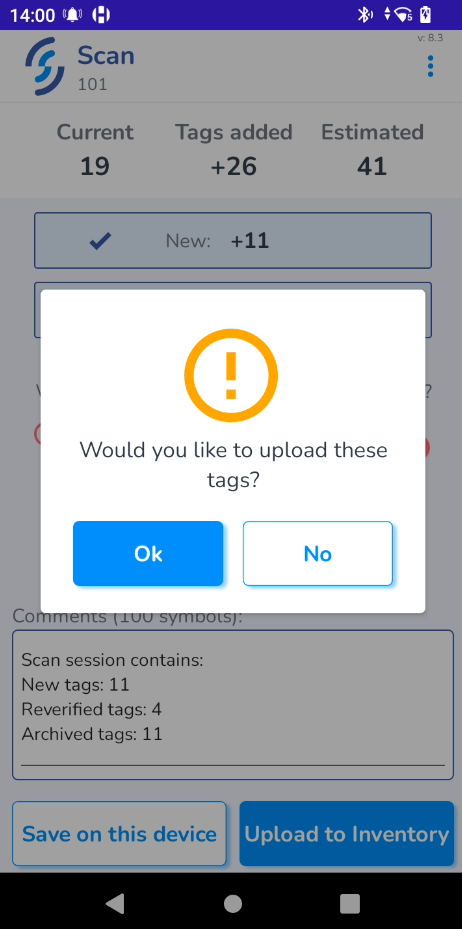](https://kb.simplerfid.com/uploads/images/gallery/2026-05/gNNimage.png)****Archived**** tags should now be restored and added to your inventory.