# Import Inventory to Jonas

### ****Download Simple RFID Inventory Report****

#### Login to Simple RFID

##### <span style="white-space: pre-wrap;">Navigate to the </span>[Simple RFID web portal](https://portal.simplerfid.com). Enter your credentials to log in to your account

#### Navigate to Inventory

##### <span style="white-space: pre-wrap;">Once logged in, click on the </span>****Inventory****<span style="white-space: pre-wrap;"> link in the main navigation menu to access your inventory data</span>

[![image.png](https://kb.simplerfid.com/uploads/images/gallery/2026-02/scaled-1680-/6mPimage.png)](https://kb.simplerfid.com/uploads/images/gallery/2026-02/6mPimage.png)

#### Open the Reports View

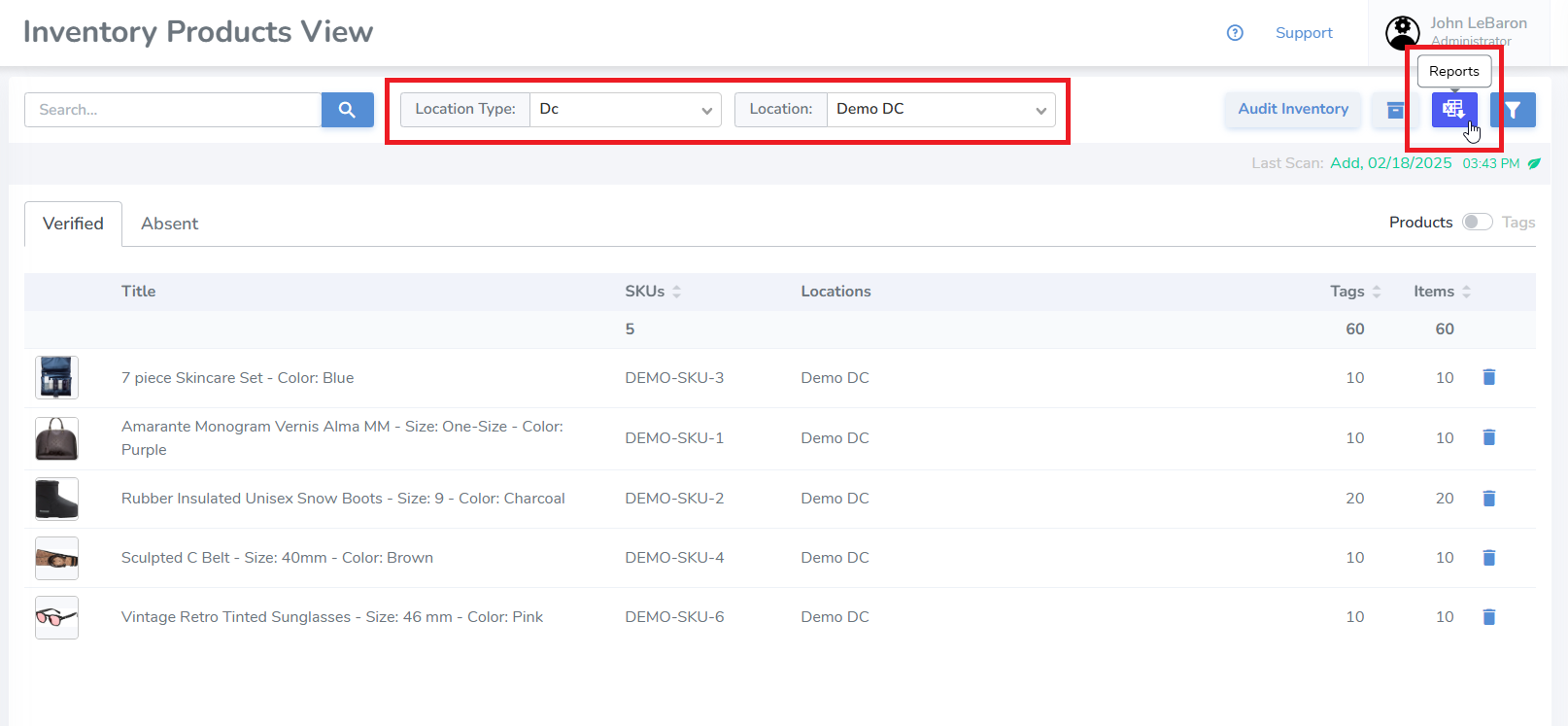
##### <span style="white-space: pre-wrap;">Select the </span>****Location Type****<span style="white-space: pre-wrap;"> and then the </span>****Location****<span style="white-space: pre-wrap;"> that you would like to export. Then click on the </span>****Reports****<span style="white-space: pre-wrap;"> button near the top right of the page</span>

<p class="callout info"><span style="white-space: pre-wrap;">Make sure you only select one location, not </span>****All****</p>

[![image.png](https://kb.simplerfid.com/uploads/images/gallery/2026-02/scaled-1680-/0N2image.png)](https://kb.simplerfid.com/uploads/images/gallery/2026-02/0N2image.png)

#### Download the Report

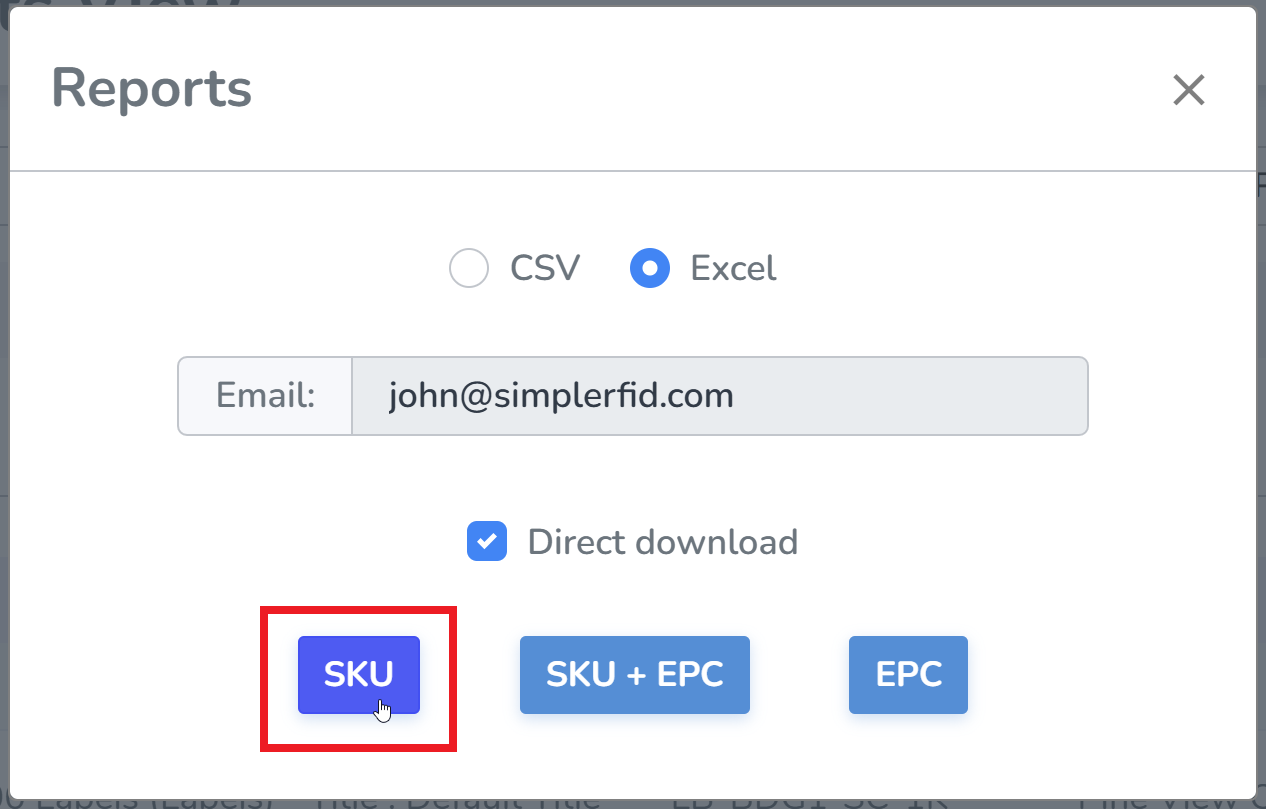
##### <span style="white-space: pre-wrap;">Click the </span>****SKU****<span style="white-space: pre-wrap;"> button to download the inventory report. The report will be saved to your default download location, based on your browser settings</span>

[![image.png](https://kb.simplerfid.com/uploads/images/gallery/2026-02/scaled-1680-/R9Rimage.png)](https://kb.simplerfid.com/uploads/images/gallery/2026-02/R9Rimage.png)

### ****Convert Report****

#### <span style="white-space: pre-wrap;">Navigate to </span>[Simple RFID Inventory Converter](https://jonas.simplerfid.dev/)

#####   


#### Input your Report

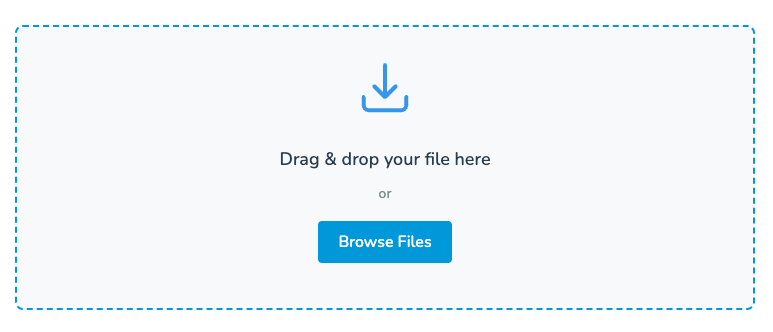
##### Drop the report file, or select it from the file explorer

[![image.png](https://kb.simplerfid.com/uploads/images/gallery/2026-02/scaled-1680-/hGJimage.png)](https://kb.simplerfid.com/uploads/images/gallery/2026-02/hGJimage.png)
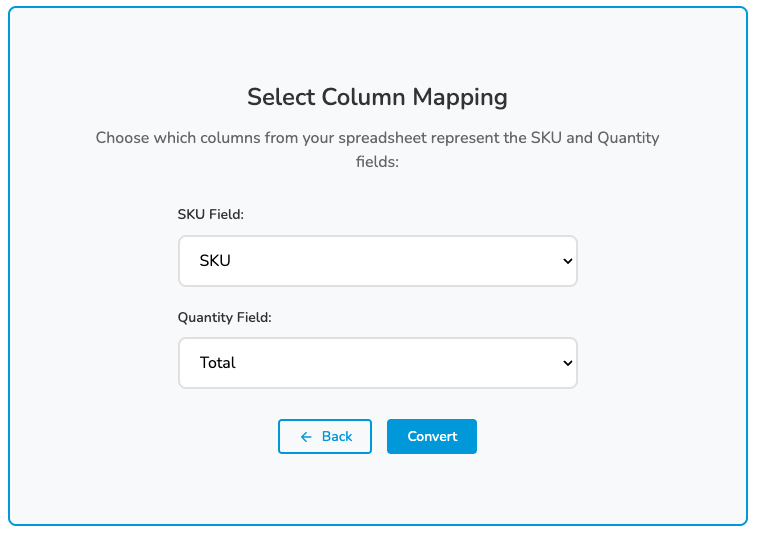
#### Select Column Mapping

##### <span style="white-space: pre-wrap;">In the </span>****SKU Field****, use the unique identifier for products (i.e. SKU, Barcode, etc.)

##### <span style="white-space: pre-wrap;">In the </span>****Quantity Field****<span style="white-space: pre-wrap;">, select </span>****Total****

[![image.png](https://kb.simplerfid.com/uploads/images/gallery/2026-02/scaled-1680-/nHvimage.png)](https://kb.simplerfid.com/uploads/images/gallery/2026-02/nHvimage.png)

#### Download Text File

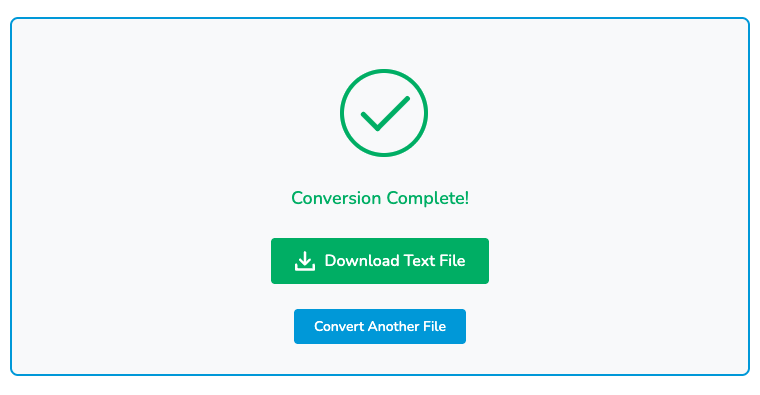
##### <span style="white-space: pre-wrap;">Select </span>****Download Text File****. The new report will be saved to your default download location, based on your browser settings as a text file

[![image.png](https://kb.simplerfid.com/uploads/images/gallery/2026-02/scaled-1680-/bNTimage.png)](https://kb.simplerfid.com/uploads/images/gallery/2026-02/bNTimage.png)
##### You can now upload this report straight into Jonas