If you haven't connected ApparelMagic with Simple RFID yet, follow the instructions here: [****ApparelMagic: Setting up the integration****](https://kb.simplerfid.com/books/integrations/page/apparelmagic-setting-up-the-integration)
### Overview Access the ApparelMagic integration from the navigation sidebar: [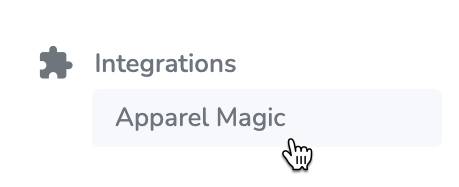](https://kb.simplerfid.com/uploads/images/gallery/2026-02/eECimage.png) By default, you'll see the Compare & Sync view. To import products, open the ****Products**** tab at the top of the page: [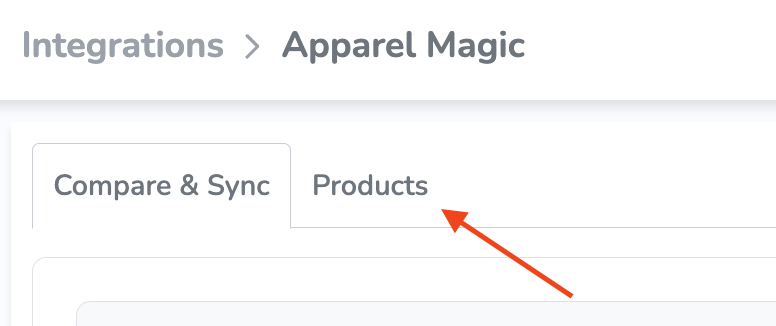](https://kb.simplerfid.com/uploads/images/gallery/2026-02/XCYimage.png) In the Products tab, you'll see your ApparelMagic products listed. From here, you can search by style name (full match) to find specific products: 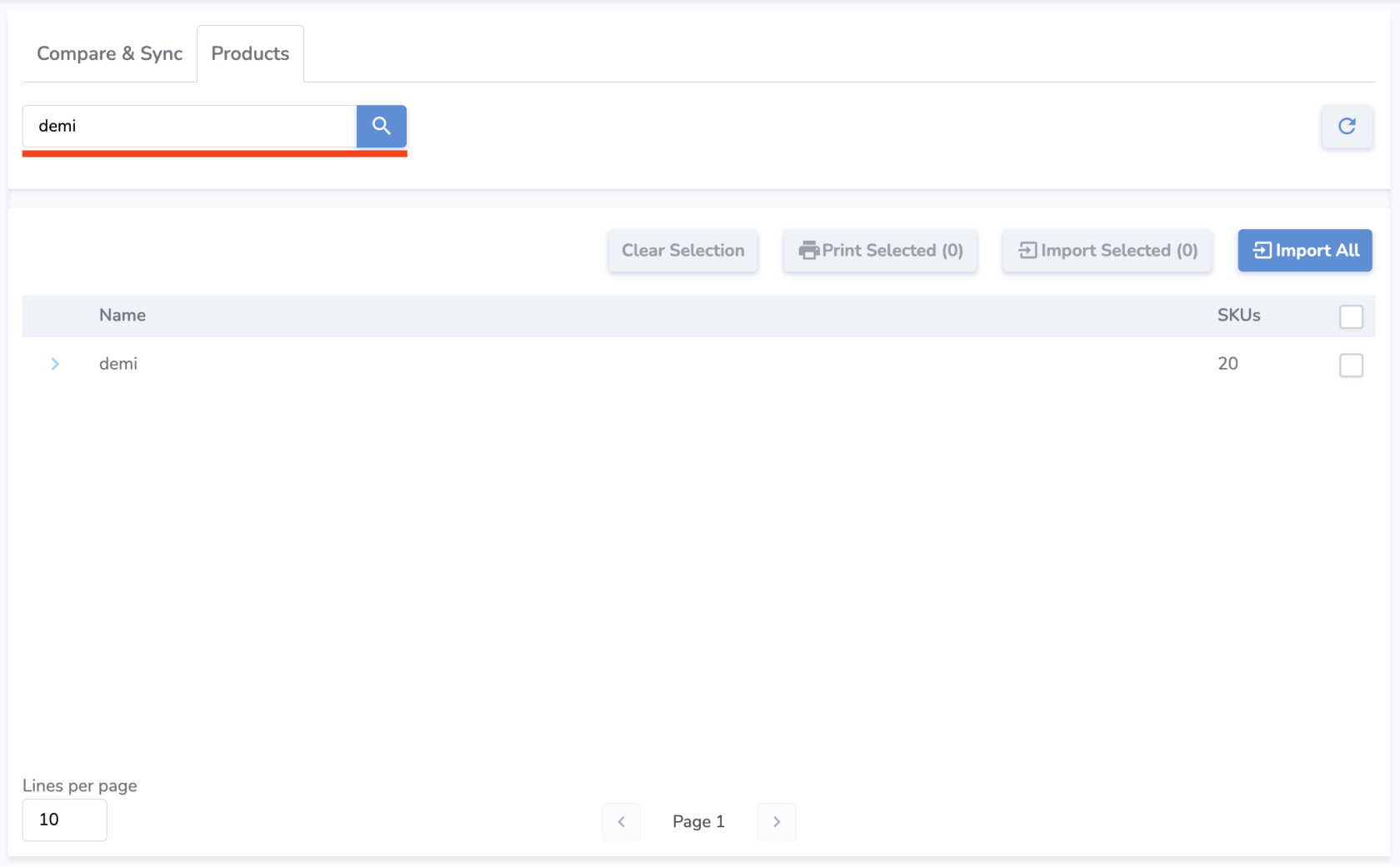Parent SKUs can be expanded to show variants, and relevant information such as SKU, Name, Color, Size, Price, and Sync Status. 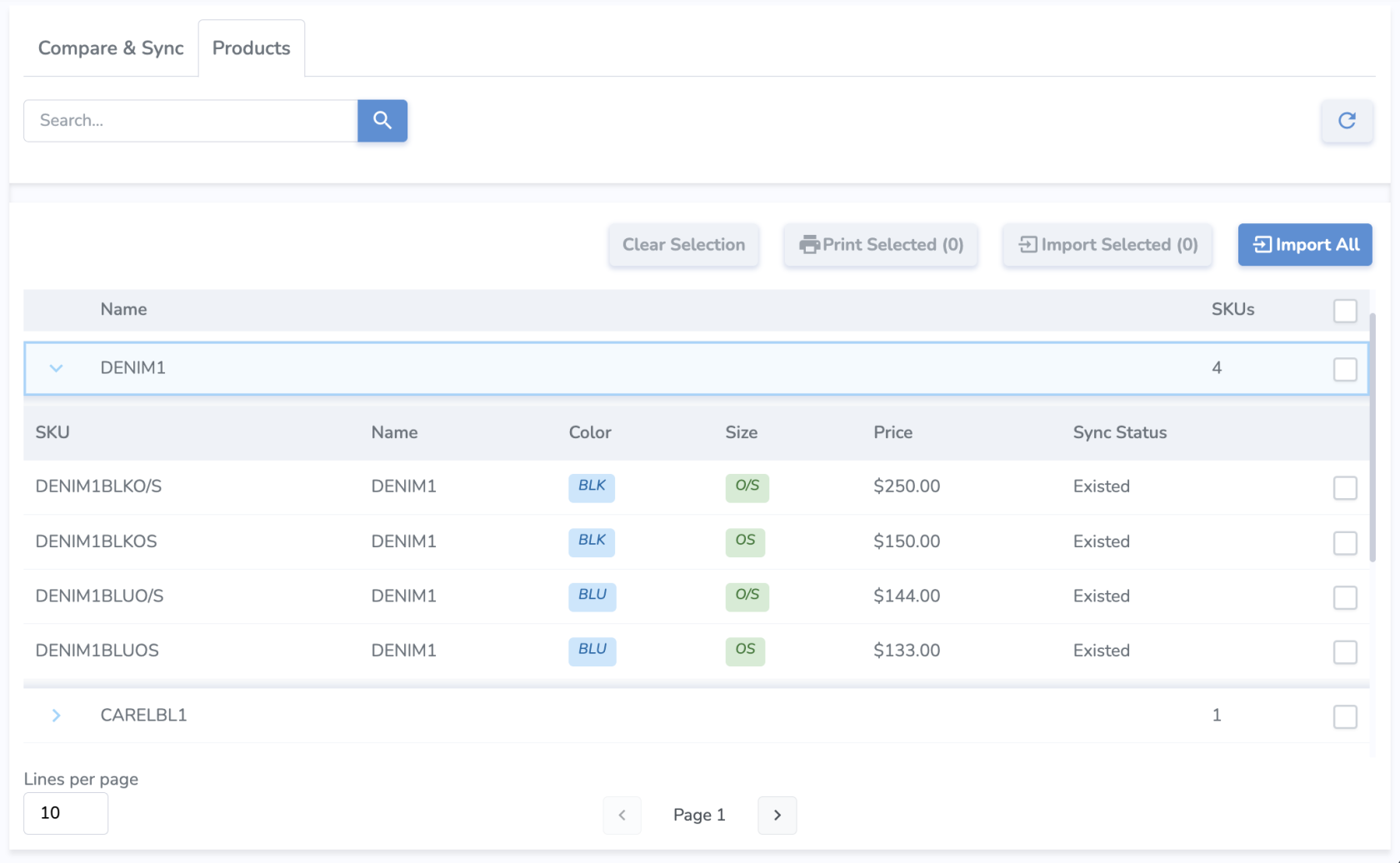****Sync Status**** describes the import status of each variant. - ****New**** means the variant has not been imported yet. - ****Existed**** means the variant already exists and is up to date in Simple RFID, so there's no need to import. - ****NeedUpdate**** means that some product information has changed, so the product needs to be imported again with the new info. --- ### Import Products There are a couple of different approaches you can take to import products. ##### Import All [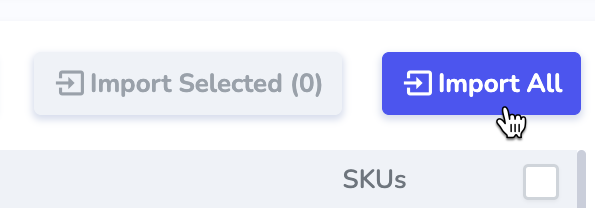](https://kb.simplerfid.com/uploads/images/gallery/2026-02/ZZkimage.png) Using the ****Import All**** button will attempt to import all of your products from ApparelMagic to Simple RFID. This is generally recommended when first setting up the integration rather than copying products individually. ##### Import Selected You may also wish to select a specific product or variant to import, especially after making changes to the product information in ApparelMagic. Use the checkboxes on the right side of the products/variants to select one or more items. You may select a parent SKU to include all its variants, or specific variants individually. Press the ****Import Selected**** button to import those items. [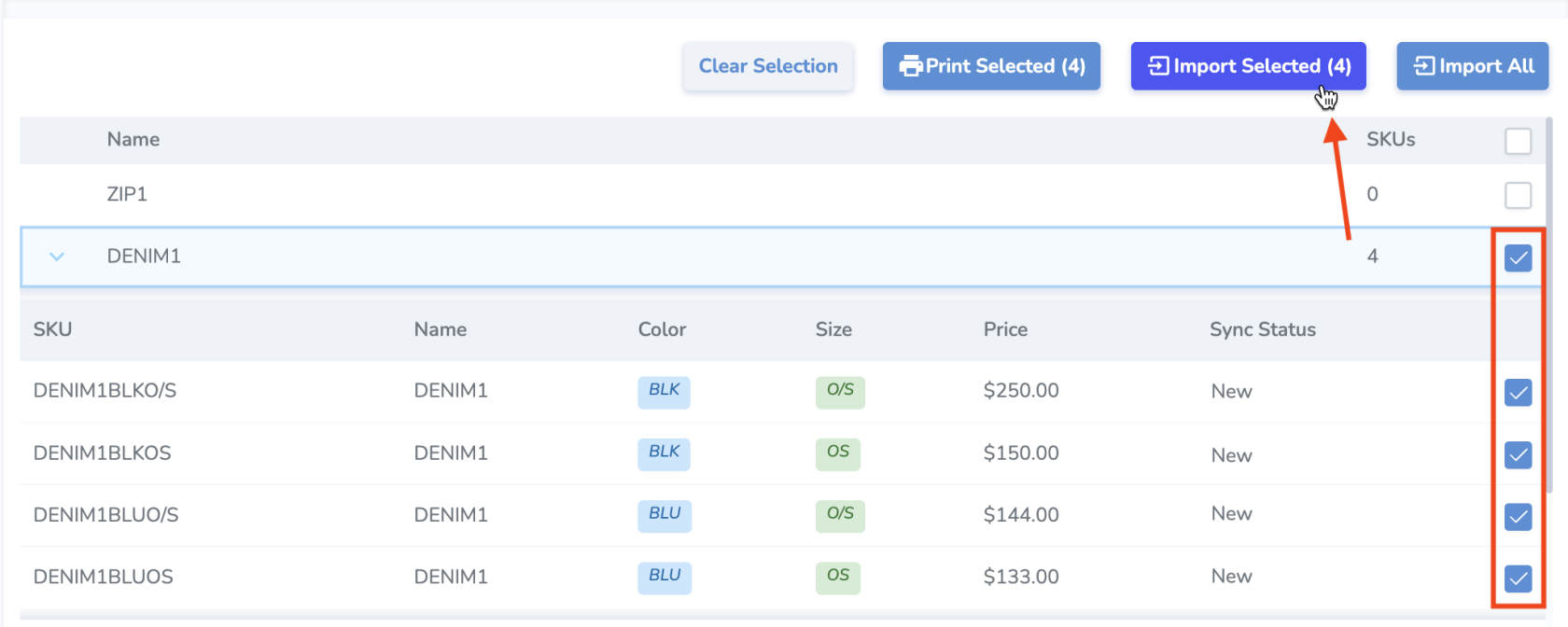](https://kb.simplerfid.com/uploads/images/gallery/2026-02/Getimage.png) --- ### Printing tags for products From the Products tab, you can also select specific products or variants and print tags for those products. Pressing ****Print Selected**** will bring you to the Print Jobs page where you can specify quantities, select a printer and label layout, and print or postpone the job.You can also print from the Compare&Sync tab.
[](https://kb.simplerfid.com/uploads/images/gallery/2026-02/3TUimage.png) --- #### NOTE: Property mappings Currently we have hardcoded the following properties for product import. We plan to implement configurable mapping in the future.| ****Simple RFID Property**** | ****ApparelMagic Property**** |
| Color | attr\_2 |
| Size | size |
| Price | label\_price (fallback: price) |
| Category | category |
| Name | style\_number |
| Sku | sku\_alt (fallback: sku\_concat) |
| Barcode | upc\_display |