If you haven't connected ApparelMagic with Simple RFID yet, follow the instructions here: [****ApparelMagic: Setting up the integration****](https://kb.simplerfid.com/books/integrations/page/apparelmagic-setting-up-the-integration)
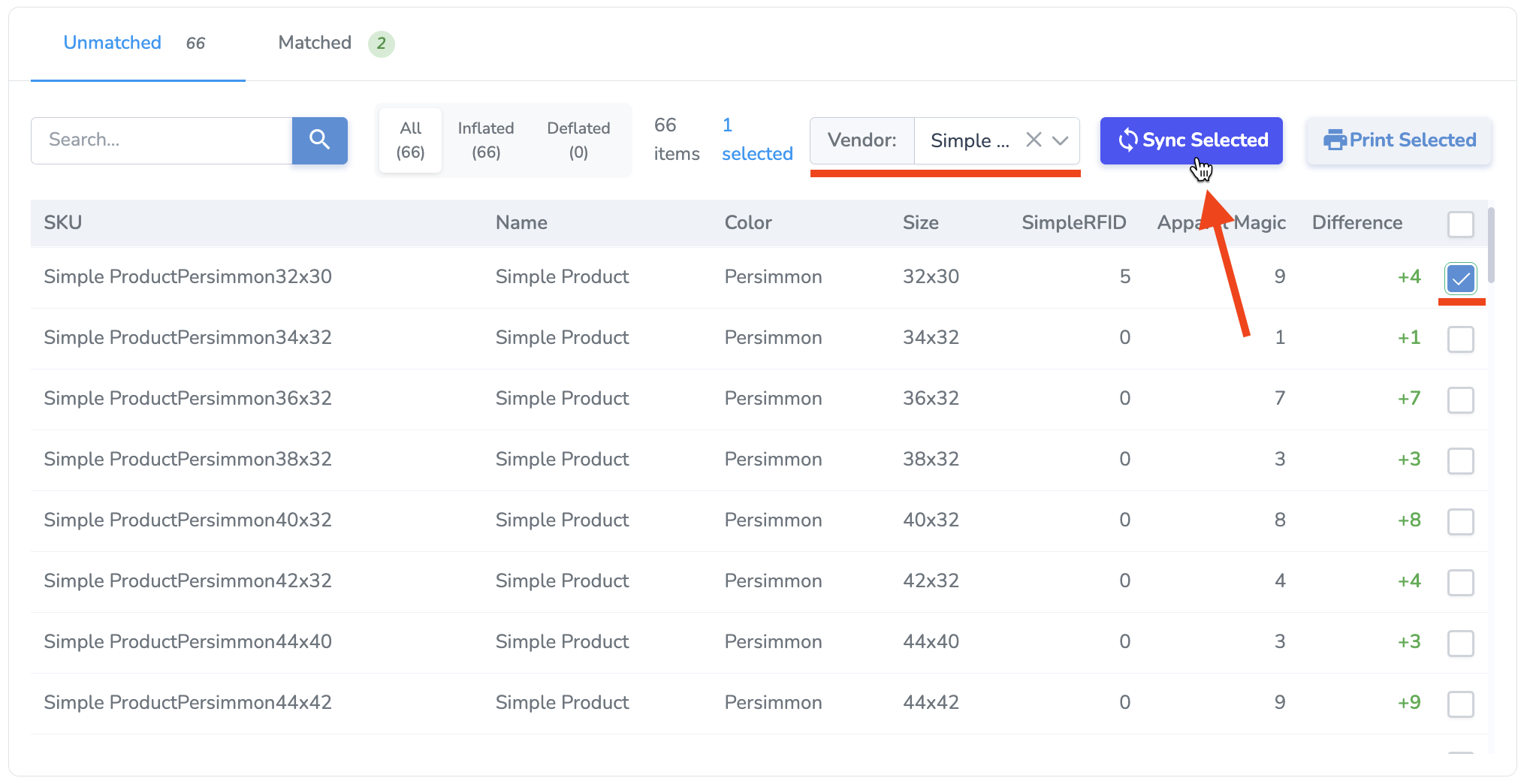
### Overview Access the ApparelMagic integration from the navigation sidebar: [](https://kb.simplerfid.com/uploads/images/gallery/2026-02/eECimage.png) The Compare & Sync page allows you to sync your Simple RFID inventory counts to ApparelMagic. First, select the locations you want to compare: your Simple RFID location on the left, and your ApparelMagic warehouse on the right. Then, press ****Compare Inventory**** to load inventory counts from both systems and populate the comparison. [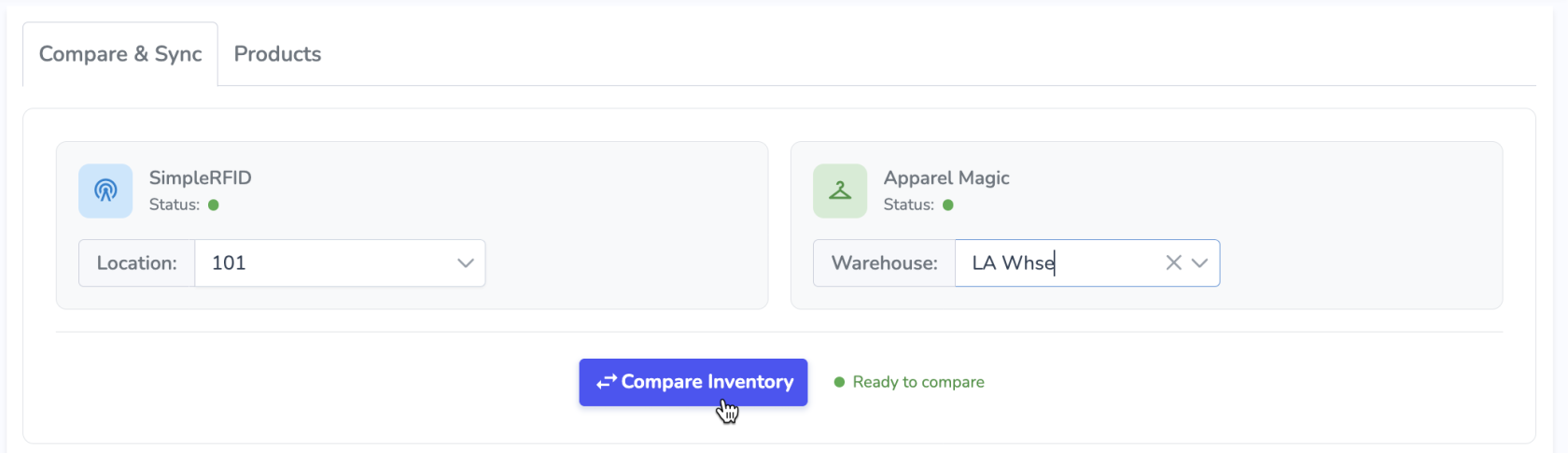](https://kb.simplerfid.com/uploads/images/gallery/2026-02/screenshot-2026-02-16-at-11-51-42-am.png) The results are split into two main categories: - ****Unmatched**** - Products whose quantities are ****not**** the same between Simple RFID and ApparelMagic. This category is split further into two subcategories: - ****Inflated**** - Products whose quantities in ApparelMagic are ****higher**** than those in Simple RFID. - ****Deflated**** - Products whose quantities in ApparelMagic are ****lower**** than those in Simple RFID. - ****Matched**** - Products whose quantities are the same between Simple RFID and ApparelMagic and are not equal to 0. These products have no action to be taken since they already match. [](https://kb.simplerfid.com/uploads/images/gallery/2026-02/bZDimage.png) --- ### Sync Any product in ****Unmatched**** status can be "synced" to ApparelMagic, meaning the ApparelMagic quantity will be updated to match the Simple RFID quantity. Syncing creates a Receiver in ApparelMagic. The Vendor name identifies the source of goods. It must be set in order to create the Receiver, so ****you must select a Vendor**** from the drop-down menu next to the Sync Selected button. You can sync any or all of the products in the Unmatched list by selecting the check boxes on the right side, then pressing ****Sync Selected****.NOTE: The ****Difference**** value describes the ApparelMagic total in relation to the Simple RFID total. When you sync, the ****opposite**** value will be applied, e.g. if an Inflated product has a difference of ****+4****, the inventory in ApparelMagic will be adjusted by ****-4****.
[](https://kb.simplerfid.com/uploads/images/gallery/2026-02/aJtimage.png) After you Sync, the comparison will be reloaded, and those products will be in ****Matched**** status. [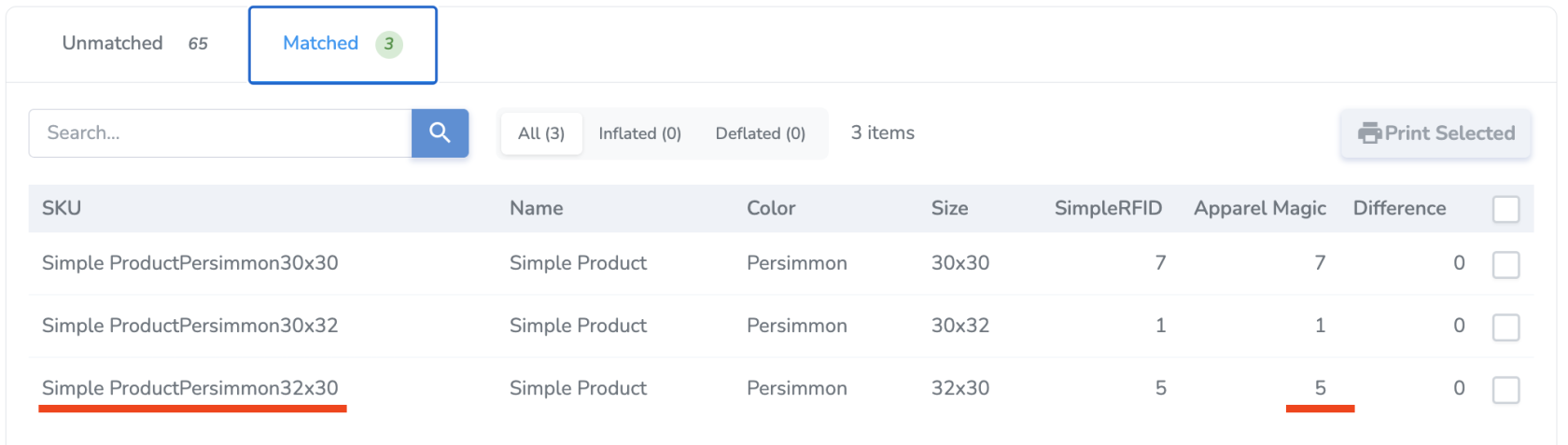](https://kb.simplerfid.com/uploads/images/gallery/2026-02/screenshot-2026-02-16-at-4-30-16-pm.png) --- ### Print For inflated products, you also have the option to print tags for missing items. For example, if you discovered that some items were physically present but weren't RFID tagged, this is a quick way to print the difference. You can print tags for any or all Inflated products in the list by selecting the check boxes on the right side, then pressing ****Print Selected****. [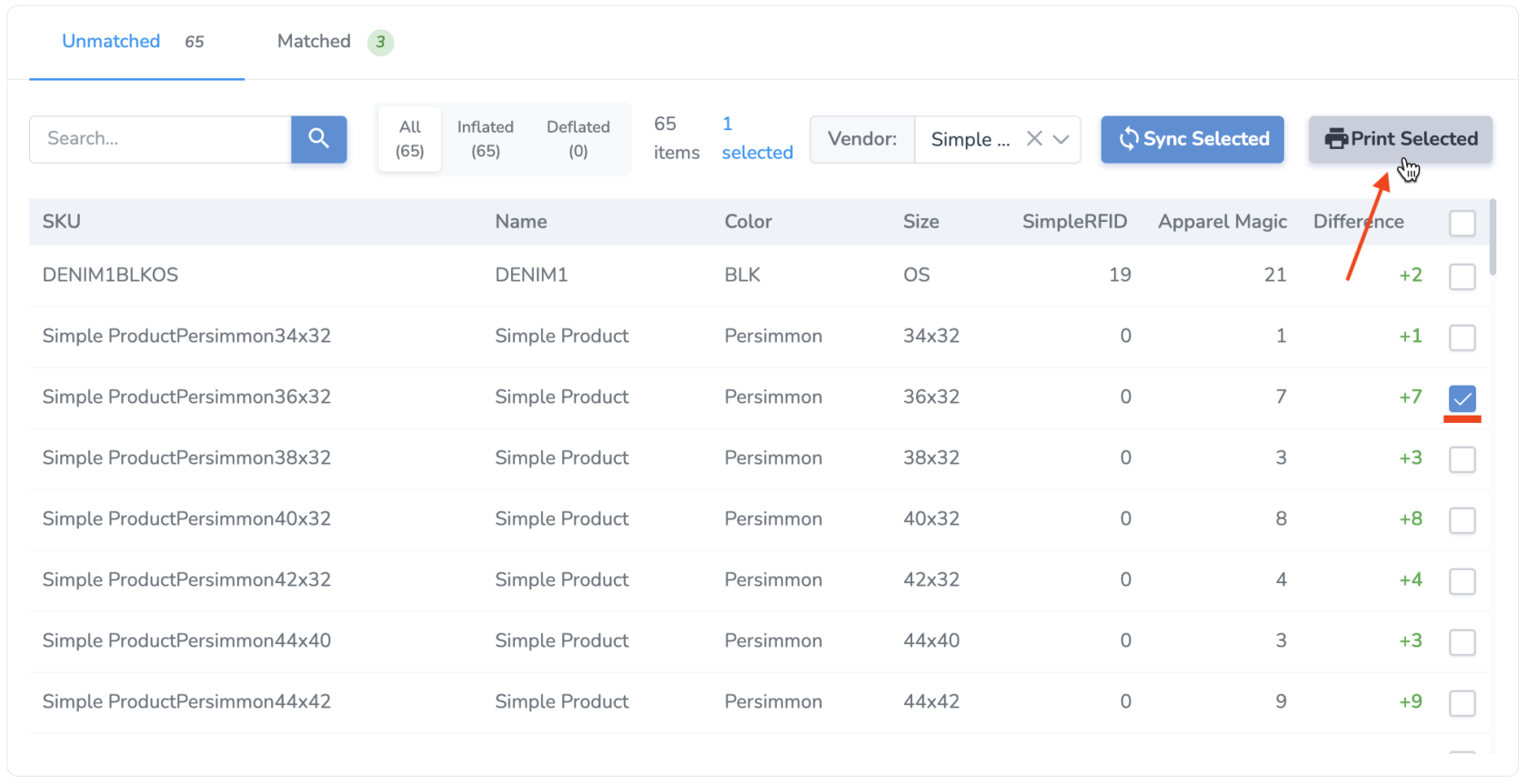](https://kb.simplerfid.com/uploads/images/gallery/2026-02/XSqimage.png) You'll be brought to the ****Print Jobs**** page with your products and quantities automatically populated, and ready for you to print or postpone. [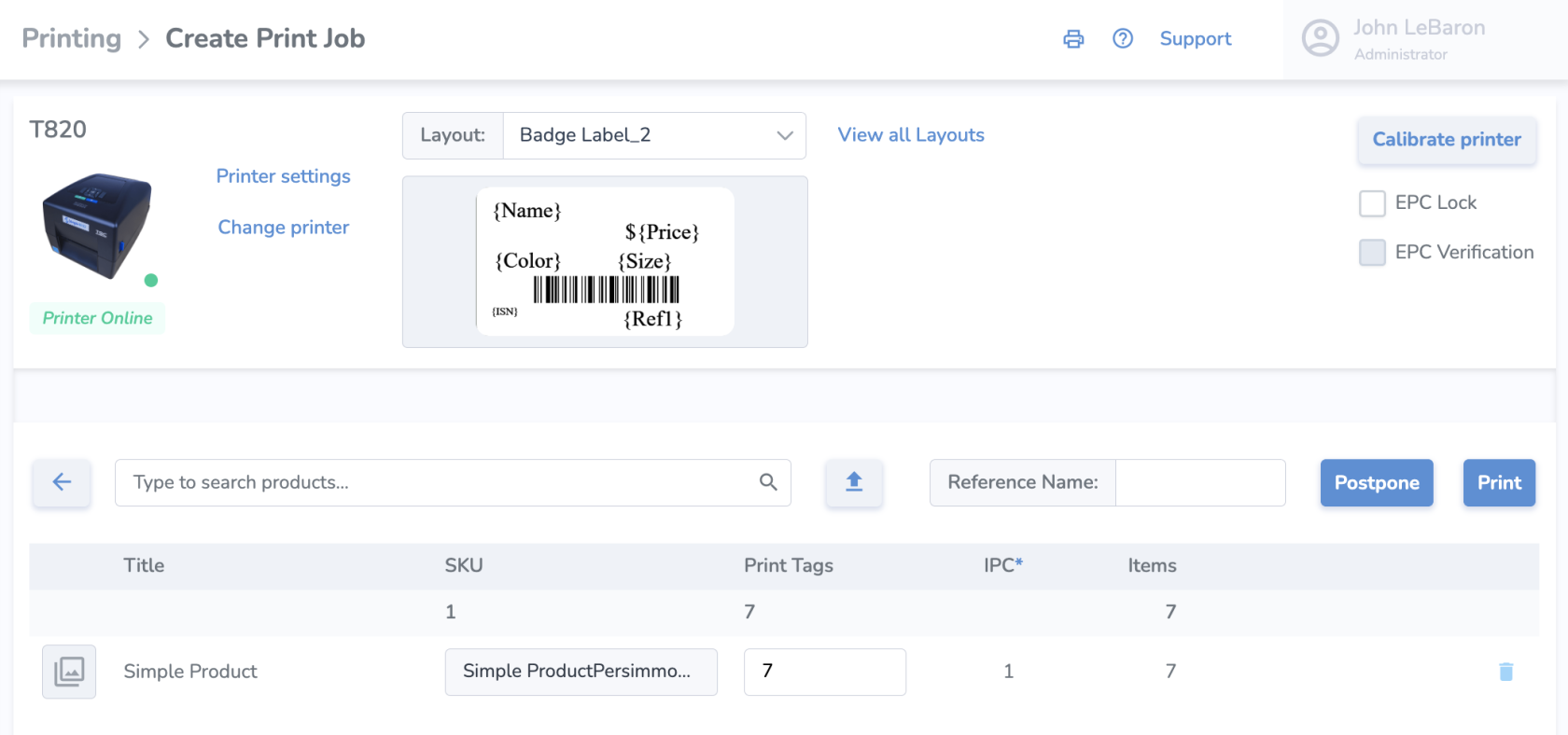](https://kb.simplerfid.com/uploads/images/gallery/2026-02/screenshot-2026-02-16-at-4-35-16-pm.png)