# Shopify

# Shopify: Installation

<span style="white-space: pre-wrap;">From Shopify Admin, type "Simple RFID" in the search bar, then select </span>****Search "Simple RFID" in Shopify App Store****.

![image.png](https://kb.simplerfid.com/uploads/images/gallery/2025-07/scaled-1680-/1g8image.png)

<span style="white-space: pre-wrap;">Click on </span>****Simple RFID Inventory Solution****. You may see a few advertisements in the search results before our app.

![image.png](https://kb.simplerfid.com/uploads/images/gallery/2025-07/scaled-1680-/IyMimage.png)

<span style="white-space: pre-wrap;">Next, click </span>****Install**** near the left side of the page.

![image.png](https://kb.simplerfid.com/uploads/images/gallery/2025-07/scaled-1680-/mgHimage.png)

<span style="white-space: pre-wrap;">Confirm the installation on the next screen by clicking </span>****Install****.

![image.png](https://kb.simplerfid.com/uploads/images/gallery/2025-07/scaled-1680-/S2Zimage.png)

If you're already logged into the web portal on this browser, you will automatically be logged in to the app as well. Otherwise, type in your Simple RFID username and password and log in.

<span style="white-space: pre-wrap;">You'll be greeted with this screen: press </span>****Next****<span style="white-space: pre-wrap;"> to continue.</span>

![image.png](https://kb.simplerfid.com/uploads/images/gallery/2025-07/scaled-1680-/1NHimage.png)

<span style="white-space: pre-wrap;">On the next screen, you'll map your Shopify locations to your Simple RFID locations. If you're setting up the app for the first time, select </span>****Create new****<span style="white-space: pre-wrap;"> for each location that you want to track with Simple RFID.</span>

<span style="white-space: pre-wrap;">Then, select which field in your Shopify products is unique. Simple RFID requires a unique property for every product and variant; choose whether the SKU or Barcode is more suitable for your products. Last, click </span>****Finish****.

![image.png](https://kb.simplerfid.com/uploads/images/gallery/2025-07/scaled-1680-/boSimage.png)

The Simple RFID app is now fully installed.

# Shopify: Compare & Sync

<p class="callout warning"><span style="white-space: pre-wrap;">The following article is a part of a </span>[Legacy Audit](https://kb.simplerfid.com/books/integrations/page/shopify-audit-compare)<span style="white-space: pre-wrap;"> system that will eventually be fully replaced a </span>[new Audit workflow](https://kb.simplerfid.com/books/auditing/page/audit-shopify)<span style="white-space: pre-wrap;"> </span>  
It describes the process of comparing and syncing your Simple RFID inventory to Shopify.</p>

<p class="callout info"><span style="white-space: pre-wrap;">Legacy mode can be enabled or disabled by following the instructions here: </span>[Audit Legacy Mode](https://kb.simplerfid.com/books/auditing/page/audit-legacy-mode)</p>

#### ****Comparing****

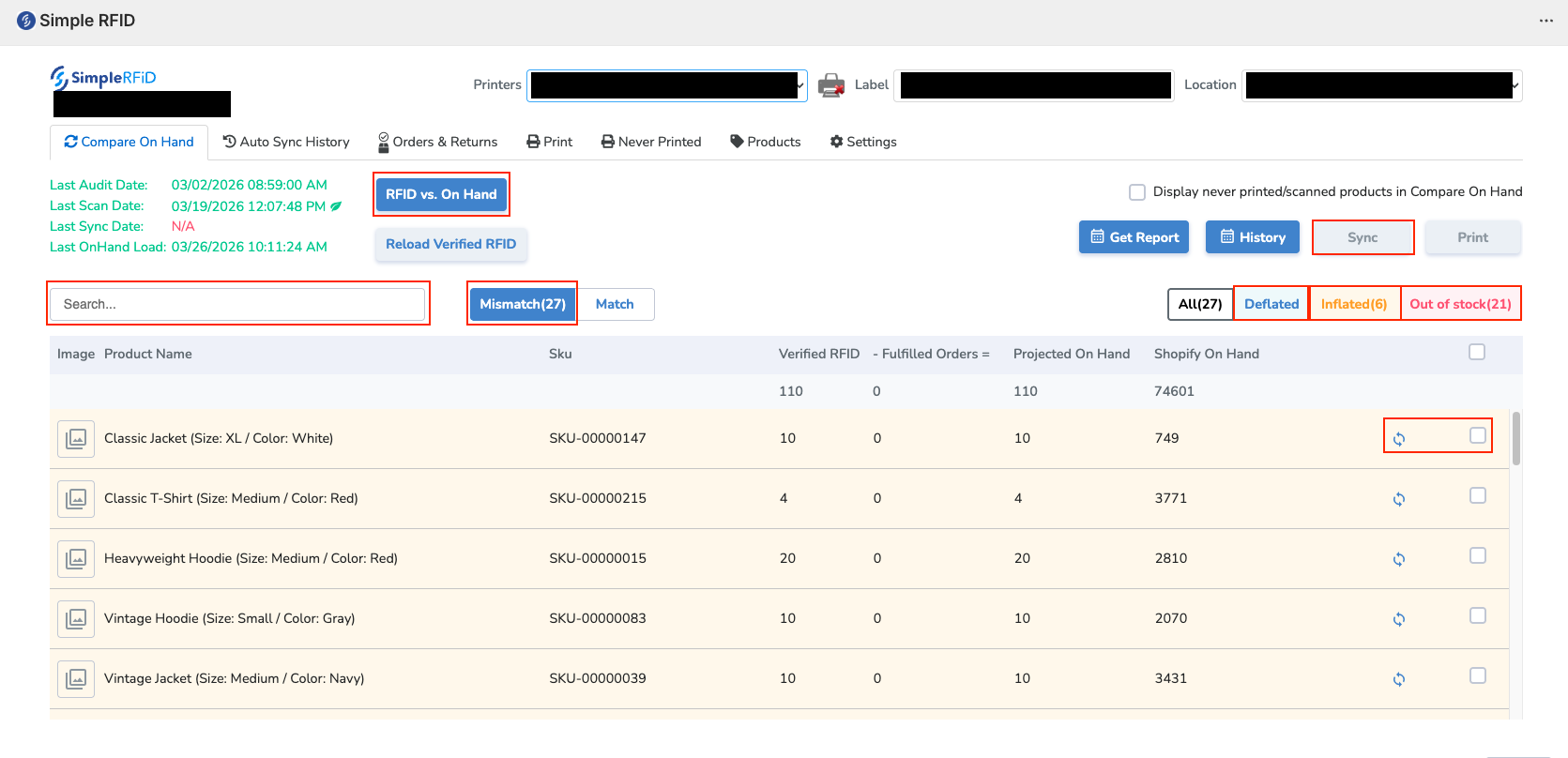
<span style="white-space: pre-wrap;">On the Simple RFID app in Shopify, navigate to the </span>****Compare On Hand****<span style="white-space: pre-wrap;"> page</span>

[![brave_screenshot_admin.shopify.com.png](https://kb.simplerfid.com/uploads/images/gallery/2026-03/scaled-1680-/ADQbrave-screenshot-admin-shopify-com.png)](https://kb.simplerfid.com/uploads/images/gallery/2026-03/ADQbrave-screenshot-admin-shopify-com.png)

<span style="white-space: pre-wrap;">To load your inventory, select </span>****RFID vs. On Hand****

<p class="callout warning"><span style="white-space: pre-wrap;">If you can't find a product, it may be due to the item never being printed and/or scanned. If this is the case, click the </span>****"Display never printed/scanned products in Compare On Hand"****<span style="color: rgb(56, 88, 166); white-space: pre-wrap;"> </span>checkbox, and reload the page.</p>

Once your inventory is loaded, you will see each product with a few different quantities:

##### ****Verified RFID****

The quantity in your Simple RFID inventory

##### ****Fulfilled Orders****

<span style="color: rgb(52, 73, 94);">Shopify orders that were fulfilled since the last Simple RFID audit</span>

##### ****Projected On Hand****

<span style="color: rgb(52, 73, 94);">The number that will be compared to your current Shopify count</span>

##### ****Shopify On Hand****

<span style="color: rgb(52, 73, 94);">The quantity in Shopify</span>

---

<span style="white-space: pre-wrap;">The </span>****Mismatch****<span style="white-space: pre-wrap;"> section will show every product that is mismatched between Simple RFID and Shopify</span>

There are three possible types of mismatches:

##### ****Deflated****

****Projected On Hand****<span style="color: rgb(56, 88, 166); white-space: pre-wrap;"> </span><span style="color: rgb(52, 73, 94);">is higher than Shopify, possibly because items have been sold or transferred</span>

##### ****Inflated****

****Projected On Hand****<span style="color: rgb(56, 88, 166); white-space: pre-wrap;"> </span><span style="color: rgb(52, 73, 94);">is lower than Shopify</span>, possibly because tags haven't been printed or scanned

##### ****Out of stock****

****Projected On Hand****<span style="color: rgb(56, 88, 166); white-space: pre-wrap;"> </span><span style="color: rgb(52, 73, 94);">is zero, possibly because tags haven't been printed or scanned</span>

<span style="color: rgb(52, 73, 94); white-space: pre-wrap;">After verifying that a product has the correct quantity in the </span>****Projected On Hand****<span style="color: rgb(52, 73, 94);">, you are ready to sync.</span>

#### ****Syncing****

<span style="color: rgb(52, 73, 94); white-space: pre-wrap;">On the far right of each product, there is a checkbox. Selecting this will add it to the sync list. To sync the products, click the </span>****Sync**** <span style="color: rgb(52, 73, 94);">button on the top right.</span>

<span style="color: rgb(52, 73, 94); white-space: pre-wrap;">You can also sync a product individually by pressing the </span>****Sync****<span style="color: rgb(52, 73, 94); white-space: pre-wrap;"> button to the left of the checkbox</span>

---

<span style="color: rgb(52, 73, 94);">You now know how to compare and sync products from Simple RFID to Shopify!</span>

# Shopify: Import orders

### Importing orders from Shopify to Simple RFID

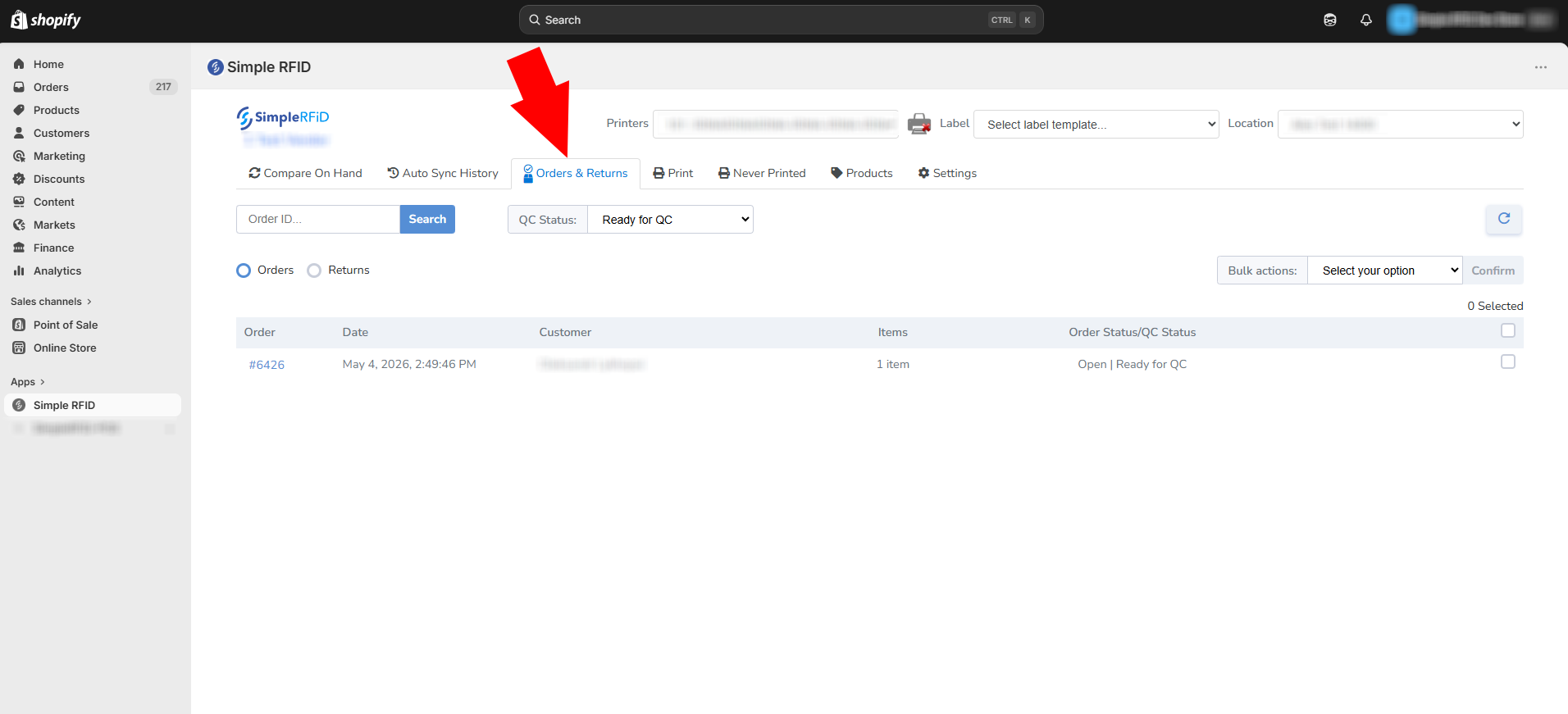
<span style="white-space: pre-wrap;">After creating an order, go to Simple RFID app on Shopify and click </span>****Orders &amp; Returns****.

[![image.png](https://kb.simplerfid.com/uploads/images/gallery/2026-05/scaled-1680-/pujimage.png)](https://kb.simplerfid.com/uploads/images/gallery/2026-05/pujimage.png)

Select orders that need to be imported.

[![image.png](https://kb.simplerfid.com/uploads/images/gallery/2026-05/scaled-1680-/2kDimage.png)](https://kb.simplerfid.com/uploads/images/gallery/2026-05/2kDimage.png)
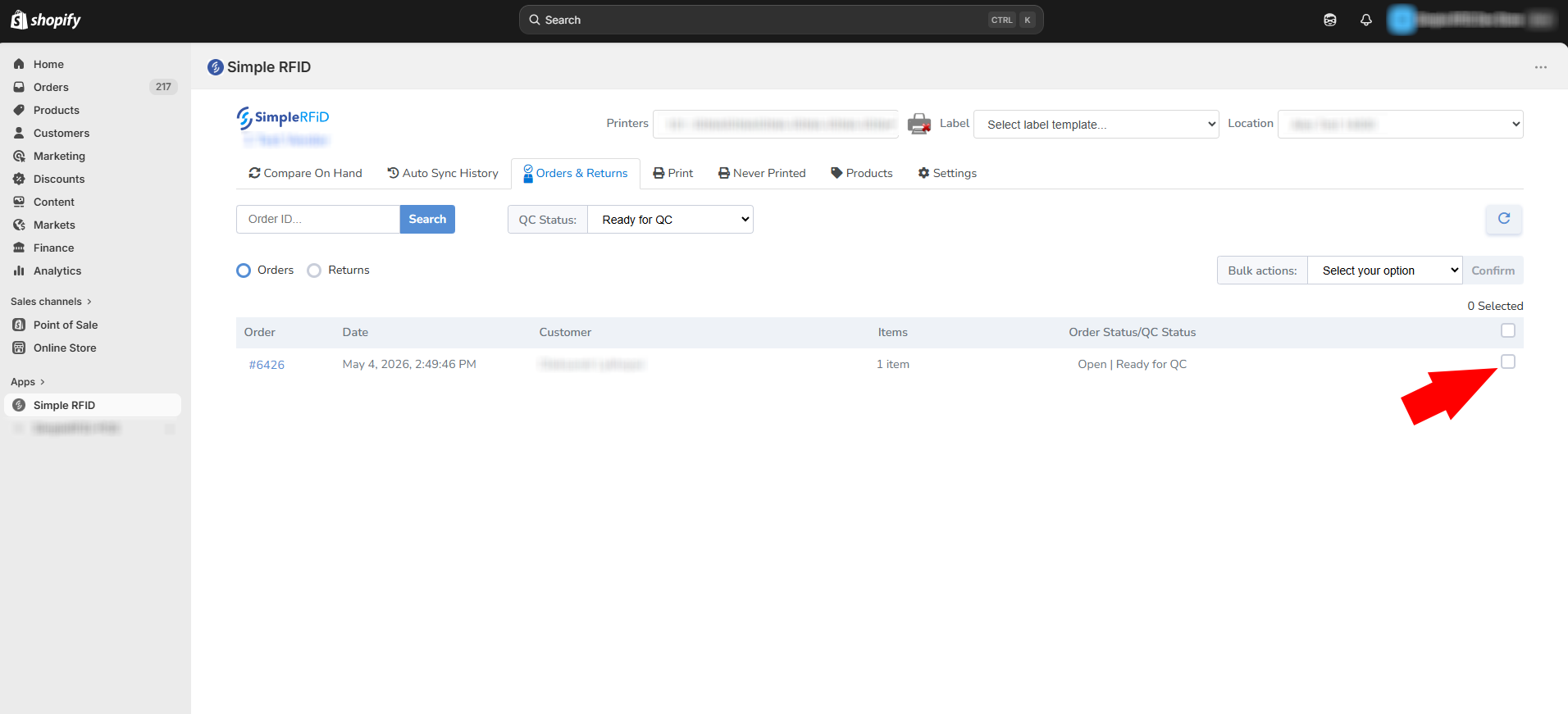
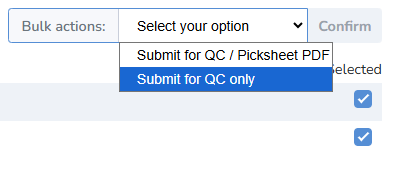
<span style="white-space: pre-wrap;">Select "Bulk Action" that is more suitable for your import process. </span>

<p class="callout info">****Submit for QC / Picksheet PDF****<span style="white-space: pre-wrap;"> will create a spreadsheet file that lists all the products included in the order.</span></p>

[![image.png](https://kb.simplerfid.com/uploads/images/gallery/2026-05/scaled-1680-/uR2image.png)](https://kb.simplerfid.com/uploads/images/gallery/2026-05/uR2image.png)

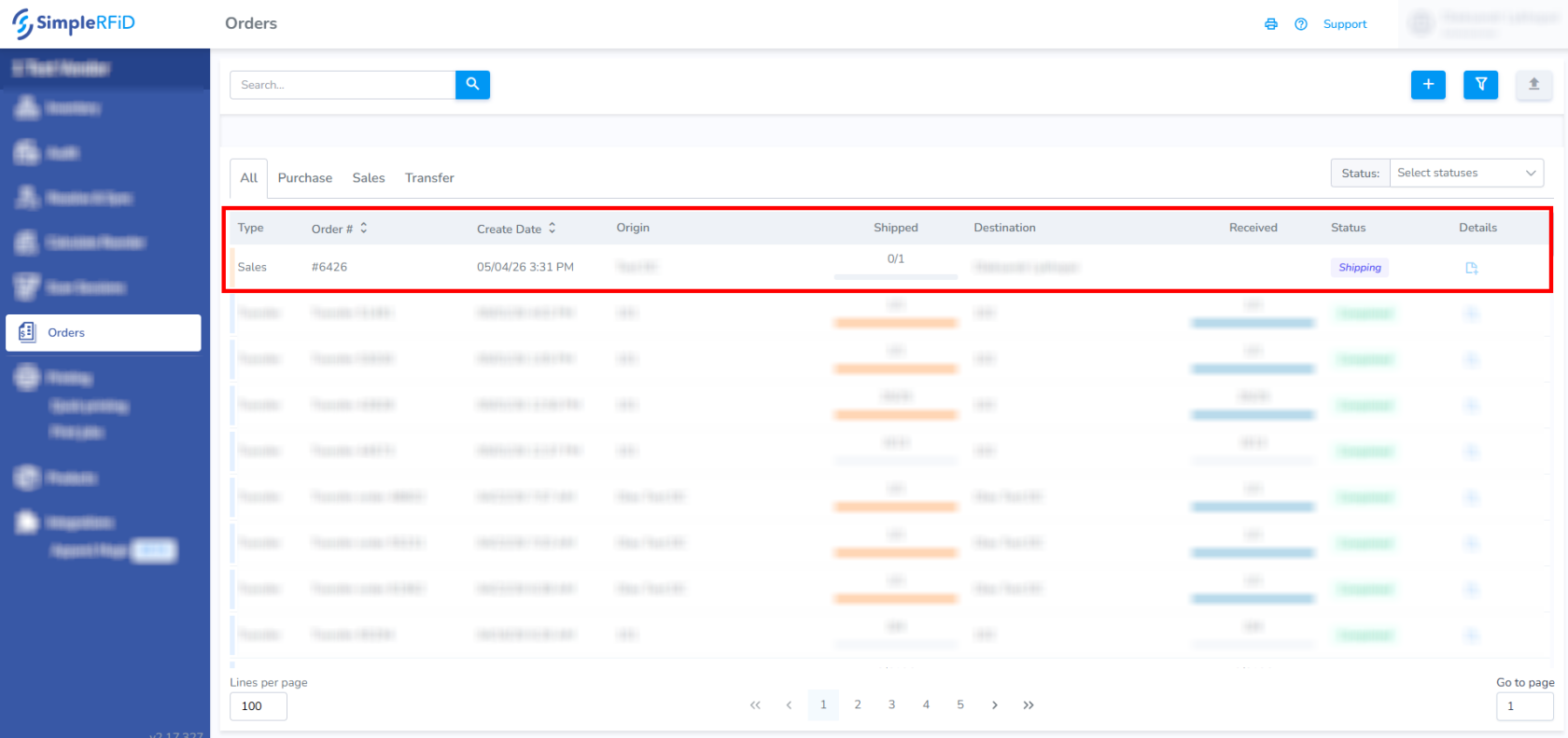
<span style="white-space: pre-wrap;">Go to the </span>[web portal](https://portal.simplerfid.com/)<span style="white-space: pre-wrap;"> to see the new order under </span>****Orders**** tab.  
[![image.png](https://kb.simplerfid.com/uploads/images/gallery/2026-05/scaled-1680-/VuVimage.png)](https://kb.simplerfid.com/uploads/images/gallery/2026-05/VuVimage.png)

# Shopify: Audit & Compare

<p class="callout warning"><span style="color: rgb(106, 40, 2); white-space: pre-wrap;">The following article is a part of a </span>[Legacy RFID vs On Hand](https://kb.simplerfid.com/books/integrations/page/shopify-compare-sync)<span style="color: rgb(106, 40, 2); white-space: pre-wrap;"> system that will eventually be fully replaced by the new </span>[Audit &amp; Compare](https://kb.simplerfid.com/books/auditing/page/audit-shopify)<span style="color: rgb(106, 40, 2); white-space: pre-wrap;"> </span>  
<span style="color: rgb(106, 40, 2); background-color: rgb(254, 227, 211);">It is currently only available for customers who use our Shopify integration</span></p>

<p class="callout info"><span style="white-space: pre-wrap;">Legacy mode can be enabled or disabled by following the instructions here: </span>[Audit Legacy Mode](https://kb.simplerfid.com/books/auditing/page/audit-legacy-mode)</p>

The most common question customers ask when scanning "When do I know when to stop?"

<span style="white-space: pre-wrap;">To answer this question, we've introduced a new feature: </span>****Audit &amp; Compare****<span style="color: rgb(31, 35, 40); background-color: rgb(255, 255, 255); white-space: pre-wrap;">. </span>  
<span style="color: rgb(31, 35, 40); background-color: rgb(255, 255, 255); white-space: pre-wrap;">Currently in beta, this feature will pull your current On Hand quantities from Shopify for the selected location, and allow you to scan directly against those values and compare them in real time. </span>  
<span style="color: rgb(31, 35, 40); background-color: rgb(255, 255, 255);">Future updates will include functionality for other integrations, as well as direct spreadsheet uploads.</span>

---

### Video Overview

<iframe allow="autoplay; fullscreen; picture-in-picture; clipboard-write; encrypted-media; web-share" height="405" src="https://player.vimeo.com/video/1161467791?badge=0&autopause=0&player_id=0&app_id=58479" style="box-sizing: border-box; outline-color: rgb(56, 88, 166); outline-width: 1px; margin: 0px; padding: 0px; border: 0px; font: inherit; vertical-align: baseline; max-width: 100%;" title="Audit Shopify Inventory" width="720"></iframe>

---

### Instructions:

1. ****Install**** the latest beta version of the Simple RFID app on your mobile device.
2. <span style="white-space: pre-wrap;">On the dashboard, </span>****press**** *****Audit &amp; Compare*****.
3. ****Press****<span style="white-space: pre-wrap;"> </span>*****Audit &amp; Compare with Shopify*****.  
    If this option is not available, switch to a location that is connected with a Shopify location.
4. ****Press**** *****Start Audit*****.  
    ****NOTE:**** You shouldn't make any changes to your Shopify inventory until the process is completed; otherwise you'll be working with outdated information during your scan.
5. <span style="white-space: pre-wrap;">When the Shopify On Hand quantities have finished loading, </span>****start**** your first scan.  
    You'll see the Mismatched products count decrease as you scan tags, and the Matched products increase.
6. <span style="white-space: pre-wrap;">After your first pass, </span>****click**** Finish.  
    Here, you'll see an overview of your first scan, including the percentage of your products that are Matched.
7. ****Press****<span style="white-space: pre-wrap;"> </span>*****Control Scan*****<span style="white-space: pre-wrap;"> to start your second pass.</span>  
    This will adjust the scanner settings to pick up any tags that may have been missed in the first pass.
8. ****Scan**** your inventory again until all of your products Match, or you stop picking up tags altogether.
9. <span style="white-space: pre-wrap;">Last, </span>****press**** *****Finish**** again to finish the Control scan.  
    You'll see another summary of the total of your two scans.
10. <span style="white-space: pre-wrap;">Last, </span>****press**** *****Upload to Inventory*****<span style="white-space: pre-wrap;"> and then </span>*****Upload*****.  
    This will replace your inventory counts with the scan you just completed.