# ApparelMagic

# ApparelMagic: Setting up the integration

##### To connect Simple RFID to ApparelMagic, you'll need your account ID and an API Key from ApparelMagic.

#### 1. Determine your Account ID

When logged into ApparelMagic, your Account ID makes up the first part of the URL as shown here:

![image.png](https://kb.simplerfid.com/uploads/images/gallery/2026-02/scaled-1680-/Ygjimage.png)#### 2. Generate an API Key

In ApparelMagic, navigate to Settings &gt; API.

[![image.png](https://kb.simplerfid.com/uploads/images/gallery/2026-02/scaled-1680-/D9ximage.png)](https://kb.simplerfid.com/uploads/images/gallery/2026-02/D9ximage.png)

<span style="white-space: pre-wrap;">In the top-left of the page, open the </span>****Tokens****<span style="white-space: pre-wrap;"> tab, then press </span>****+ New****<span style="white-space: pre-wrap;"> at the bottom-left:</span>

[![image.png](https://kb.simplerfid.com/uploads/images/gallery/2026-02/scaled-1680-/hvtimage.png)](https://kb.simplerfid.com/uploads/images/gallery/2026-02/hvtimage.png)[![image.png](https://kb.simplerfid.com/uploads/images/gallery/2026-02/scaled-1680-/TX7image.png)](https://kb.simplerfid.com/uploads/images/gallery/2026-02/TX7image.png)

<span style="white-space: pre-wrap;">Give the token a description, like "Simple RFID". Make a note of the Token (you'll enter this in Simple RFID) then press </span>****OK.****

[![image.png](https://kb.simplerfid.com/uploads/images/gallery/2026-02/scaled-1680-/FSiimage.png)](https://kb.simplerfid.com/uploads/images/gallery/2026-02/FSiimage.png)

<span style="white-space: pre-wrap;">Last, make sure to press </span>****Save****<span style="white-space: pre-wrap;"> at the bottom-right of the page.</span>

[![image.png](https://kb.simplerfid.com/uploads/images/gallery/2026-02/scaled-1680-/ULkimage.png)](https://kb.simplerfid.com/uploads/images/gallery/2026-02/ULkimage.png)

#### 3. Enter your Account ID and API Key

<span style="white-space: pre-wrap;">With this information collected, enter your ApparelMagic Account ID and API key in the Customer Profile page in Simple RFID, then press </span>****Save****:

[![Screenshot 2026-02-16 at 8.40.36 AM.png](https://kb.simplerfid.com/uploads/images/gallery/2026-02/scaled-1680-/screenshot-2026-02-16-at-8-40-36-am.png)](https://kb.simplerfid.com/uploads/images/gallery/2026-02/screenshot-2026-02-16-at-8-40-36-am.png)

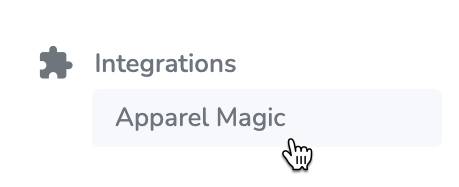
<span style="white-space: pre-wrap;">You should see a message that the credentials saved successfully, then you will see the ApparelMagic page appear under </span>****Integrations**** in the side navigation.

[![image.png](https://kb.simplerfid.com/uploads/images/gallery/2026-02/scaled-1680-/lf8image.png)](https://kb.simplerfid.com/uploads/images/gallery/2026-02/lf8image.png)

[![Screenshot 2026-02-16 at 9.23.42 AM.png](https://kb.simplerfid.com/uploads/images/gallery/2026-02/scaled-1680-/screenshot-2026-02-16-at-9-23-42-am.png)](https://kb.simplerfid.com/uploads/images/gallery/2026-02/screenshot-2026-02-16-at-9-23-42-am.png)

# ApparelMagic: Products

<p class="callout info"><span style="white-space: pre-wrap;">If you haven't connected ApparelMagic with Simple RFID yet, follow the instructions here: </span>[****ApparelMagic: Setting up the integration****](https://kb.simplerfid.com/books/integrations/page/apparelmagic-setting-up-the-integration)</p>

### Overview

Access the ApparelMagic integration from the navigation sidebar:

[![image.png](https://kb.simplerfid.com/uploads/images/gallery/2026-02/scaled-1680-/eECimage.png)](https://kb.simplerfid.com/uploads/images/gallery/2026-02/eECimage.png)
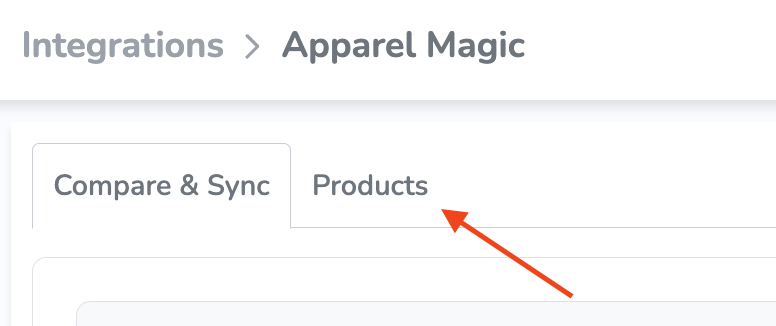
<span style="white-space: pre-wrap;">By default, you'll see the Compare &amp; Sync view. To import products, open the </span>****Products****<span style="white-space: pre-wrap;"> tab at the top of the page:</span>

[![image.png](https://kb.simplerfid.com/uploads/images/gallery/2026-02/scaled-1680-/XCYimage.png)](https://kb.simplerfid.com/uploads/images/gallery/2026-02/XCYimage.png)

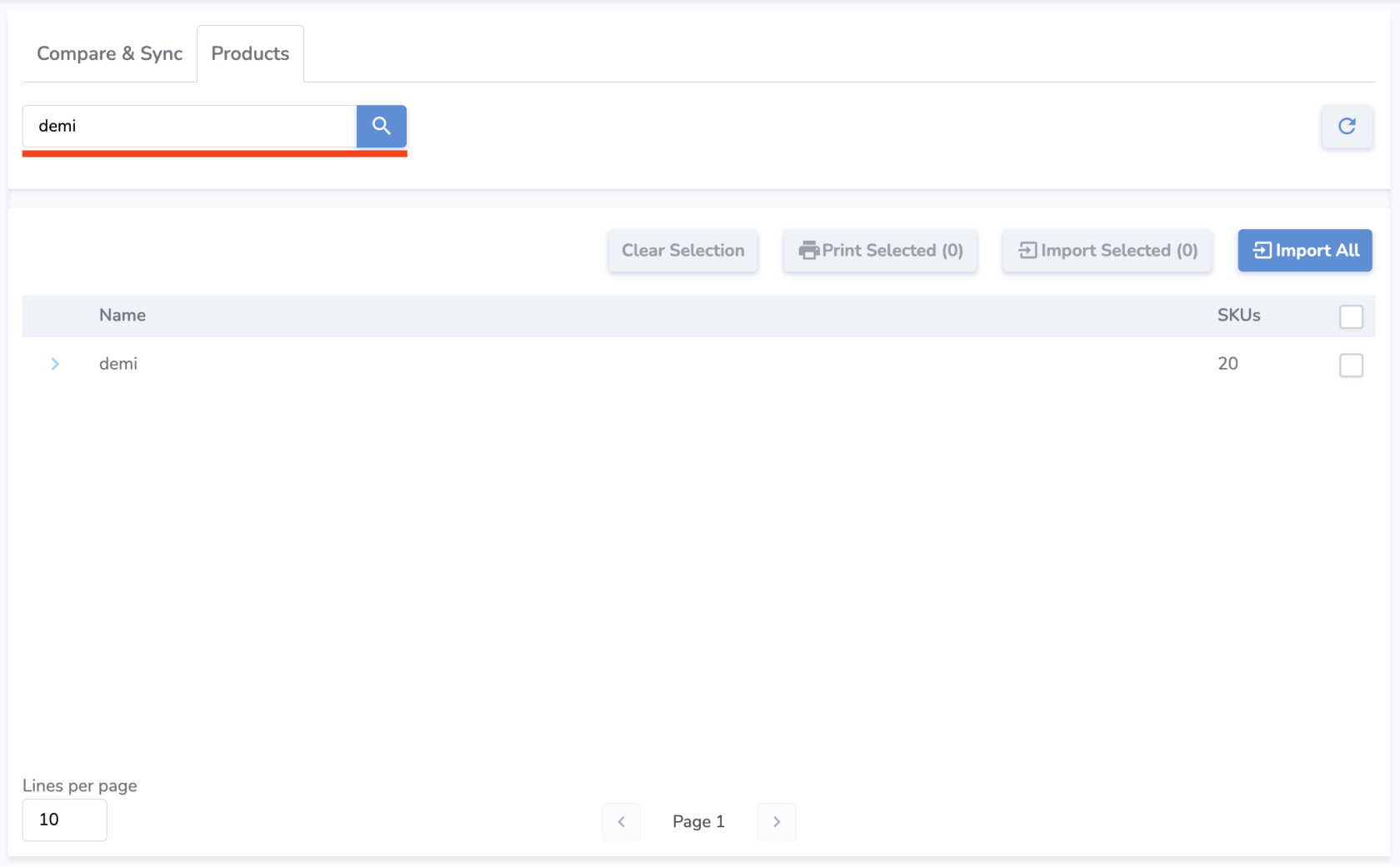
In the Products tab, you'll see your ApparelMagic products listed. From here, you can search by style name (full match) to find specific products:
![image.png](https://kb.simplerfid.com/uploads/images/gallery/2026-02/scaled-1680-/XUVimage.png)Parent SKUs can be expanded to show variants, and relevant information such as SKU, Name, Color, Size, Price, and Sync Status.
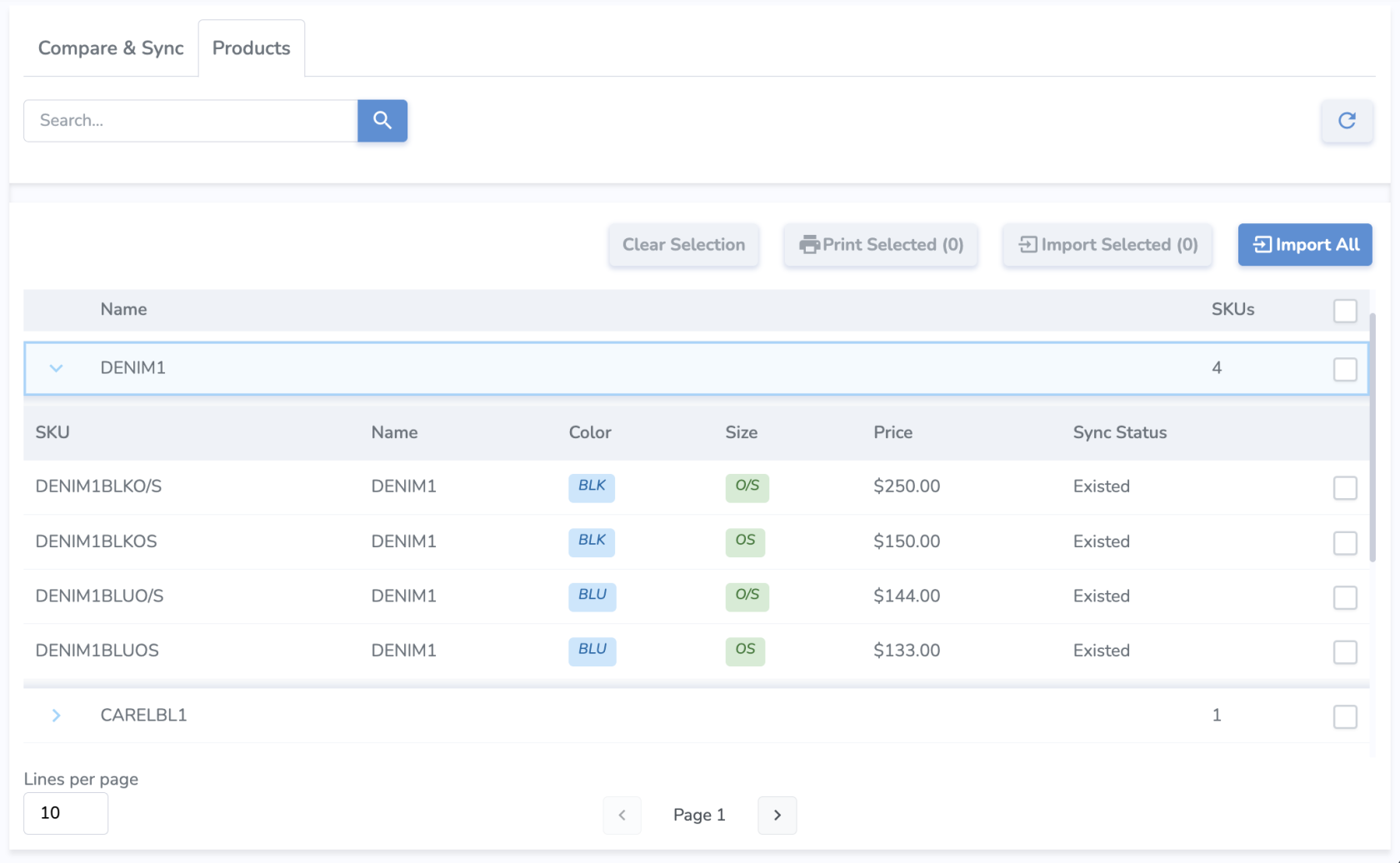
![Screenshot 2026-02-16 at 10.01.40 AM.png](https://kb.simplerfid.com/uploads/images/gallery/2026-02/scaled-1680-/screenshot-2026-02-16-at-10-01-40-am.png)****Sync Status****<span style="white-space: pre-wrap;"> describes the import status of each variant.</span>

- ****New****<span style="white-space: pre-wrap;"> means the variant has not been imported yet.</span>
- ****Existed****<span style="white-space: pre-wrap;"> means the variant already exists and is up to date in Simple RFID, so there's no need to import.</span>
- ****NeedUpdate****<span style="white-space: pre-wrap;"> means that some product information has changed, so the product needs to be imported again with the new info.</span>

---

### Import Products

There are a couple of different approaches you can take to import products.

##### Import All

[![image.png](https://kb.simplerfid.com/uploads/images/gallery/2026-02/scaled-1680-/ZZkimage.png)](https://kb.simplerfid.com/uploads/images/gallery/2026-02/ZZkimage.png)
<span style="white-space: pre-wrap;">Using the </span>****Import All****<span style="white-space: pre-wrap;"> button will attempt to import all of your products from ApparelMagic to Simple RFID. This is generally recommended when first setting up the integration rather than copying products individually.</span>

##### Import Selected

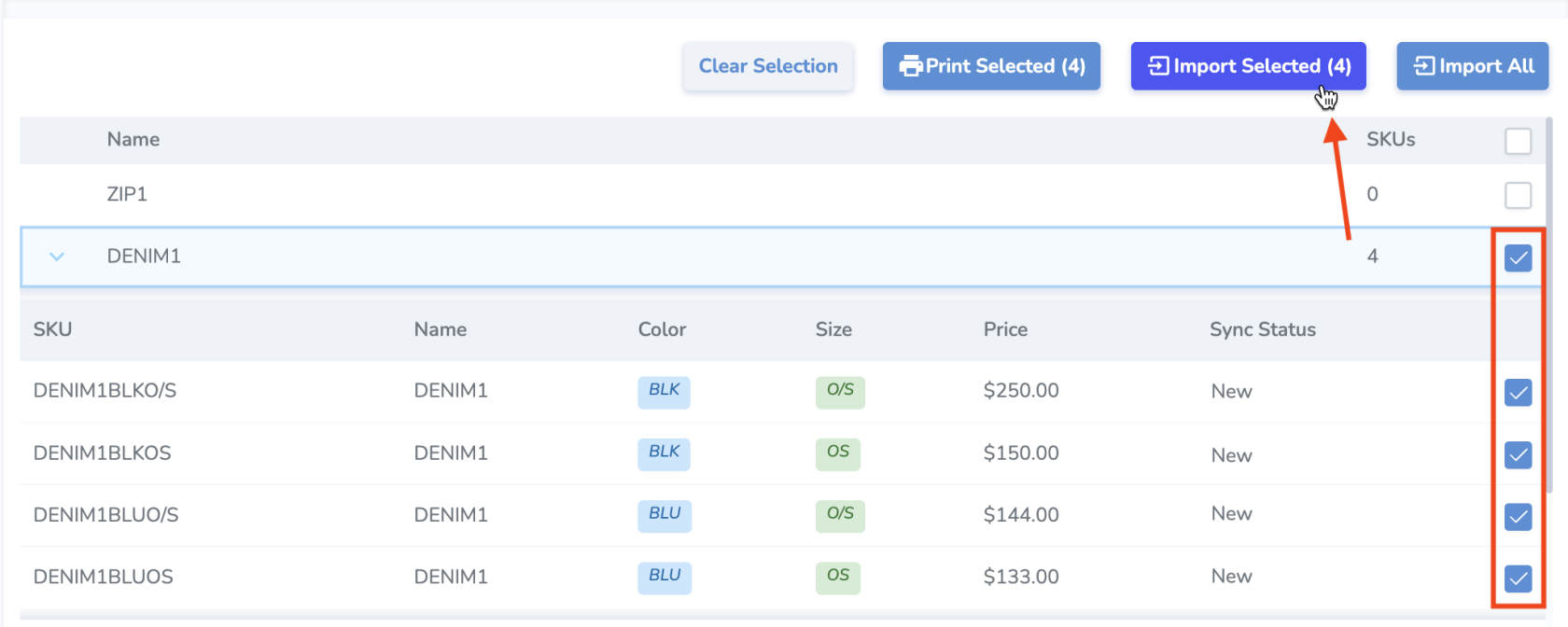
<span style="white-space: pre-wrap;">You may also wish to select a specific product or variant to import, especially after making changes to the product information in ApparelMagic. Use the checkboxes on the right side of the products/variants to select one or more items. You may select a parent SKU to include all its variants, or specific variants individually. Press the </span>****Import Selected****<span style="white-space: pre-wrap;"> button to import those items.</span>

[![image.png](https://kb.simplerfid.com/uploads/images/gallery/2026-02/scaled-1680-/Getimage.png)](https://kb.simplerfid.com/uploads/images/gallery/2026-02/Getimage.png)

---

### Printing tags for products

<span style="white-space: pre-wrap;">From the Products tab, you can also select specific products or variants and print tags for those products. Pressing </span>****Print Selected****<span style="white-space: pre-wrap;"> will bring you to the Print Jobs page where you can specify quantities, select a printer and label layout, and print or postpone the job.</span>

<p class="callout info">You can also print from the Compare&amp;Sync tab.</p>

[![image.png](https://kb.simplerfid.com/uploads/images/gallery/2026-02/scaled-1680-/3TUimage.png)](https://kb.simplerfid.com/uploads/images/gallery/2026-02/3TUimage.png)

---

#### NOTE: Property mappings

Currently we have hardcoded the following properties for product import. We plan to implement configurable mapping in the future.

<table id="bkmrk-simple-rfid-property"><colgroup><col style="width: 162px;"></col><col style="width: 184px;"></col></colgroup><tbody><tr><td>****Simple RFID Property****

</td><td>****ApparelMagic Property****

</td></tr><tr><td>Color

</td><td>attr\_2

</td></tr><tr><td>Size

</td><td>size

</td></tr><tr style="height: 10px;"><td>Price

</td><td>label\_price (fallback: price)

</td></tr><tr><td>Category

</td><td>category

</td></tr><tr><td>Name

</td><td>style\_number

</td></tr><tr><td>Sku

</td><td>sku\_alt (fallback: sku\_concat)

</td></tr><tr><td>Barcode

</td><td>upc\_display

</td></tr></tbody></table>

# ApparelMagic: Compare and Sync

<p class="callout info"><span style="color: rgb(1, 70, 108); white-space: pre-wrap;">If you haven't connected ApparelMagic with Simple RFID yet, follow the instructions here: </span>[****ApparelMagic: Setting up the integration****](https://kb.simplerfid.com/books/integrations/page/apparelmagic-setting-up-the-integration)</p>

### Overview

<span style="white-space: pre-wrap;">Access the ApparelMagic integration from the navigation sidebar: </span>

[![image.png](https://kb.simplerfid.com/uploads/images/gallery/2026-02/scaled-1680-/eECimage.png)](https://kb.simplerfid.com/uploads/images/gallery/2026-02/eECimage.png)

The Compare &amp; Sync page allows you to sync your Simple RFID inventory counts to ApparelMagic.

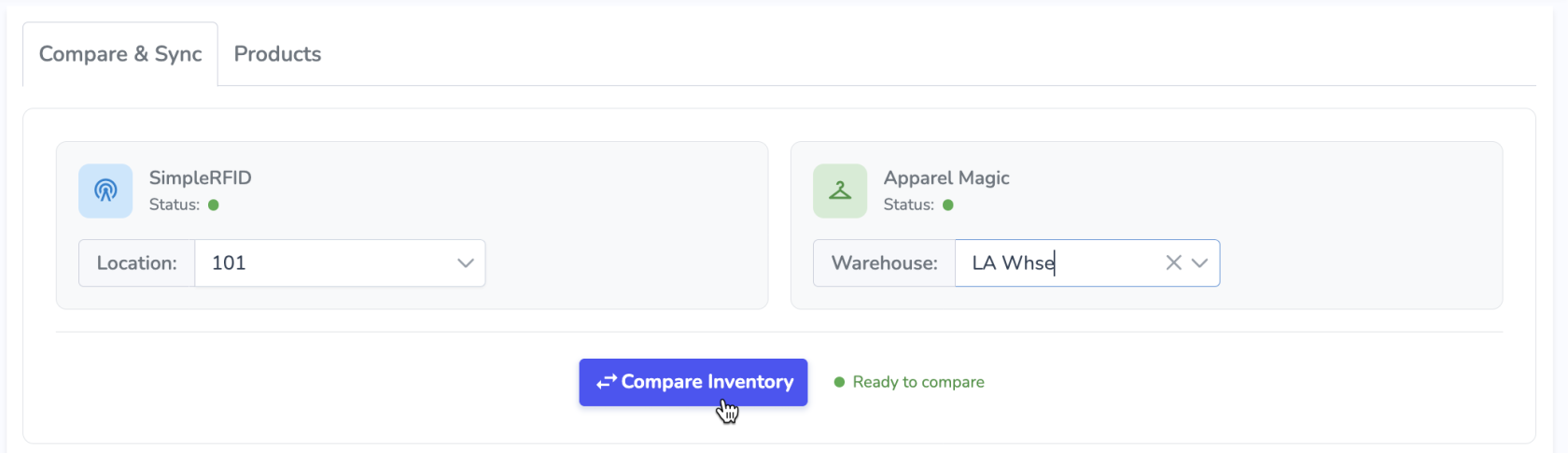
<span style="white-space: pre-wrap;">First, select the locations you want to compare: your Simple RFID location on the left, and your ApparelMagic warehouse on the right. Then, press </span>****Compare Inventory****<span style="white-space: pre-wrap;"> to load inventory counts from both systems and populate the comparison.</span>

[![Screenshot 2026-02-16 at 11.51.42 AM.png](https://kb.simplerfid.com/uploads/images/gallery/2026-02/scaled-1680-/screenshot-2026-02-16-at-11-51-42-am.png)](https://kb.simplerfid.com/uploads/images/gallery/2026-02/screenshot-2026-02-16-at-11-51-42-am.png)

The results are split into two main categories:

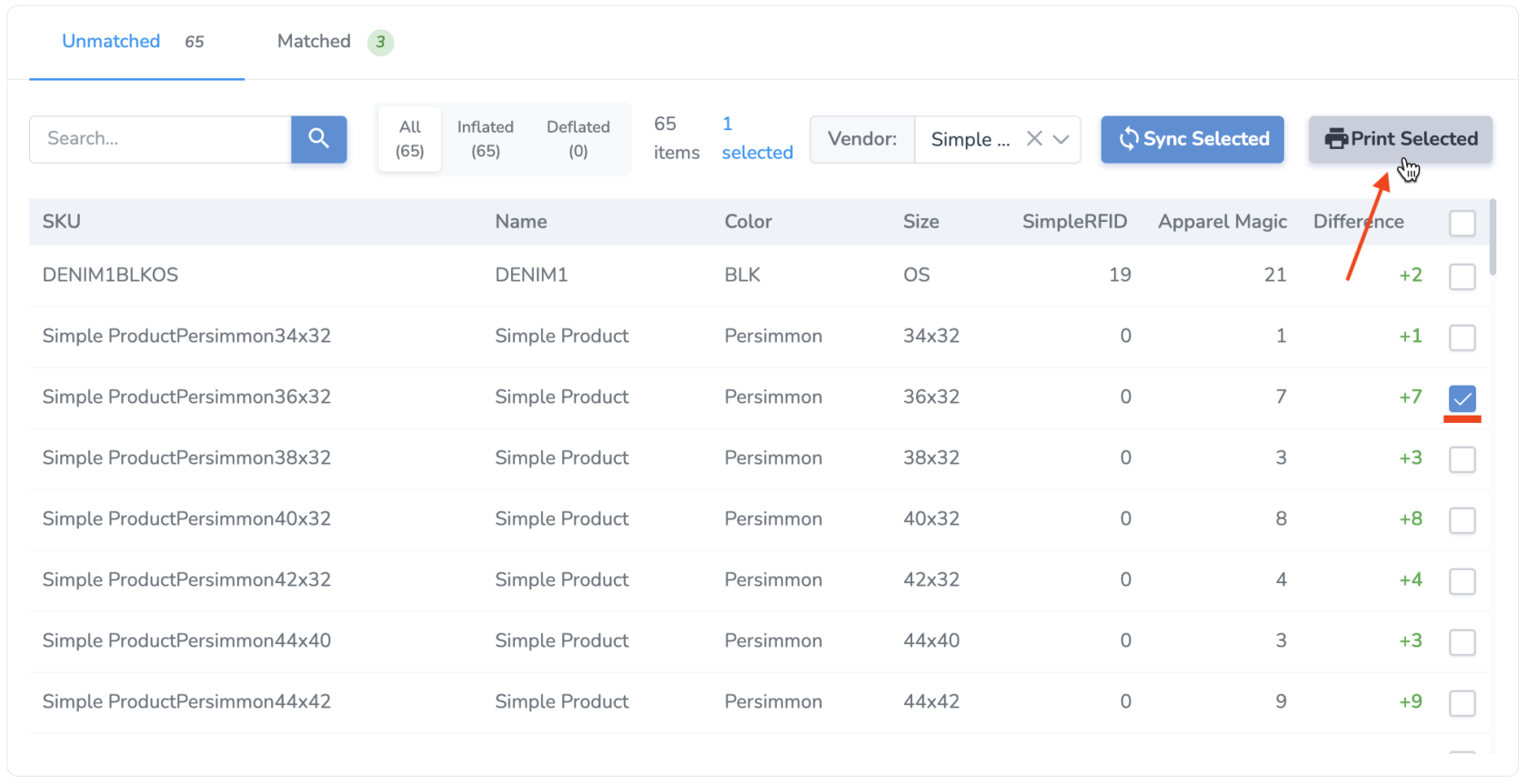
- ****Unmatched**** <span style="white-space: pre-wrap;">- Products whose quantities are </span>****not****<span style="white-space: pre-wrap;"> the same between Simple RFID and ApparelMagic. This category is split further into two subcategories:</span>
    - ****Inflated****<span style="white-space: pre-wrap;"> - Products whose quantities in ApparelMagic are </span>****higher**** than those in Simple RFID.
    - ****Deflated****<span style="white-space: pre-wrap;"> - Products whose quantities in ApparelMagic are </span>****lower****<span style="white-space: pre-wrap;"> than those in Simple RFID.</span>
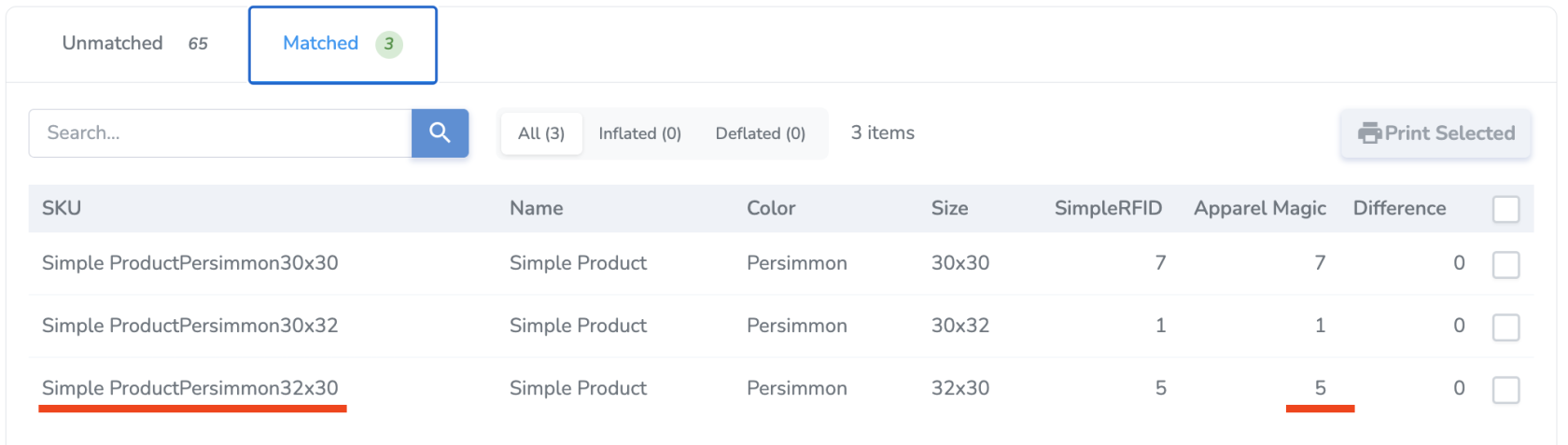
- ****Matched****<span style="white-space: pre-wrap;"> - Products whose quantities are the same between Simple RFID and ApparelMagic and are not equal to 0. These products have no action to be taken since they already match.</span>

[![image.png](https://kb.simplerfid.com/uploads/images/gallery/2026-02/scaled-1680-/bZDimage.png)](https://kb.simplerfid.com/uploads/images/gallery/2026-02/bZDimage.png)

---

### Sync

<span style="white-space: pre-wrap;">Any product in </span>****Unmatched****<span style="white-space: pre-wrap;"> status can be "synced" to ApparelMagic, meaning the ApparelMagic quantity will be updated to match the Simple RFID quantity.</span>

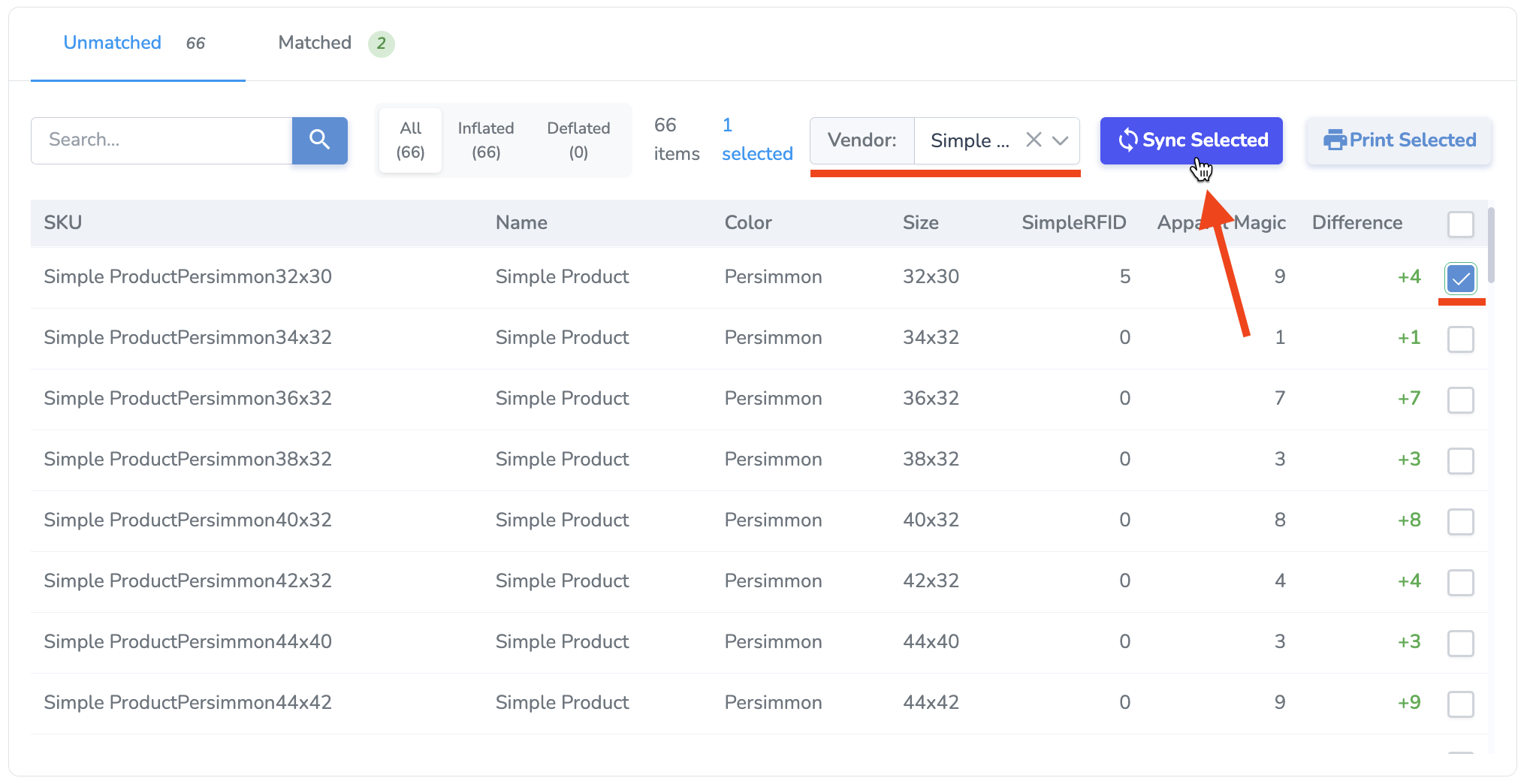
<span style="white-space: pre-wrap;">Syncing creates a Receiver in ApparelMagic. The Vendor name identifies the source of goods. It must be set in order to create the Receiver, so </span>****you must select a Vendor**** from the drop-down menu next to the Sync Selected button.

<span style="white-space: pre-wrap;">You can sync any or all of the products in the Unmatched list by selecting the check boxes on the right side, then pressing </span>****Sync Selected****.

<p class="callout info"><span style="white-space: pre-wrap;">NOTE: The </span>****Difference**** <span style="white-space: pre-wrap;">value describes the ApparelMagic total in relation to the Simple RFID total. When you sync, the </span>****opposite****<span style="white-space: pre-wrap;"> value will be applied, e.g. if an Inflated product has a difference of </span>****+4****<span style="white-space: pre-wrap;">, the inventory in ApparelMagic will be adjusted by </span>****-4****.</p>

[![image.png](https://kb.simplerfid.com/uploads/images/gallery/2026-02/scaled-1680-/aJtimage.png)](https://kb.simplerfid.com/uploads/images/gallery/2026-02/aJtimage.png)

<span style="white-space: pre-wrap;">After you Sync, the comparison will be reloaded, and those products will be in </span>****Matched****<span style="white-space: pre-wrap;"> status.</span>

[![Screenshot 2026-02-16 at 4.30.16 PM.png](https://kb.simplerfid.com/uploads/images/gallery/2026-02/scaled-1680-/screenshot-2026-02-16-at-4-30-16-pm.png)](https://kb.simplerfid.com/uploads/images/gallery/2026-02/screenshot-2026-02-16-at-4-30-16-pm.png)

---

### Print

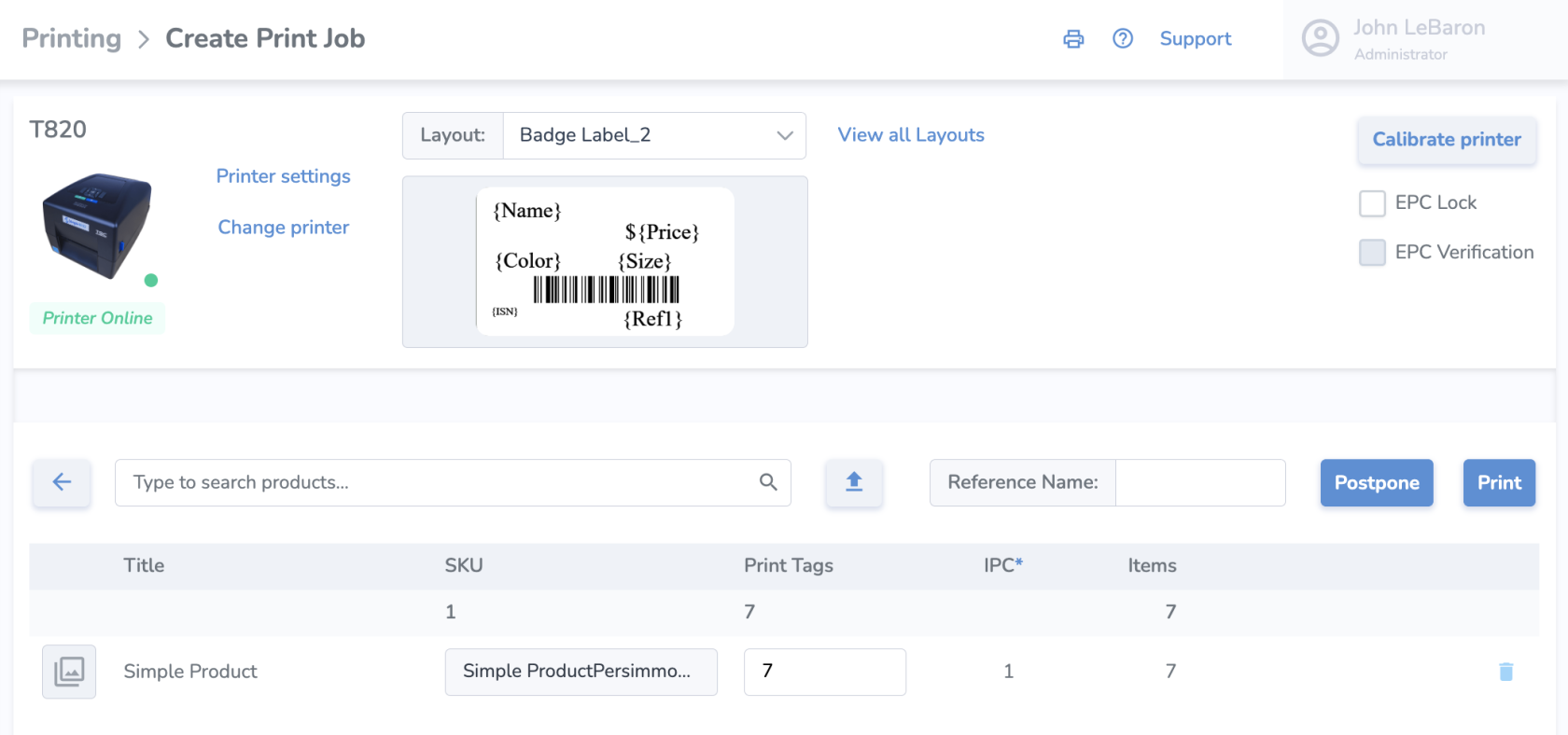
For inflated products, you also have the option to print tags for missing items. For example, if you discovered that some items were physically present but weren't RFID tagged, this is a quick way to print the difference.

<span style="white-space: pre-wrap;">You can print tags for any or all Inflated products in the list by selecting the check boxes on the right side, then pressing </span>****Print Selected****.

[![image.png](https://kb.simplerfid.com/uploads/images/gallery/2026-02/scaled-1680-/XSqimage.png)](https://kb.simplerfid.com/uploads/images/gallery/2026-02/XSqimage.png)

<span style="white-space: pre-wrap;">You'll be brought to the </span>****Print Jobs**** page with your products and quantities automatically populated, and ready for you to print or postpone.

[![Screenshot 2026-02-16 at 4.35.16 PM.png](https://kb.simplerfid.com/uploads/images/gallery/2026-02/scaled-1680-/screenshot-2026-02-16-at-4-35-16-pm.png)](https://kb.simplerfid.com/uploads/images/gallery/2026-02/screenshot-2026-02-16-at-4-35-16-pm.png)