If you are using Windows for ARM, you need to install extra drivers. [Click here for instructions](https://kb.simplerfid.com/books/handheld-readers/page/installing-vcp-drivers-windows-for-arm).
[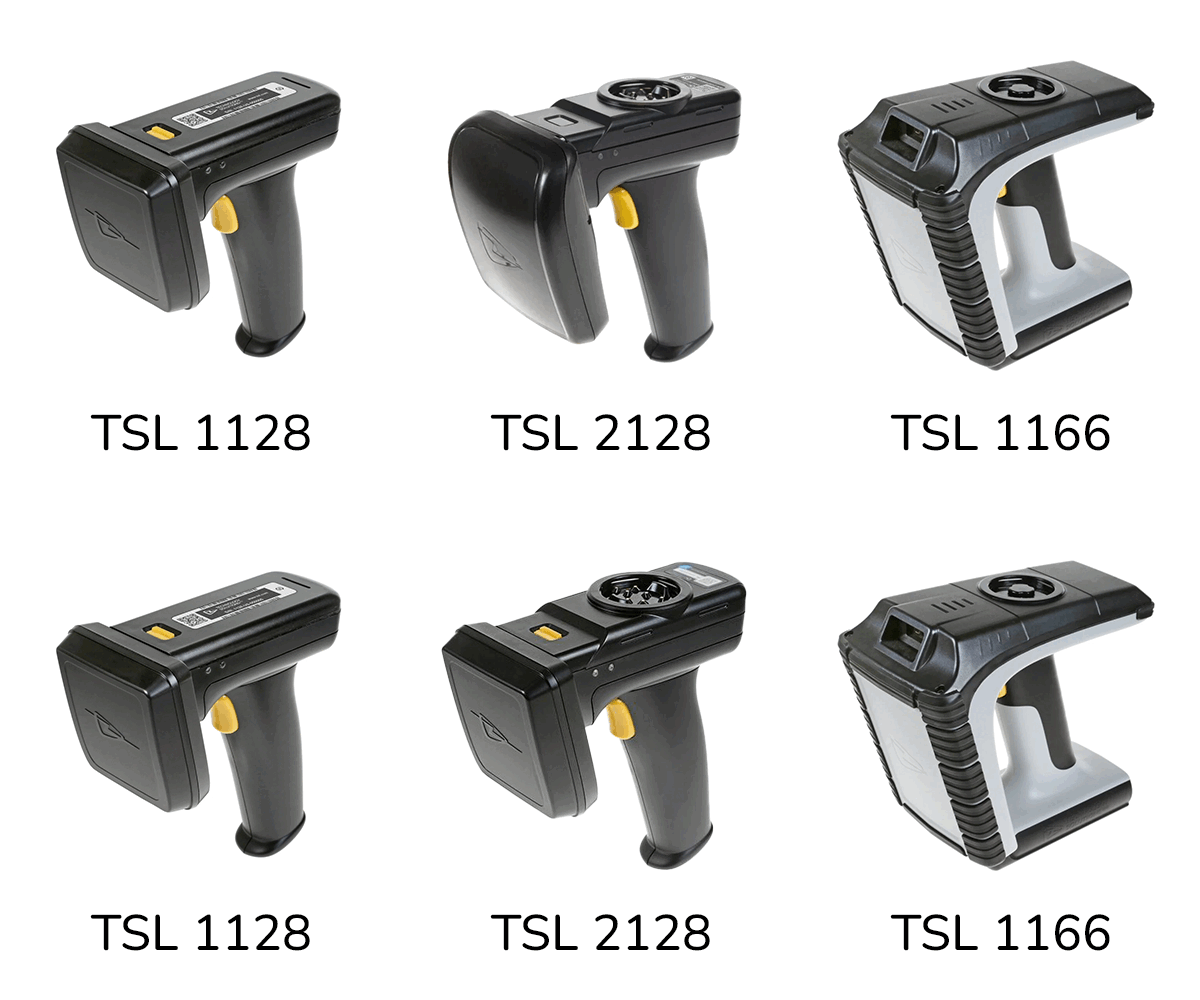](https://kb.simplerfid.com/uploads/images/gallery/2025-06/scaled-1680-/reader-options.png) ##### ****Requirements:**** - TSL Reader with battery installed and at least partially charged - PC or tablet running Windows 10 or higher - For ****TSL 1128****: - Included Micro-USB cable to connect the reader to your PC - For ****TSL 2128****: - Included docking cradle - Included Mini-USB cable to connect the docking cradle to your PC - For ****TSL 1166****: - Included docking cradle - Included Mini-USB cable to connect the docking station to your PCYou may be able to use a cable that was not included with your scanner; however not all cables can transmit data.
--- ##### ****Step 1 - Download the Desktop Firmware Loader, and firmware for your reader**** On the [web portal](https://portal.simplerfid.com/), click your account name at the top-right of the page and select ****Resources**** [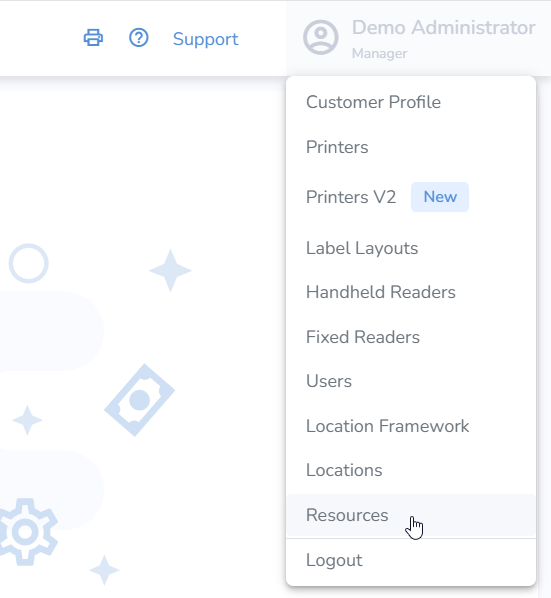](https://kb.simplerfid.com/uploads/images/gallery/2025-06/BgYimage.png) In the "TSL Firmware" section, click "Desktop Firmware Loader," then click the TSL Firmware link that corresponds with your reader: [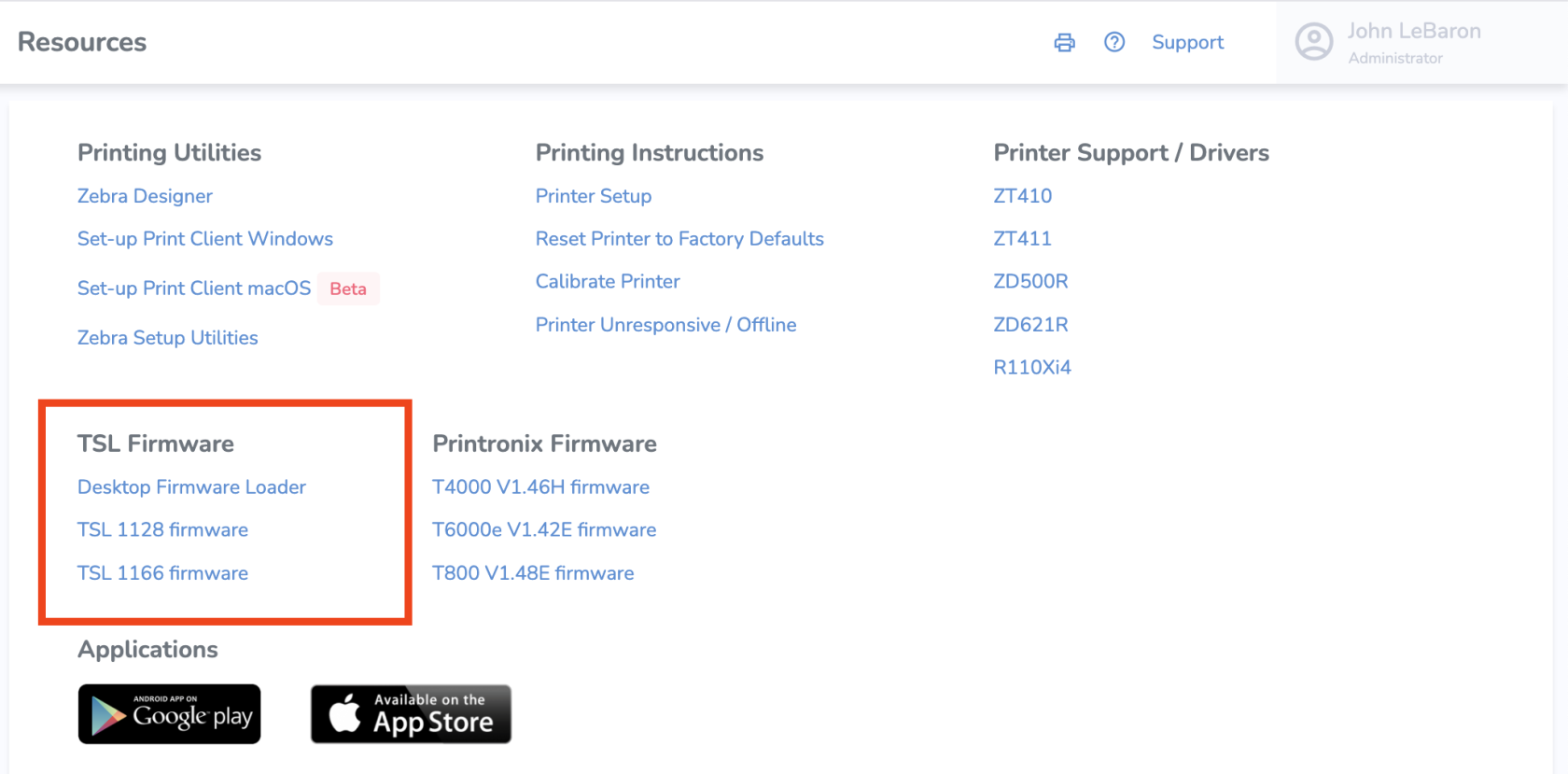](https://kb.simplerfid.com/uploads/images/gallery/2025-12/8QMimage.png) The Firmware Loader installer will be a ****.msi**** file, and the firmware itself will be a ****.pff**** file. --- ##### ****Step 2: Install the Desktop Firmware Loader**** Open the downloaded installer, ****tsl-desktop-firmware-loader.msi**** [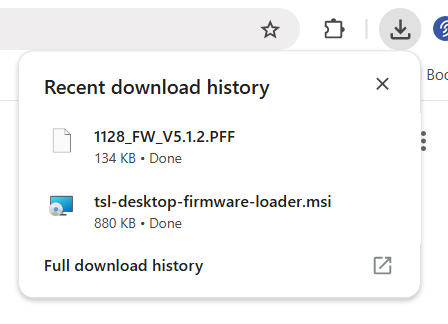](https://kb.simplerfid.com/uploads/images/gallery/2025-06/trZimage.png) Follow the setup wizard. If you're asked to allow changes to your computer, select ****Yes****. --- ##### ****Step 3 - Upgrade the firmware**** From the Start menu, launch Desktop Firmware Loader: [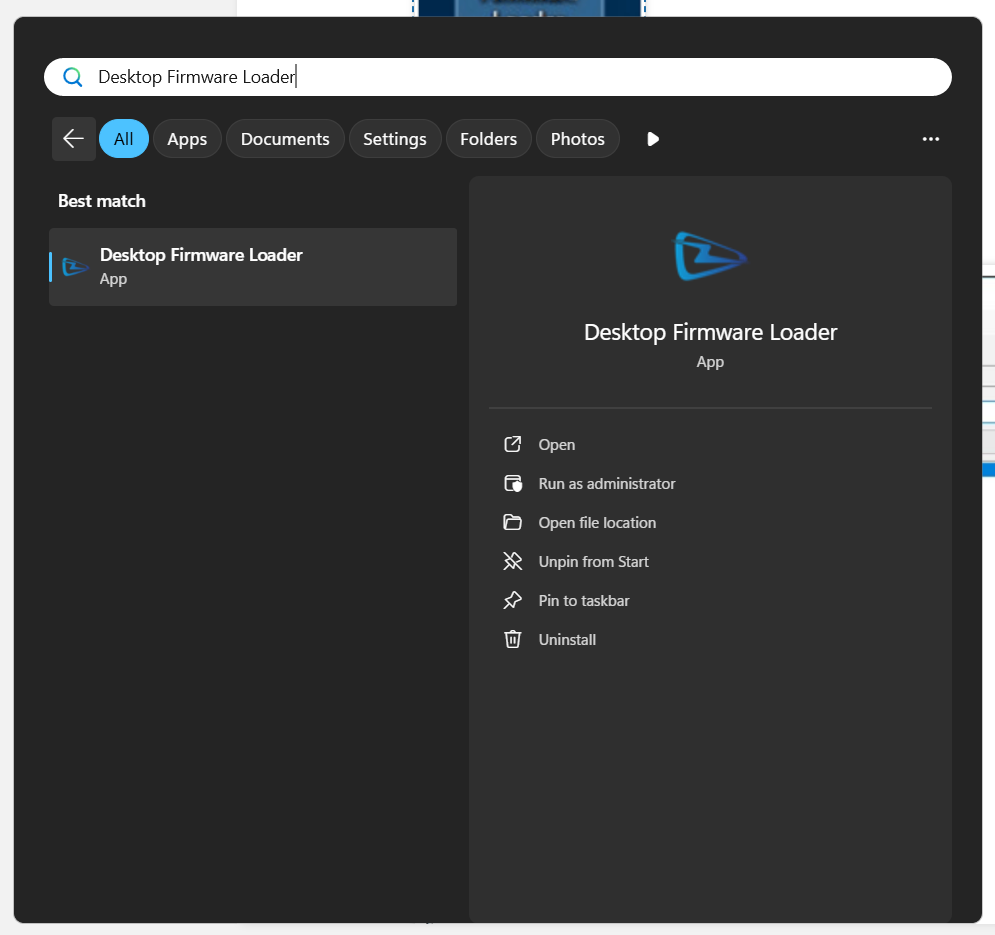](https://kb.simplerfid.com/uploads/images/gallery/2025-06/lLJimage.png) Select “…” to choose the firmware file to download 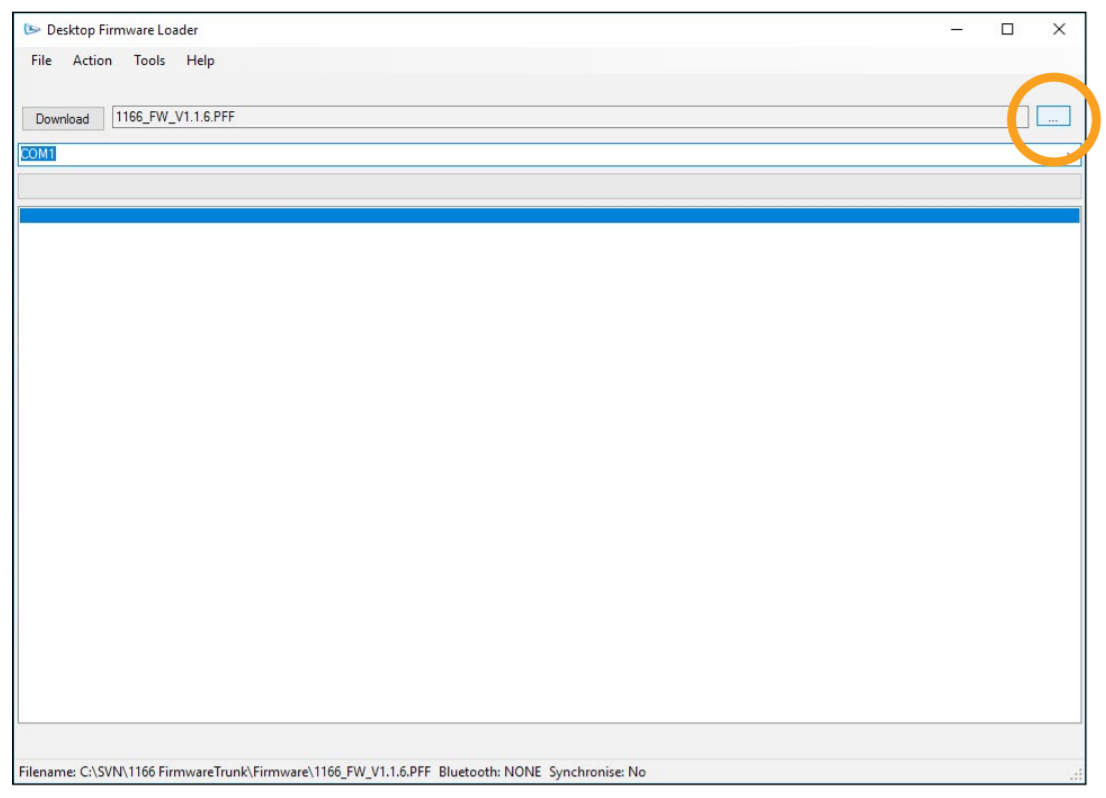 Locate and select the PFF file 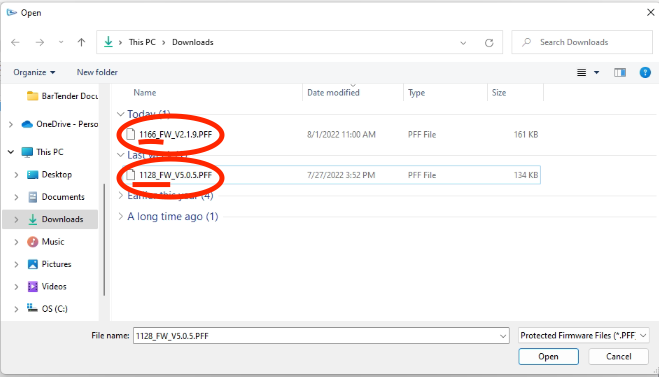 Connect the reader to the computer using the supplied USB cable. For TSL 1166 and TSL 2128, you will need to slide your reader into the docking cradle and connect the docking cradle to the computer via USB cable. 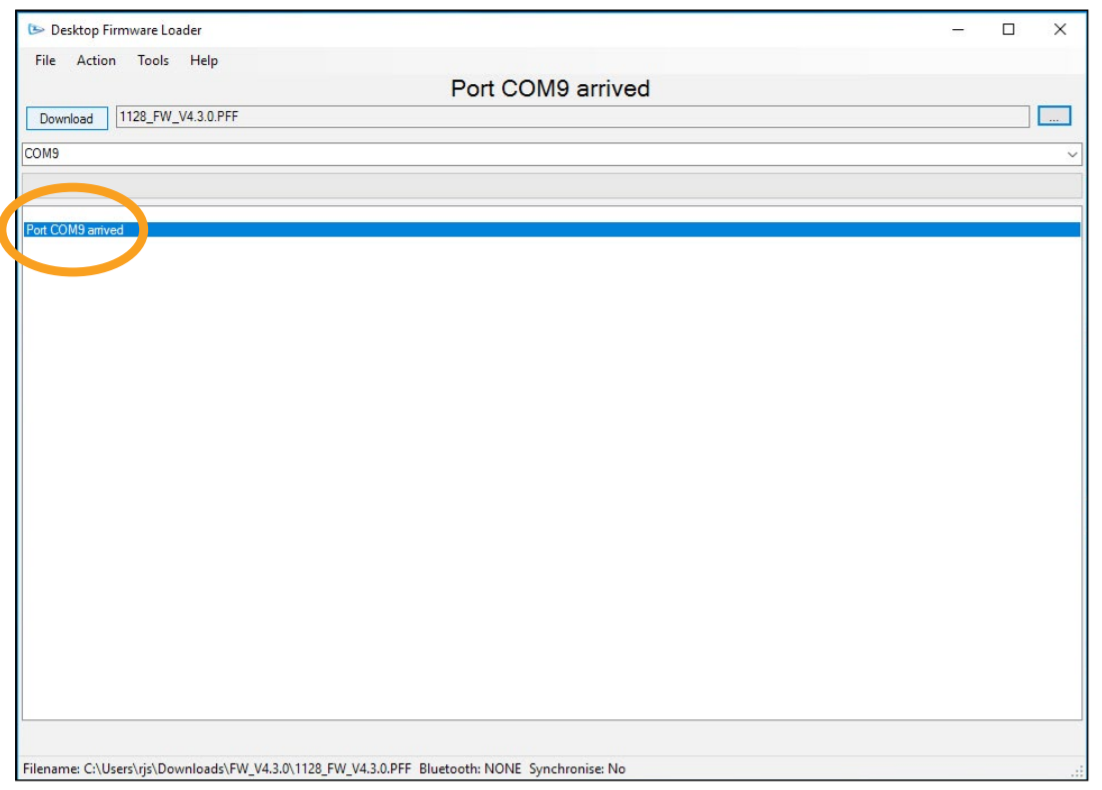If you don't see a message that a COM port has arrived (e.g. Port COM9 arrived), you may need to use a different USB cable.
Click “Download” to start the update process. Follow the download instructions. - You may be asked to wake the reader by pressing the trigger during the update process. - When you see the message that "Any iOS device must forget and re-pair with this reader before it can be used", the upgrade process is complete. "Forget" the device from your Bluetooth list in your system settings. --- ##### ****Verify Successful Installation****PLEASE NOTE: After firmware updates, any iOS devices MUST forget the scanner, then complete the pairing process again.
Once you have paired the app you can confirm the firmware version from the ****Connect Reader**** screen: [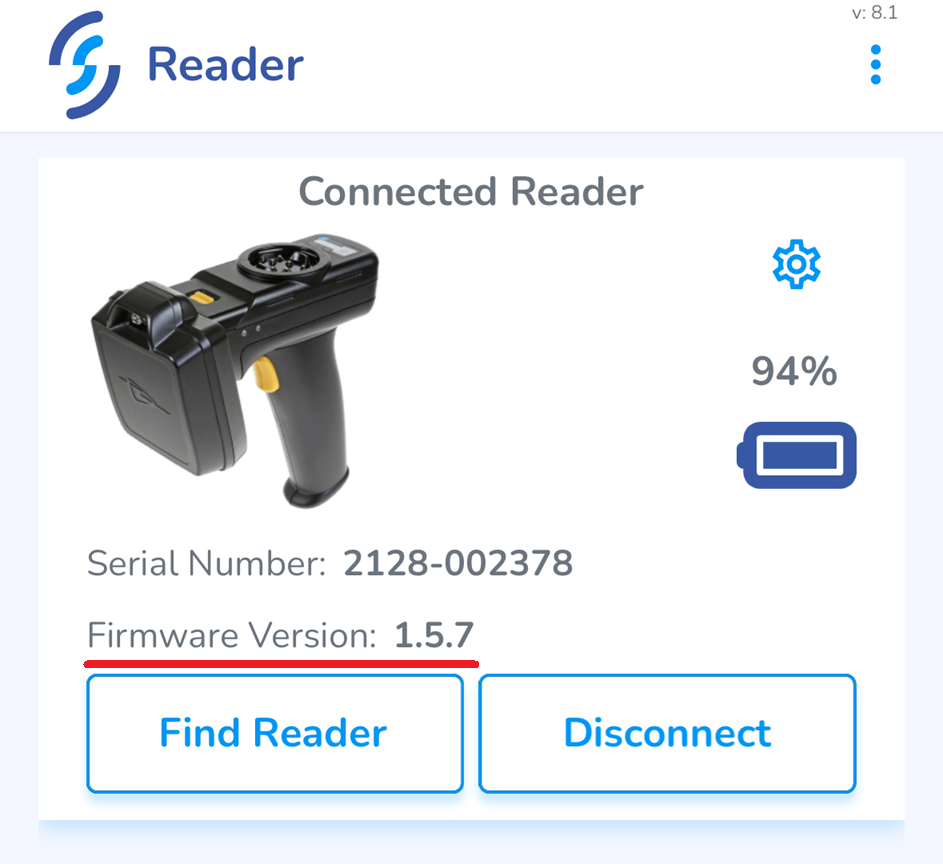](https://kb.simplerfid.com/uploads/images/gallery/2025-06/DCiimage.png)