# Set up MDM

This article describes the process of setting up the reader to get automatic updates.

### What is an MDM?

<span style="white-space: pre-wrap;">MDM stands for Mobile Device Management. It is software that runs on our UROVO devices, that allows us at Simple RFID to manage the device remotely. This allows us to send automatic updates, and troubleshoot issues. This means that we have visibility on when the device is used. We DO NOT have access to any location data, camera, or microphone. If you have any more questions or concerns about this software, please send a message to the support team. </span>

<p class="callout danger">This will completely reset the reader. If you are using the phone attached to the reader for anything other than Simple RFID, be aware that it will be deleted.</p>

### Hard Reset Device

1. Open the Settings app
2. <span style="white-space: pre-wrap;">Scroll down to the bottom and select </span>****System****
3. <span style="white-space: pre-wrap;">Scroll down and select </span>****Reset options****
4. <span style="white-space: pre-wrap;">Select </span>****Erase all data (factory reset)****
5. <span style="white-space: pre-wrap;">Select </span>****Erase all data****
6. <span style="white-space: pre-wrap;">Select </span>****Erase everything &amp; Reboot****

[![screen-20260421-112724 (1).gif](https://kb.simplerfid.com/uploads/images/gallery/2026-04/screen-20260421-112724-1.gif)](https://kb.simplerfid.com/uploads/images/gallery/2026-04/screen-20260421-112724-1.gif)

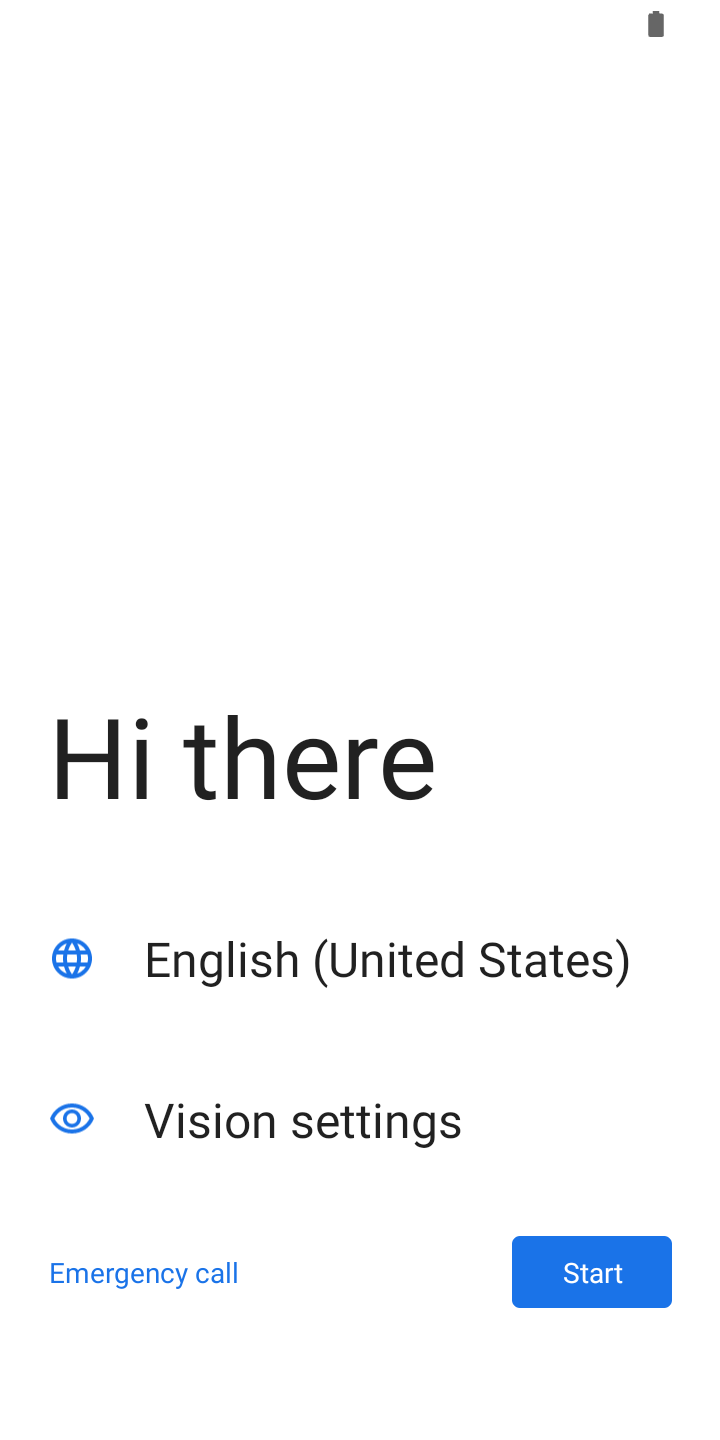
<span style="white-space: pre-wrap;">It will reset to the factory default settings. This may take a few minutes. After it is reset, you will see a screen that says </span>****Hi There****

<p class="callout danger"><span style="white-space: pre-wrap;">Do not select </span>****Start****. If you do, set up the phone and reset again to get on this page.</p>

[![Screenshot_20260107-072129.png](https://kb.simplerfid.com/uploads/images/gallery/2026-04/scaled-1680-/Wn9screenshot-20260107-072129.png)](https://kb.simplerfid.com/uploads/images/gallery/2026-04/Wn9screenshot-20260107-072129.png)

Tap the screen above the text 7 times in rapid succession. This will pull up a camera that is looking for a QR code. Scan this QR code:

[![image.png](https://kb.simplerfid.com/uploads/images/gallery/2026-04/scaled-1680-/hbuimage.png)](https://kb.simplerfid.com/uploads/images/gallery/2026-04/hbuimage.png)

This will download our software, and allow us to keep track of the reader. Accept all of the prompts, and you are all set!