This will completely reset the reader. If you are using the phone attached to the reader for anything other than Simple RFID, be aware that it will be deleted.
### Hard Reset Device 1. Open the Settings app 2. Scroll down to the bottom and select ****System**** 3. Scroll down and select ****Reset options**** 4. Select ****Erase all data (factory reset)**** 5. Select ****Erase all data**** 6. Select ****Erase everything & Reboot**** [](https://kb.simplerfid.com/uploads/images/gallery/2026-04/screen-20260421-112724-1.gif) It will reset to the factory default settings. This may take a few minutes. After it is reset, you will see a screen that says ****Hi There****Do not select ****Start****. If you do, set up the phone and reset again to get on this page.
[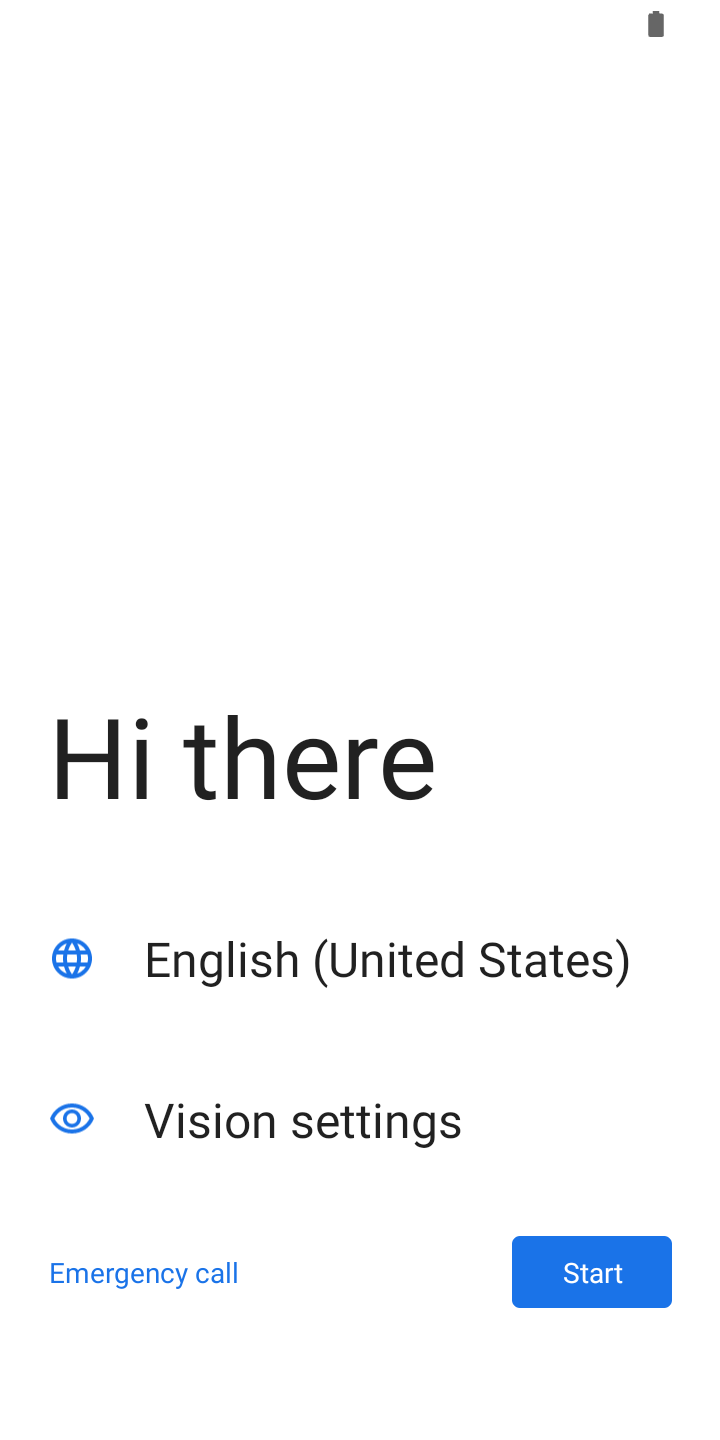](https://kb.simplerfid.com/uploads/images/gallery/2026-04/Wn9screenshot-20260107-072129.png) Tap the screen above the text 7 times in rapid succession. This will pull up a camera that is looking for a QR code. Scan this QR code: [](https://kb.simplerfid.com/uploads/images/gallery/2026-04/hbuimage.png) This will download our software, and allow us to keep track of the reader. Accept all of the prompts, and you are all set! # Set Up Device This article describes the process of installing the battery when your All-In-One reader arrives. ### InstructionsThe battery is included in the packaging along with the reader.
1\. On the bottom backside of the reader, unlock the handle [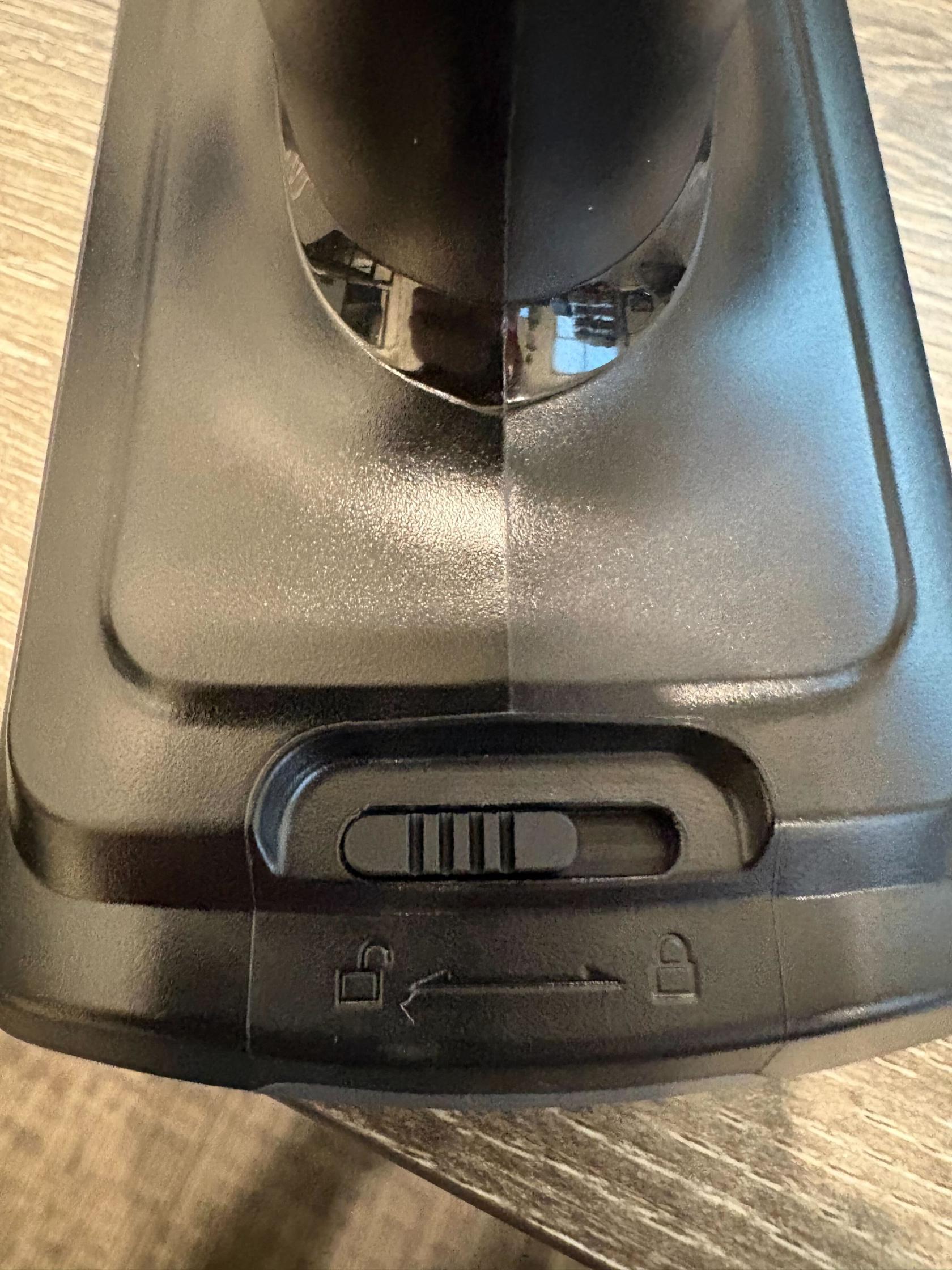](https://kb.simplerfid.com/uploads/images/gallery/2026-03/img-4675.jpg) 2\. Pull the handle off of the reader. It might take some force. 3\. Install the battery inside the red rubber band. Ensure that the arrows on the battery are facing towards the top of the reader. 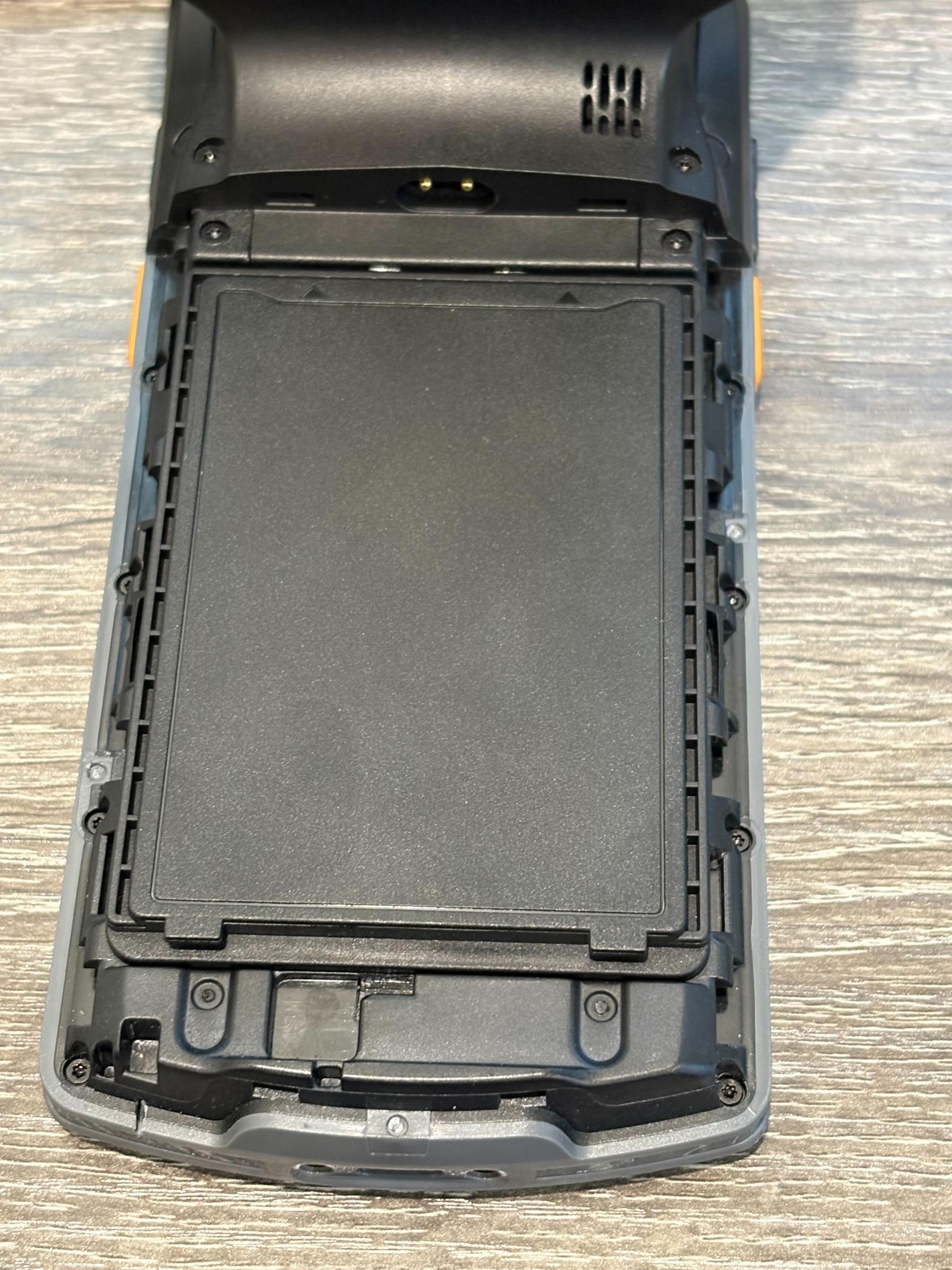4\. Put the handle back on the reader and lock it 5\. Hold the power button on the top of the phone until it buzzes The Simple RFID app should be preinstalled and ready to use on the home screen.You will need to connect to your WiFi network in the settings on the reader.