# Create an Audit from the Mobile App - Shopify

This article describes the process of creating an Audit on the Simple RFID mobile app

<p class="callout danger"><span style="white-space: pre-wrap;">This feature is currently only available for customers using our Shopify integration. For all other customers, refer to the </span>[Audit &amp; Compare article](https://kb.simplerfid.com/books/scanning-auditing/page/audit-compare)</p>

<p class="callout info"><span style="white-space: pre-wrap;">For more information on the full Audit process, </span>[refer to this article](https://kb.simplerfid.com/books/auditing/page/audit-shopify)</p>

### ****Create an Audit****

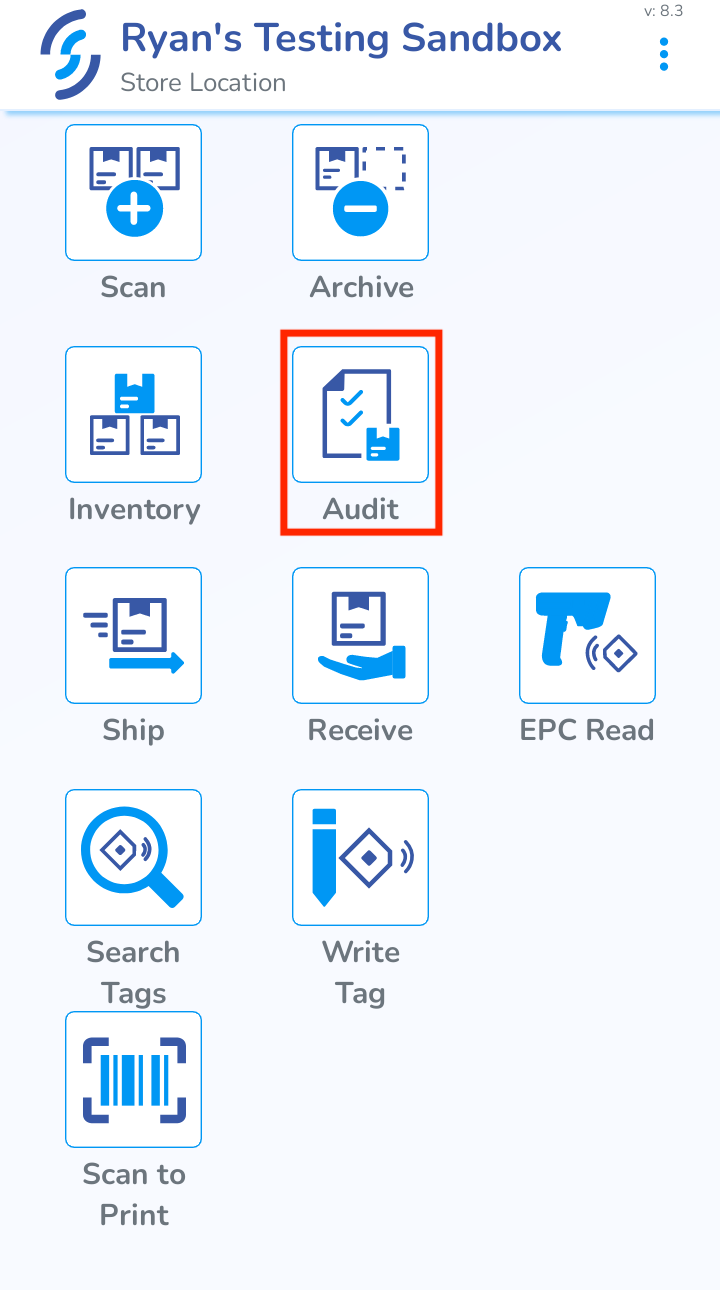
<span style="white-space: pre-wrap;">In the Simple RFID mobile app, navigate to the </span>****Audit****<span style="white-space: pre-wrap;"> page.</span>

[![screenshot-20260512-1653462.png](https://kb.simplerfid.com/uploads/images/gallery/2026-05/scaled-1680-/O2iscreenshot-20260512-1653462.png)](https://kb.simplerfid.com/uploads/images/gallery/2026-05/O2iscreenshot-20260512-1653462.png)

<span style="white-space: pre-wrap;">From here you will see all of the current Audits in </span>****Draft****<span style="white-space: pre-wrap;"> and </span>****Open****<span style="white-space: pre-wrap;">. Tap the </span>****Create New Audit****<span style="white-space: pre-wrap;"> button on the bottom of the page.</span>

[![Screenshot_20260514-175417~2.png](https://kb.simplerfid.com/uploads/images/gallery/2026-05/scaled-1680-/screenshot-20260514-1754172.png)](https://kb.simplerfid.com/uploads/images/gallery/2026-05/screenshot-20260514-1754172.png)

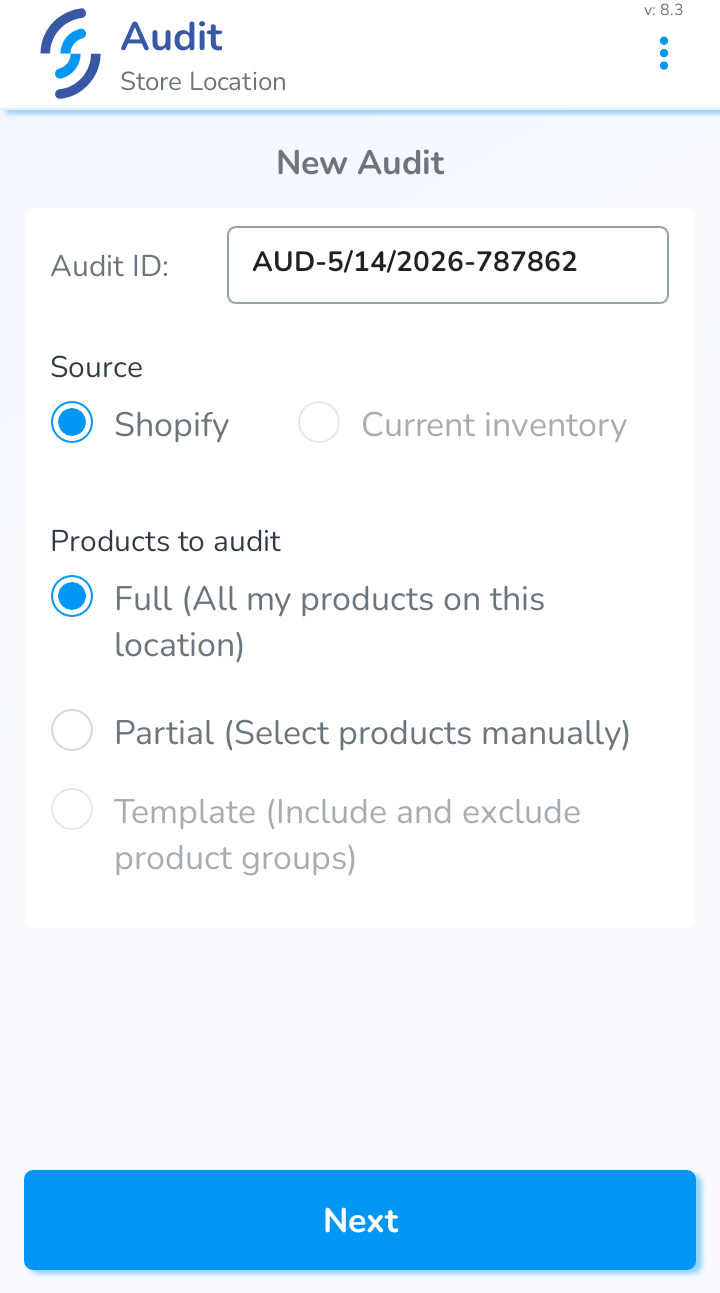
<span style="white-space: pre-wrap;">You can name the Audit, and choose either </span>****Full**** <span style="white-space: pre-wrap;">or </span>****Partial****<span style="white-space: pre-wrap;"> as the type. In a </span>****Partial Audit****, you can search for products that you want to recount.

<p class="callout info">****Templates****<span style="white-space: pre-wrap;"> are currently only available on the web version</span></p>

### ****Start Audit****

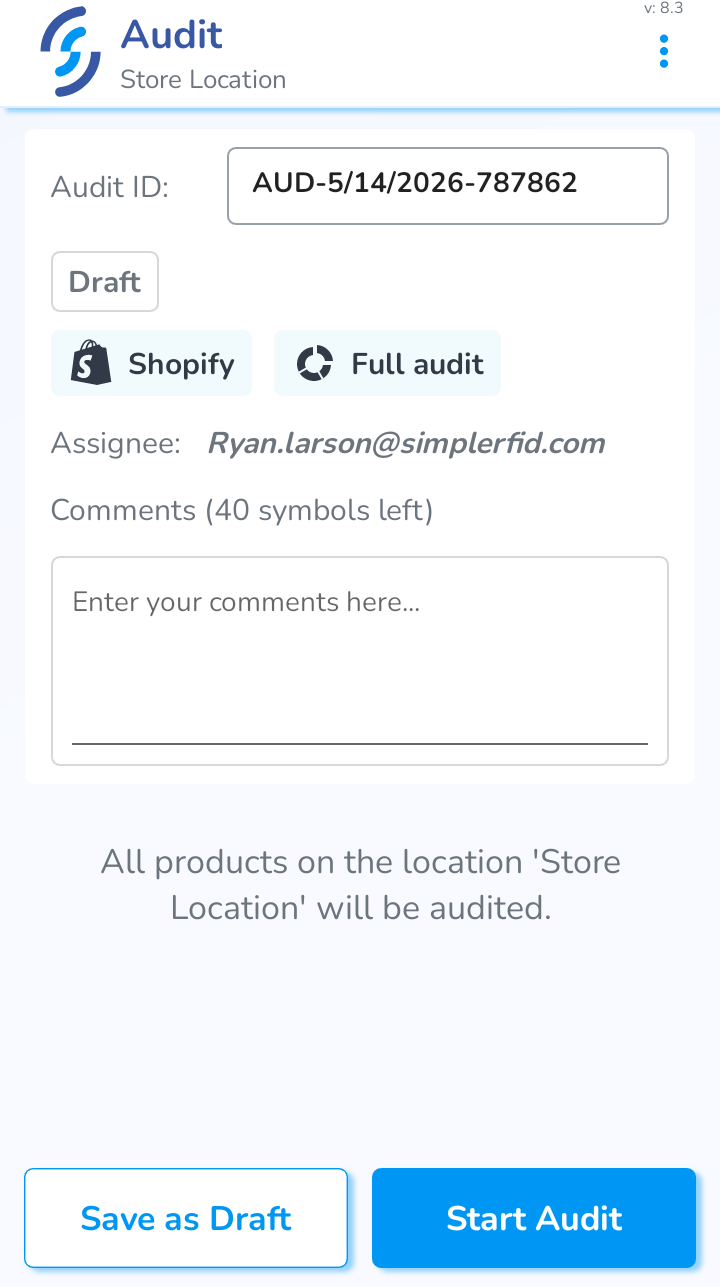
<span style="white-space: pre-wrap;">When you select the Audit type, you will have a few options. You can change the </span>****Name****<span style="white-space: pre-wrap;">, add </span>****Comments****<span style="white-space: pre-wrap;"> to the Audit, and either </span>****Save as Draft****<span style="white-space: pre-wrap;"> or </span>****Start Audit****.[![Screenshot_20260514-180057~2.png](https://kb.simplerfid.com/uploads/images/gallery/2026-05/scaled-1680-/screenshot-20260514-1800572.png)](https://kb.simplerfid.com/uploads/images/gallery/2026-05/screenshot-20260514-1800572.png)

****Save as Draft****<span style="white-space: pre-wrap;"> will save the Audit normally</span>

****Start Audit****<span style="white-space: pre-wrap;"> will go straight to the scanning portion.</span>