This type of audit is focused on managing inventory without integrations.
Please refer to [Audit - Shopify](https://kb.simplerfid.com/books/auditing/page/audit-shopify) if the Shopify integration is being used.
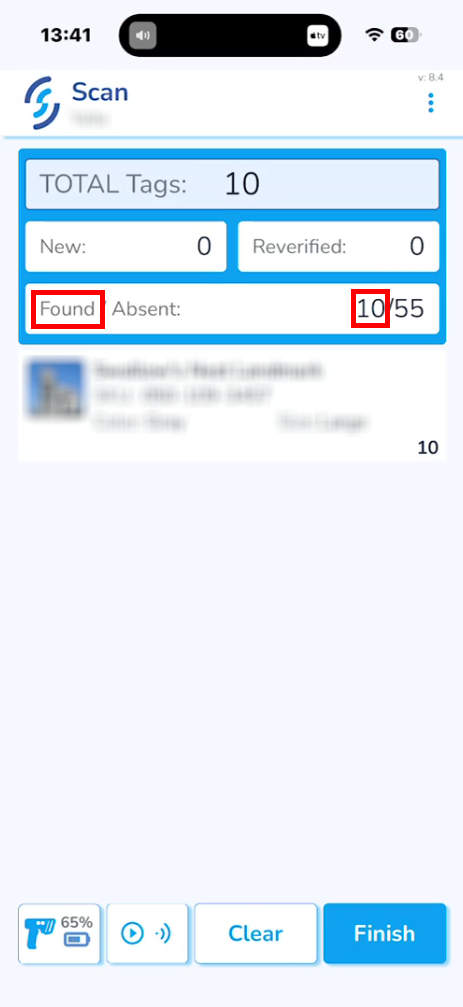
##### Open the ****Simple RFID**** app on your scanner or phone that is paired with a scanner. [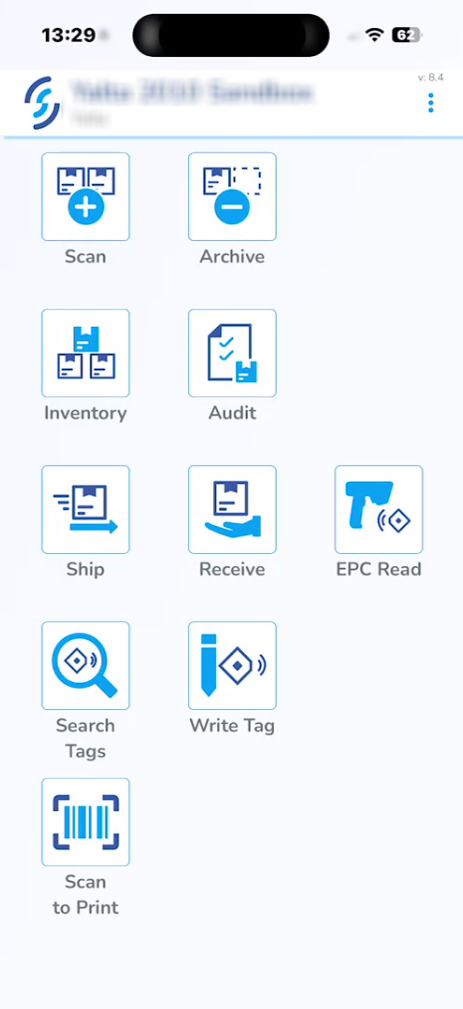](https://kb.simplerfid.com/uploads/images/gallery/2026-06/fPEimage.png) ##### On the homepage, click *****Scan*****. [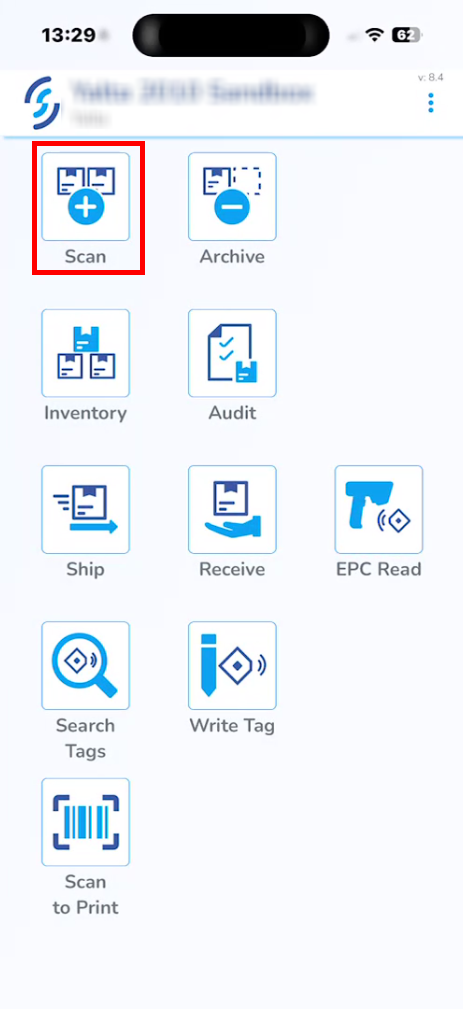](https://kb.simplerfid.com/uploads/images/gallery/2026-06/LaZimage.png) ##### Select *****Audit*****. [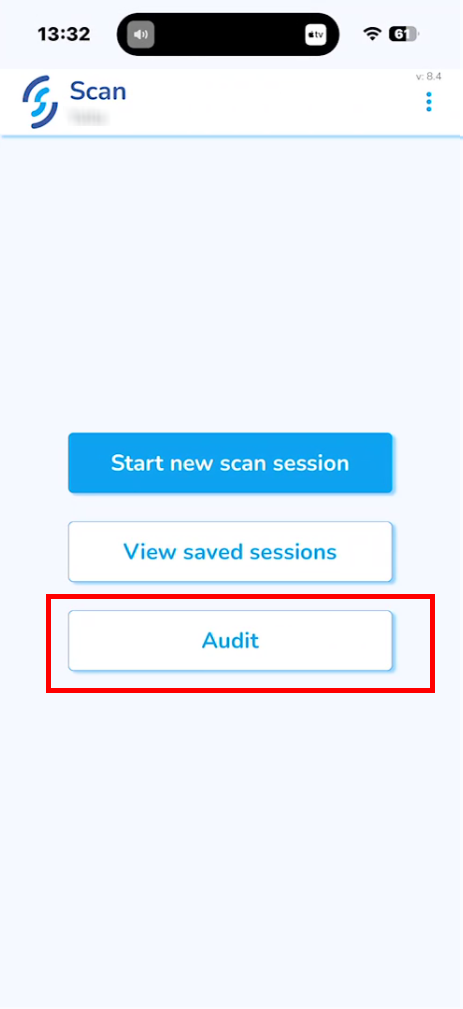](https://kb.simplerfid.com/uploads/images/gallery/2026-06/mXcimage.png) ##### Click *****Yes***** when prompted: "**Your Inventory will be cleared!**" [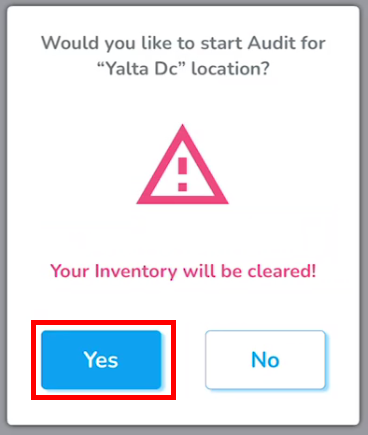](https://kb.simplerfid.com/uploads/images/gallery/2026-06/5e2image.png) ##### After accepting the prompt, you will be taken back to the ****Scan**** menu. ##### Select *****Start new scan session*****. [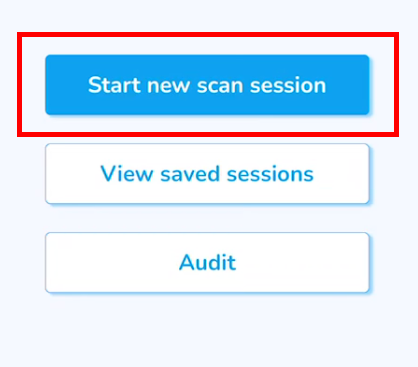](https://kb.simplerfid.com/uploads/images/gallery/2026-06/m6Yimage.png) ##### This step is similar to the regular [scan](https://kb.simplerfid.com/books/mobile-app/page/scan). ##### Items that existed in the inventory before it was cleared will be marked as ****Found****.Items that are already in the active inventory and are scanned during this session will be marked as ****Reverified**** and will not be counted towards the main quantity during upload to avoid double-counting.
[](https://kb.simplerfid.com/uploads/images/gallery/2026-06/WG6image.png) ##### Click *****Upload to inventory***** and *****Ok*****. [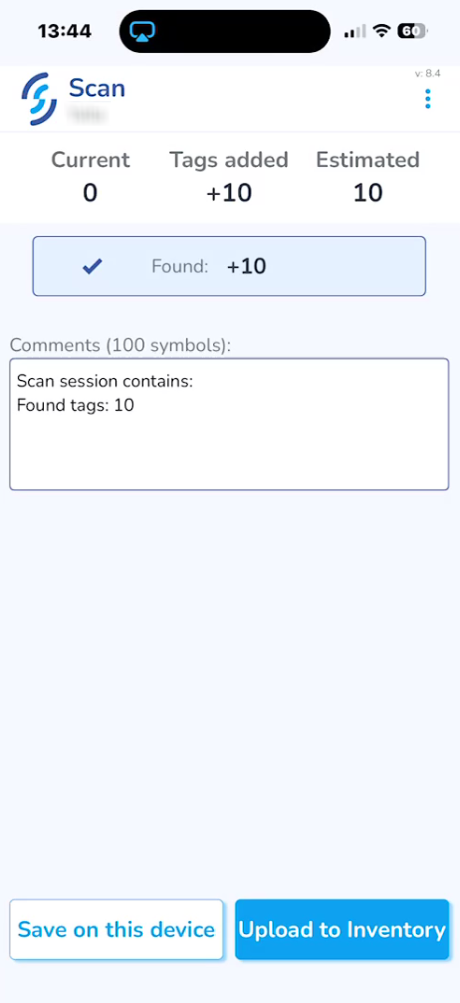](https://kb.simplerfid.com/uploads/images/gallery/2026-06/Lrrimage.png) ##### After the scan session is uploaded, go to the [SimpleRFID](https://portal.simplerfid.com/) web portal and click *****Inventory*****. ##### All the ****Found**** products will be under the ****Verified**** tab. [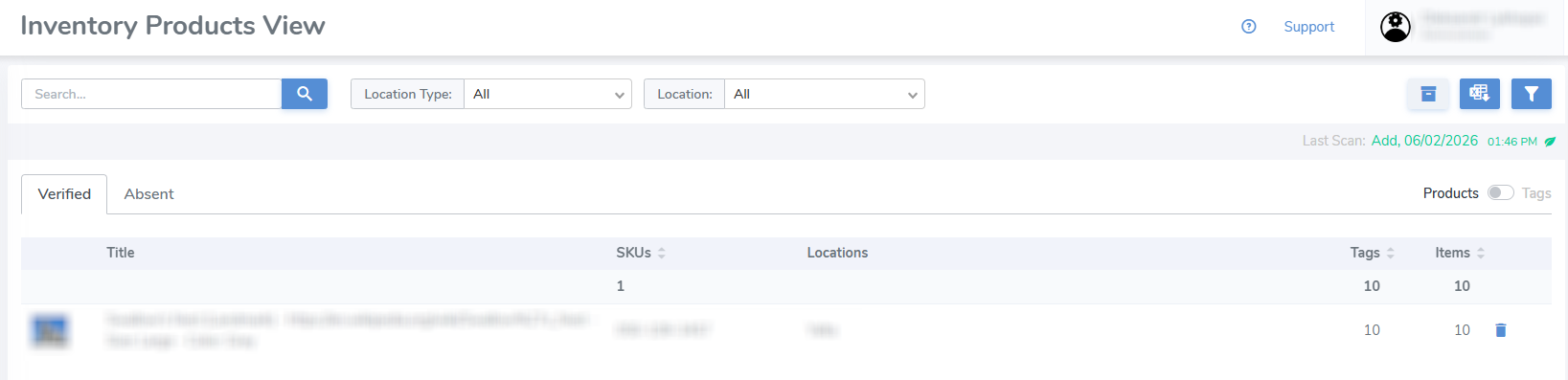](https://kb.simplerfid.com/uploads/images/gallery/2026-06/4hXimage.png) ##### The products that were not found during the audit scan will be under the ****Absent**** tab. [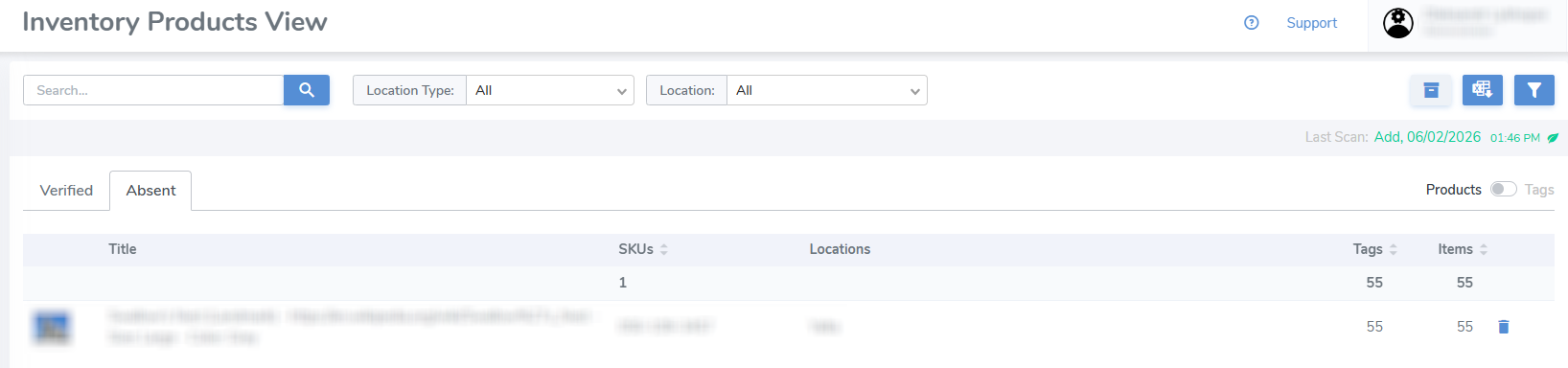](https://kb.simplerfid.com/uploads/images/gallery/2026-06/VjFimage.png) ##### The report of the current inventory can be downloaded by clicking the second button in the top-right corner. [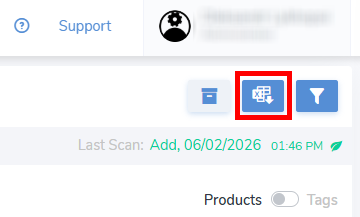](https://kb.simplerfid.com/uploads/images/gallery/2026-06/OVMimage.png)It's possible to download 2 different reports, one for ****Verified**** and another for ****Absent**** items, which depends on which ****Inventory**** tab is currently open.
##### ##### Each report is meant to represent specific information, but all of them can be downloaded. [](https://kb.simplerfid.com/uploads/images/gallery/2026-06/esvimage.png)The audit scan session can also be viewed and its report obtained via the [Scan Sessions](https://kb.simplerfid.com/books/web-portal/page/scan-sessions) tab in the navigation menu.