Legacy Audit mode can be enabled or disabled from the customer profile menu using the switch button at all times.
##### On the [SimpleRFID](https://portal.simplerfid.com/) web portal, click your account name and select ****Customer Profile****. [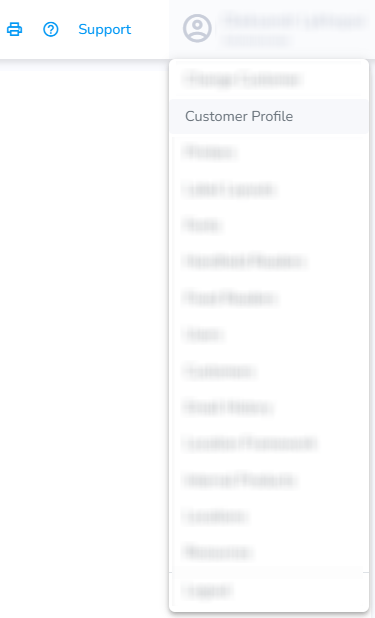](https://kb.simplerfid.com/uploads/images/gallery/2026-05/l2simage.png) ##### On the Customer Profile page, you can switch to use the Legacy Audit mode [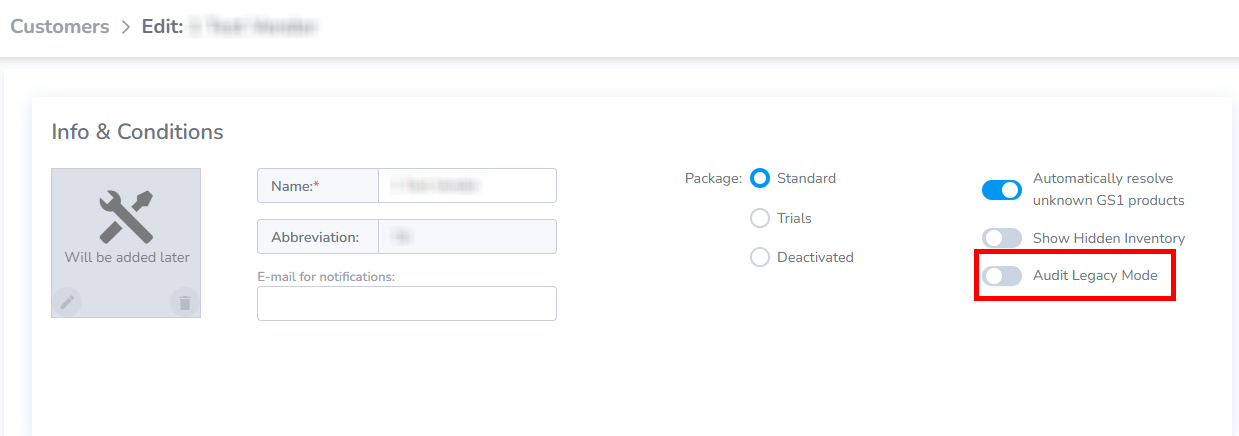](https://kb.simplerfid.com/uploads/images/gallery/2026-05/lQeimage.png)Doing so will change the Audit process! Both modes have their own set of actions required for a successful Audit.
The instructions for the Legacy Audit Mode can be found here: [Shopify: Compare & Sync](https://kb.simplerfid.com/books/integrations/page/shopify-compare-sync) and [Audit & Compare Shopify](https://kb.simplerfid.com/books/auditing/page/audit-compare-shopifyauditing-against-on-hand-inventory).
The instructions for the New Audit flow can be found here: [Audit & Compare](https://kb.simplerfid.com/books/auditing/page/audit-compare) and [Audit - Shopify](https://kb.simplerfid.com/books/auditing/page/audit-shopify)